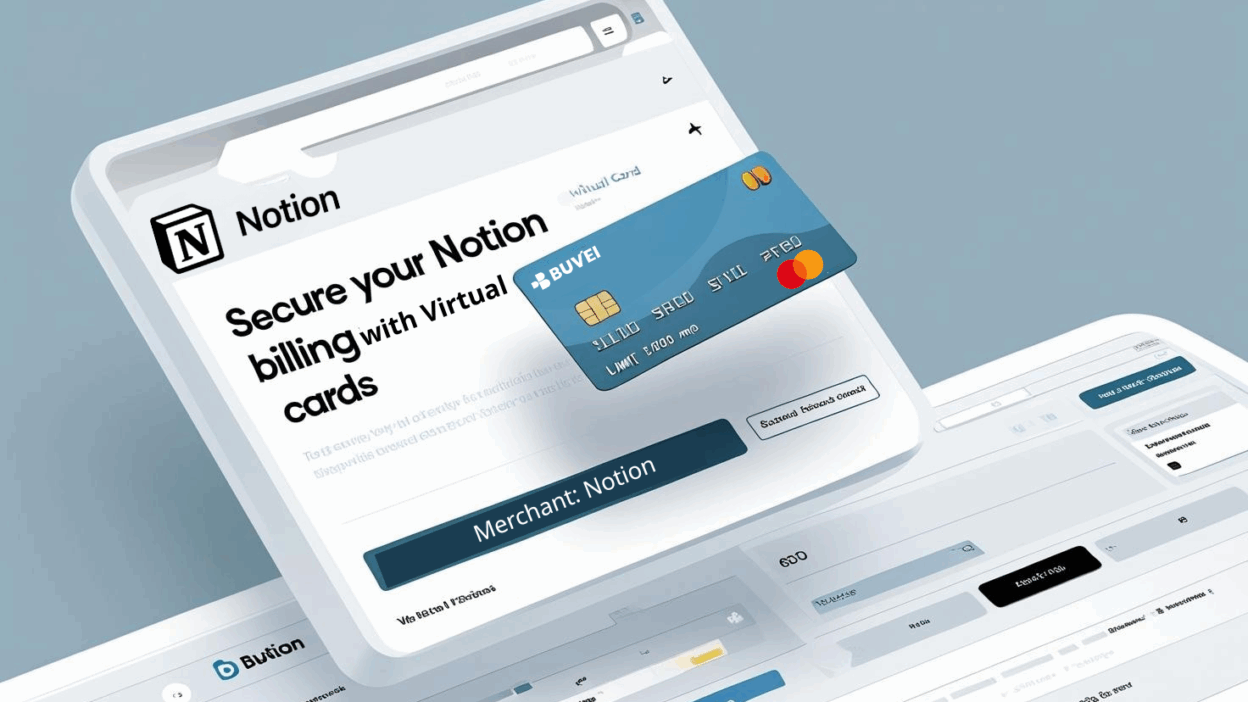
Still linking a physical credit card to your Notion account? You might be exposing your business to unnecessary risk:
-
Foreign payment rejections or unpredictable declines
-
SaaS charges mixed across tools, making accounting messy
-
No quick way to cancel or pause payment when needed
With a dedicated virtual card, managing your Notion billing becomes safer and far more controllable. Platforms like Buvei give you merchant-locked cards, adjustable limits, and instant pause/delete functions—ideal for modern SaaS workflows.
Whether you're a solo user or managing a remote team, this guide walks you through how to connect a Buvei virtual card to your Notion subscription in just a few steps.
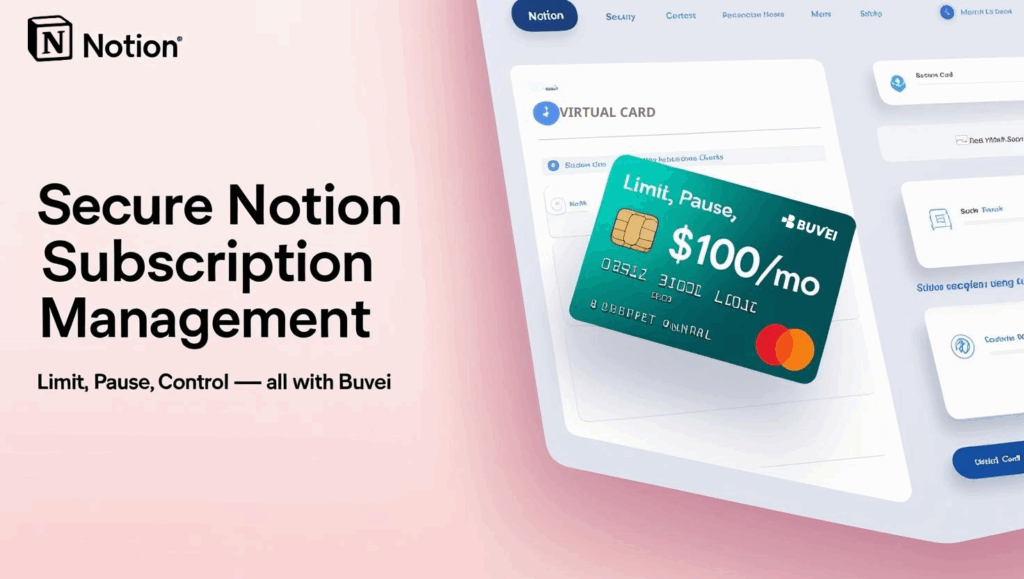
Why Use a Virtual Card for Notion?
A virtual card isn’t just a payment method—it’s a smart way to secure your SaaS stack. Benefits include:
💳 Prevent exposure of your real credit card
🔒 Set spending limits to avoid surprise charges
📥 Instantly pause or delete the card to cancel service
🧾 Assign unique cards to each SaaS platform for clearer billing
Step-by-Step: Link a Buvei Virtual Card to Notion
Step 1: Log into Your Notion Account
-
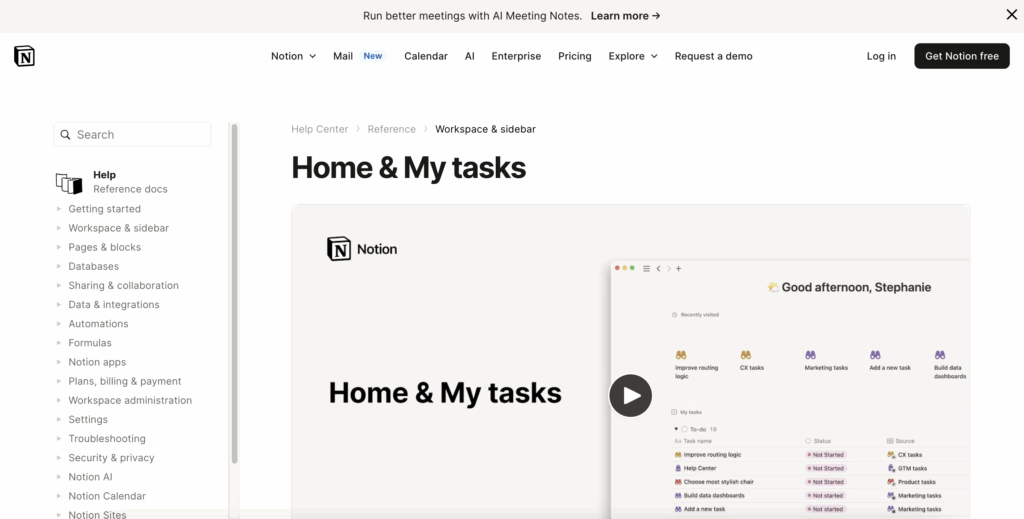
Go to notion.so and sign in
-
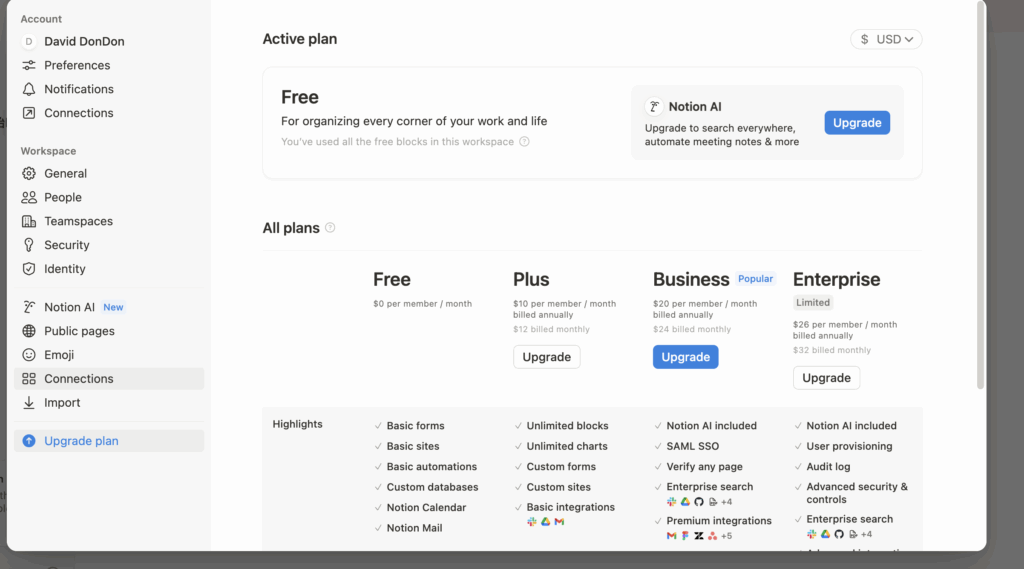
Click your workspace name in the lower-left corner
-
Select “Settings & Members” → “Upgrade Plan”
-
Choose your preferred subscription: Plus / Business / Enterprise
Step 2: Enter Your Buvei Virtual Card Info
Once you’ve selected a plan, a payment form will appear. Fill it out using the virtual card info from Buvei:
-
Card Number: Your 16-digit Buvei virtual card number
-
MM/YY: Expiration date
-
CVV: Security code
-
Cardholder Name: As shown on your Buvei card
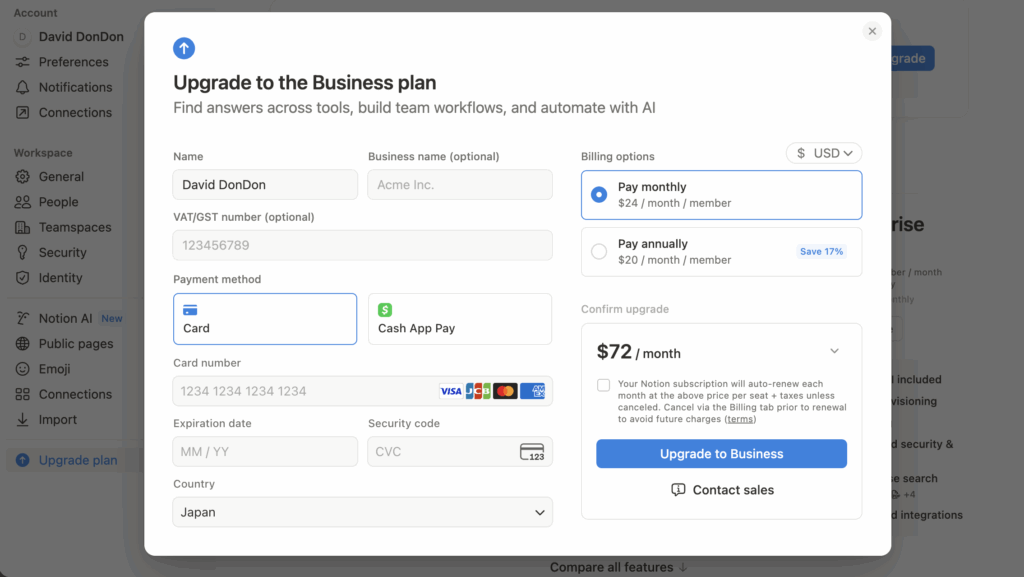
Choose between monthly or annual billing and click Save. The payment will be processed, and your upgraded Notion plan will be activated.
You can view future Notion charges in your Buvei dashboard, and pause or delete the card anytime without involving customer support.
Don’t Have a Buvei Card Yet? Here’s How to Get One
Creating a Buvei virtual card takes just a few minutes:
-
Go to https://buvei.com and sign up
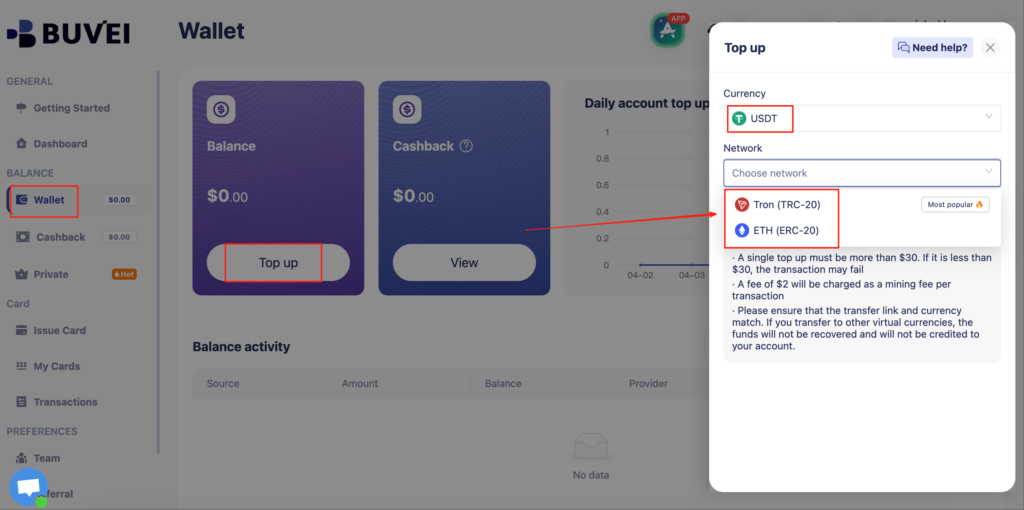
- Navigate to the Wallet section to top up your account
- Go to Payments → Create Card,Choose a card type: Mastercard
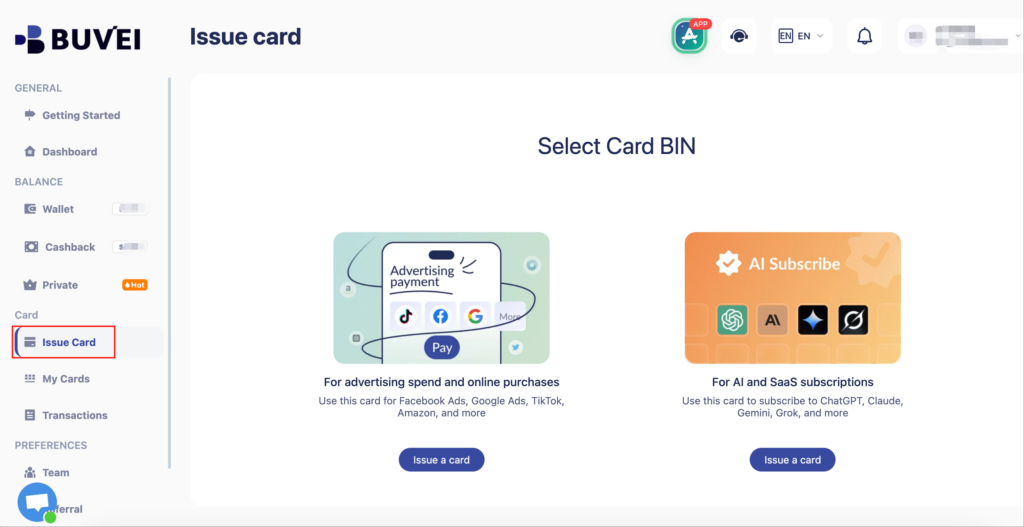
- Set your card name, email, and spend limit
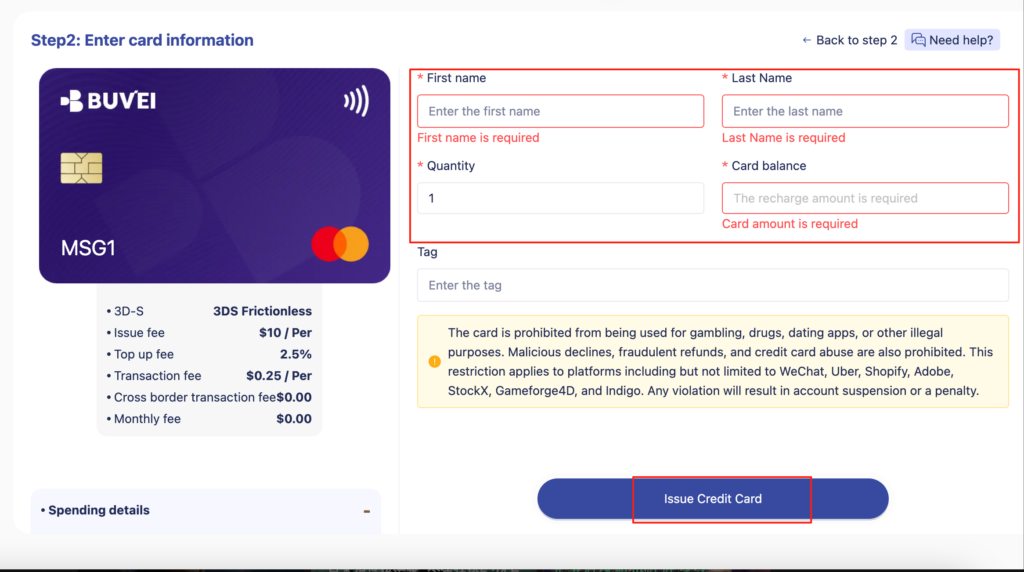
-
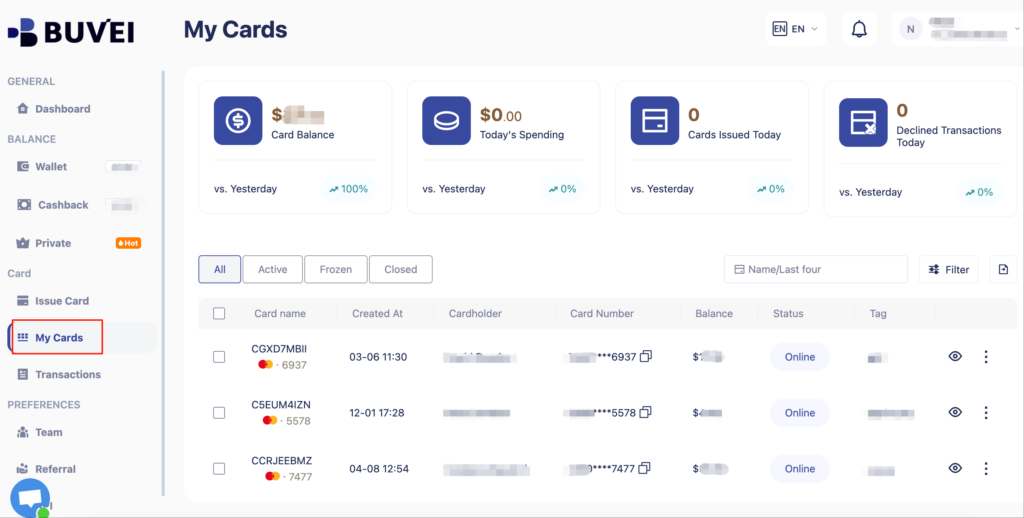
Once created, copy the card info and use it to complete your Notion payment:
-
Card Number
-
Expiration Date (MM/YY)
-
CVV
-
Cardholder Name (usually system-generated)
Practical Tips for SaaS Subscription Control
-
Create one virtual card per tool (Notion, Figma, Slack, etc.) to keep budgets clean
-
For teams, set fixed monthly limits on each card to avoid unexpected upgrades
-
Need to cancel? Just pause or delete the card in your Buvei dashboard—no email or call required
Buvei Virtual Cards = SaaS Subscription Peace of Mind
Whether you're a freelancer, startup founder, or scaling team, Buvei gives you full visibility and control over every cent of SaaS spend. No more personal cards. No more guessing what charged what.
👉 Ready to take control? Start with a Buvei virtual card today.