Upwork is a top-tier global freelancing platform connecting businesses with independent talent. Whether you're a freelancer upgrading to Freelancer Plus or a client subscribing to Upwork Plus, managing recurring billing securely is key.
By using a Buvei virtual card, you can gain better control over your Upwork subscriptions, reduce billing risks, and avoid unauthorized charges.
Step 1: Log In and Access Billing Settings on Upwork
-
Visit https://www.upwork.com,Log in to your account

-
Click your profile picture in the top right > Settings
-
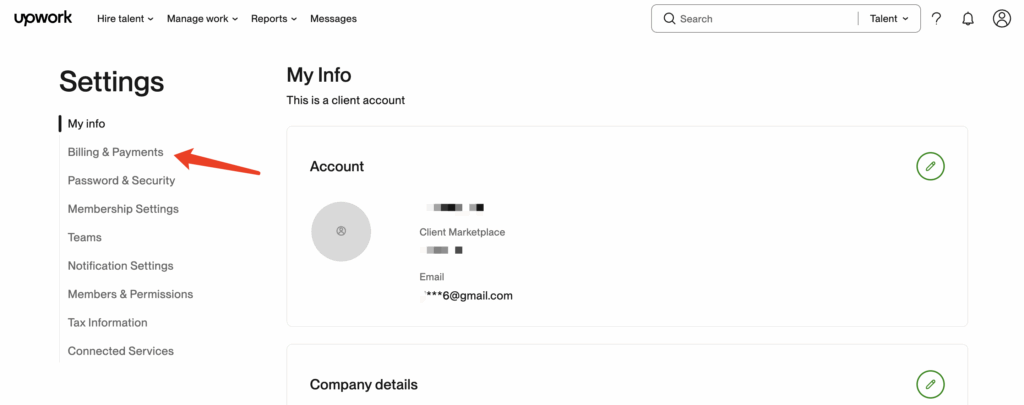
Navigate to the Billing Methods section on the left menu
Step 2: Add a Buvei Virtual Credit Card as Payment Method
-
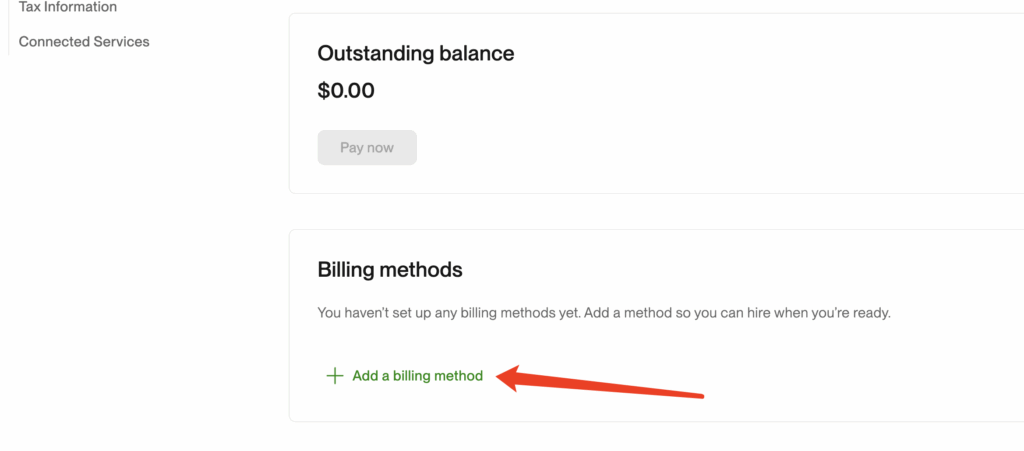
On the Billing Methods page, click Add a Billing Method
-
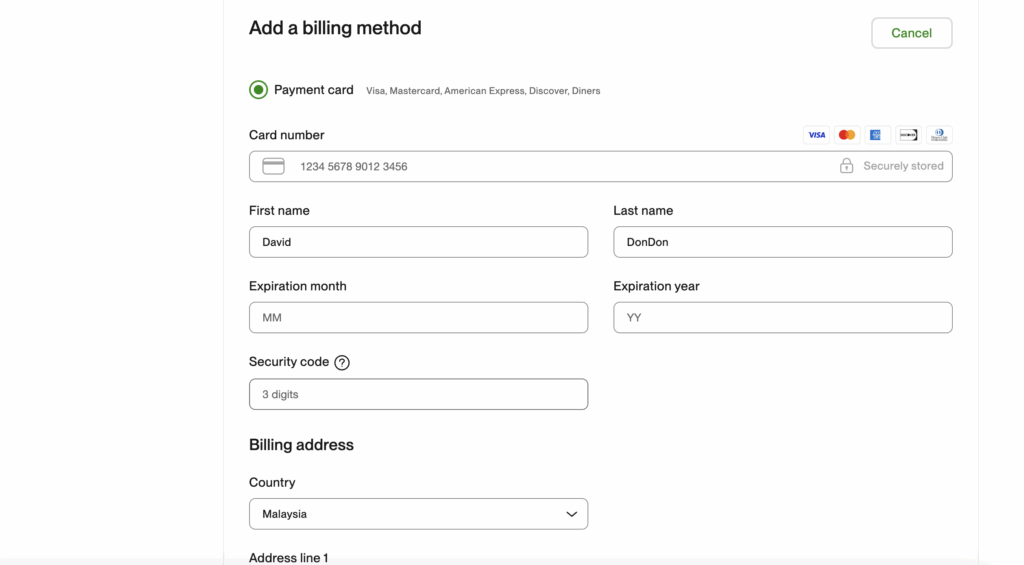
Choose Credit or Debit Card
-
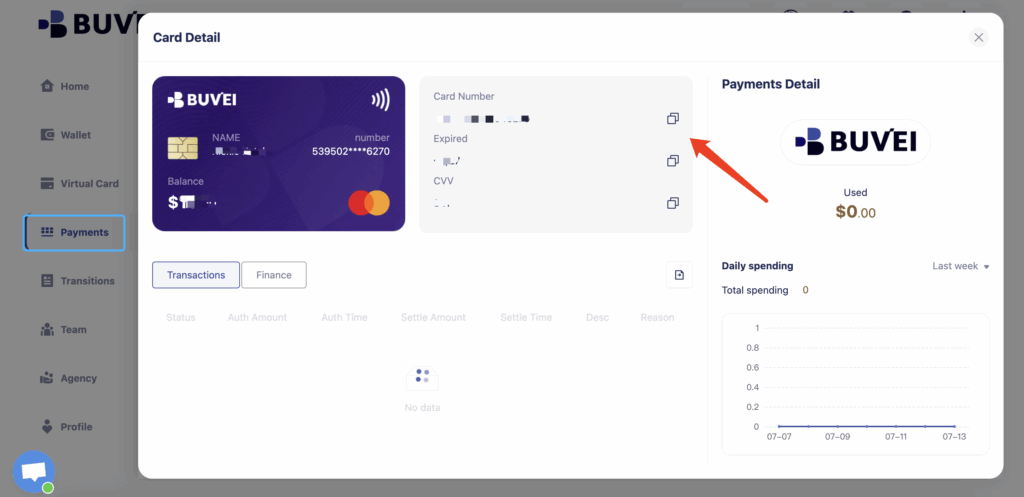
Enter your Buvei virtual card details:
-
Name on Card: Use the cardholder name shown in Buvei
-
Card Number: Copy from your Buvei account
-
Expiry Date & CVV: From Buvei’s Payments page
-
Step 3: Subscribe to Upwork Plus or Freelancer Plus
-
Go to the Upwork Subscription Settings page
-
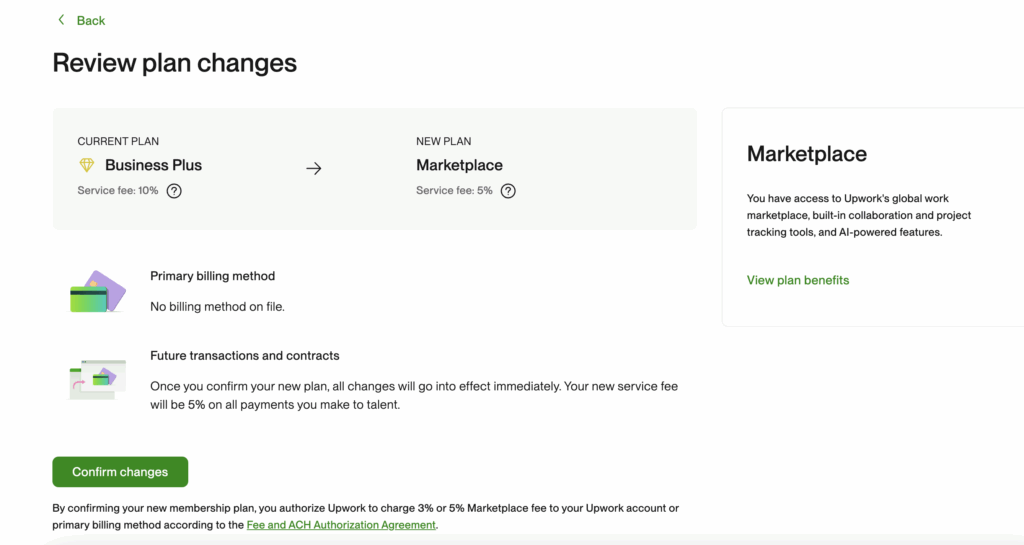
Choose your preferred subscription plan:
-
Freelancer Plus: $14.99/month (more connects, visibility tools)
-
Upwork Plus (for clients): $49.99/month (enhanced project exposure)
-
-
Click Upgrade Plan
-
Upwork will automatically charge your linked Buvei card
🔁 After binding, monthly billing will automatically be processed via your Buvei virtual card, enabling isolated billing and better spend control.
Haven’t Created a Buvei Virtual Card Yet? Follow These Steps:
-
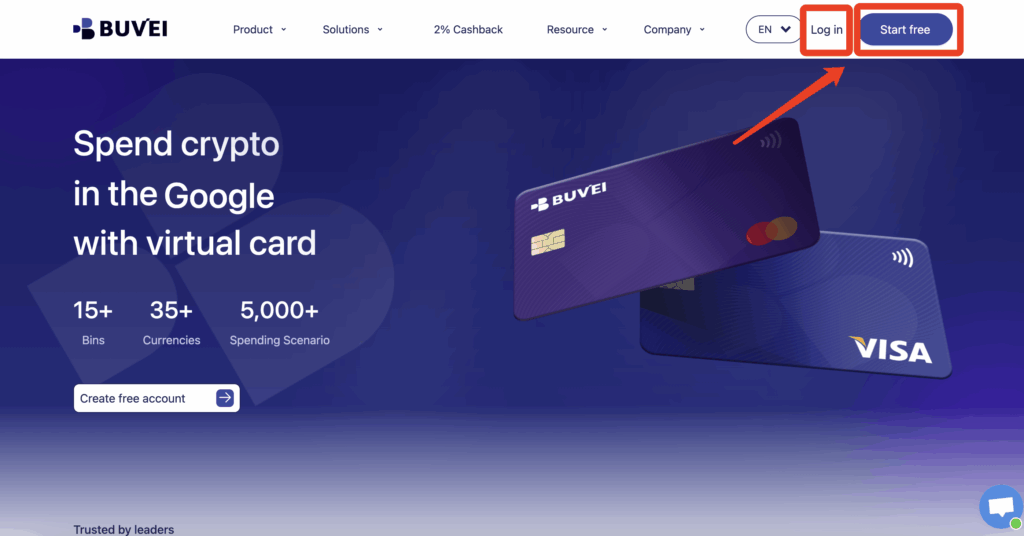
Sign up/Sign in at buvei.com
If you haven’t signed up yet, simply click 'Start Free' to register quickly with your email.
-
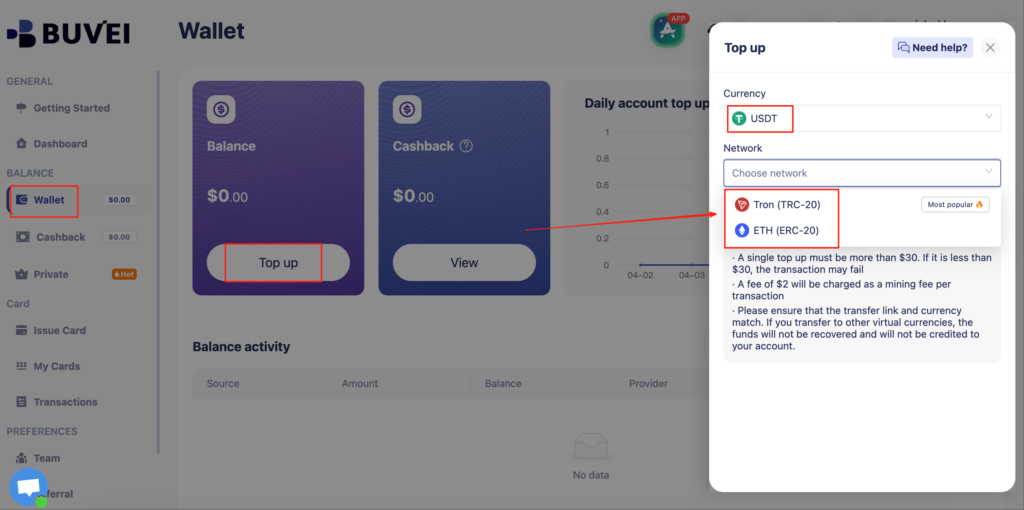
Top up your wallet under the “Wallet” tab
-
Choose TRC20 or ERC20 USDT
-
Use your crypto wallet to send funds
-
Wait for the balance to reflect (Note: Make sure the network matches your transfer — TRC20 or ERC20)
-
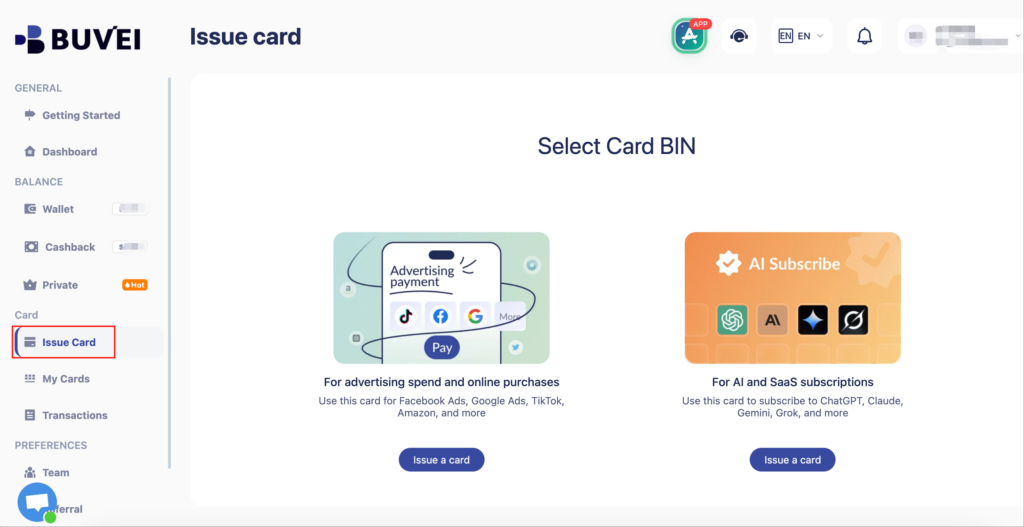
Go to “Virtual Cards”
-
Click Confirm and proceed to issue
-
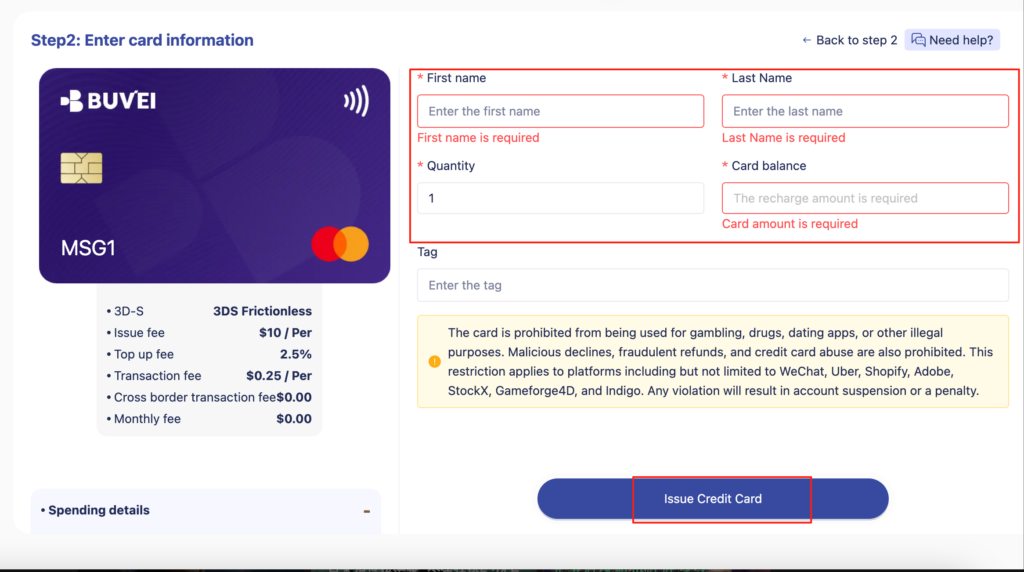
Enter cardholder details, email, card quantity, and desired top-up amount
-
Click Issue Credit Card to generate your virtual card
-
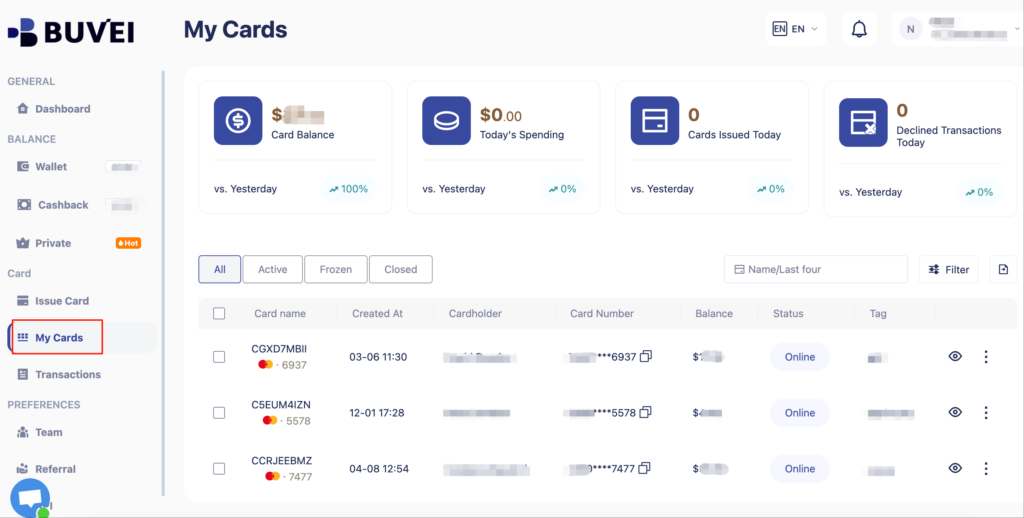
View your card in the “Payments” section:
-
Check card details (name, number, expiry, CVV)
-
Recharge, withdraw, or delete the card at any time
Why Use a Virtual Card for Upwork Subscriptions?
| Feature | Benefit |
| 💳 One card per platform | Clean billing, easier financial tracking |
| 🔒 Spending limits | Prevent overcharges or unwanted renewals |
| 🧾 Clear usage logs | Simplify reconciliation for business accounts |
| 🌍 Multi-currency recharge | No need for traditional bank intermediaries |
Pro Tips for Freelancers and Teams
-
Assign different virtual cards to different Upwork accounts for separate tracking
-
If you’re testing the platform, use a low-limit card and disable it post-subscription
-
Set up billing alert emails in Upwork and monitor card activity in Buvei for double-layer security

Frequently Asked Questions
-
Can I use a virtual card on Upwork both as a client and as a freelancer?
Yes. Buvei virtual cards support subscriptions for Freelancer Plus on freelancer accounts, and can also be used by client accounts to pay for Upwork Plus memberships or contract fees. -
What should I do if I want to cancel my Upwork subscription later?
You can cancel directly in your Upwork account under Membership & Connects or Subscription Settings. If needed, you can also manage the virtual card in the Buvei dashboard to prevent any future automatic charges. -
What if payment fails when using a virtual card on Upwork?
Please check the following:
-
Whether the card balance is sufficient (within limits)
-
Whether the selected BIN supports Upwork (Mastercard is recommended)
-
Whether the card number, CVV, and expiration date are entered correctly If the issue persists, you can pause the current card and generate a new virtual card in the Buvei dashboard, then try binding it again.
-
Is Buvei suitable for teams managing multiple freelancers or clients?
Absolutely. Buvei’s business accounts support:
-
Bulk generation of multiple virtual cards with one click
-
API automation for card issuance and spending policies
-
Permission settings for employees and team members
📨 Ready to take control of your freelance billing? Issue your Buvei virtual card now and experience frictionless, secure billing with Upwork. 👉 Click here to get started