



A virtual card for Zapier can be useful for users who want to separate automation expenses from their primary payment card. As Zapier usage grows, subscription costs and usage-related charges can also become harder to track. While Zapier supports card payments, virtual cards are not listed as a separate guaranteed payment method so acceptance can depend on the card issuer, region, and transaction requirements. This guide explains how to pay for Zapier with a virtual card, what to check before making a payment, and how to manage Zapier-related expenses in 2026.
What Payment Methods Does Zapier Accept?
Before adding a virtual card, it is helpful to understand Zapier’s available payment methods.
Zapier broadly supports credit card payments, while other options such as PayPal, ACH, and invoicing may be available depending on the customer’s location, account type, or plan. Zapier also supports multiple billing currencies, including USD, EUR, GBP, CAD, AUD, JPY, and several others. Some card transactions may require additional authentication, such as 3D Secure.
| Payment Method | Typical Use | Availability |
| Credit card | Individual and business subscriptions | Broad |
| PayPal | Users who prefer PayPal | Region dependent |
| ACH | Eligible U.S. customers | Limited |
| Invoicing | Enterprise customers | Plan dependent |
| Virtual card | Dedicated expense management | Depends on issuer |
An important distinction is that Zapier’s payment documentation generally refers to credit cards and other supported payment methods rather than treating virtual cards as a separate payment category.
Therefore, a virtual card should be viewed as a potential card-payment option rather than a guaranteed method for every Zapier account. Before relying on one for recurring billing, check whether the card issuer and transaction configuration meet Zapier’s payment requirements.
Why Use a Virtual Card for Zapier?
A virtual card is not necessary for every Zapier user. For freelancers, developers, agencies, and small businesses that use several online services, however, a dedicated card can make software expenses easier to organize.
Instead of charging Zapier to the same card used for everyday purchases, you can assign a virtual card specifically to automation or software expenses. This creates a clearer transaction history and makes it easier to identify Zapier charges when reviewing monthly spending.
A virtual card can also complement Zapier’s own usage monitoring. Because Zapier costs can vary with task usage and billing configuration, separating the payment method from other expenses can make unexpected changes easier to spot.
The key point is that a virtual card does not automatically prevent additional charges. Its main benefit is providing another layer of expense separation and spending visibility.
How to Pay for Zapier with a Virtual Card
Once you have reviewed your Zapier plan and confirmed that your virtual card is suitable for the transaction, you can follow these steps.
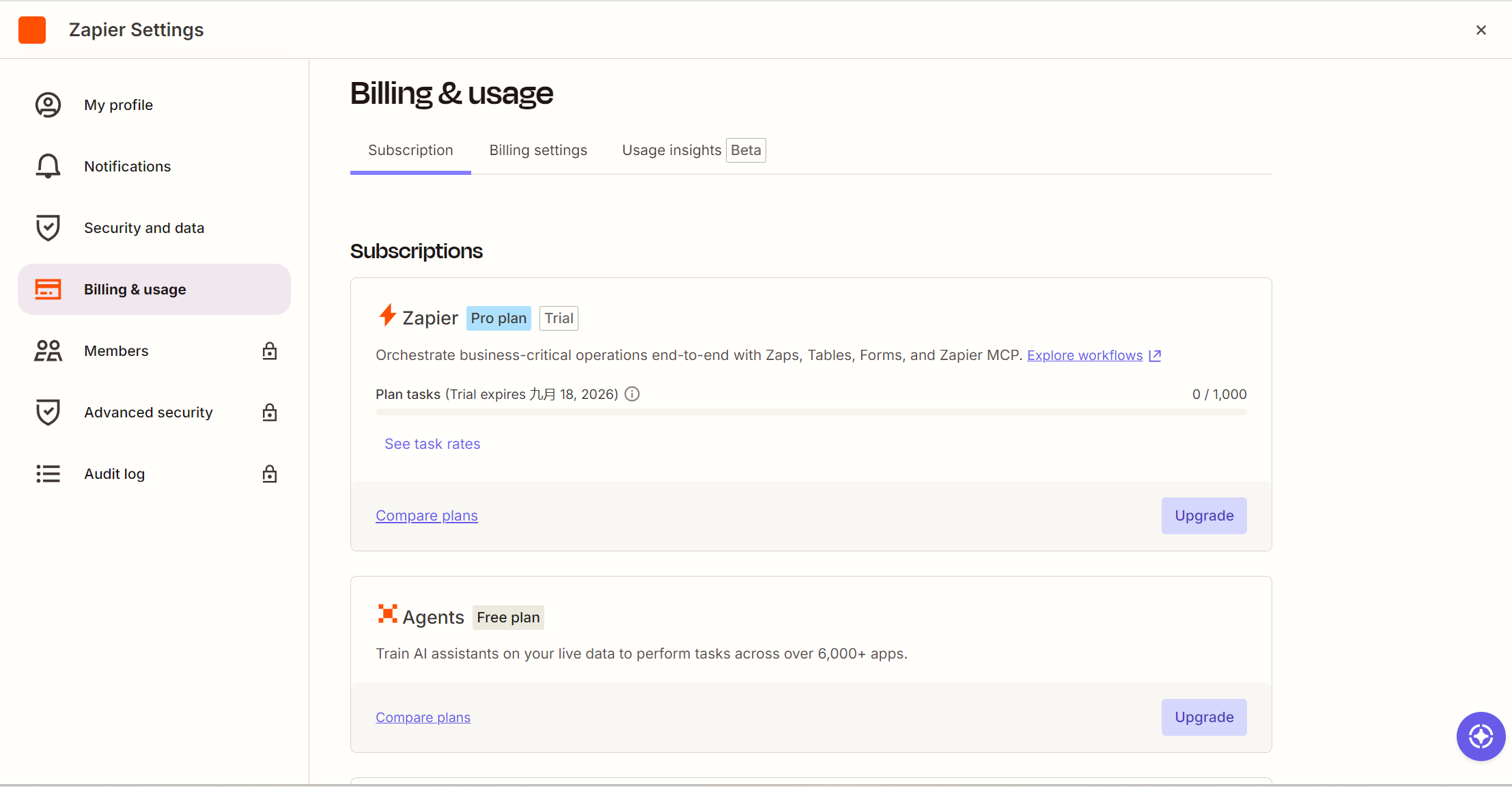
Step 1: Check Your Zapier Plan and Billing Settings
Start by reviewing your Zapier account’s Billing and usage section.
Check your current plan, billing cycle, task usage, and any usage-related billing settings before adding a new payment method. This gives you a better idea of your expected monthly spending.
This step is especially important if your workflows generate a large number of tasks. Your actual cost may change as usage increases, so the amount you need to allocate to your virtual card should not be based solely on the base subscription price.
Step 2: Create a Dedicated Virtual Card
Next, create a virtual card that you can use specifically for Zapier.
If you are using BUVEI, you can create a virtual card through the card management interface. A dedicated card can help keep automation-related expenses separate from other online purchases.
When creating the card, consider the expected Zapier subscription and usage-related charges. The available spending capacity should be sufficient for the payment while still fitting your overall software budget.
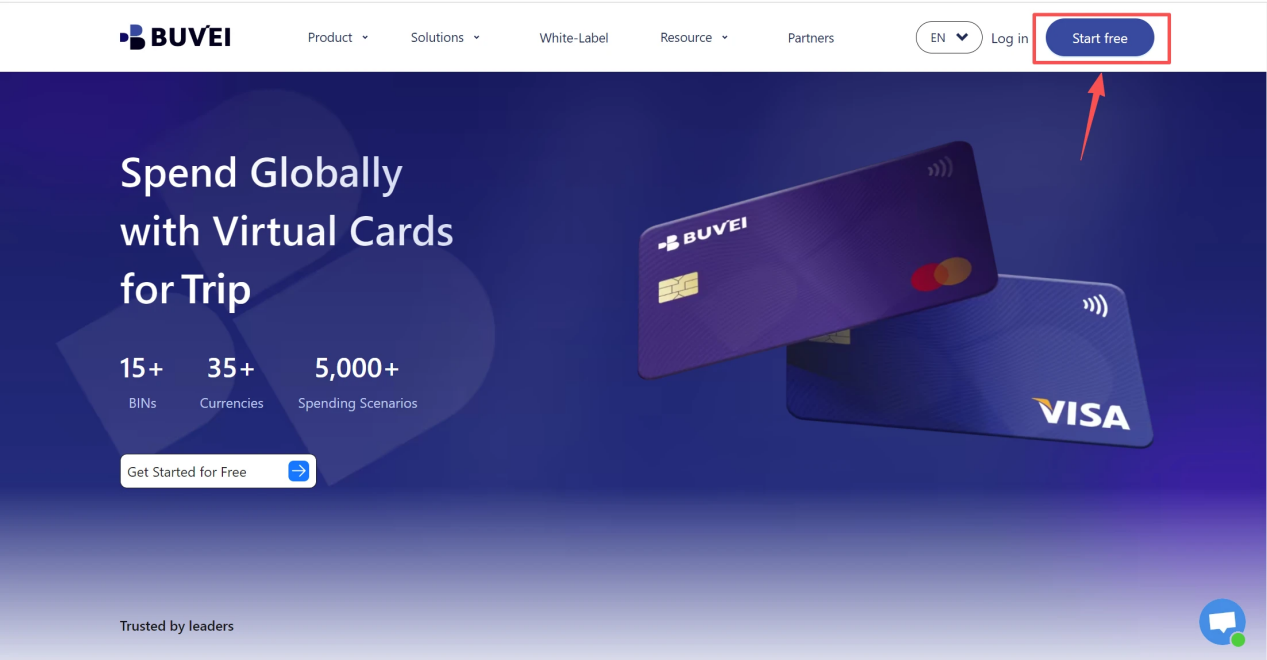
- Sign up/Sign in at buvei.com
- visit https://buvei.com and create a free account.
- After email verification, log in to access the Buvei dashboard.
- Create a Virtual Card
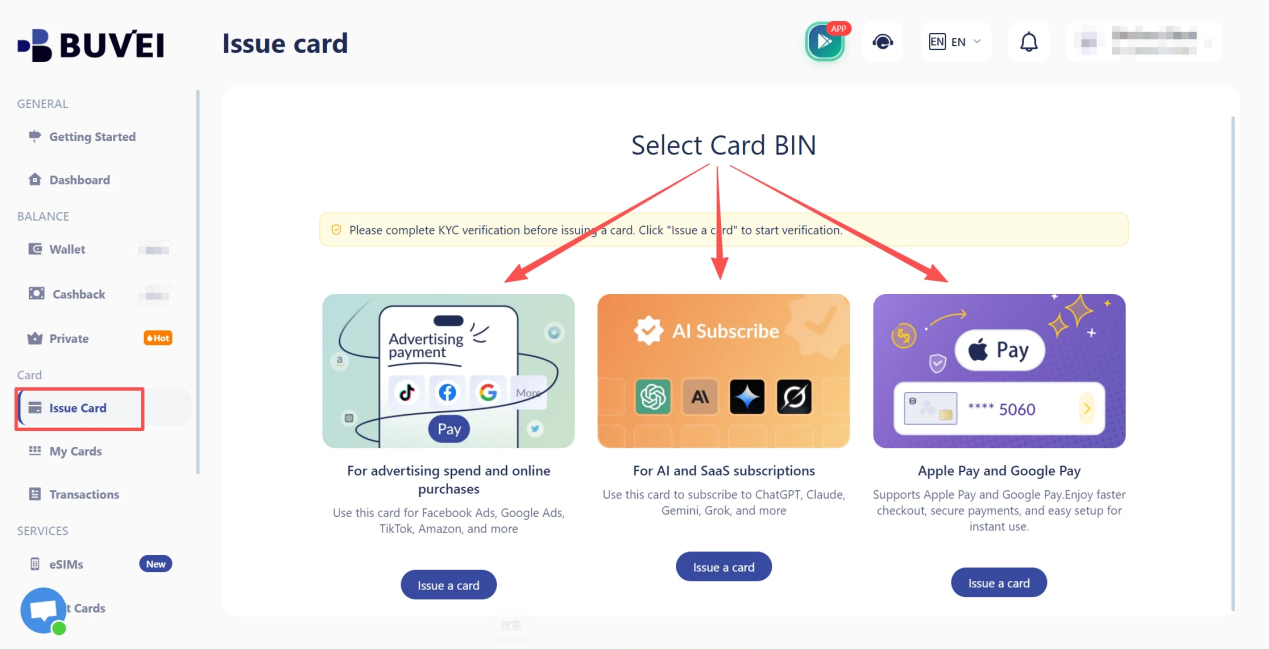
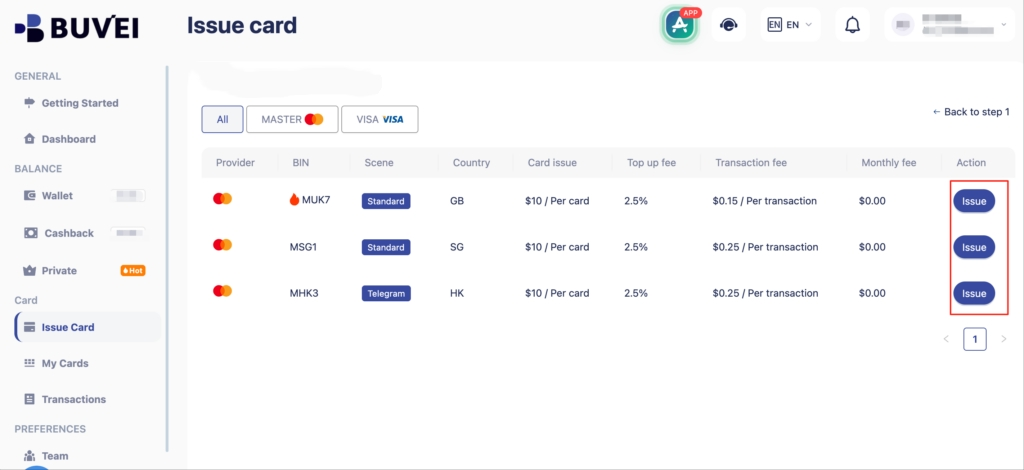
- Fill in the virtual card details, including name, amount, and number of cards.
- Click Issue Card
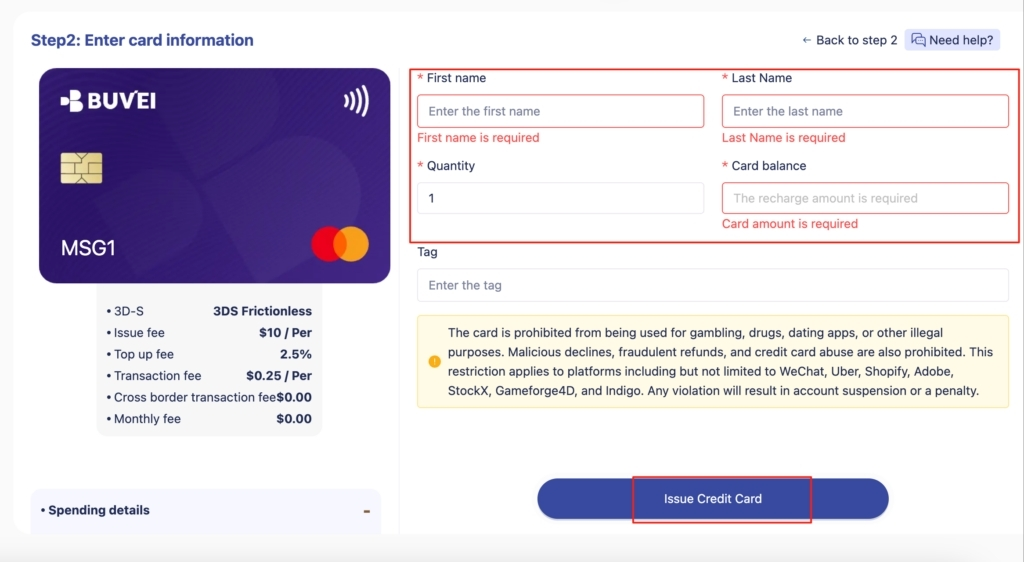
Step 3: Check Your Virtual Card Details
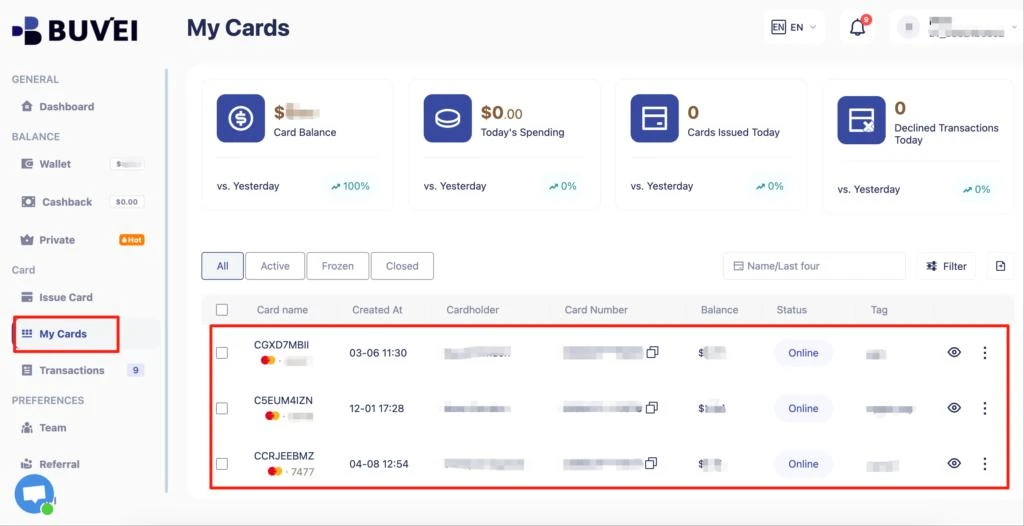
After creating the card, open the card details and verify the information required for online payment.
This normally includes the card number, expiration date, CVV, and relevant billing information. You should also check the available balance or spending capacity before submitting the payment.
If your Zapier account can generate usage-related charges, leave enough room for potential changes in the amount charged rather than setting the available balance exactly to the base subscription amount.
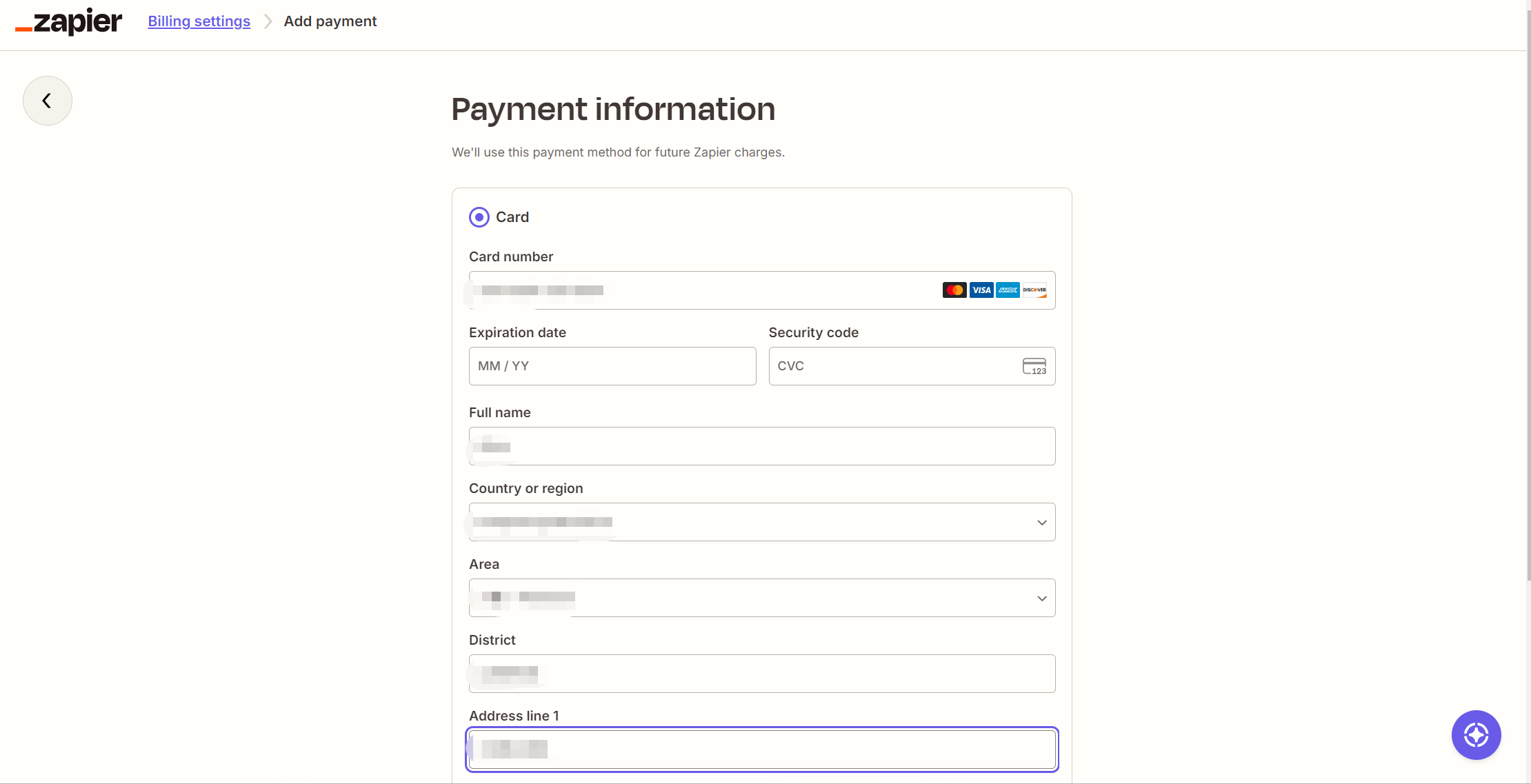
Step 4: Add the Virtual Card to Zapier
Return to Zapier and open your billing settings.
Go to Billing and usage → Payment Information → Edit Payment Method and enter the required card details. Zapier provides this payment-method management workflow for paid accounts.
Enter the information carefully and make sure the billing details match the information associated with the card.
At this point, Zapier may perform an authorization or verification check before processing the payment.
Step 5: Complete Payment Verification
Some card payments may require additional authentication.
For example, 3D Secure may be required depending on the transaction. If verification appears during checkout or payment processing, complete the requested authentication before trying the payment again.
If the transaction fails, check the card balance, billing information, card status, currency, and any issuer restrictions. A failed payment does not necessarily mean that the virtual card itself is incompatible with Zapier.
If the problem continues, contact the card provider or use another payment method supported by Zapier.
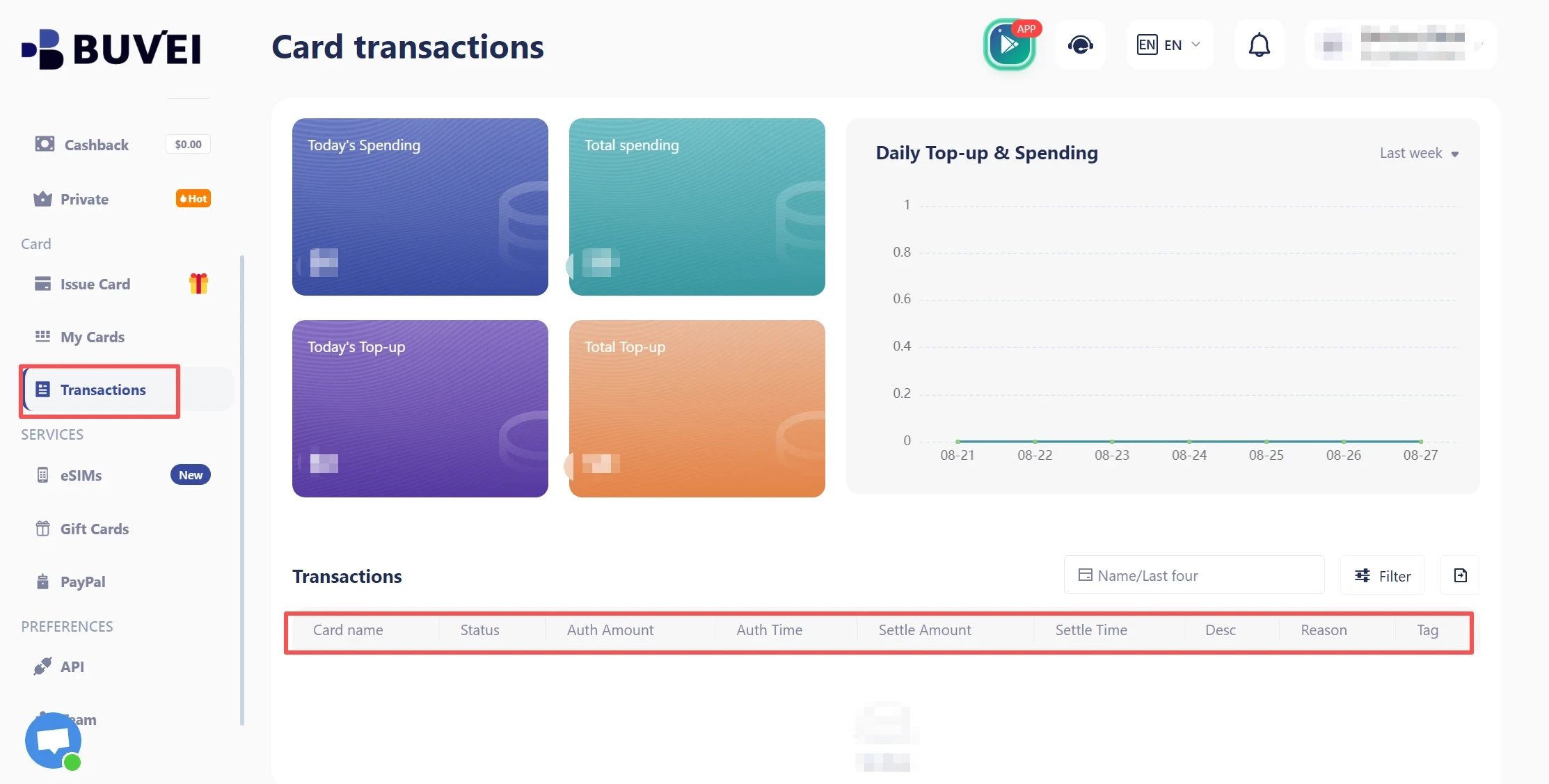
Step 6: Check the Transaction
After the payment is completed, review the transaction from both sides.
First, check your Zapier billing information or invoice to confirm the amount charged. Then review the virtual card’s transaction history to make sure the corresponding payment appears correctly.
Comparing these records can make it easier to identify unexpected charges and distinguish normal subscription billing from additional usage-related costs.
How Zapier’s Pay-Per-Task Billing Affects Your Card
One of the most important considerations when using a virtual card for Zapier in 2026 is task-based billing.
Zapier’s pricing is connected to task usage, meaning that the amount of automation activity on an account can affect overall costs. For eligible paid plans, Zapier also provides pay-per-task billing that can allow continued task usage after the included task limit is reached.
This means you should not assume that the amount charged to your virtual card will always equal the basic subscription price.
Monitor Task Usage
Regularly check the Billing and usage section in Zapier to understand how quickly your account is consuming tasks.
If your workflows become more active, your monthly spending may increase. Monitoring usage before the end of the billing period gives you a better opportunity to identify unusual activity.
Understand Additional Charges
Pay-per-task billing can result in additional charges when applicable. Zapier provides usage information and billing controls so account owners can review and manage these settings.
A virtual card does not replace these controls. Instead, the two can work together:
Zapier usage data → understand why costs change
Virtual card transactions → track what was actually charged
This combination is particularly useful for businesses running multiple automated workflows.
What If Your Virtual Card Doesn’t Work with Zapier?
If your virtual card payment fails, check the most common payment-related issues before assuming that virtual cards are unsupported.
| Possible Issue | What to Check |
| Insufficient balance | Confirm available funds |
| Billing mismatch | Verify billing information |
| 3D Secure | Complete required authentication |
| Card restrictions | Check issuer limitations |
| Currency restrictions | Confirm supported currency |
| Merchant verification | Check whether additional verification is required |
A payment can fail because of the card issuer, billing information, authentication requirements, or transaction configuration. Regional and merchant-specific requirements can also affect acceptance.
If the card continues to be rejected after these checks, contact the card provider or try another eligible payment method.
Using BUVEI for Zapier Payments
For users who want to separate Zapier expenses from their main payment card, BUVEI can be incorporated into a dedicated virtual-card workflow.
The basic process is straightforward: create a virtual card, use it as the payment method if accepted by Zapier, and then monitor the resulting transactions through the card management interface.
This approach can be useful for freelancers, agencies, developers, and small businesses that pay for several online tools and want clearer visibility into software-related spending.
For example, instead of combining Zapier, design software, cloud services, and other subscriptions on one payment card, you can use dedicated virtual cards or spending arrangements to make individual expenses easier to identify.
However, BUVEI should not be presented as a guarantee that every Zapier payment will succeed. Actual acceptance depends on the card, issuer, region, billing information, and transaction requirements.
For recurring Zapier expenses, it is also important to monitor both the card balance and Zapier task usage. This helps reduce avoidable payment failures while giving you a clearer picture of your total automation spending.
Best Practices for Paying Zapier with a Virtual Card
A dedicated virtual card works best when it is combined with regular billing reviews.
Use a separate card for Zapier when you want clearer expense tracking, keep sufficient spending capacity available for recurring charges, and review task usage regularly if your account has variable usage.
It is also useful to compare Zapier invoices with your card transaction history periodically. This helps confirm that the amount charged matches the billing activity on your account.
Most importantly, treat the virtual card as an expense-management tool, not as a replacement for monitoring Zapier usage.
Frequently Asked Questions
Can I Pay for Zapier with a Virtual Card?
You may be able to use a virtual card if Zapier processes it as an eligible card payment. However, acceptance is not guaranteed and can depend on the card issuer, region, billing information, and transaction requirements.
Does Zapier Accept Virtual Cards?
Zapier’s official payment documentation describes credit cards and other supported payment methods rather than listing virtual cards as a separate payment category. Therefore, users should confirm compatibility with their specific card provider.
Can a Virtual Card Pay for Zapier’s Usage Charges?
Potentially, provided the card remains an eligible payment method and has sufficient spending capacity. However, usage-related charges can vary, so you should monitor Zapier task usage rather than relying only on the virtual card balance.
Why Did My Virtual Card Payment Fail on Zapier?
Possible causes include insufficient funds, incorrect billing information, 3D Secure verification, issuer restrictions, currency limitations, or other transaction requirements. Check these factors before trying another payment method.
Is a Virtual Card Good for Managing Zapier Expenses?
It can be useful for separating Zapier expenses, improving transaction visibility, and supporting a more organized software-spending workflow. It is most effective when combined with regular monitoring of Zapier billing and task usage.
Conclusion
A virtual card for Zapier can be a practical option for users who want to separate automation expenses and improve visibility into software spending. The setup involves checking your Zapier billing, creating a dedicated virtual card, adding it as a payment method, completing any required verification, and reviewing the resulting transaction.
Because Zapier’s task-based and pay-per-task billing can affect total costs, monitoring usage is just as important as managing the payment card. Used together, Zapier’s billing tools and a dedicated virtual card can provide a more organized way to manage automation expenses in 2026.