



Introduction
Slack Pro requires a payment method that can handle recurring subscription charges. For teams that prefer to keep software expenses separate, a Slack Pro virtual card can be a practical option, provided it meets Slack's payment requirements.
The payment process involves more than entering card details. You'll need to choose a subscription plan, prepare a compatible virtual card, and make sure future payments can go through. Here's how to complete each step using BUVEI and manage your Slack Pro subscription.
Can You Pay for Slack Pro with a Virtual Card?
Slack lists Visa and Mastercard among its accepted credit card networks. This makes virtual cards on these networks a potential option for Slack Pro subscriptions. However, acceptance isn't guaranteed. It depends on the card issuer, billing region, and Slack's payment verification. Slack also requires a 16-digit card number and CVV.
Before using a virtual card, check that it supports online and recurring transactions, has sufficient funds, and allows payments to the relevant merchant. You'll also need accurate billing information. Some issuers restrict international or subscription transactions, which can cause a payment to be declined.
How to Pay for Slack Pro with a Virtual Card
The process involves choosing a Slack plan, preparing a funded virtual card, and completing the payment at checkout.
Step 1: Choose a Slack Pro Plan
Sign in to your Slack workspace and open its plan or billing settings.
Select Pro and choose between monthly and annual billing based on your team's needs.
Before moving on, check the number of billable active members and the estimated subscription cost. Slack's billing is based on active members, so changes in workspace membership can affect future charges.
Review your selected plan and billing cycle. Keep the estimated amount in mind when preparing your virtual card for payment.

Step 2: Register a BUVEI Account
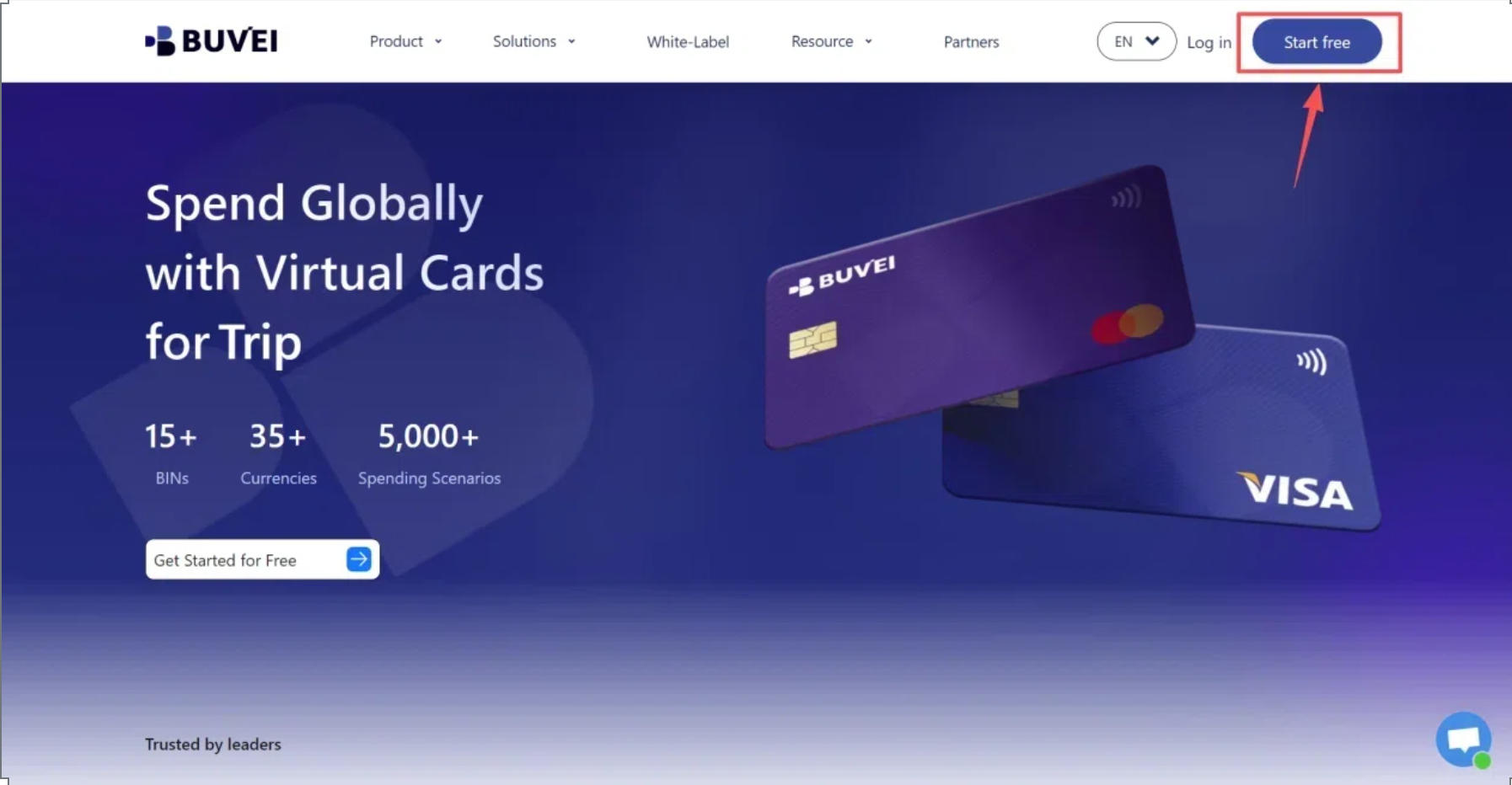
Visit BUVEI and create a free account.
Complete email verification and sign in to your dashboard. Once logged in, you can access your wallet and virtual card management tools.
Step 3: Top Up Your BUVEI Wallet
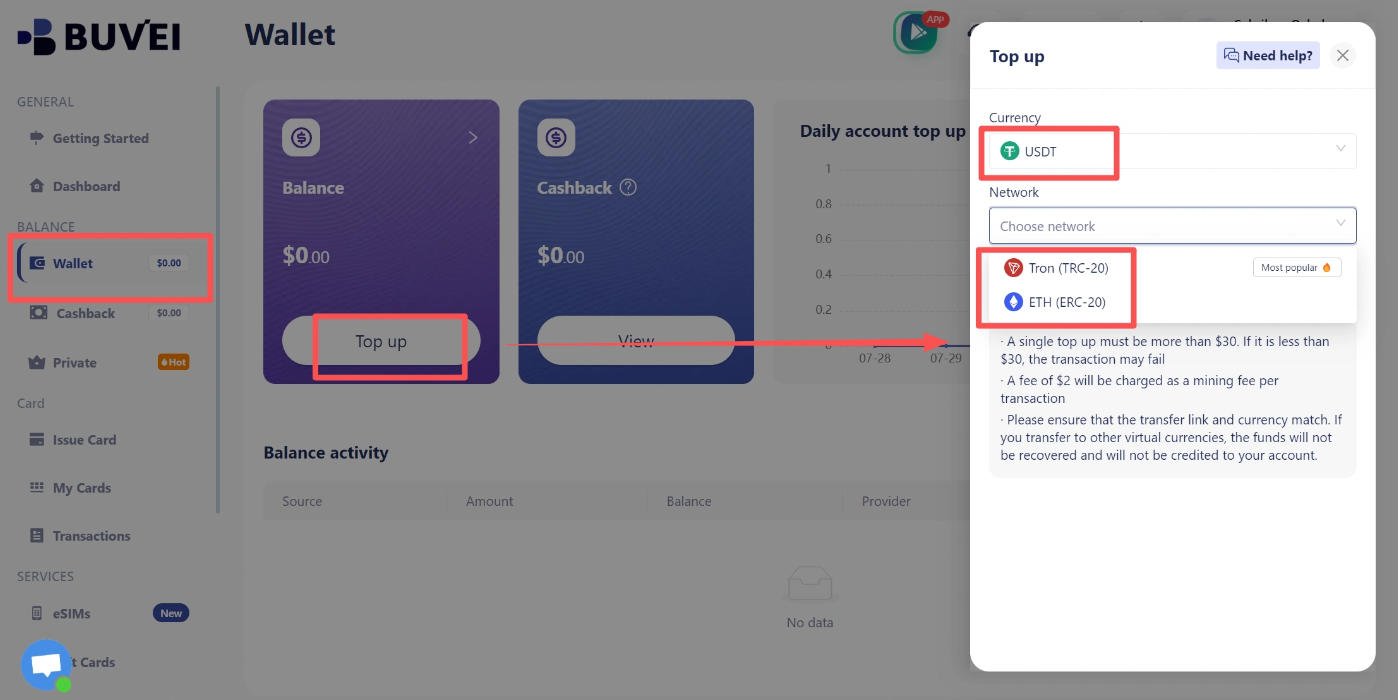
Open the Wallet section and select USDT as your deposit currency.
Choose an available network, such as TRC20 or ERC20, and copy your dedicated deposit address. Transfer your USDT using the same network selected in BUVEI.
Once the transaction is confirmed, your wallet balance will be available for card issuance. Double-check the deposit address and network before sending funds, as transfers through incompatible networks may result in lost assets.
Step 4: Create a BUVEI Virtual Card
Go to Cards and select your preferred BIN region and card type.
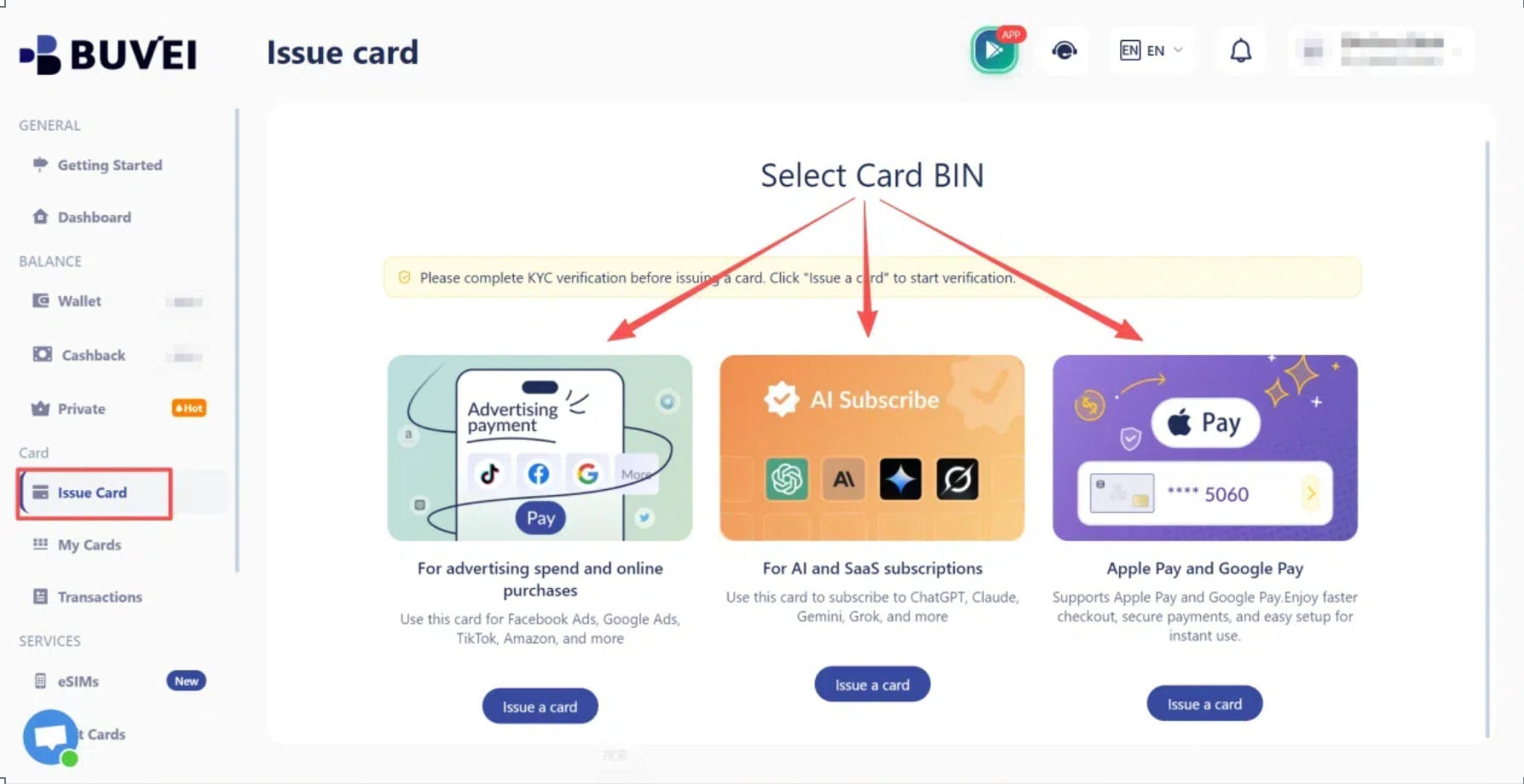
BUVEI supports multiple BIN regions across Visa and Mastercard networks, giving users different options for eligible online payment scenarios.
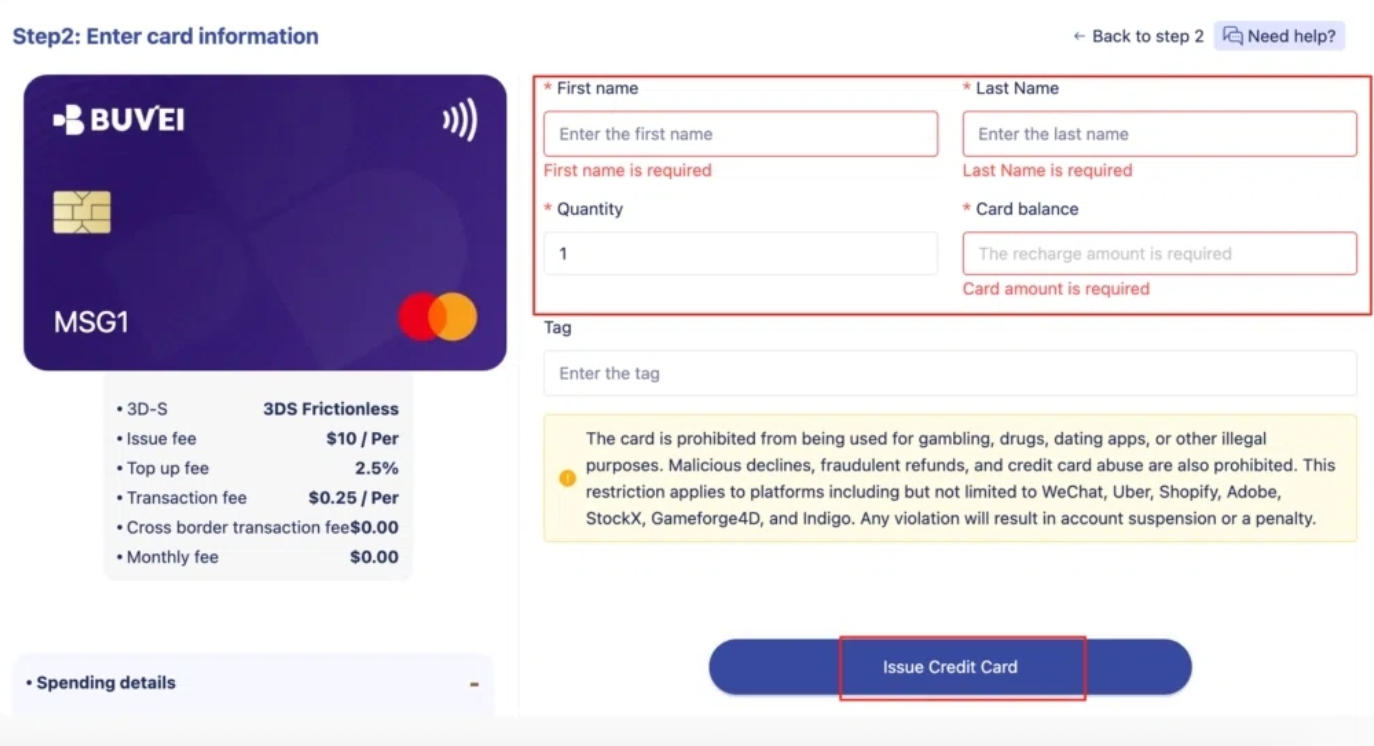
Enter the card name, amount, and number of cards you want to issue, then click Issue Card.
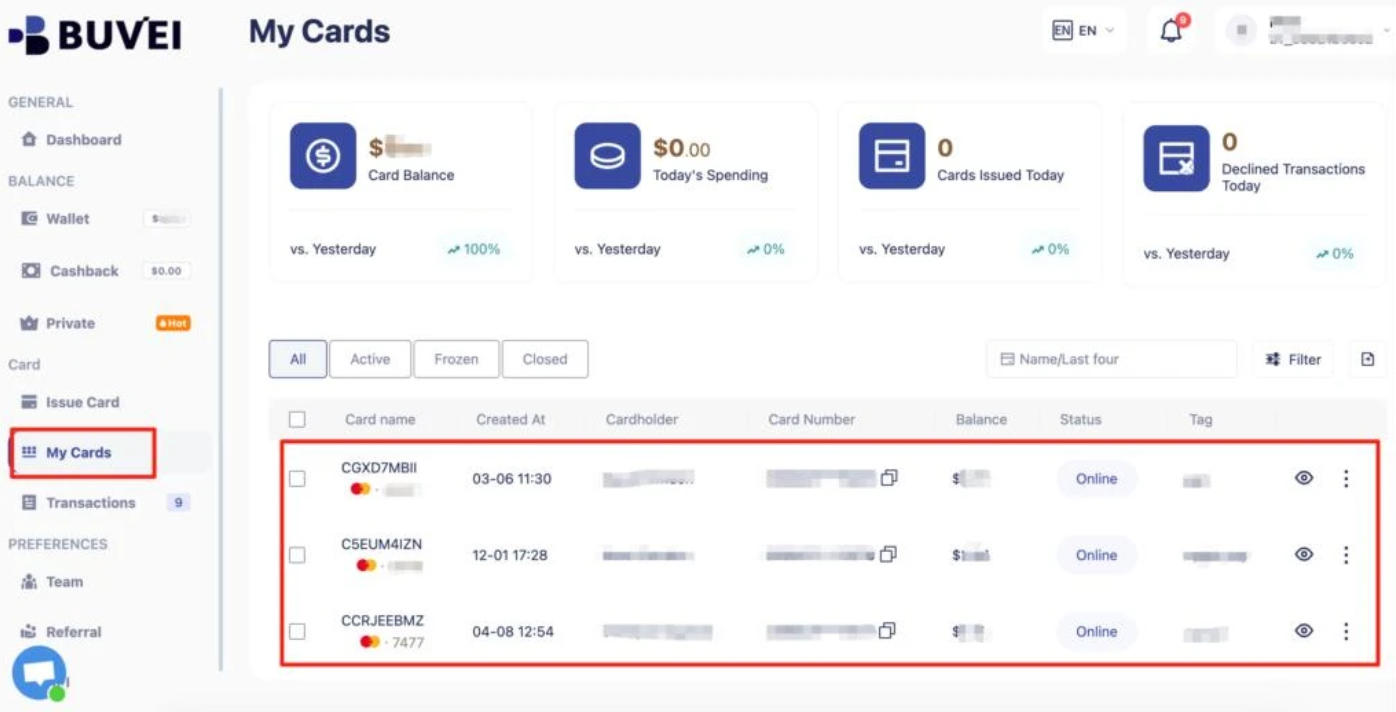
After issuance, open My Cards to view the card number, expiration date, and CVV. Keep these details private and only enter them on trusted payment pages.
Step 5: Add Your Virtual Card and Complete Payment
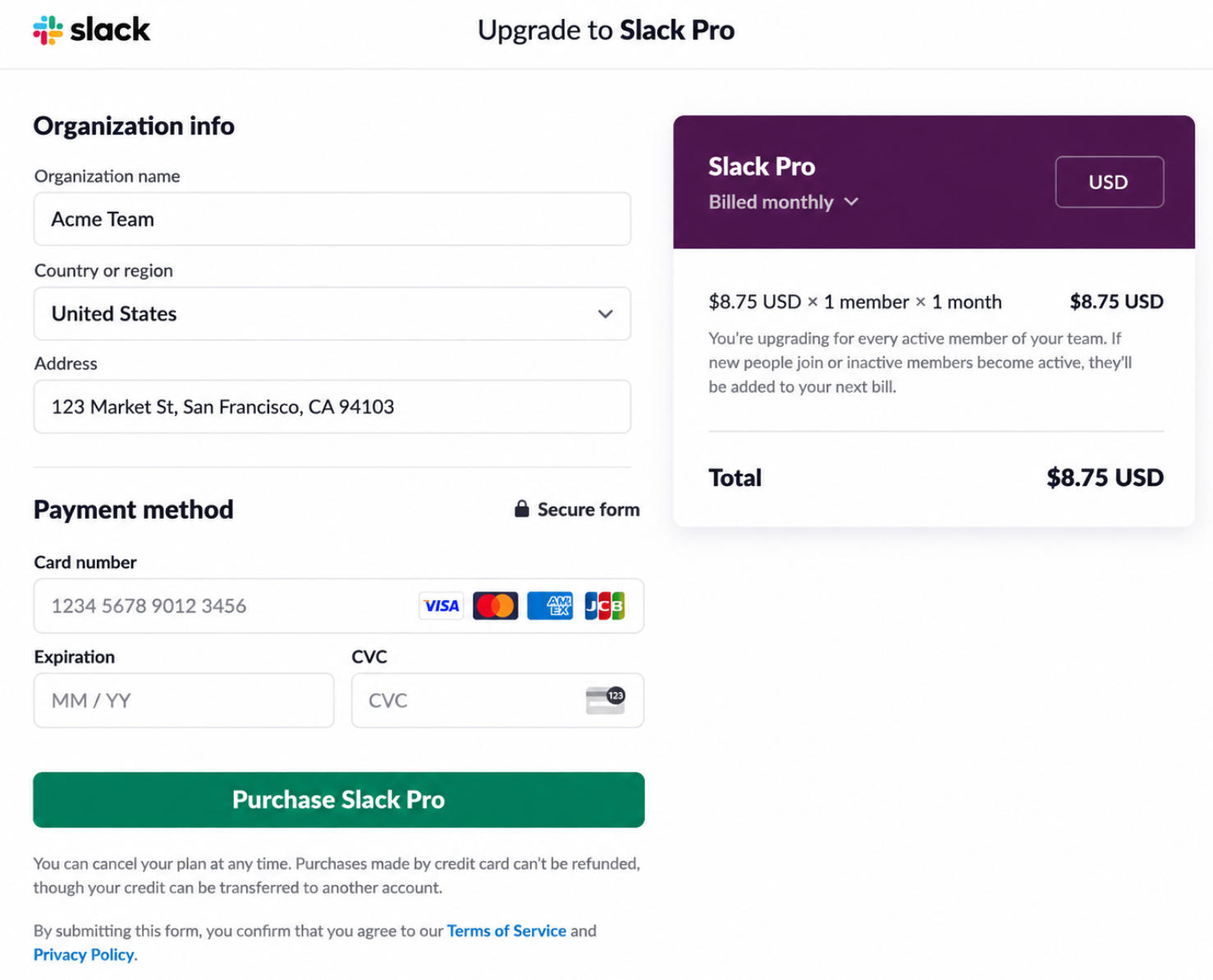
Return to Slack's checkout page and enter your BUVEI virtual card details in the credit card payment form.
Provide the card number, expiration date, and CVV, then complete the required billing information. Make sure the details are accurate and consistent with your card's billing records.
Review the selected Pro plan, billing cycle, active member count, and final amount before proceeding. Click Review Order to check the purchase details, then select Purchase to complete the transaction.
If Slack approves the payment, your workspace will be upgraded to Pro. Check your billing settings to confirm that the subscription is active.
How to Check and Manage Your Slack Pro Subscription
Once the upgrade is complete, check that your subscription is active and keep track of future charges.
Check Your Slack Subscription and Payment Status
Open your Slack billing settings and confirm that your workspace is on the Pro plan.
Review the billing cycle and payment details, and keep your purchase confirmation for reference. You can also check your BUVEI transaction history to verify the corresponding card payment.
If Slack shows a failed payment while BUVEI displays a completed transaction, don't submit another payment immediately. Check the transaction status first and contact the relevant support team if the discrepancy remains.
Manage Your Recurring Subscription Payments
Slack Pro is billed monthly or annually, depending on the plan you selected. Your payment card needs to remain active and have enough available balance when the next charge is due.
If you need to replace your card, open Admin → Manage billing → Billing Details and find the Payment methods section. Add your new card to make it the default payment method. These settings are available to the Workspace Owner or the person who upgraded the workspace.
For teams paying for several SaaS tools, assigning separate cards to different subscriptions can make recurring expenses easier to identify.
What to Do If Your Slack Pro Payment Is Declined
A declined payment doesn't always mean your card is invalid. The problem may come from incorrect billing details, insufficient funds, or restrictions imposed by the card issuer.
Check Your Card Details and Billing Information
Start with the card number, expiration date, and CVV entered at checkout.
Also review the billing information. Incorrect details can interfere with payment verification, particularly when the information entered doesn't match the records associated with your card.
If everything looks correct, check whether your card issuer has declined the transaction or flagged it for additional verification.
Check Your Available Balance and Card Restrictions
Make sure the available balance covers the subscription amount and any applicable fees.
Check whether the card is frozen, has reached its spending limit, or is restricted from international or merchant-specific transactions.
If you're using BUVEI, review the card status and transaction records to see whether the payment attempt was processed or declined.
Check Whether Your Card Supports Recurring Payments
A virtual card that works for one-time purchases may not necessarily support subscription billing.
Slack Pro requires a payment method that can handle future charges. Check whether your card issuer allows recurring transactions and whether any restrictions apply to subscription payments.
If the card doesn't support this type of transaction, you'll need another eligible payment method to maintain your subscription.
Update Your Payment Method
If the original card continues to fail, consider adding another eligible payment method.
The Workspace Owner or the person who upgraded the workspace can manage saved payment details through Admin → Manage billing → Billing Details → Payment methods.
After updating the card, check the payment status before trying again. This helps avoid repeated attempts while an earlier transaction is still being processed.

Frequently Asked Questions
Does Slack Accept Virtual Visa Cards?
Slack lists Visa among its accepted credit card networks, but it doesn't guarantee that every virtual Visa card will work. Acceptance depends on the card's payment capabilities, issuer restrictions, and Slack's verification process.
Can I Use a Virtual Mastercard for Slack Pro?
Potentially, yes. Slack accepts Mastercard for credit card payments, but individual virtual Mastercard products may have different transaction restrictions. Check that your card supports online and recurring payments before upgrading.
Can I Use a Virtual Card for Monthly and Annual Slack Payments?
Slack supports monthly and annual credit card billing. A virtual card may work for either option if it meets Slack's payment requirements and supports the relevant subscription transactions. Make sure sufficient funds are available for future charges.
Can I Change My Slack Pro Payment Method?
Yes. The Workspace Owner or the person who upgraded the workspace can access Slack's billing settings, add another card, and make it the default payment method. The new card can then be used for future subscription charges.
Conclusion
Paying for Slack Pro with a virtual card can be a practical option for teams that want more control over their software expenses. The important things are choosing a compatible card, entering accurate billing information, and keeping enough funds available for future renewals.
Slack is often just one of several subscriptions a business needs to manage. BUVEI offers virtual Visa and Mastercard cards, USDT top-ups, and centralized card management for eligible online payments. With separate cards and individual spending limits, businesses can organize subscriptions and project expenses without routing every charge through the same payment method.