



Introduction
If your Google Workspace payment failed, your team could lose access to Gmail, Google Drive, and other essential business tools if the issue goes unresolved. An unpaid balance can put your subscription at risk of suspension, making it important to identify the problem before services are interrupted.
Most failed payments are caused by an expired or incorrect card, a bank restriction on recurring transactions, or an issue with your Google payments profile. Start by checking your billing status, then follow the steps below to correct the payment problem and clear any outstanding balance.
Why Did Your Google Workspace Payment Fail?
Most Google Workspace billing issues come down to your payment method, bank restrictions, or account verification.
Your Bank Declined the Payment
Your bank may reject a Google Workspace charge because of insufficient funds, spending limits, or security checks. Some cards also restrict international transactions and recurring payments.
Check your available balance and confirm that your card supports automatic online payments. If everything looks correct, contact your bank to find out why the transaction was declined.
Your Card Details Are Incorrect or Outdated
An expired card, incorrect security code, or mismatched billing address can prevent Google from processing a payment.
Review your saved payment information. If your card number has changed, add the replacement card as a new payment method.
Your Google Payments Profile Requires Verification
Google may restrict payments if it needs to verify your account or billing information.
Check for verification notices in your billing account and follow the requested steps. Adding another card won't necessarily resolve an account-level restriction.
Your Automatic Payment Failed
Google Workspace relies on a valid primary payment method for recurring charges. If Google cannot process the payment, your subscription may enter a grace period.
Check whether your card supports recurring payments and whether your bank has blocked the transaction.
How to Fix Google Workspace Billing Issues
Step 1: Check Your Google Workspace Payment Status
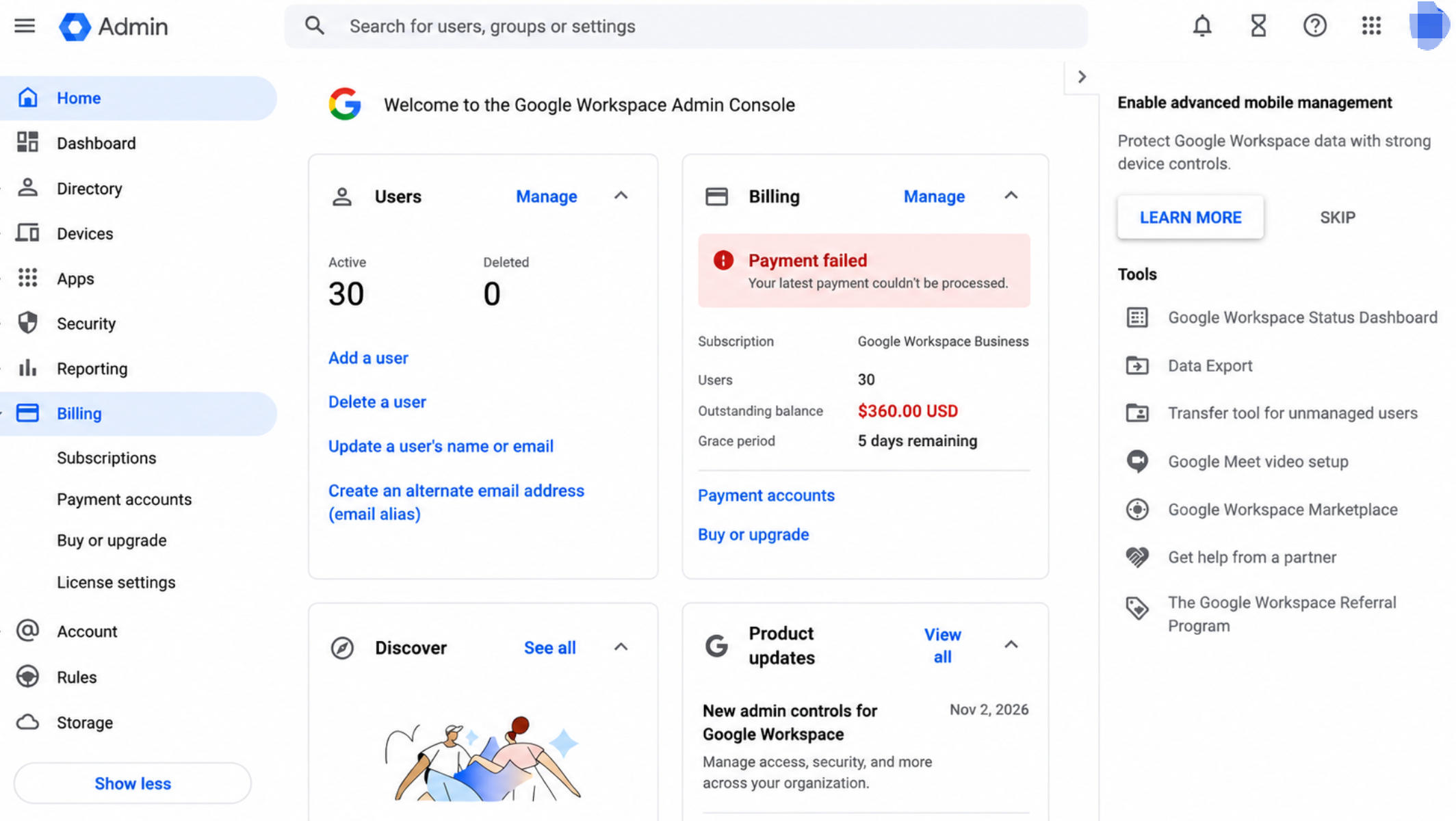
Go to Billing → Payment accounts and select your subscription.
Check for payment failure alerts, outstanding balances, and any grace period or suspension notices. These details will help you identify what needs to be fixed.
Step 2: Update Your Primary Payment Method
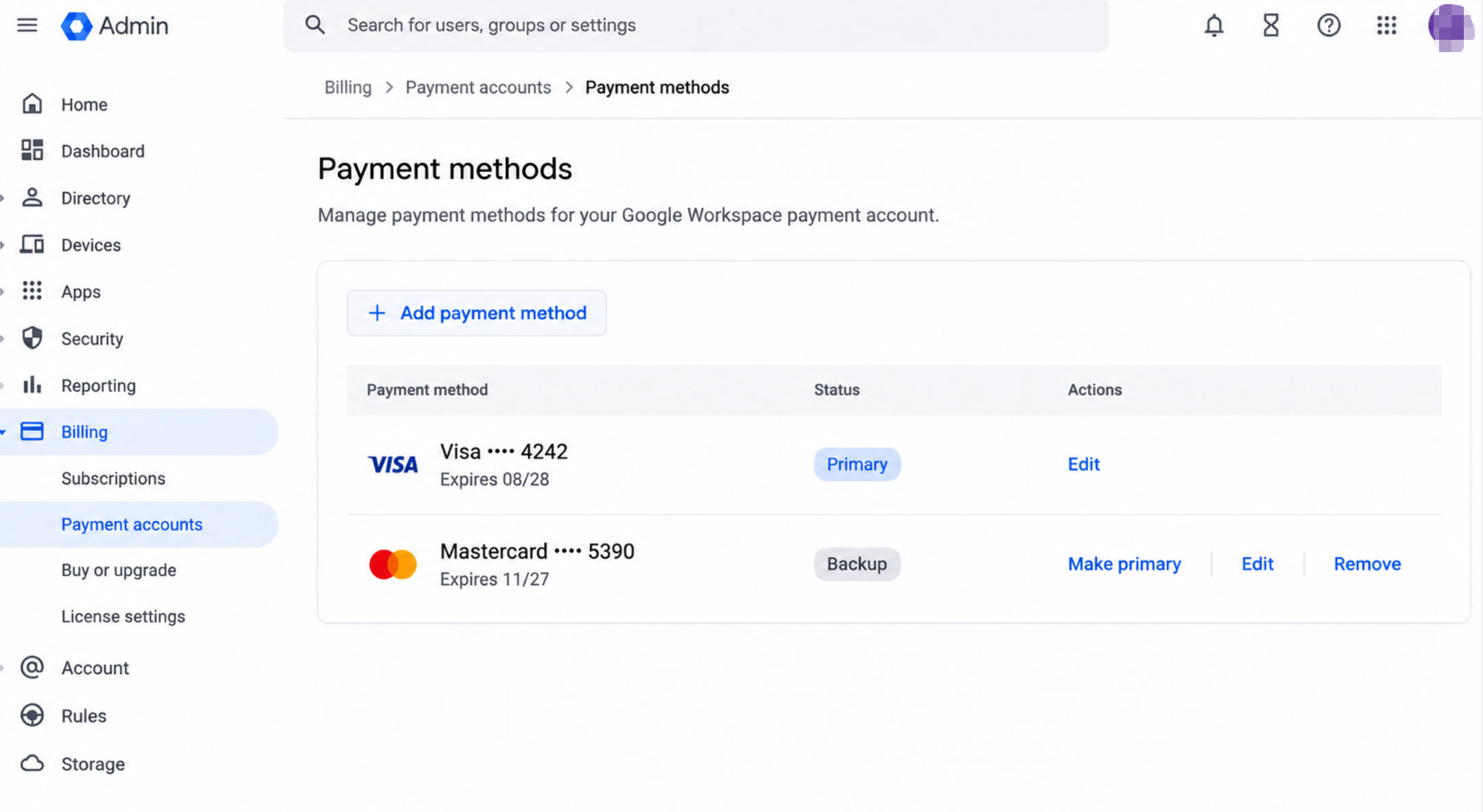
Under Payment accounts, select View payment methods and locate the card marked Primary.
If Google displays a Fix option, update the card details. If your card number has changed, add the replacement card and assign it as the new Primary payment method.
Where available, add a backup credit card to reduce the risk of future payment interruptions.
Step 3: Check and Pay Your Outstanding Balance
Google retries a failed automatic payment after 24 hours. If you receive a payment failure alert, check the transaction status before making a manual payment.
Paying between the first and second automatic attempts could result in a duplicate charge if the second attempt succeeds.
If the Admin Console still displays Pay Now, follow the instructions to complete the payment. If your subscription is suspended, follow Google's restoration instructions and settle the full amount due.
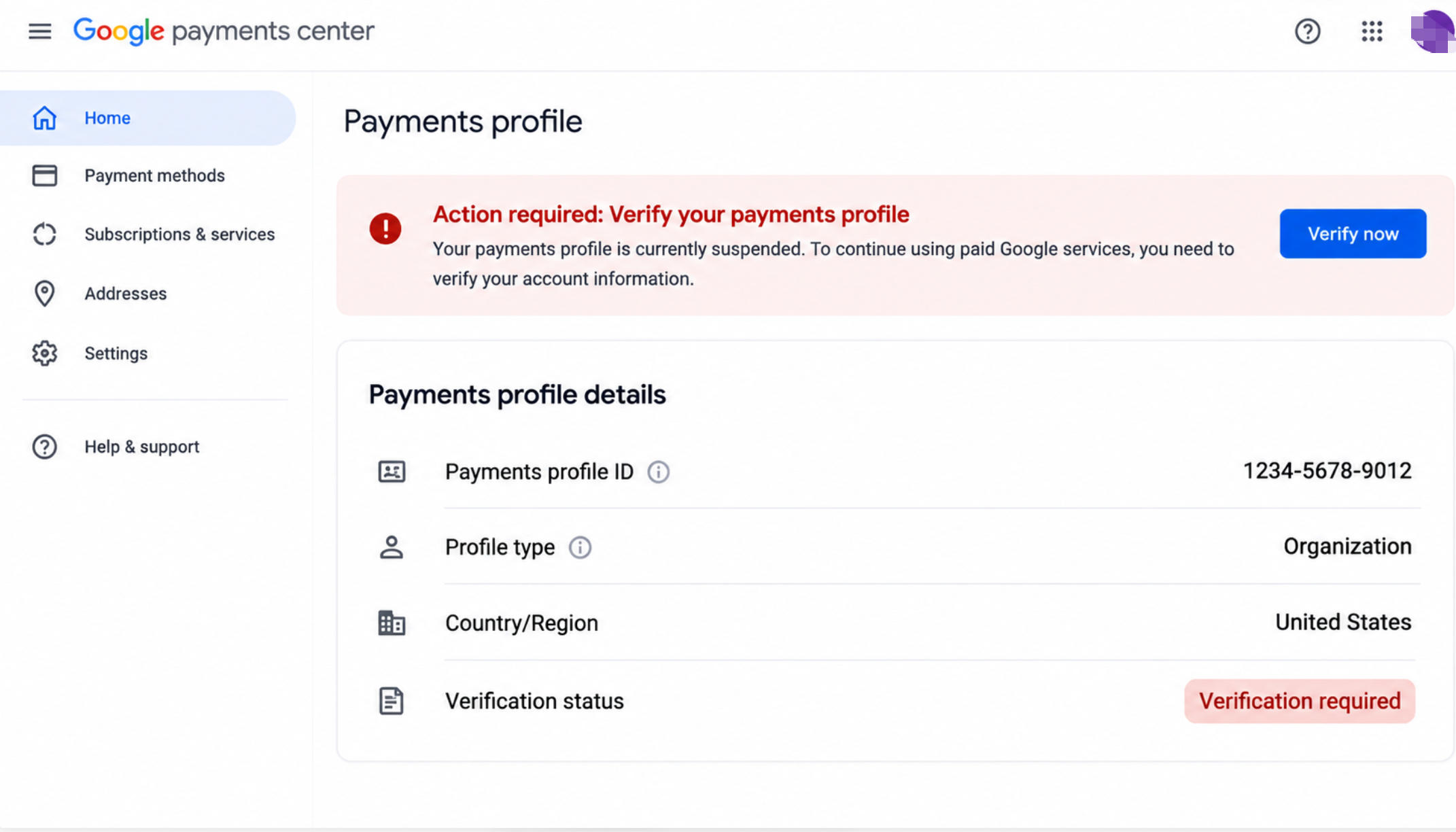
Step 4: Resolve Google Payments Profile Verification
If your Google payments profile is suspended, check your billing account for any verification requests or account restrictions.
Follow the prompts to confirm your billing information or submit the required documents. If the restriction is tied to your payments profile, changing your card alone won't resolve the issue.
Step 5: Contact Google Workspace Support
If your payment method is valid and the subscription remains inactive, contact Google Workspace Support.
Prepare your payment error message, transaction details, and subscription status. If you purchased Workspace through a reseller, contact that provider instead.
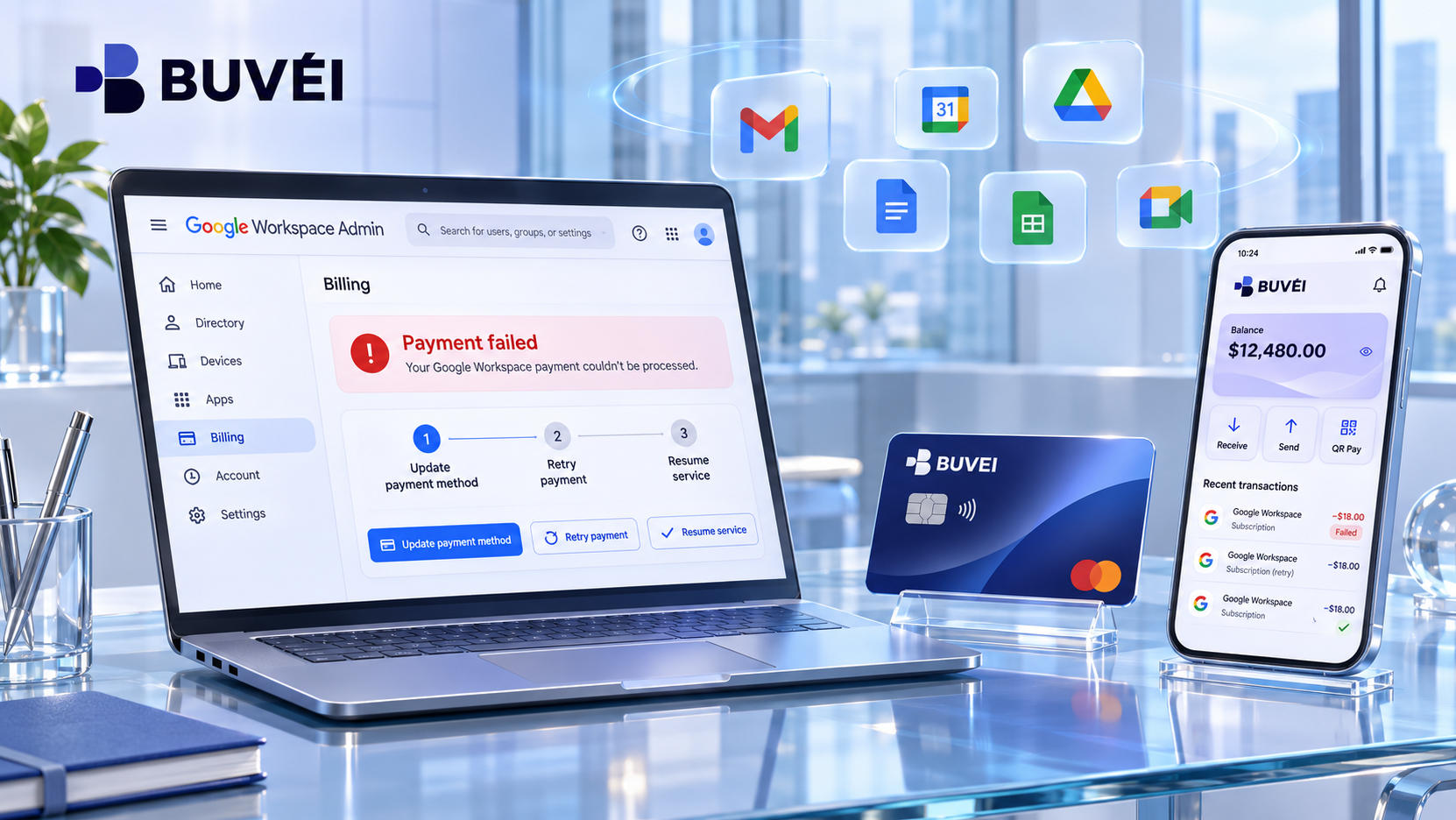
What Happens After a Google Workspace Payment Fails?
Google doesn't suspend every subscription immediately after a declined payment.
For monthly billing, if you don't resolve the payment issue within 30 days, Google may suspend your service. The exact grace period deadline is available in your Admin Console.
Subscriptions suspended for more than 60 days may be canceled, and associated user data could be lost. If your business relies on Workspace for email and file storage, don't wait until the suspension deadline to act.
To avoid future interruptions, keep your primary payment method up to date, add a backup card where available, and check Google billing notifications regularly.
Manage Other Business Payments With BUVEI
Google Workspace is rarely the only online service a business needs to pay for. From advertising platforms and AI tools to cloud hosting and project management software, managing multiple subscriptions can quickly become complicated.
Keeping these expenses organized is just as important as maintaining a reliable payment method. BUVEI offers virtual Visa and Mastercard cards that help businesses manage eligible online payments, separate project expenses, and track transactions from one account.
How to Set Up a BUVEI Virtual Card
If you want to organize your other business payments with BUVEI, follow these steps to create an account and issue a virtual card.
Step 1: Register a BUVEI Account
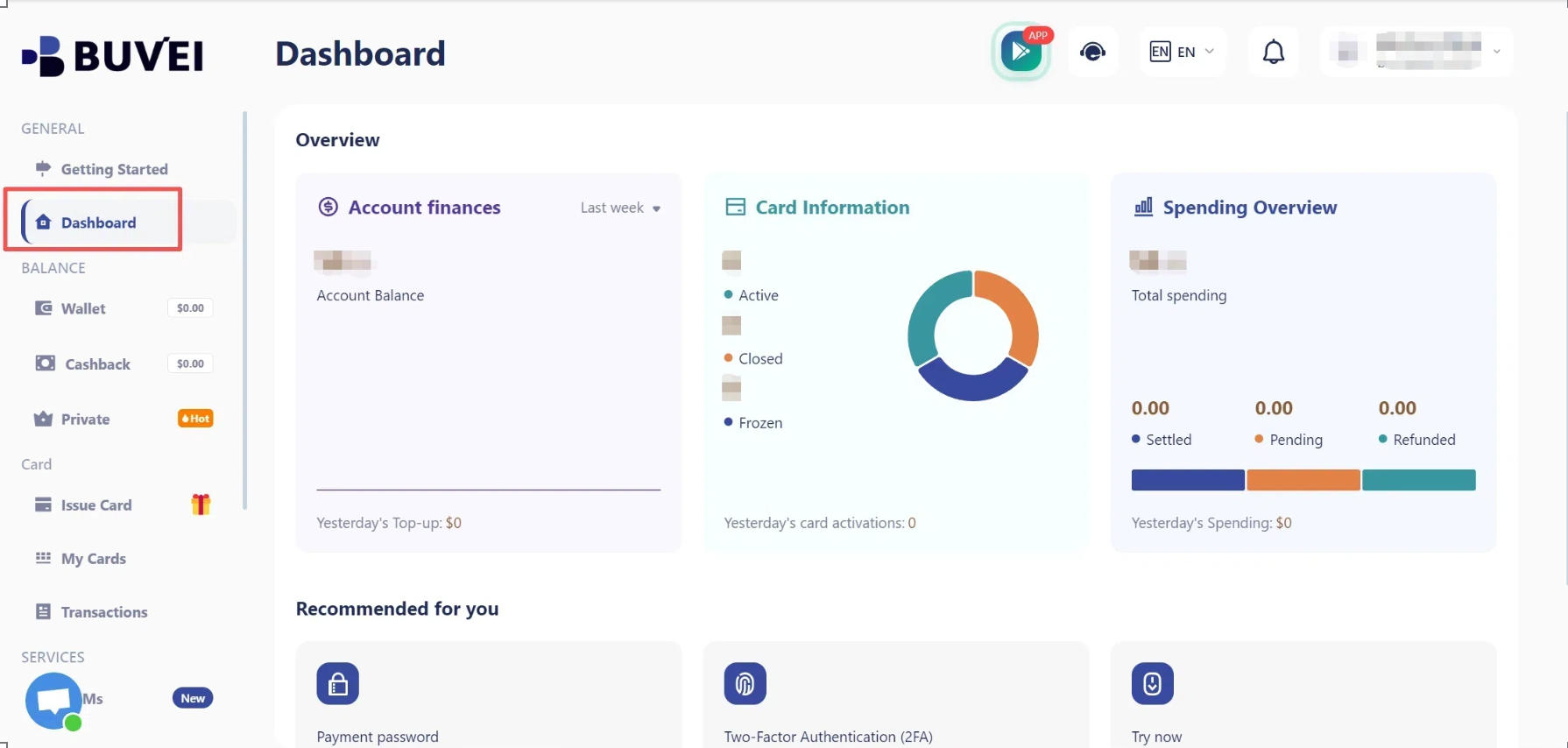
Visit BUVEI and create a free account.
Complete email verification and log in to access your dashboard, where you can manage your wallet and virtual cards.
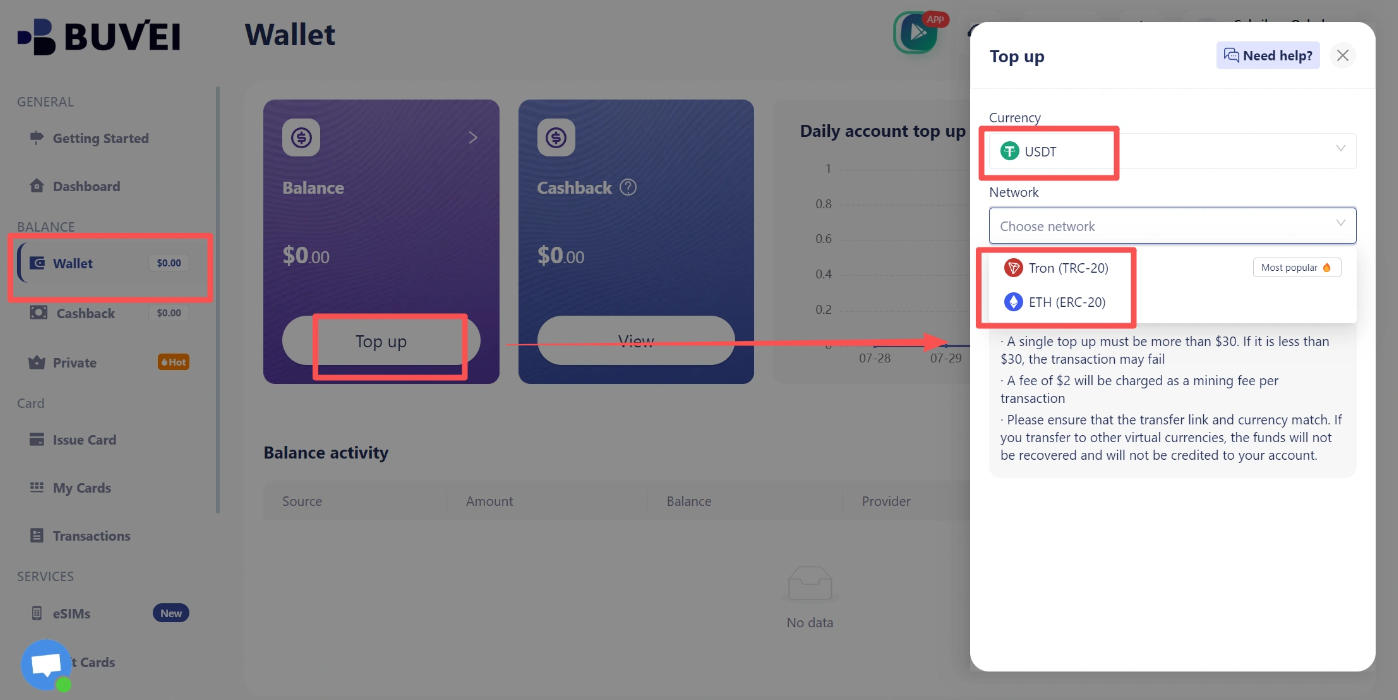
Step 2: Top Up Your BUVEI Wallet
Open the Wallet tab and select USDT. Choose an available network, such as TRC20 or ERC20, and copy your dedicated deposit address.
Transfer your funds using the matching network. Once the transaction is confirmed, your wallet balance will be updated. Applicable top-up and payment fees are displayed in the dashboard.
Step 3: Create a BUVEI Virtual Card
Go to the Cards tab and select your preferred BIN region and card type.
BUVEI supports multiple BIN regions across Visa and Mastercard networks, offering options for different payment scenarios.
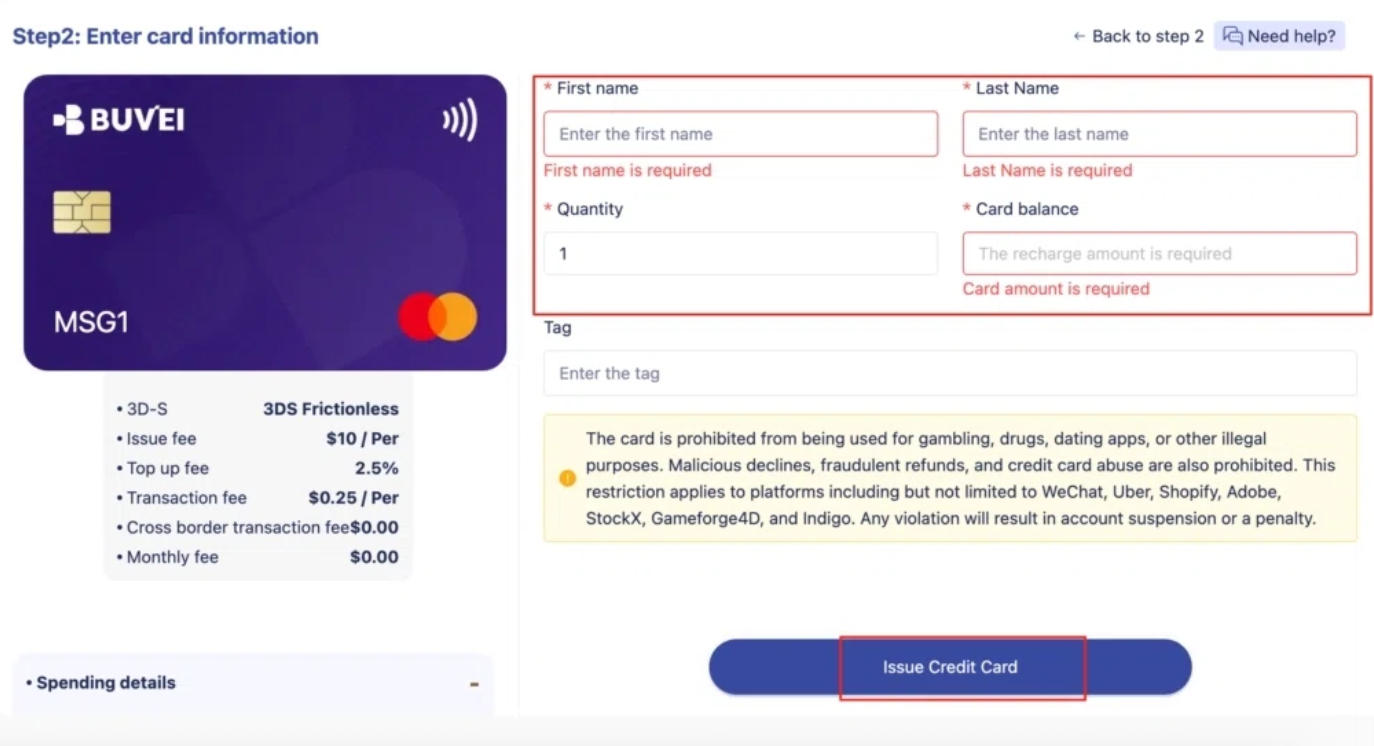
Enter the card name, amount, and number of cards you want to issue, then click Issue Card.
Cards can be issued quickly after registration without a complicated KYC process, subject to availability. BUVEI supports eligible payment scenarios across Google Ads, Meta Ads, TikTok Ads, and Microsoft Ads, as well as SaaS tools such as ChatGPT, Canva, and Notion.
Step 4: View Your Virtual Card Details
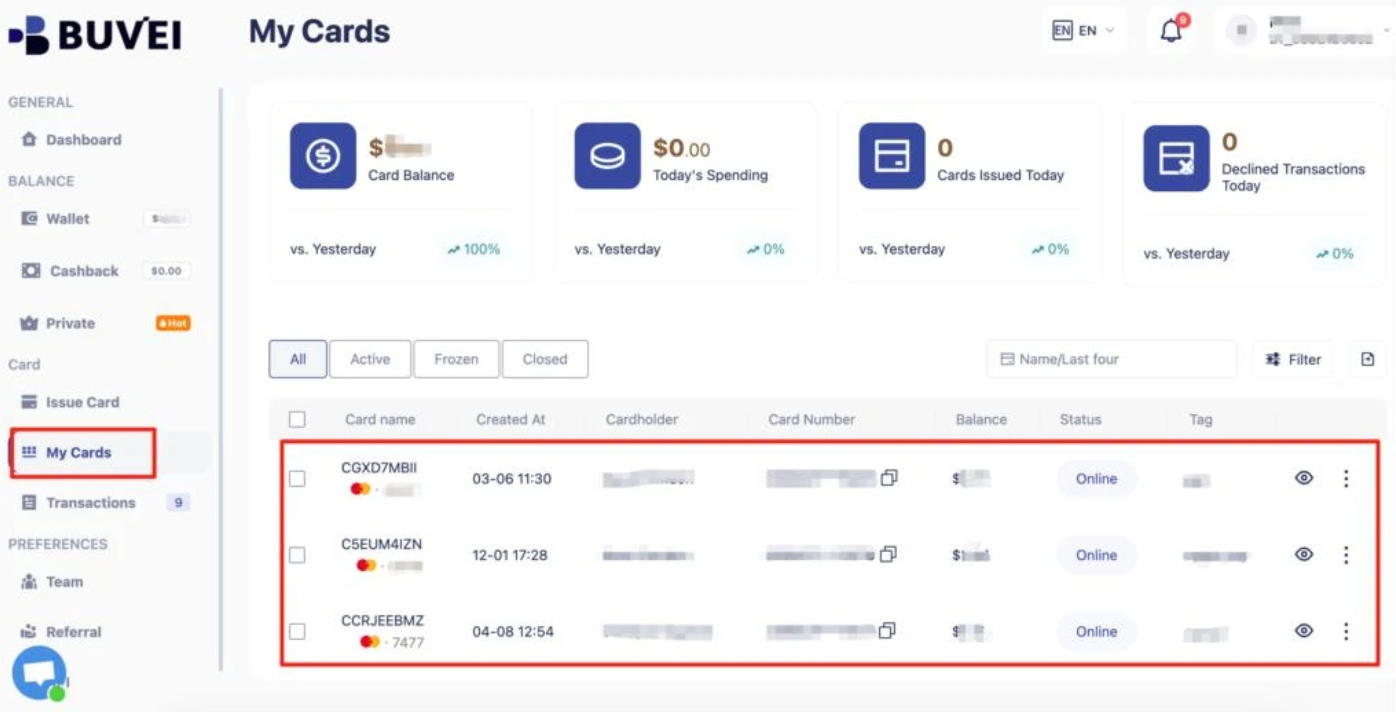
After issuance, open My Cards to view your card number, expiration date, and CVV.
Keep your card information private and only enter it on trusted payment pages.
Step 5: Track Your Card Transactions
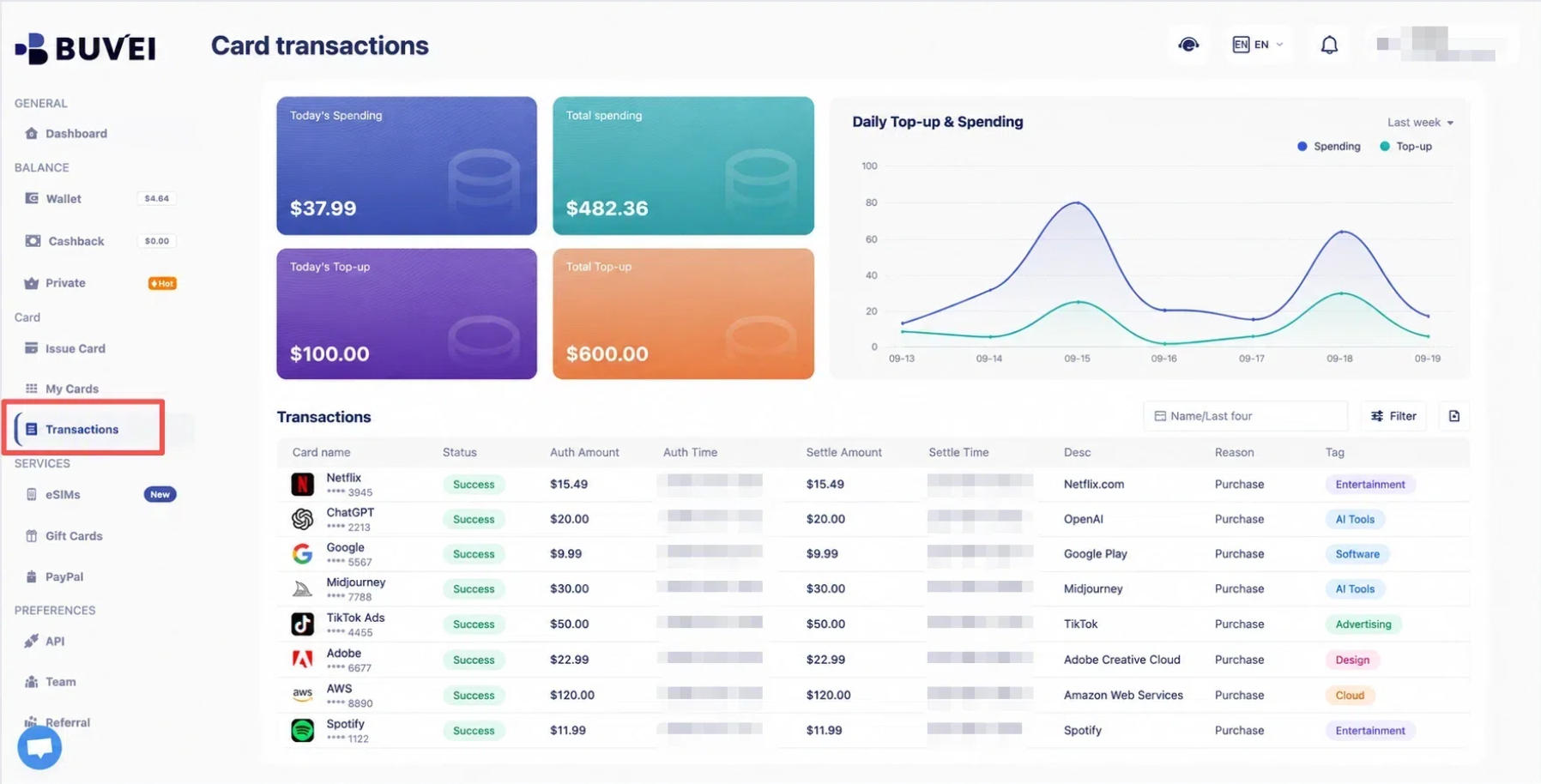
Use the My Cards section to review top-ups, spending activity, and individual transaction records.
Separate cards for advertising, hosting, and software subscriptions make it easier to track expenses independently.
Frequently Asked Questions About Google Workspace Billing
Why Is Google Workspace Not Accepting My Payment?
Common reasons include an expired card, insufficient funds, international transaction restrictions, or an issue with your Google payments profile. Check your billing alerts and contact your bank if necessary.
How Do I Update My Google Workspace Payment Method?
Sign in to Google Admin Console, open Billing → Payment accounts, and select View payment methods. Update your existing card or add a new one, then assign a valid payment method as Primary.
How Long Can Google Workspace Stay Suspended After a Payment Failure?
For monthly billing, Google may suspend a subscription if the payment issue isn't resolved within 30 days. A subscription suspended for more than 60 days may be canceled.
Can I Use a Virtual Card to Pay for Google Workspace?
It depends on Google's payment requirements, the issuing region, and the specific card. Not every virtual card is eligible for recurring Workspace payments. Check the payment options available in your Admin Console before relying on one.
Conclusion
If your Google Workspace payment failed, identifying the cause is the first step toward restoring your subscription. Whether the issue comes from an expired card, a bank restriction, or a Google payments profile problem, check your billing status, update your payment method, and settle any outstanding balance. Acting early can help prevent a temporary payment issue from turning into a service interruption.
For businesses managing multiple online services, keeping payments organized is equally important. BUVEI offers virtual Visa and Mastercard cards for eligible online payments, with USDT top-ups, individual spending limits, and centralized card management. Teams can use separate cards for advertising, SaaS subscriptions, and project expenses, then track transactions from one account.
With better payment visibility and more flexible expense management, businesses can spend less time sorting out transactions and more time focusing on their work.