


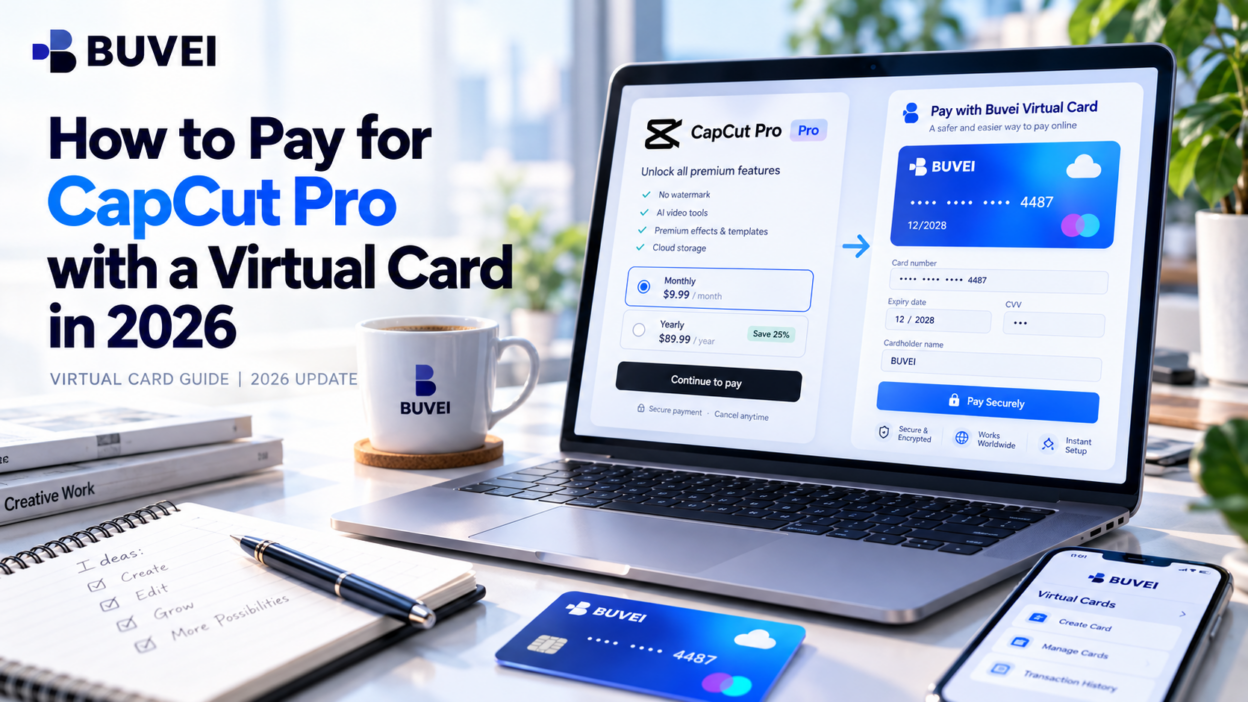
A CapCut Pro virtual card may help you manage your subscription, but whether it works depends on your checkout platform, card type, and issuing region. CapCut's website uses the payment methods shown at checkout, while iPhone and Android purchases are handled through Apple or Google Play.
This guide explains how to prepare a BUVEI card, subscribe to CapCut Pro, and troubleshoot declined payments.
Can You Pay for CapCut Pro with a Virtual Card?
A virtual card may work for CapCut Pro if the checkout channel accepts its card type and issuing region. The process depends on where you make the purchase:
- CapCut Web: Use a supported card payment option displayed at checkout.
- iPhone: Purchases in the CapCut app are processed through Apple's in-app purchase system.
- Android: Purchases in the CapCut app are processed through Google Play.
For direct card entry, the web checkout is the most straightforward place to start. CapCut's official subscription guide explains the purchase process for each platform.
What You Need Before Subscribing
Before you start, make sure you have a CapCut account you can access, a virtual card eligible for the intended payment, enough available funds for the displayed total, and accurate billing information.
Also, decide whether you'll subscribe on the web or through a mobile app. CapCut Pro pricing and available payment methods can vary by region, platform, and promotion, so rely on the plan and final amount shown in your own checkout rather than a price listed elsewhere.
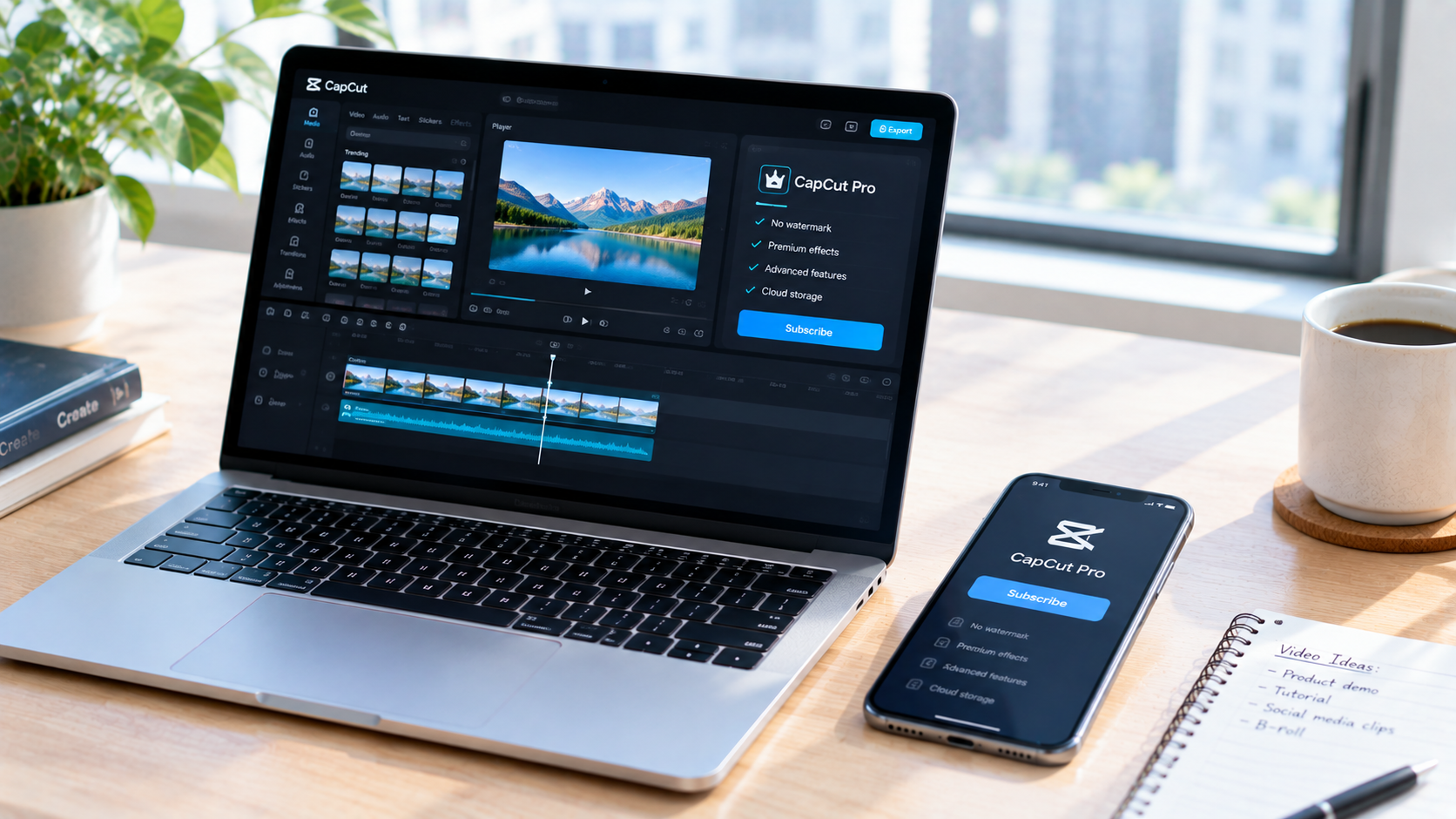
How to Pay for CapCut Pro with a Virtual Card
Step 1: Create a Virtual Card with BUVEI
If you need a separate card for software subscriptions, BUVEI offers virtual card creation and transaction management for supported online payments.
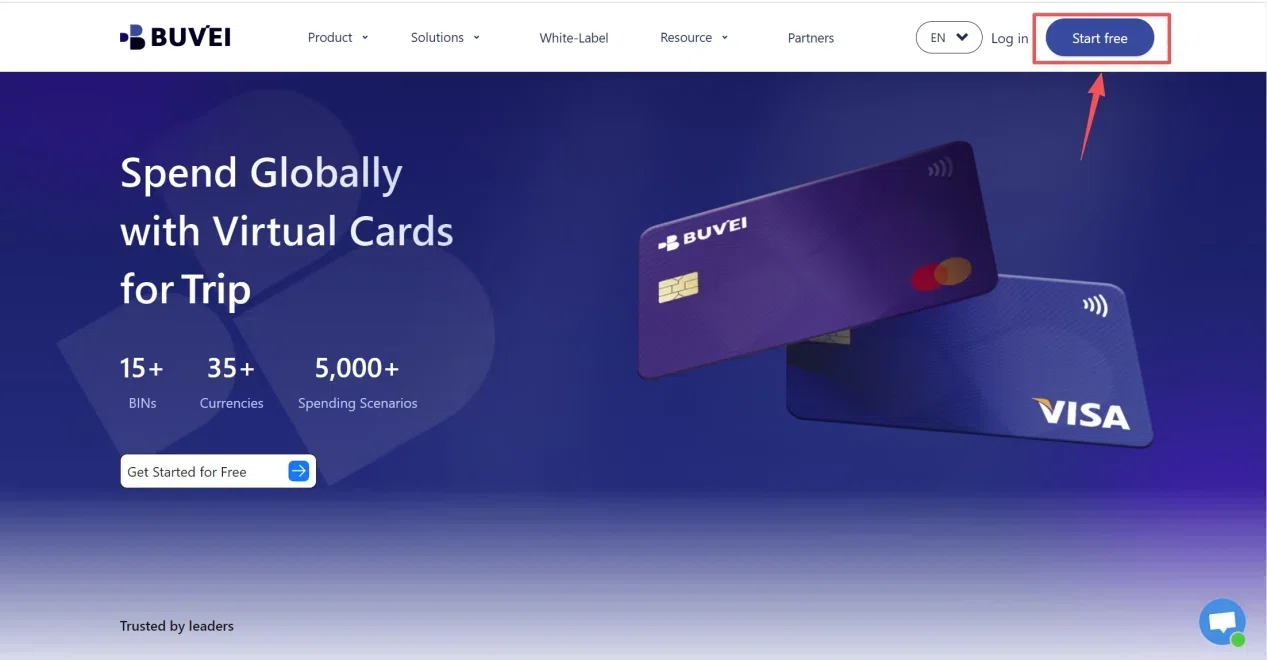
1. Register for an account. Visit BUVEI.com, create an account, complete the required email verification, and log in to the dashboard.
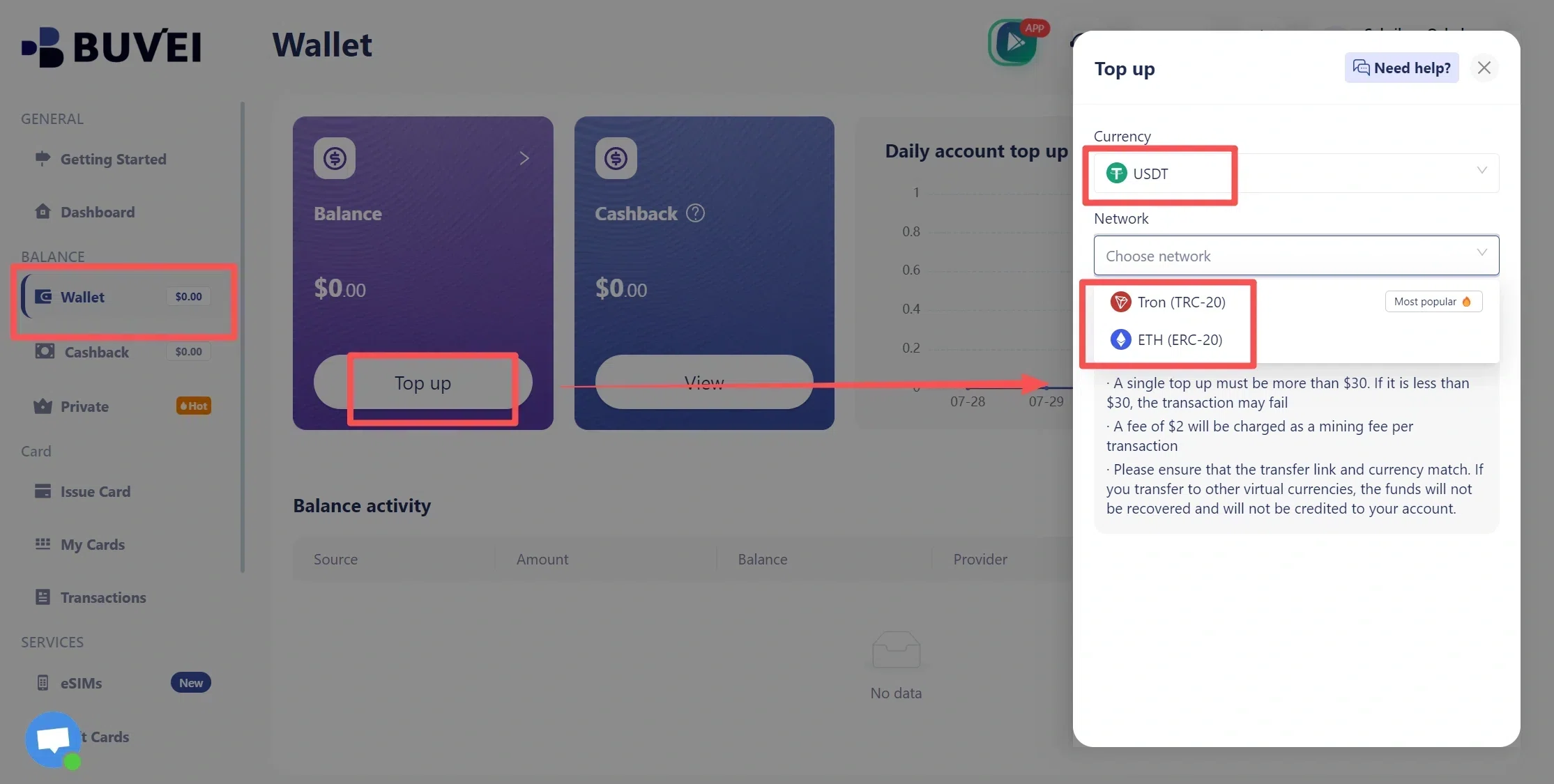
2. Fund your wallet. Open Wallet and select an available funding method. BUVEI supports USDT deposits through TRC20 and ERC20, subject to the options shown in your account. Copy the deposit address, confirm that the sending and receiving networks match, and transfer the funds. Wait for confirmation and check your available balance.
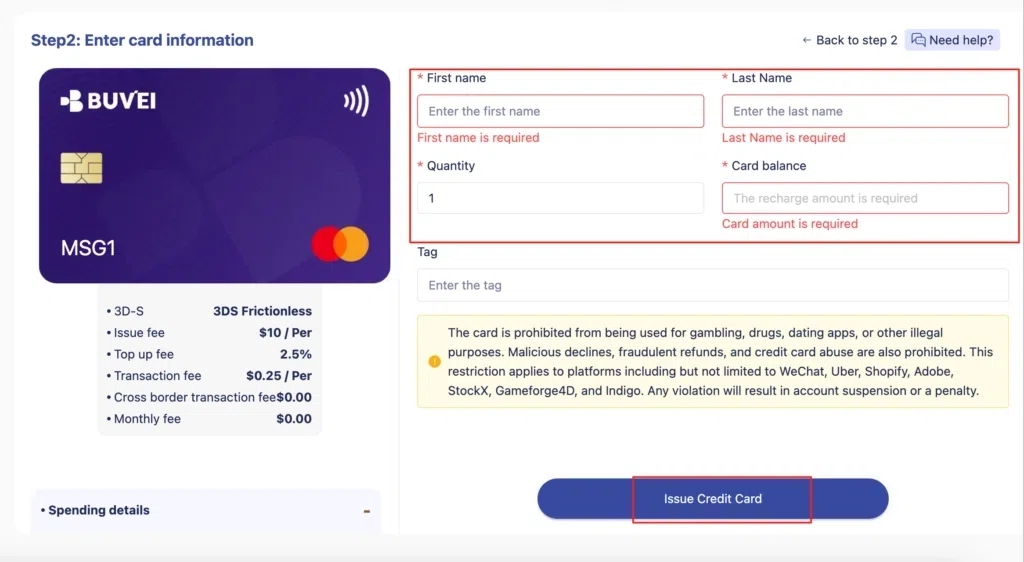
3. Issue a virtual card. Open Cards, select an available BIN region and card type appropriate for your needs, and enter the requested details, such as the card name, amount, and number of cards. 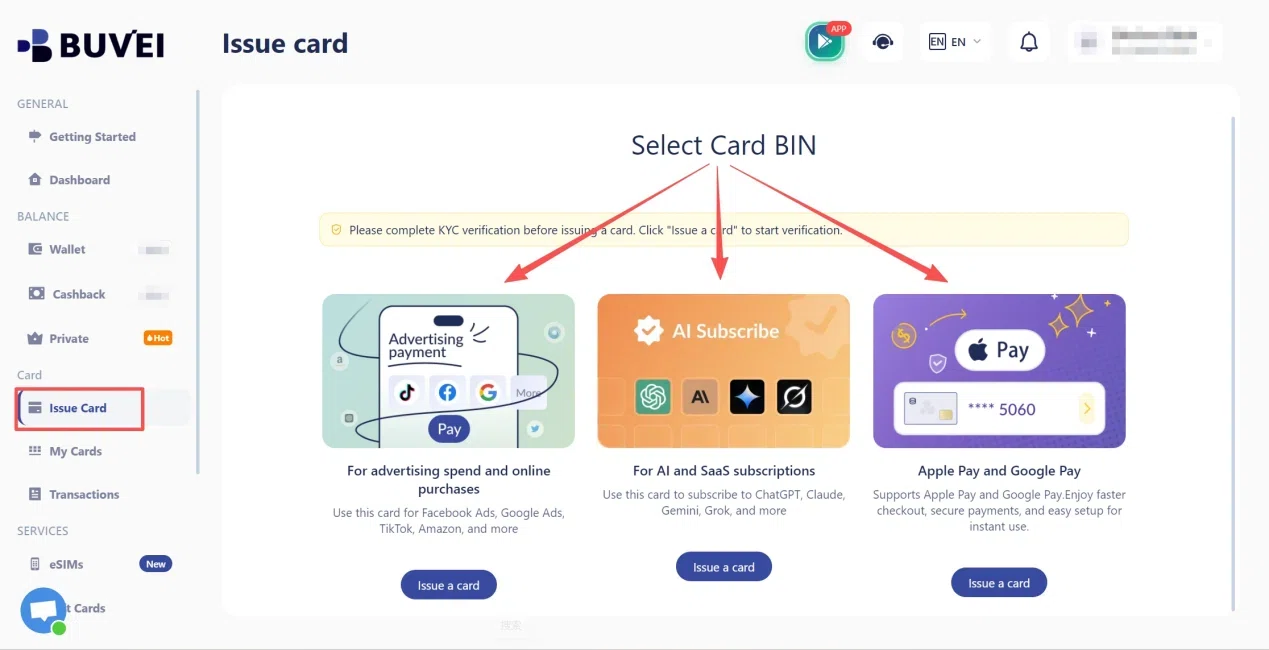
Submit the issuance request using the control displayed in your dashboard.
4. Check your card details. Open My Cards to locate the issued card and review its status and details. Keep the card number, expiration date, and CVV private.
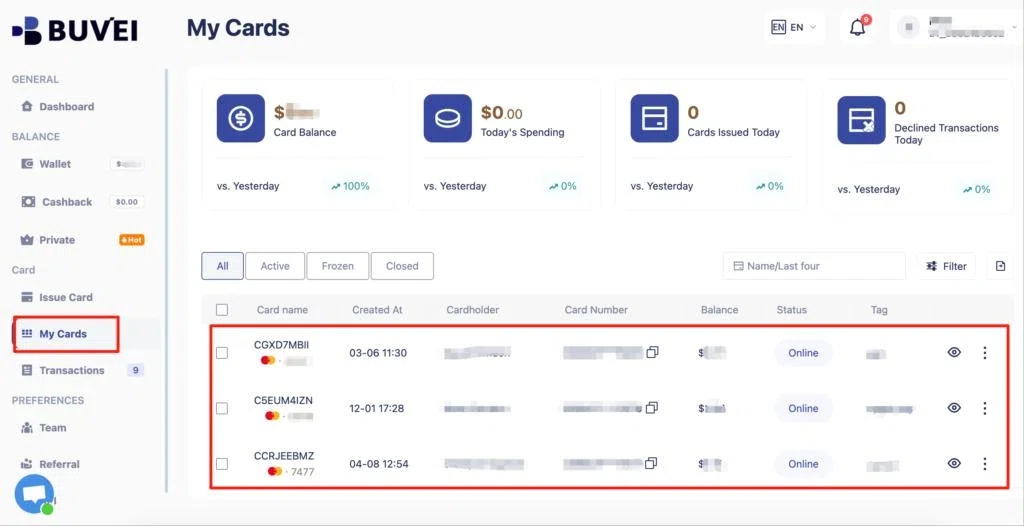
A US BIN may be worth considering if it fits the merchant's requirements, but it doesn't guarantee acceptance. Before moving on, make sure the card is active and the funds are available for spending.
Step 2: Choose a CapCut Pro Plan
With your payment method ready, open CapCut and sign in to the account where you want the membership activated.
- Click your profile icon in the upper-right corner.
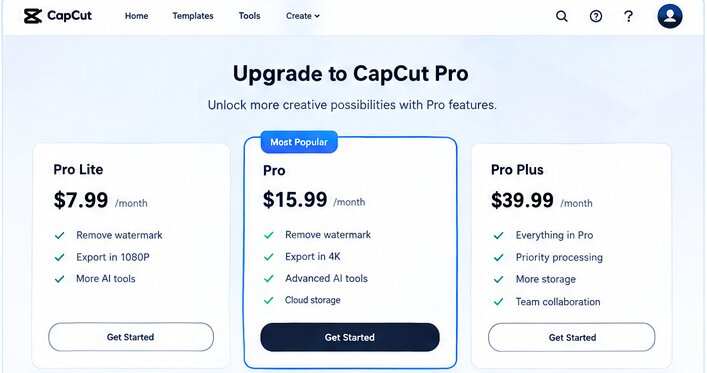
- Select Upgrade to Pro or Join CapCut Pro, depending on the interface shown.
- Review the plans available to your account.
- Choose the monthly or annual option offered at checkout.
- Continue to the payment page and confirm the total amount.
Check the billing interval and renewal terms before purchasing. If you use more than one CapCut login method, such as email, Google, Apple, or TikTok, make sure you're using the account where you want Pro benefits to appear.
Step 3: Enter Your Virtual Card Details
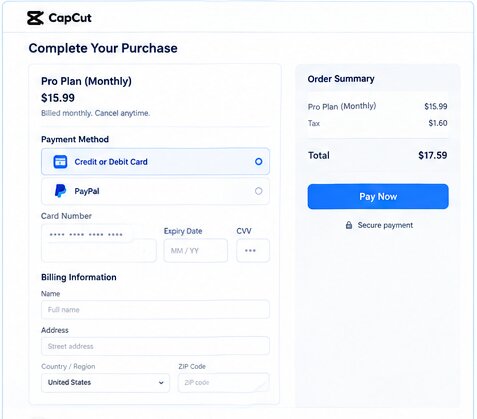
On the checkout page, review the payment methods available for your account. If a supported card option appears, you can try entering your BUVEI card details.
- Select the available credit or debit card option.
- Enter the card number, expiration date, and CVV.
- Fill in the billing information requested by the merchant.
- Review the subscription period and final amount.
- Submit the payment and complete any verification requested.
Use accurate billing details, and don't change your account region or enter a false address to work around a payment restriction.
If the checkout page doesn't offer a compatible card option, check the other payment methods shown rather than assuming that every virtual card will work.
Step 4: Confirm Your CapCut Pro Subscription
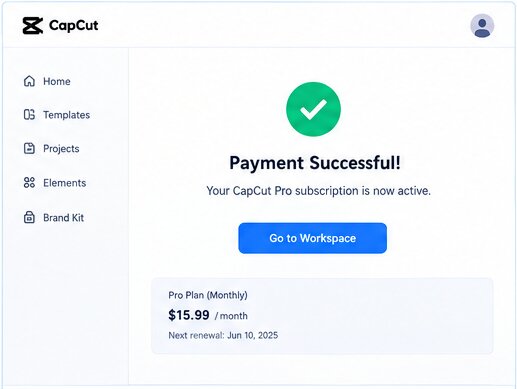
Submitting the payment form doesn't necessarily mean your subscription is active, so verify the result before assuming the purchase is complete.
- Look for a payment confirmation or receipt.
- Return to your CapCut account and check the membership status.
- Confirm that Pro is active and review the displayed renewal or expiration date.
- If you're using CapCut Desktop or Mobile, make sure you're signed in with the same account used for the purchase.
If you've been charged but Pro features remain locked, refresh the page and sign out and back in. CapCut's official Pro benefits troubleshooting guide recommends checking account mismatch and payment status before taking further action.
Don't purchase again just because the membership status hasn't updated immediately. First confirm whether the original payment completed and which account received the subscription.
How to Pay for CapCut Pro on iPhone or Android
The mobile process is different from entering a card directly on the web because the payment is managed through the relevant app store.
On iPhone
- Open Settings and tap your name.
- Select Payment & Shipping.
- Add or update your payment method if Apple supports the card.
- Open CapCut and choose the Pro subscription option.
- Review the plan and complete the purchase through Apple's payment flow.
If Apple declines the card, check the payment settings and account notices associated with your Apple Account. Adding a card to BUVEI doesn't automatically add it to Apple.
On Android
- Open Google Play and tap your profile icon.
- Select Payments & subscriptions → Payment methods.
- Add the virtual card if Google Play supports it.
- Open CapCut and select the Pro subscription option.
- Review the billing terms and complete the purchase through Google Play.
If Google Play rejects the card, investigate the payment issue in Google Play rather than repeatedly changing settings in CapCut. Manage renewals and cancellations through the platform that processes your subscription.
Why Is Your Virtual Card Declined by CapCut?
If the payment fails, check the error message before trying another card. CapCut's official payment troubleshooting guide recommends checking the payment method and transaction details, trying an eligible alternative where appropriate, and contacting support if the issue persists.
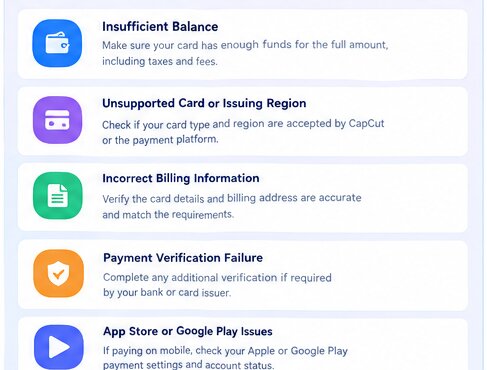
Insufficient Balance or Incorrect Card Details
Check that the available balance covers the full checkout amount, including applicable taxes and fees. Confirm that the card is active, hasn't expired, and has the correct number, expiration date, and CVV.
Unsupported Card Type or Issuing Region
Payment options vary by region and checkout channel. Check that CapCut or the relevant app store accepts your card type and issuing region; changing BIN regions doesn't guarantee approval.
Bank Authorization or Verification Failed
If the details are correct and funds are available, contact the card issuer to ask whether it declined the transaction or requires additional authorization. If a verification prompt appears, follow the instructions provided through the authorized payment process.
The Payment Is Pending or Pro Hasn't Activated
Check the transaction status before retrying. A pending authorization doesn't necessarily mean a completed charge, and repeated attempts can create confusion around multiple authorizations.
If the payment is confirmed but Pro hasn't activated, check the receipt, the account used for the purchase, and the subscription status. Contact CapCut Support if the problem continues.
When contacting support, provide the error message, payment date, amount, and transaction reference where available. Never send your full card number, CVV, or one-time verification codes through unofficial channels.
How to Manage CapCut Pro Payments After Subscribing
Once your subscription is active, a few basic checks can help you avoid renewal surprises.
- Check renewal dates: Review the billing interval and next renewal date shown by the platform managing the subscription.
- Keep enough funds available: If your subscription uses a virtual card, check the available balance before renewal.
- Review transactions: BUVEI's transaction records can help you identify card payment activity, which you can compare with your CapCut receipt or subscription details.
- Cancel through the correct platform: Cancel through the CapCut subscription settings, Apple, or Google Play, depending on where you purchased the plan. Removing a card or freezing it doesn't necessarily cancel the subscription.
Frequently Asked Questions
Can I Pay for CapCut Pro with a Virtual Card?
Possibly. The card must be accepted by the checkout channel and meet the applicable requirements for card type, issuing region, and authorization. Verify compatibility before relying on it for a subscription.
Why Is My Virtual Card Declined by CapCut?
Common causes include insufficient funds, incorrect card details, issuer restrictions, unsupported payment methods, or failed verification. Check the error message and transaction status first, then contact your issuer or CapCut Support if needed.
Will CapCut Pro Automatically Renew When I Use a Virtual Card?
Renewal depends on the subscription terms and the platform managing the purchase. Check the renewal date and cancellation settings in CapCut, Apple, or Google Play, and cancel through the appropriate platform if you no longer need the subscription.
Conclusion
To pay for CapCut Pro with a virtual card, choose the right checkout channel, check card compatibility, enter accurate payment details, and confirm that your Pro membership is active afterward. If a payment fails, review the error message, available balance, card restrictions, and verification status before trying another method.
BUVEI provides virtual card creation, wallet funding, and transaction management for supported online payments. Whether a specific card works for CapCut Pro depends on CapCut's current payment options and the card issuer's authorization, so always confirm the subscription status and transaction result rather than assuming that submitting a payment completes the purchase.