


Introduction
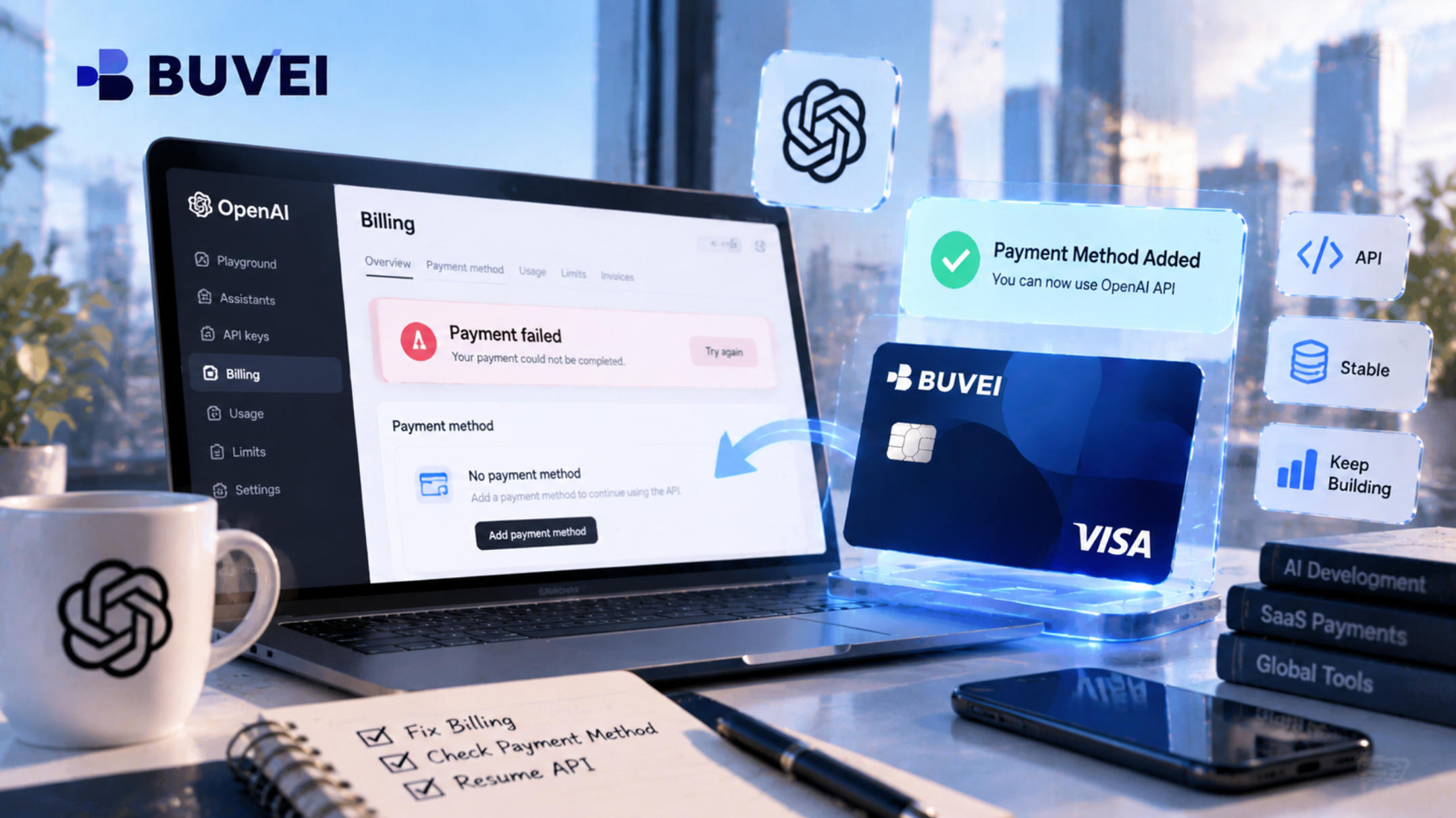
If your OpenAI API billing failed when you tried to purchase credits, the cause could be a declined card, incorrect billing details, or an unsupported payment method. Your API requests may also stop working when your credit balance runs out or automatic recharging fails.
This guide covers the most common billing problems, where to find them in your OpenAI account, and what you can do to get your API payments working again.
Why Does OpenAI API Billing Fail?
1. Your Bank Declined the Payment
Your bank may reject an OpenAI API payment because of insufficient funds, international transaction restrictions, or security checks. Some banks also block online transactions until you approve them.
Check your available balance and make sure international online payments are enabled. If the payment still fails, contact your bank and ask whether it has declined the transaction.
2. Your Payment Card Is Not Supported
OpenAI has specific requirements for API credit purchases. Prepaid cards cannot be used to purchase OpenAI API credits. You need a standard credit or debit card issued by a bank in a supported country or region.
Check both the card type and its issuing country before trying again. Switching to another prepaid card won't get around this restriction.
3. Your Billing Information Is Incorrect
An incorrect CVV, expiration date, billing address, or postal code can cause a payment to fail.
Review the information in your OpenAI billing settings and make sure it matches your card issuer's records. If you've recently replaced your card, check that you're using the updated details.
4. 3D Secure Verification Failed
Some banks require additional authentication before approving an online payment. This usually involves a one-time password or approval through your banking app.
If the verification window doesn't load or the authentication process is interrupted, the transaction may be declined. Allow payment redirects and pop-ups, try another browser, and contact your bank if the verification keeps failing.
5. Automatic API Credit Recharge Failed
OpenAI's automatic recharge feature purchases additional credits when your balance falls below a configured threshold.
An expired card, insufficient funds, or a bank restriction can interrupt the process. Open your Billing settings and check your payment method, recharge threshold, target balance, and monthly recharge limit. You can also purchase credits manually if automatic recharging isn't working.
6. Your API Credits or Spending Limit Are Exhausted
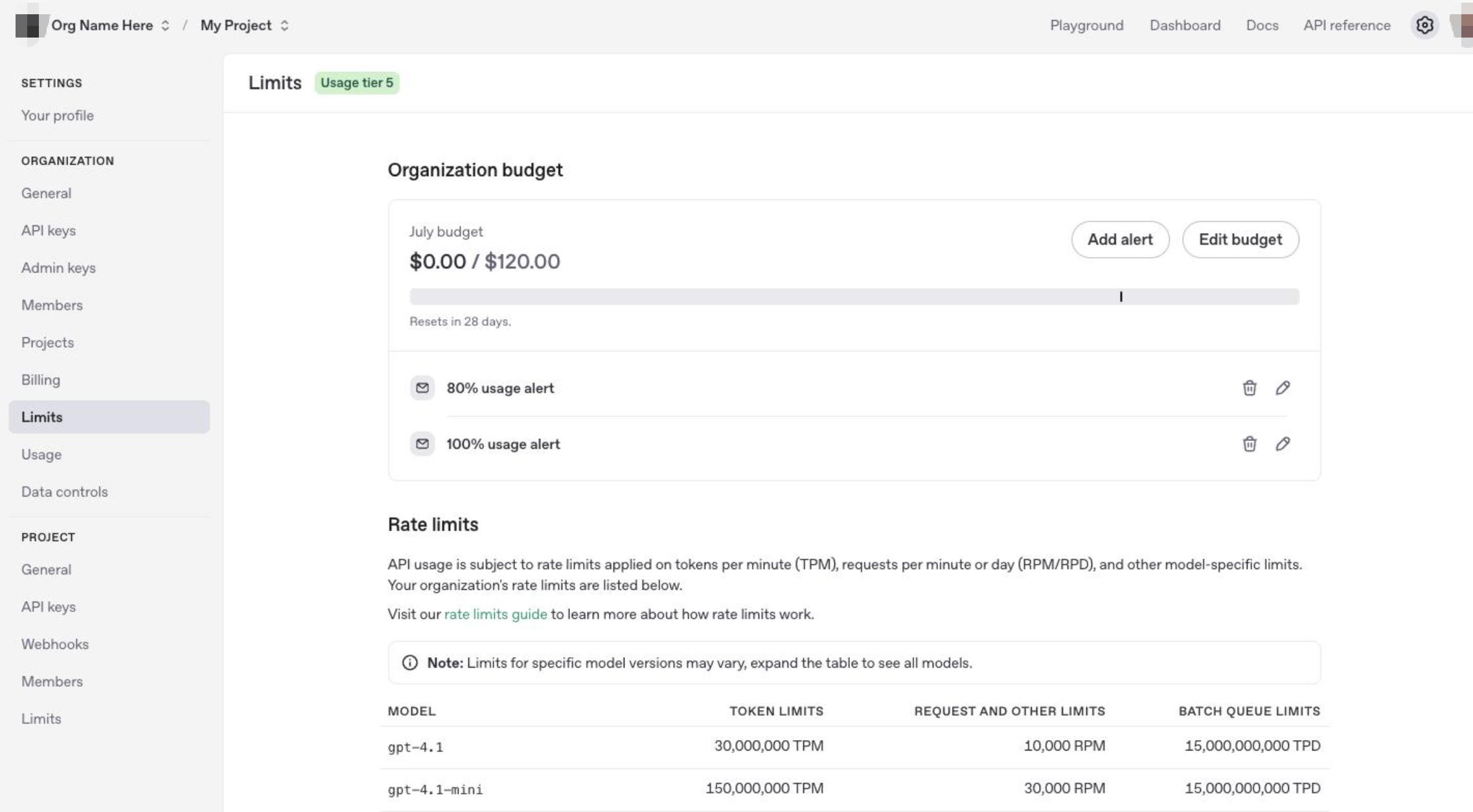
A billing error doesn't always mean your card was declined. Your prepaid credits may have run out, or your organization or project may have reached an enforced spending limit.
Check your API Usage and Limits pages. If your credit balance is empty, purchase additional credits. If you've reached a project or organization spending limit, an authorized administrator may need to adjust it.
Also, don't confuse spending limits with API rate limits. Rate limits control how many requests or tokens you can use within a given period, not how much money remains in your account.

How to Fix OpenAI API Billing Problems Step by Step
If you're not sure what's causing the error, start with these checks.
Step 1: Check Your OpenAI Billing Status
Sign in to the OpenAI API Platform and open the Billing section.
Check your available credit balance and recent payment activity. If your purchase failed, the credits won't appear in your account. If the payment succeeded but the balance hasn't updated, wait a few minutes before checking again.
Step 2: Verify Your Payment Method
Open your payment settings and check your card number, expiration date, CVV, billing address, and issuing region.
Make sure you're using an eligible standard credit or debit card. If all the information is correct but the payment continues to fail, contact your bank to check for transaction restrictions or additional verification requirements.
Step 3: Review Automatic Recharge and Usage Limits
Check your automatic recharge settings, including the balance threshold, target balance, and monthly recharge limit.
Then open Usage and Limits to see whether your organization or project has reached a spending restriction.
How to Prevent Future OpenAI API Billing Problems
Keep your payment information up to date and check your API credit balance regularly. If you rely on automatic recharging, make sure your payment method is still valid and your recharge settings reflect your expected usage.
For applications with growing API consumption, review project spending and usage activity regularly. This makes unexpected charges easier to spot before they affect your service.
Managing Other Expenses for Your OpenAI API Projects With BUVEI
Running an OpenAI API project often involves more than paying for model usage. You may also need cloud hosting, database services, domain registration, API monitoring tools, and AI development software.
These services have separate subscriptions and payment schedules. When you're working on multiple applications, keeping their expenses organized can become a challenge.
BUVEI helps developers manage payments for eligible supporting services through virtual Visa and Mastercard cards. You can create separate cards for different projects or subscriptions, set individual spending limits, and review transaction records from one account.
For example, you could assign one card to cloud hosting, another to development software, and a third to other eligible SaaS subscriptions. This makes it easier to track project expenses without mixing every payment together.
Step 1: Register a BUVEI Account
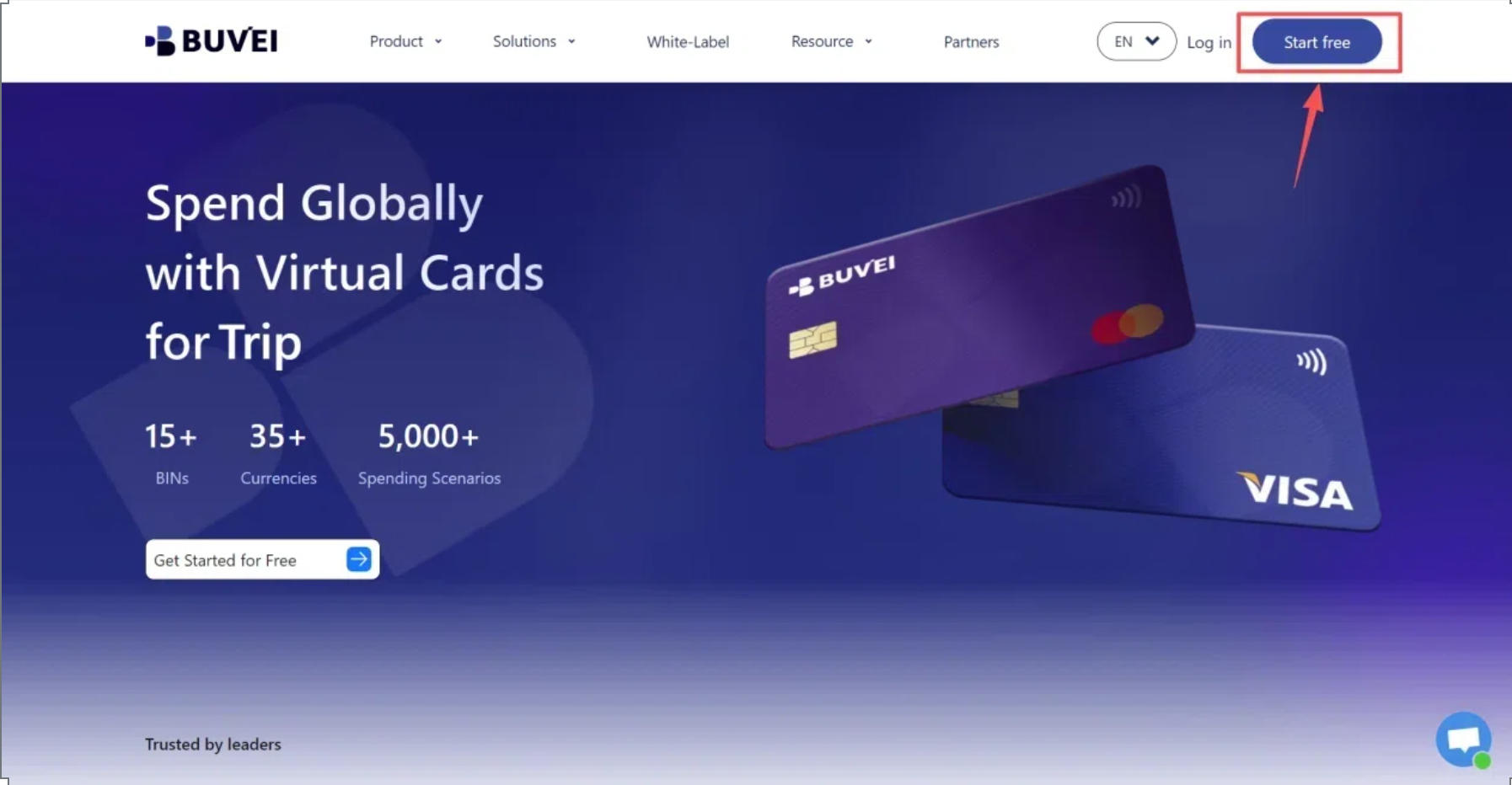
Visit BUVEI and create a free account. Complete email verification, then log in to access your dashboard.
Step 2: Top Up Your BUVEI Wallet
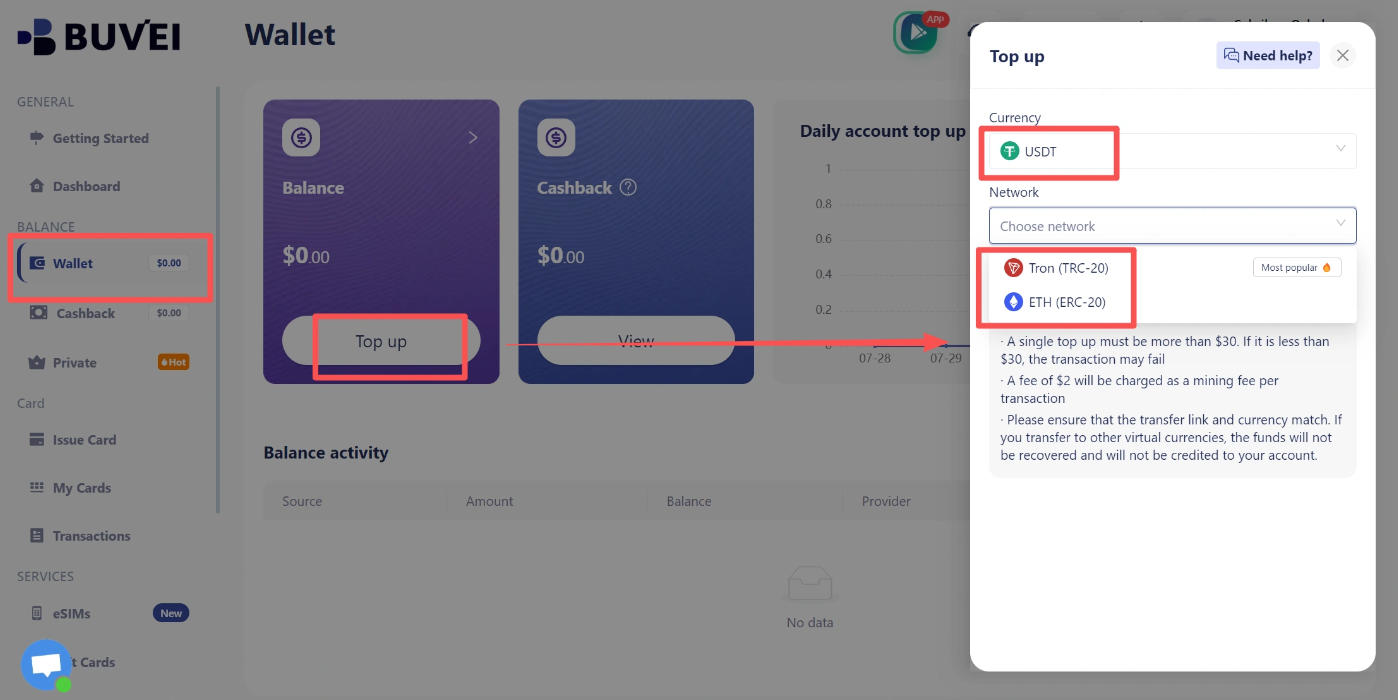
Open the Wallet tab and select USDT. Choose an available network, such as TRC20 or ERC20, and copy your dedicated deposit address.
Transfer your funds using the matching network. Make sure the sending and receiving networks match before confirming the transaction.
Once the deposit is confirmed, your wallet balance will be updated and available for card-related use.
Step 3: Create a Virtual Card for Your Project
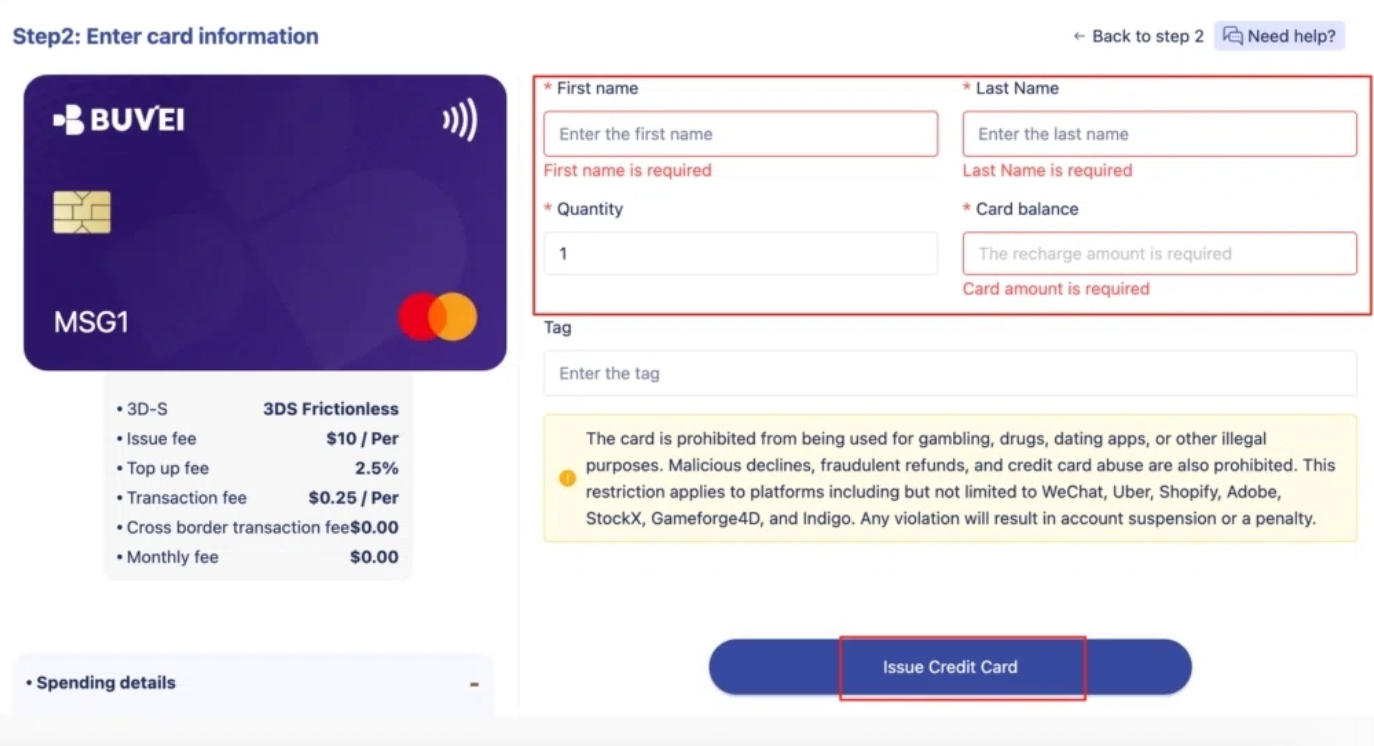
Go to the Cards tab and select your preferred BIN region and card type. Enter the card name, amount, and number of cards, then click Issue Card.
You can create separate cards for cloud hosting, development tools, and other eligible subscriptions. Giving each card a recognizable name makes it easier to track its intended use.
Step 4: View Your Virtual Card Details
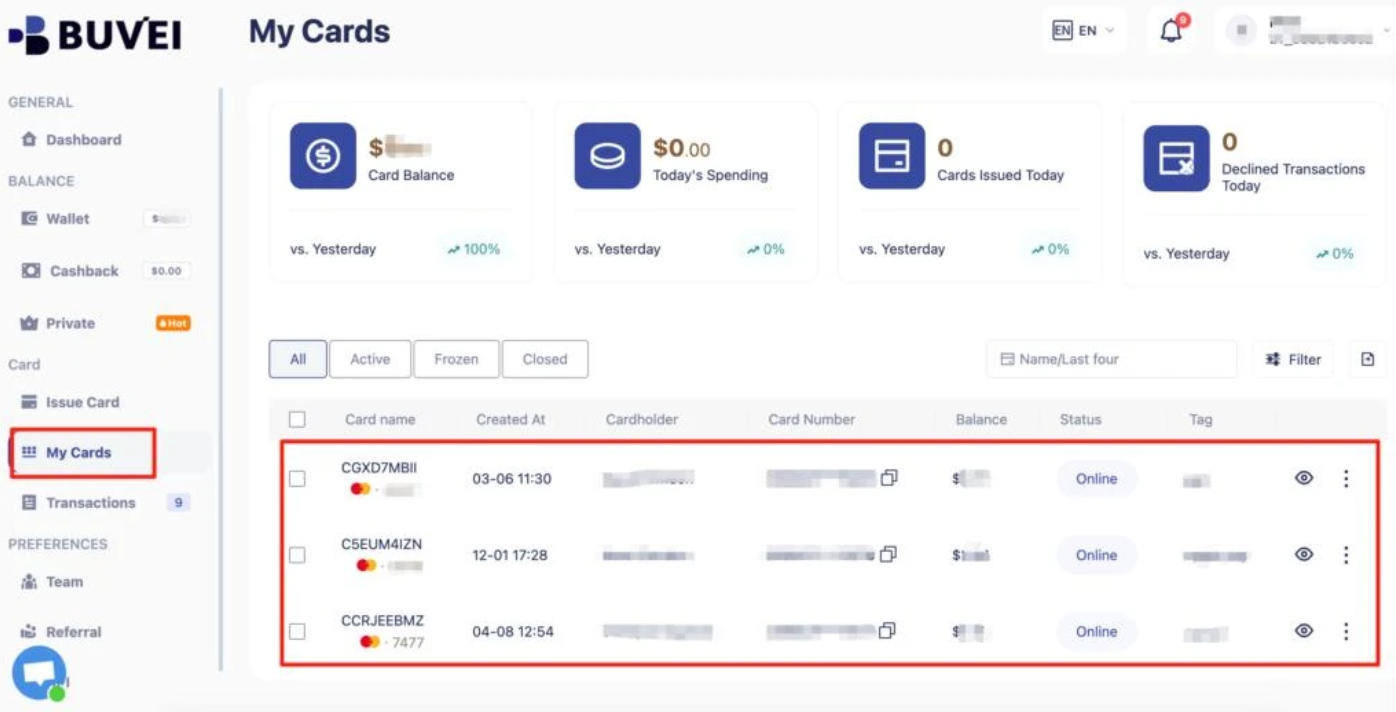
After issuance, open My Cards to view the card number, expiration date, and CVV.
These details are used when paying eligible online merchants. Keep your card information private and only enter it on trusted payment pages.
Step 5: Monitor Your Project Expenses
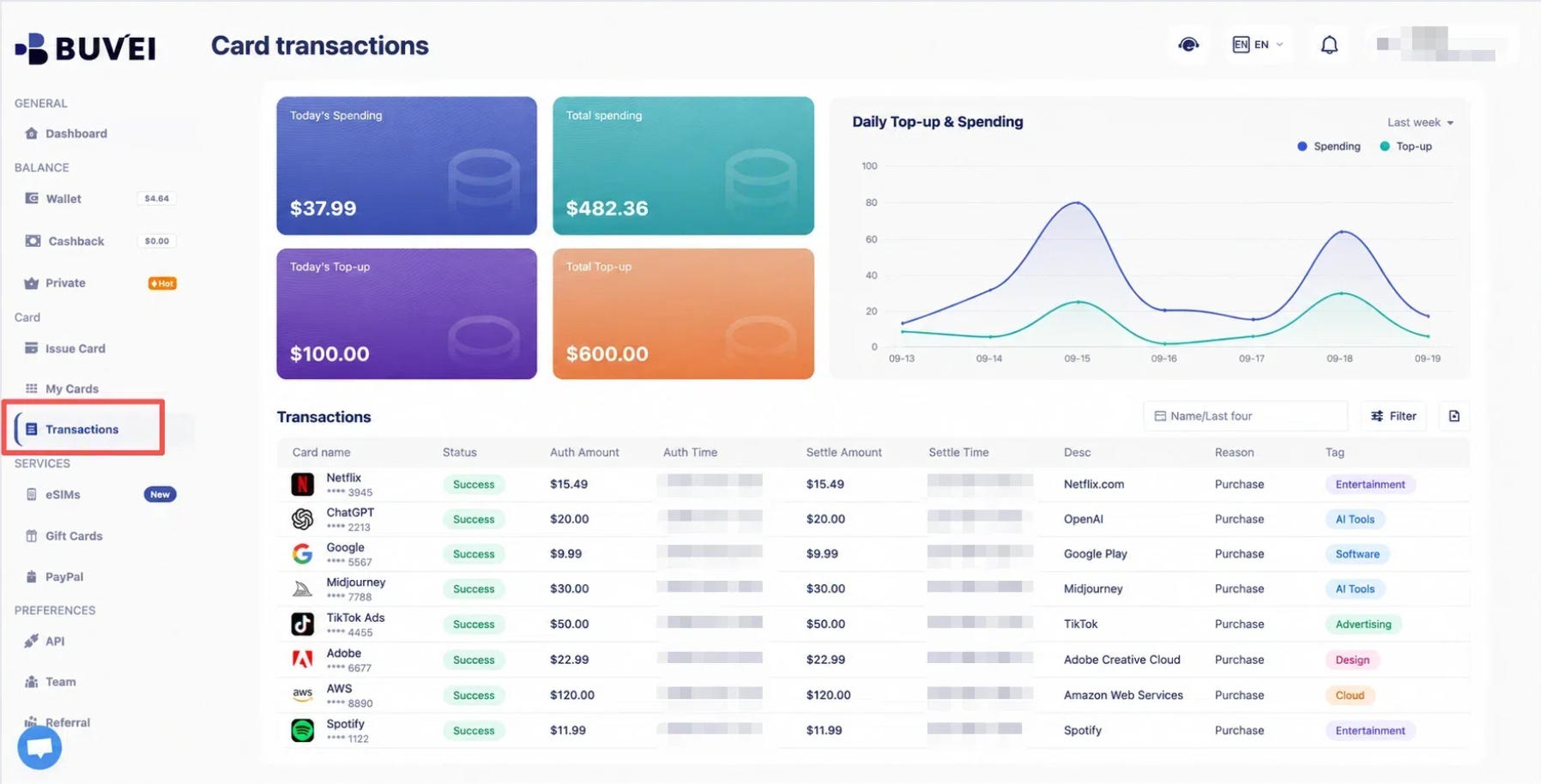
The My Cards section provides an overview of card top-ups and spending activity. You can also review individual transaction records to see how each card is being used.
For example, if you use separate cards for hosting and development software, you can check their transaction histories independently rather than sorting through all your project payments together.
Frequently Asked Questions
Why Is My OpenAI API Payment Being Declined?
Common reasons include bank restrictions, unsupported payment cards, incorrect billing information, and failed 3D Secure verification. Check your payment details and contact your bank if necessary.
Does ChatGPT Plus Include OpenAI API Credits?
No. ChatGPT subscriptions and API billing are separate. Having ChatGPT Plus does not automatically provide API credits.
What Should I Do If My OpenAI API Credits Are Not Showing Up?
Check your payment history to confirm that the purchase was successful. If the payment went through but your balance hasn't updated after a few minutes, make sure you're viewing the correct API organization and contact OpenAI Support if necessary.
Conclusion
An OpenAI API Billing Failed error can result from unsupported cards, bank restrictions, failed automatic recharges, or exhausted credits. Checking your payment method, billing status, and spending limits is the best way to identify the cause.
For the other expenses involved in running an API project, BUVEI offers virtual card management, USDT top-ups, and spending controls to help developers organize eligible online payments.