


Introduction
Looking to pay for Miro without using your main bank card? A Miro virtual card may be a convenient option if you want to keep software subscriptions separate from your everyday spending. Before getting started, make sure your card supports recurring payments and meets Miro's payment requirements.
In this guide, we'll walk through the process of paying for Miro with a BUVEI virtual card, from setting up your account and adding funds to creating a card and completing checkout. We'll also cover what to do if your payment is declined, so you know what to check before trying again.
Can You Pay for Miro with a Virtual Card?
Miro accepts credit card payments for eligible Starter and Business subscriptions on monthly and yearly billing cycles. A virtual card may work if it supports the required transaction type and is accepted by Miro's payment processor. However, not every virtual or prepaid card is guaranteed to work.
Before paying, check that your card is active, supports online and recurring payments where required, and has enough available funds to cover the subscription and applicable taxes. Make sure your billing information is accurate and that you can complete any required payment verification.
How to Create a Buvei Virtual Card for Miro
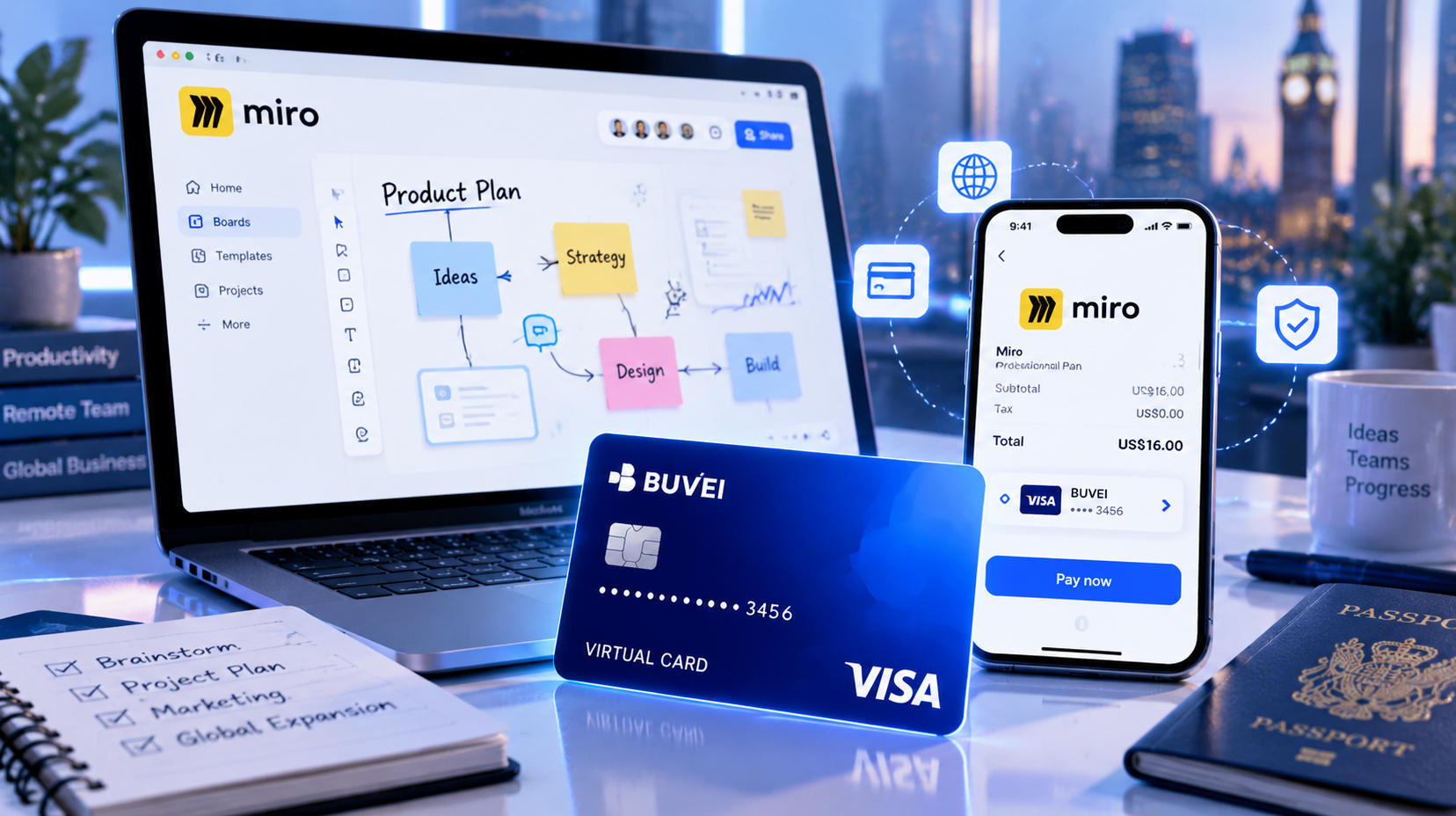
Buvei offers virtual cards with multiple BIN options and tools for managing cards and reviewing transactions. If you need a card for an eligible online subscription, follow these steps to create one.
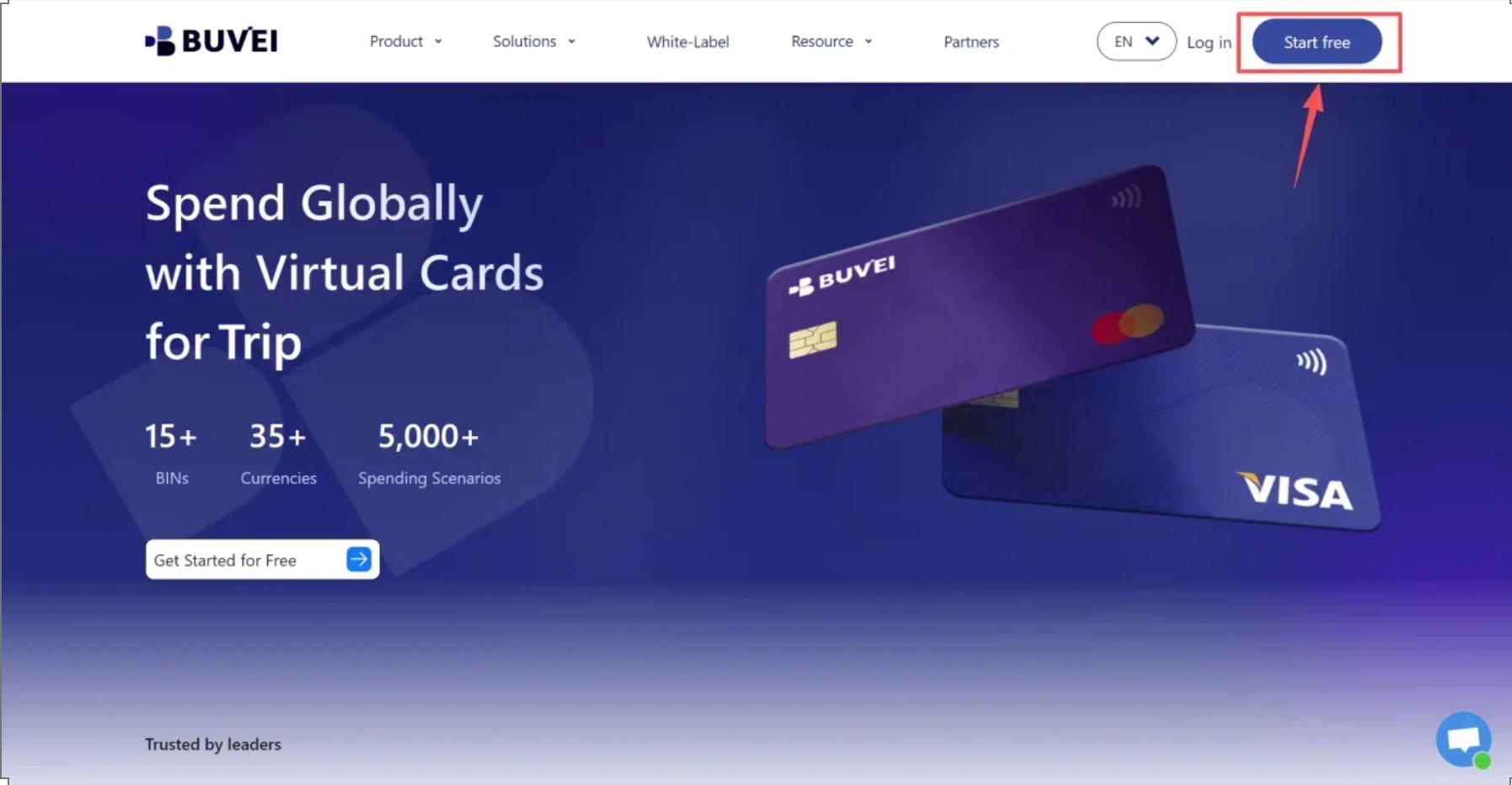
Step 1: Register for a Buvei Account
Visit Buvei.com and create a free account. Complete email verification, then log in to access your Buvei dashboard. From there, you can open the Wallet and Cards sections to prepare for funding your account and creating a virtual card.
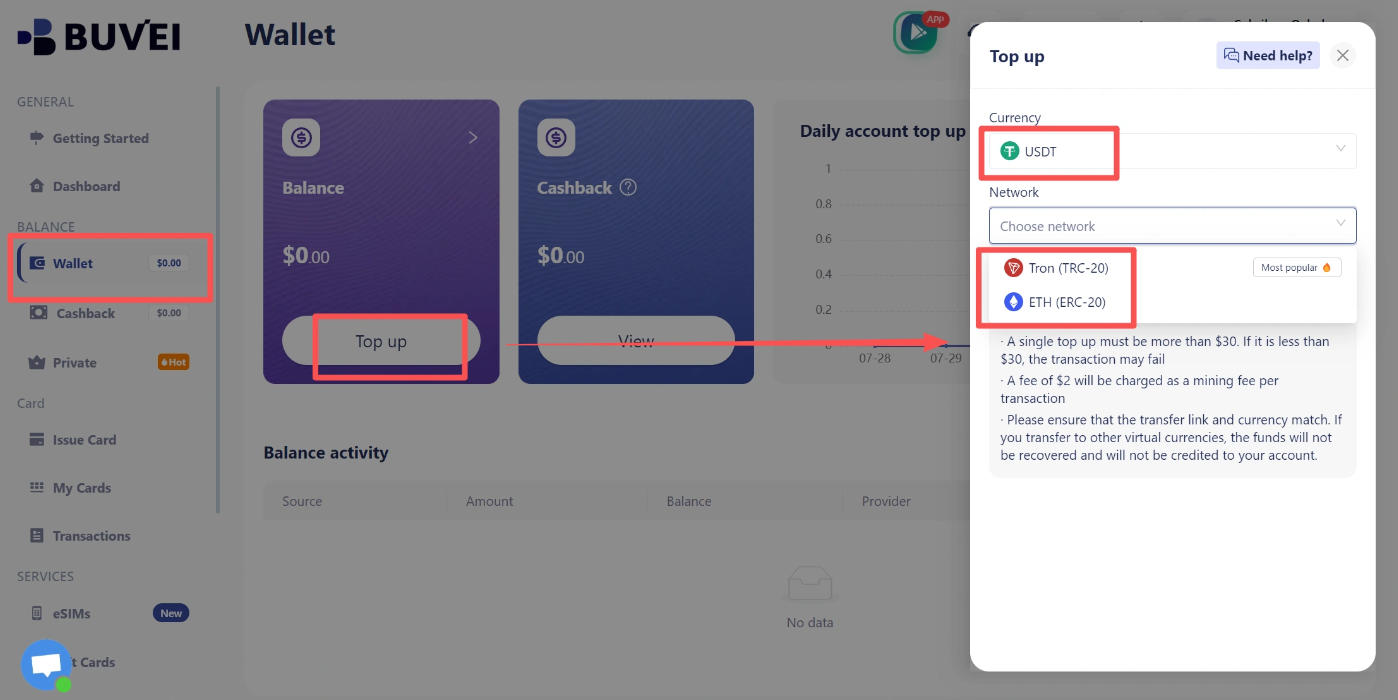
Step 2: Top Up Your Buvei Wallet
Open the Wallet section and select an available funding method, such as USDT via TRC20 or ERC20, if supported for your account. Copy the deposit address provided by Buvei and transfer funds using the matching network. Once the transaction is confirmed, return to your wallet and check that the balance has been credited.
Important: TRC20 and ERC20 are different blockchain networks. Double-check the deposit address and network before transferring funds. Network fees and processing times may vary.
USDT is used to fund your Buvei wallet; the Miro subscription itself is paid for through the card payment process, not by sending USDT directly to Miro.
Step 3: Choose a BIN Region and Card Type
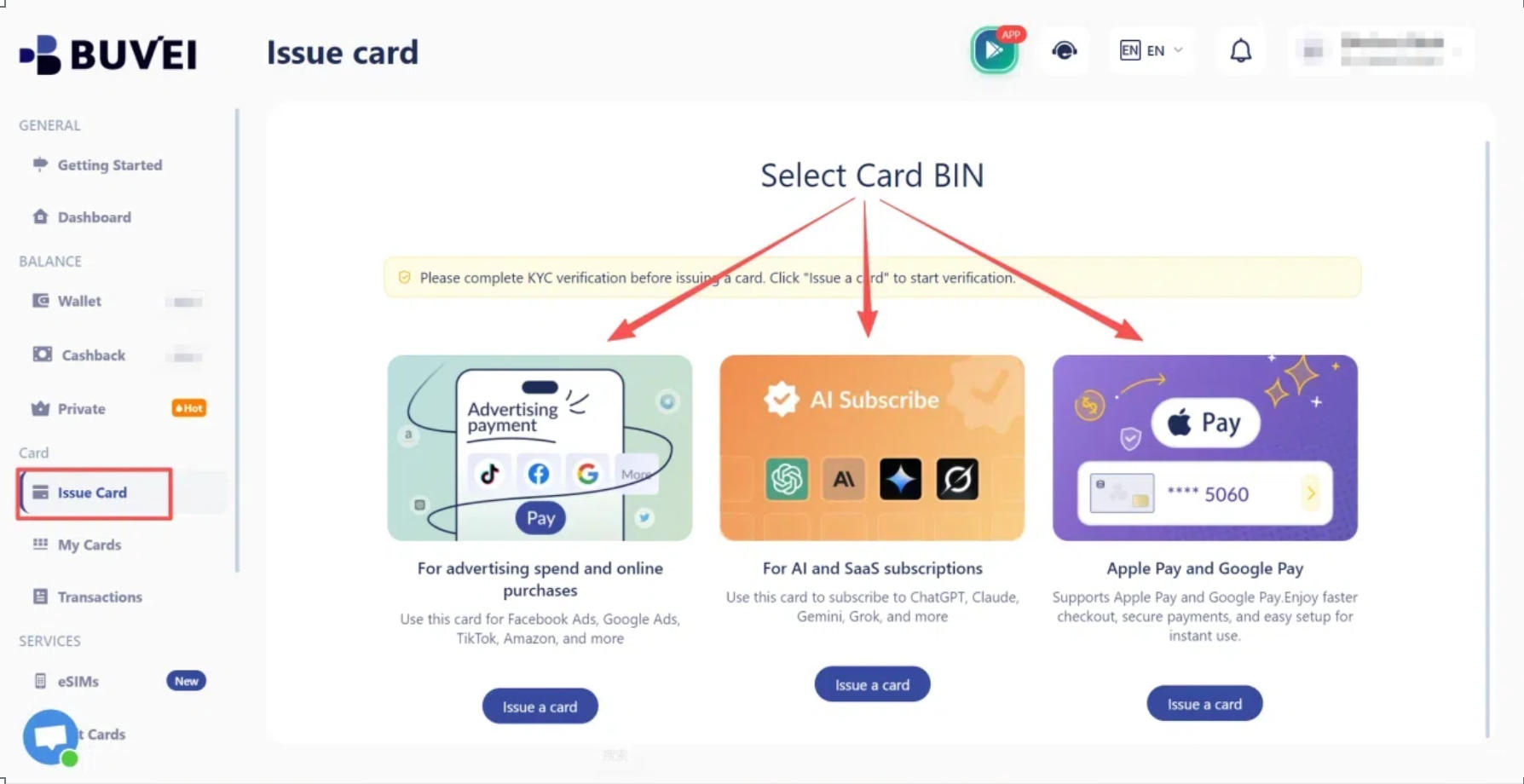
Open the Cards section and review the available BIN regions and card types. Choose an option that suits your intended payment, and check its supported uses and restrictions before proceeding.
Buvei's multiple BIN options give you flexibility when selecting cards for different payment scenarios. However, no particular BIN region guarantees that Miro will accept the card.
Step 4: Issue Your Virtual Card
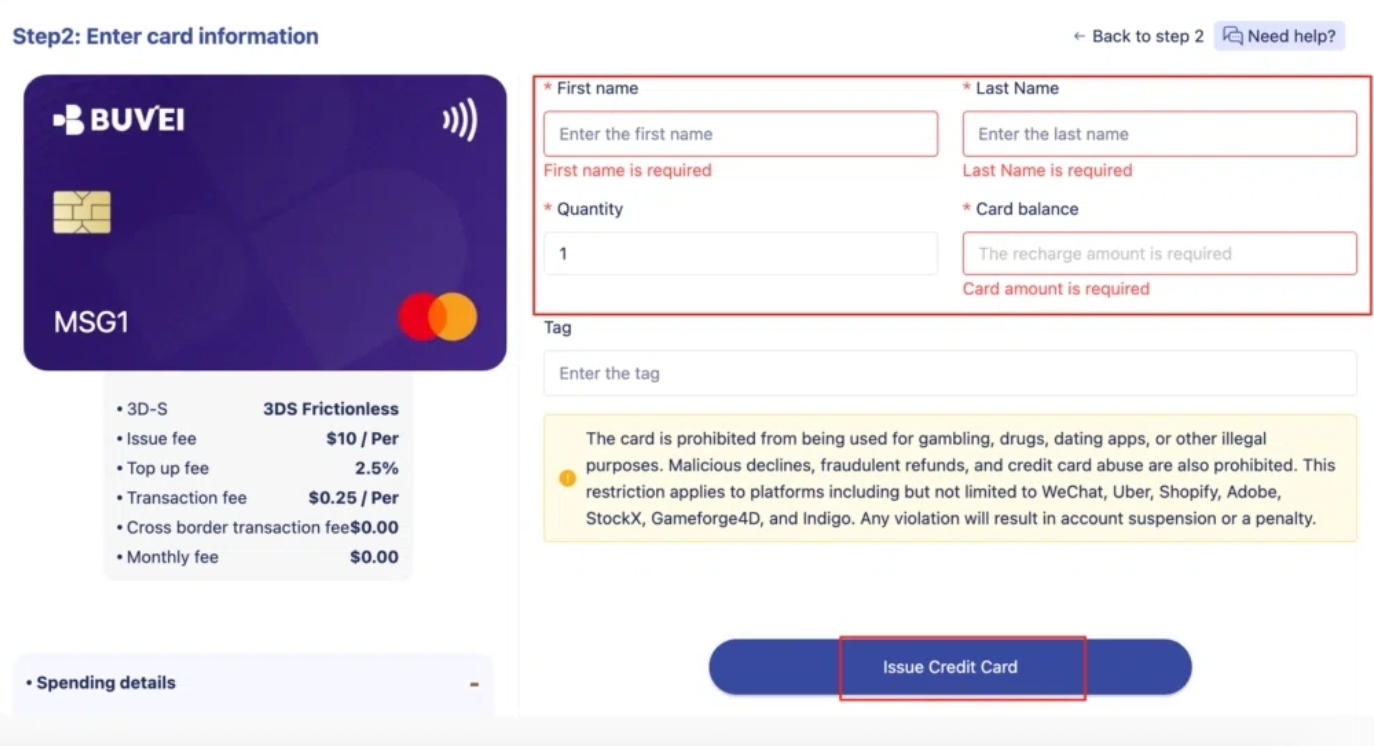
Enter a recognizable card name, such as Miro Subscription, then specify the card amount and the number of cards you want to create. Review your selections and click the card issuance button shown in your dashboard. Once the card has been created, you can access its details in My Cards.
When setting the amount, allow for the subscription price, applicable taxes, and any relevant fees.
Step 5: Check Your Virtual Card Details
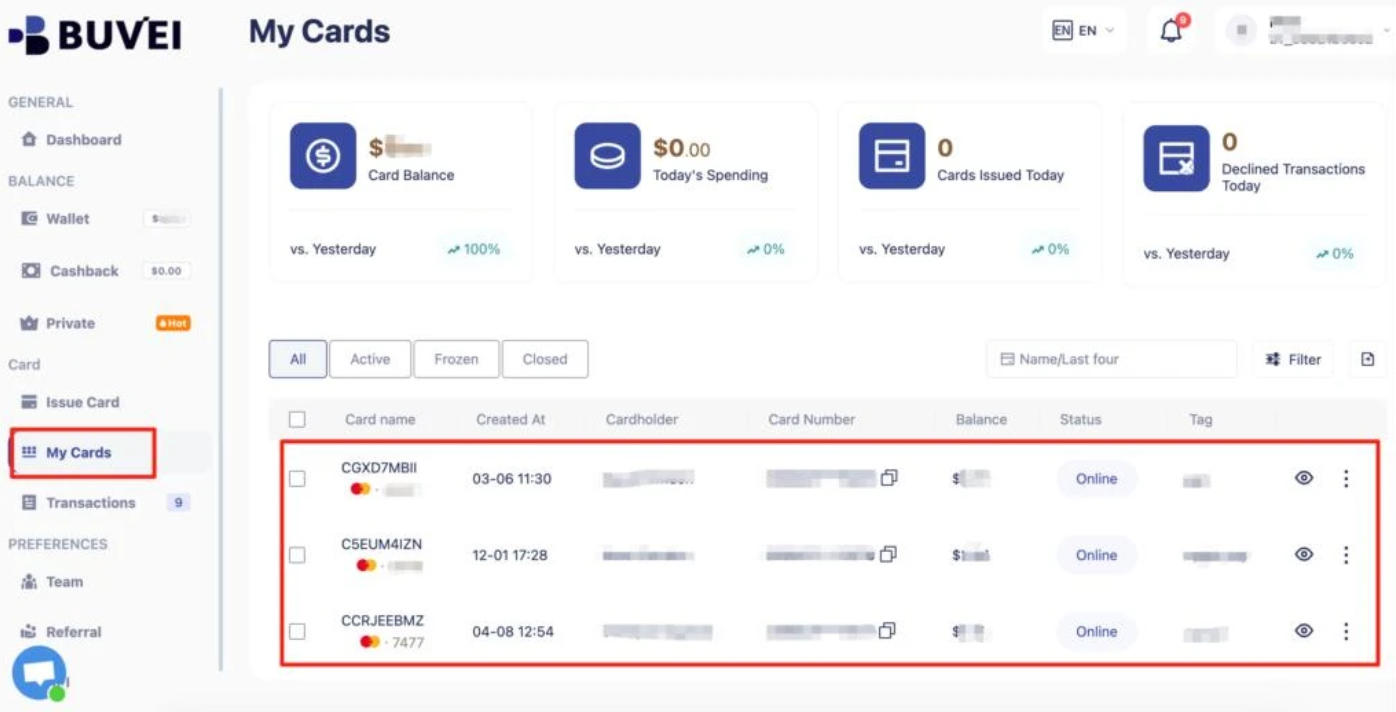
Open My Cards and select your newly created card. Check the card number, expiration date, and CVV, and make sure the card is active with sufficient funds for your intended payment. You can also review funding and spending summaries and transaction history to keep track of activity.
Keep your card details private. If you include a screenshot in your article, mask the full card number, CVV, and any other sensitive account information.
How to Pay for Miro with Your Virtual Card
Once your virtual card is ready, follow these steps to upgrade your Miro subscription.
Step 1: Choose the Right Miro Team and Plan
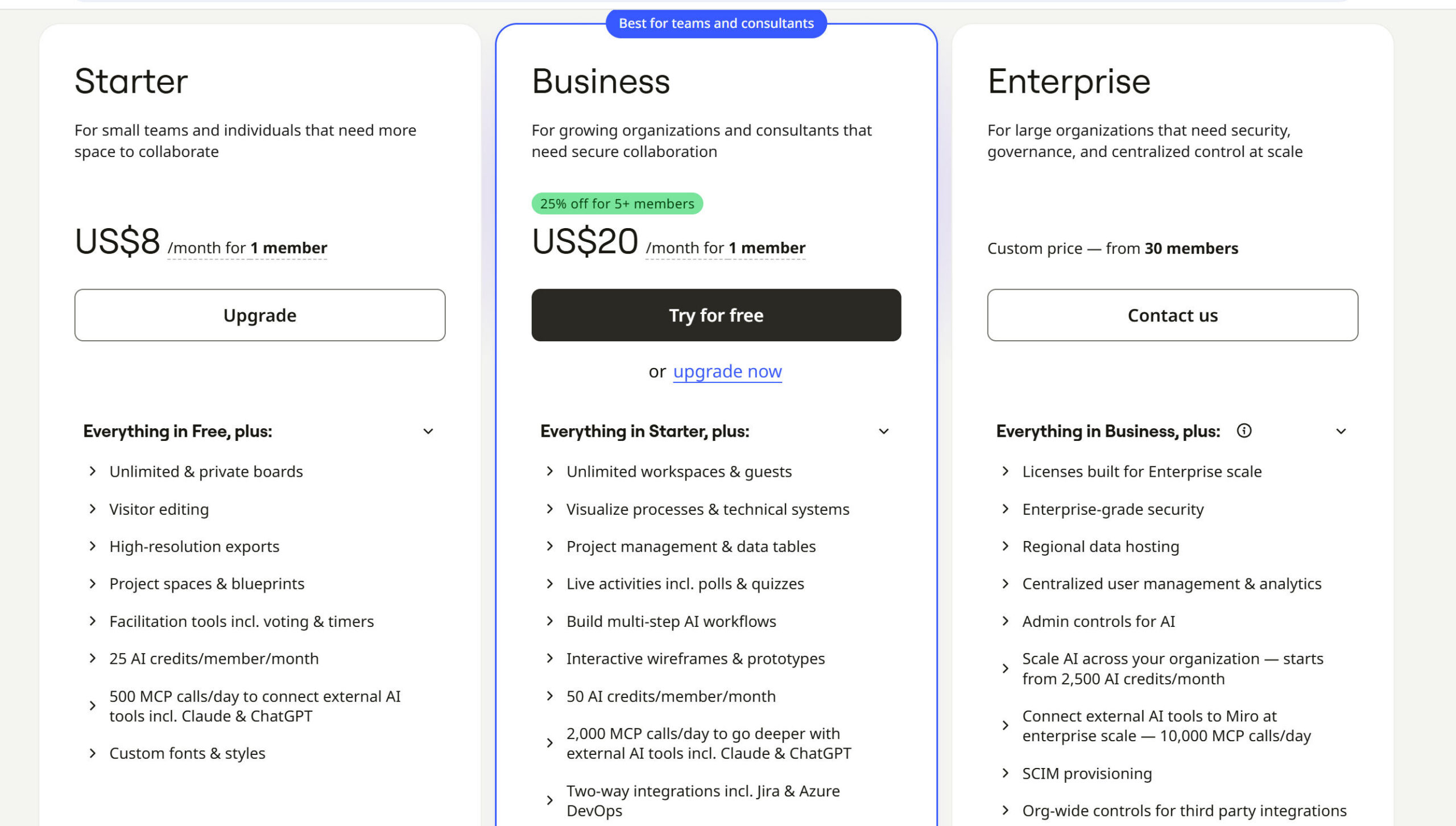
Sign in to Miro and select the team you want to upgrade. From the team dashboard, click Upgrade and choose an available plan. If you're upgrading from Starter to Business, the interface may instead show Explore Business.
Select the number of licenses you need, then review the billing cycle and total price. Make sure you're upgrading the correct team, as Miro subscriptions are associated with individual teams rather than automatically applying to your entire account.
Step 2: Enter Your Virtual Card Details
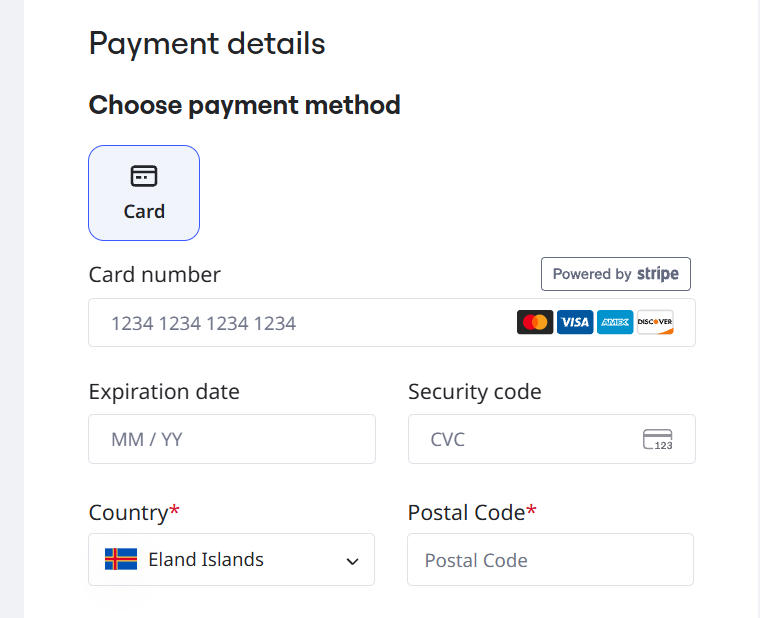
Continue to checkout and select Credit card if it is available for your account. Enter your virtual card number, expiration date, and CVV, then complete the required billing fields using accurate information. Review the subscription price, billing cycle, and applicable taxes before submitting your payment.
The options shown may vary depending on your plan and account eligibility. If card payment isn't available, check Miro's current payment requirements rather than assuming every account has the same checkout options.
Step 3: Complete Payment and Confirm Your Subscription
Submit the payment and complete any additional verification requested by Miro or your card issuer. Wait for the payment result, then check your Miro billing settings to confirm that the subscription is active. You can also review your confirmation email and the corresponding transaction in Buvei.
If the payment is pending, don't immediately submit it again. Check the transaction status first to avoid duplicate charges.
How to Fix Miro Virtual Card Payment Failures
If your Miro virtual card is declined, check the likely cause before trying again.
| Problem | What to check |
|---|---|
| Card declined | Confirm that the card is active and supports the transaction. |
| Insufficient funds | Check the available balance against the full charge and applicable taxes. |
| Billing details rejected | Verify the cardholder information and billing address. |
| Verification failed | Follow the issuer's authentication instructions or contact support. |
| Payment still pending | Check the transaction status before attempting another payment. |
If everything looks correct but the payment still fails, contact your card provider to find out whether the transaction was declined or restricted. You can also contact Miro support if the issue appears to be on the merchant's side.
Manage Miro and Other SaaS Payments More Easily
If you pay for several software tools, keeping subscription expenses organized can make renewals easier to track.
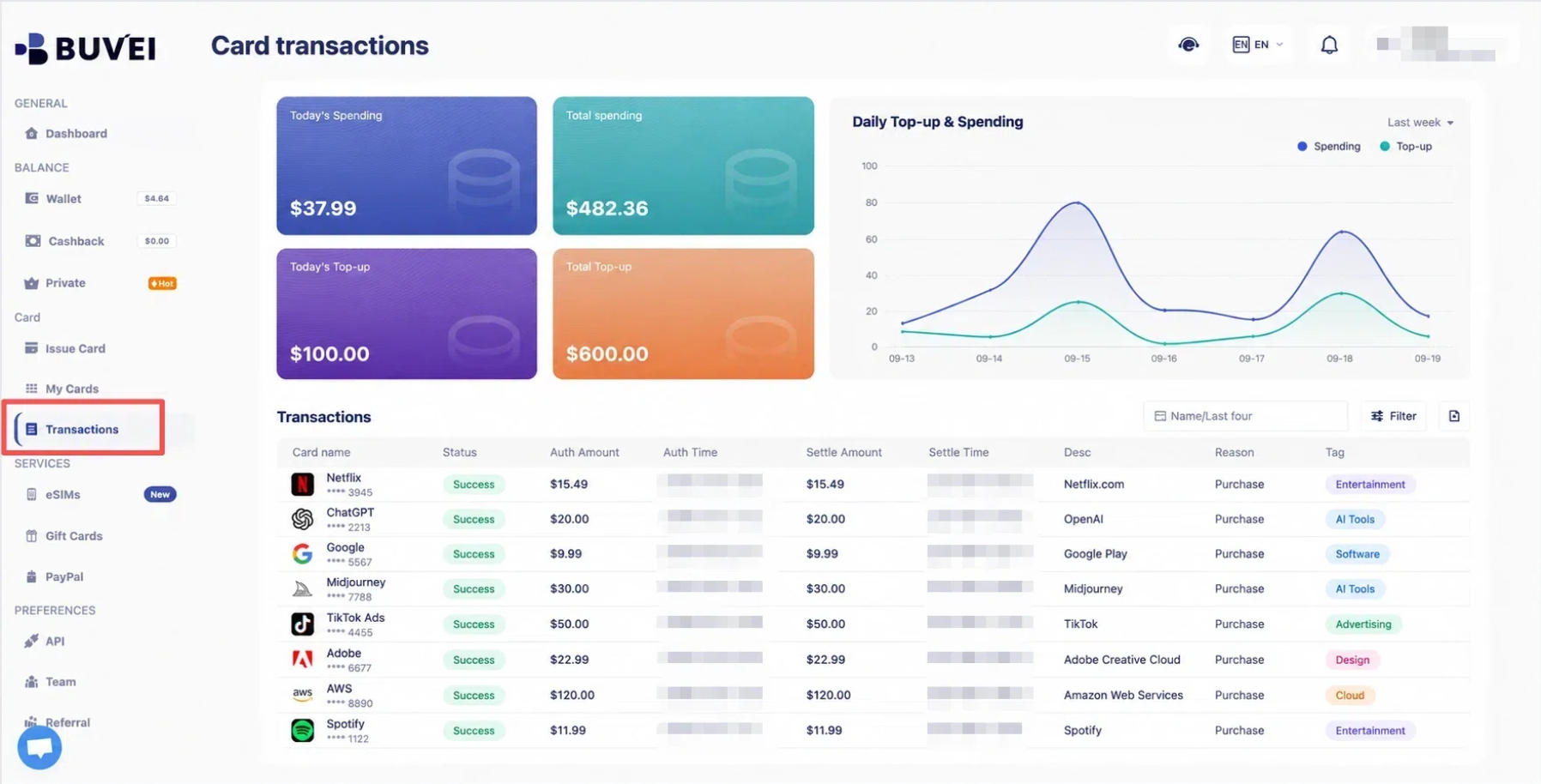
Buvei supports managing multiple virtual cards from one account, which can help you organize eligible payments by subscription or project. You can also review transaction activity to monitor spending.
To keep your payments under control, check available funds before renewal dates, review transactions regularly, and cancel unused subscriptions through the merchant's official billing settings. Freezing or closing a virtual card does not cancel your Miro subscription.
Frequently Asked Questions
Can I pay for Miro with a virtual card?
A virtual card may work if it meets Miro's payment requirements. Acceptance depends on card compatibility, issuer restrictions, billing information, and any required verification.
Why is my Miro card being declined?
Common reasons include insufficient funds, card restrictions, incorrect billing information, and failed verification. Check these first, then contact your card provider or Miro support if necessary.
Can I use Buvei for other SaaS subscriptions?
Buvei offers virtual cards for eligible online payments, including software subscriptions. You can manage multiple cards and review transaction details, but compatibility varies by merchant.
Conclusion: Pay for Miro with a Virtual Card
To pay for Miro with a virtual card, choose the right team and plan, prepare a compatible card, and verify that your subscription is active after checkout. If a payment is declined, check your balance, billing details, card restrictions, and verification status before trying again.
For users who manage several software subscriptions, keeping payments organized can also make recurring expenses easier to monitor. Buvei offers virtual cards, multiple BIN options, and multi-card management tools to help organize eligible online payments across different subscriptions and projects.