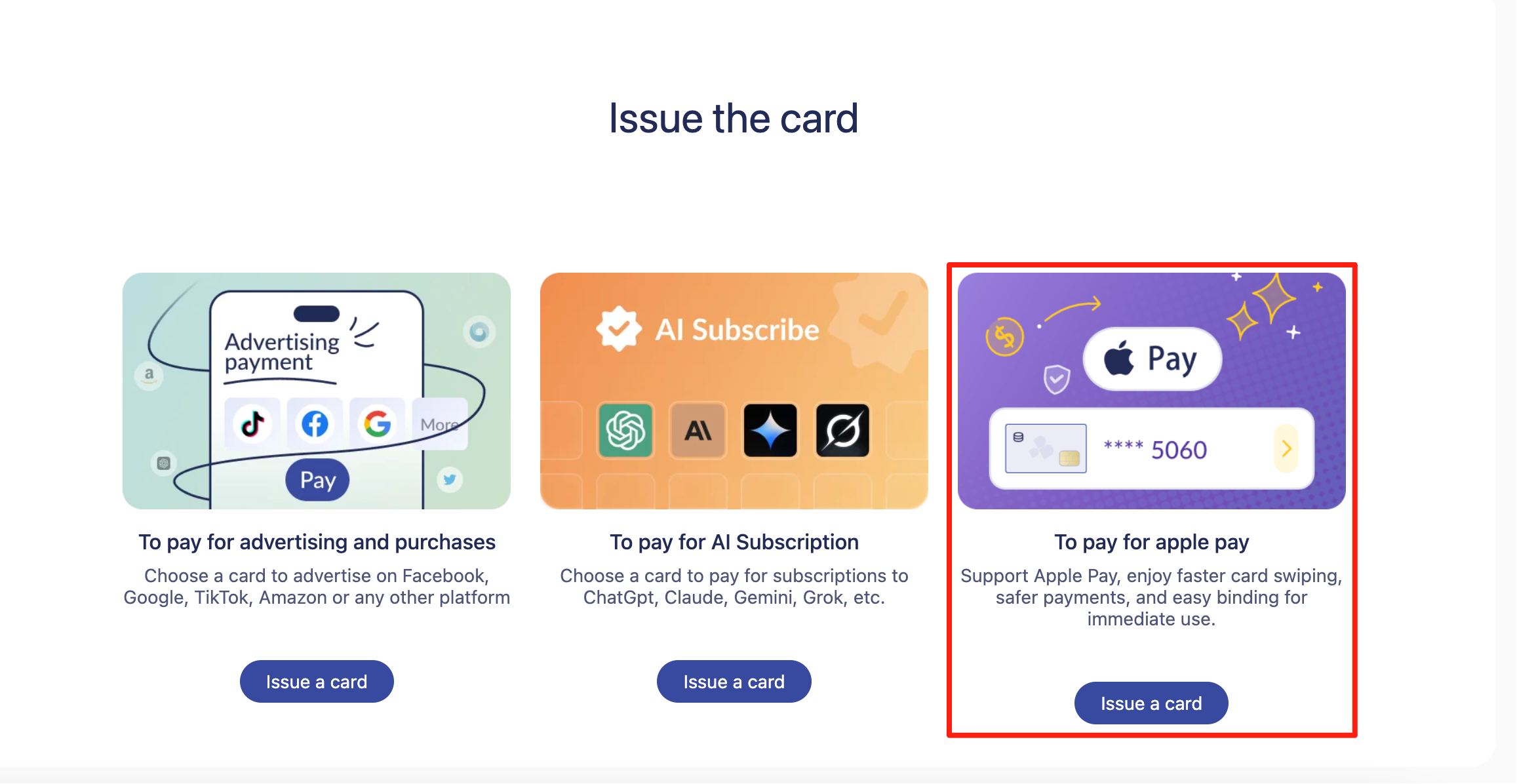
As digital payments continue to grow globally, virtual cards have become a preferred choice for users seeking secure, fast, and flexible ways to manage online and offline purchases. Among these options, the Buvei virtual card stands out due to its ease of activation, global acceptance, and strong security features. When paired with Apple Pay, it offers a seamless payment experience across iPhone, Apple Watch, iPad, and Mac.
This guide provides a comprehensive, step-by-step explanation of how to add a Buvei virtual card to Apple Pay in 2025, along with verified requirements, troubleshooting tips, and best practices that improve reliability and minimize payment failures.
Benefits of Using Buvei Virtual Cards with Apple Pay
Integrating Buvei with Apple Pay provides several advantages, especially for users who prioritize security and convenience.
Enhanced Security
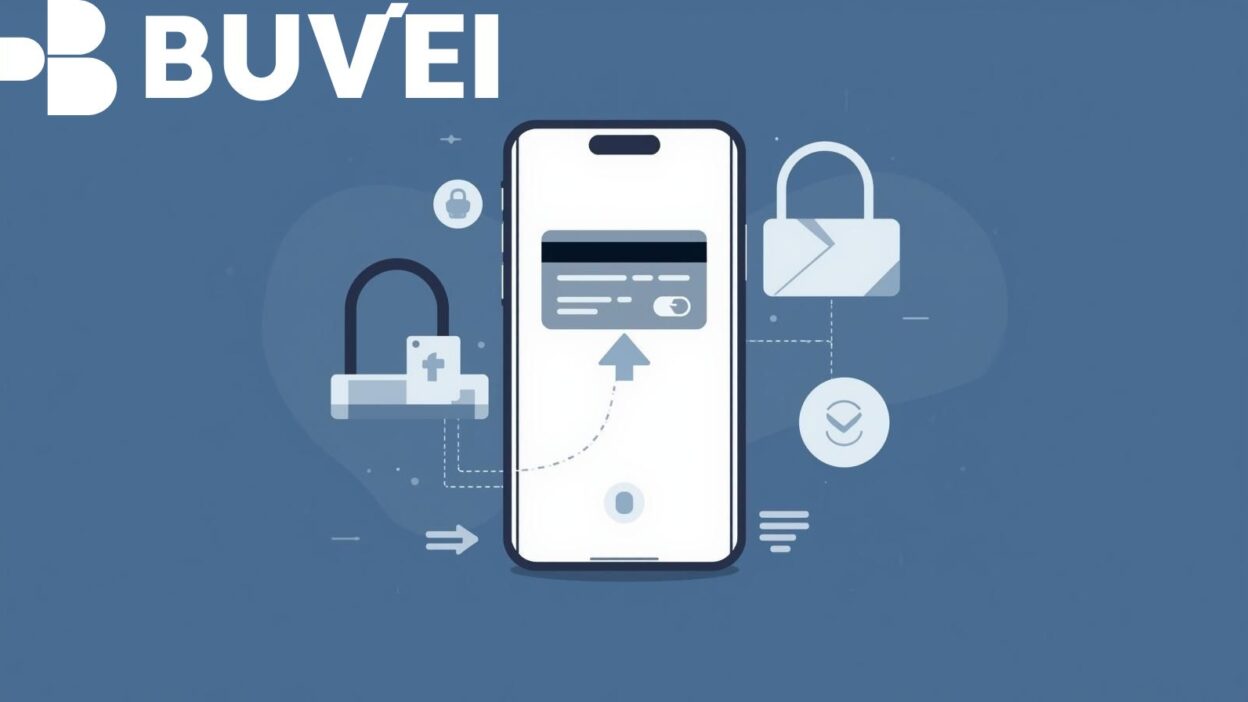
Buvei cards use tokenization, replacing your actual card number with a device-specific token. Apple Pay adds layers such as Face ID, Touch ID, and device-level encryption, significantly reducing fraud risk.
Better Privacy
Apple Pay never stores or shares your real card number with merchants. Combined with Buvei’s virtual card structure, this setup minimizes exposure during online transactions.
Convenient Global Use
Most merchants that accept Mastercard or Visa via Apple Pay will process Buvei without issue, making it suitable for international subscriptions, digital services, and retail purchases.
Instant Card Replacement
If your virtual card details are compromised, Buvei allows quick regeneration without needing to replace your Apple Pay setup entirely.
Requirements to Add a Buvei Virtual Card to Apple Pay
Before adding your Buvei card, ensure the following conditions are met to prevent verification errors or declined additions:
Device Requirements
-
iPhone with iOS 16 or later
-
Apple Watch with watchOS 9 or later
-
iPad with iPadOS 16 or later
-
Mac with macOS Ventura or later and Apple Pay–enabled Touch ID
Account Requirements
-
A valid, activated Buvei virtual card
-
Sufficient card balance for verification microcharges (if required)
-
Accurate personal information that matches Buvei’s KYC requirements
-
A stable internet connection
-
Apple ID signed into iCloud with region settings that support Apple Pay
Geographic Support
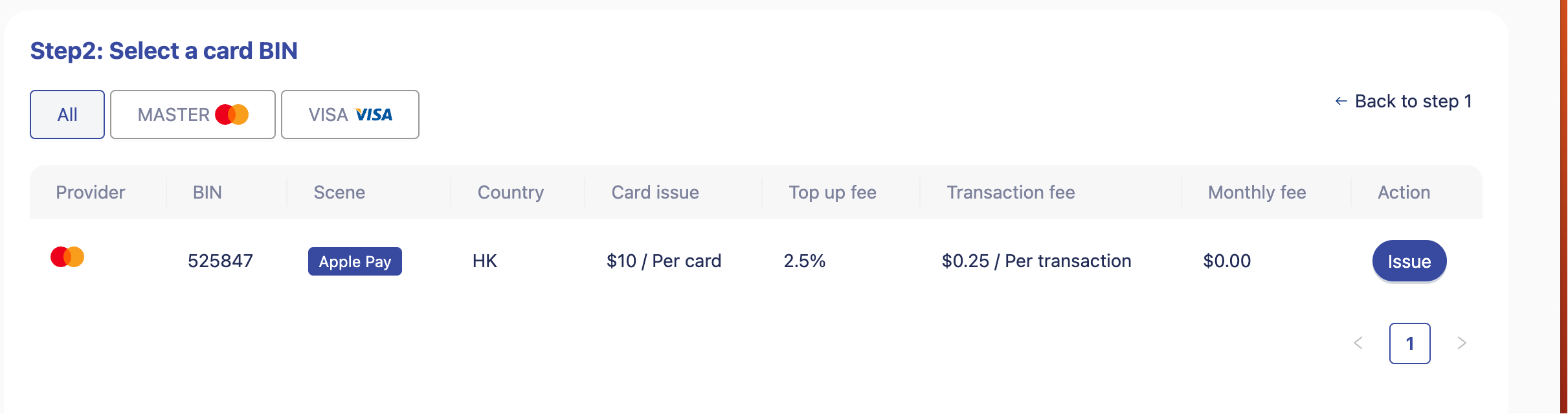
Apple Pay must be available in your country or region. Buvei must also support Apple Pay tokenization in your market.
How to Add a Buvei Virtual Card to Apple Pay on iPhone
Adding the card to an iPhone is the most common setup method. Follow these steps carefully for a successful activation:
Step 1: Open Apple Wallet
Launch the Wallet app on your iPhone.
Step 2: Tap “Add Card”
Select Add Card or the “+” button in the top right corner.
Step 3: Choose “Debit or Credit Card”
Select the standard card option, as Buvei is recognized as a virtual debit or prepaid card.
Step 4: Enter Buvei Card Details
You can:
-
Manually enter your card number, expiration date, and CVV, or
-
Use your iPhone’s camera to scan the card details from your Buvei app
Step 5: Complete Verification
Buvei typically verifies through:
-
SMS code
-
Email code
-
App-based confirmation
If prompted, return to the Buvei app to approve the request.
Step 6: Wait for Approval
Once verification is successful, Apple Pay will add a device account number and activate the card for contactless and in-app payments.
Add a Buvei Virtual Card to Apple Pay on Apple Watch or Mac
Once your Buvei card is added to your iPhone, you can easily enable it on other devices.
Apple Watch
-
Open the Watch app on your iPhone
-
Select Wallet & Apple Pay
-
Choose Add Card
-
Select your Buvei virtual card
-
Follow on-screen verification steps
Mac
For devices with Touch ID:
-
Go to System Settings
-
Open Wallet & Apple Pay
-
Click Add Card
-
Select or enter your Buvei card details
-
Complete verification
For Macs without Touch ID:
Apple Pay uses cards stored on your iPhone via Continuity, requiring the same Apple ID and Wi-Fi/Bluetooth connection.
How to Fix Common Issues When Adding Buvei to Apple Pay
If your Buvei card cannot be added, it usually relates to verification, region settings, or temporary restrictions. Below are the most reliable fixes.
Card Cannot Be Added
-
Ensure the Buvei card is fully activated
-
Check if your country supports Apple Pay
-
Update your iPhone to the latest iOS version
-
Restart the device and retry the addition
Verification Failed
-
Confirm that your Buvei account information (name, phone, email) matches your Apple ID region
-
Ensure your phone number is accessible for receiving verification codes
-
Try completing verification directly in the Buvei app
Apple Pay Unavailable
-
Ensure the Wallet app is enabled
-
Remove any VPNs that may cause region conflicts
-
Sign out and back into iCloud if necessary
Card Unsupported
This may mean:
-
Buvei temporarily disabled tokenization
-
Apple is reviewing the issuer
-
You are in a restricted region
Retry after a few hours or contact Buvei support.
Tips for Smooth Payments with Buvei + Apple Pay
To reduce transaction failures and maintain smooth payment performance:
Keep Your Buvei Card Funded
Low or insufficient balance is the most common cause of failed payments.
Enable Real-Time Notifications
Turn on transaction alerts in the Buvei app to monitor unexpected card activity.
Avoid Frequent Region Changes
Apple Pay may lock verification if your device location and Apple ID region do not match.
Update Your Device Regularly
Apple Pay compatibility improves with the latest system updates.
Use a Stable Internet Connection
Some Apple Pay transactions, especially online purchases, require internet or device-token renewal.
Conclusion
The Buvei virtual card pairs effectively with Apple Pay, offering a secure, efficient, and flexible payment experience for both everyday purchases and international transactions. By meeting the required conditions, following the correct setup steps, and applying the troubleshooting strategies outlined in this guide, users can significantly reduce errors and enjoy a smooth, consistent payment workflow across Apple devices.
This step-by-step guide ensures you can confidently add and use your Buvei virtual card on Apple Pay in 2025 while maximizing reliability, security, and ease of use.