


Introduction
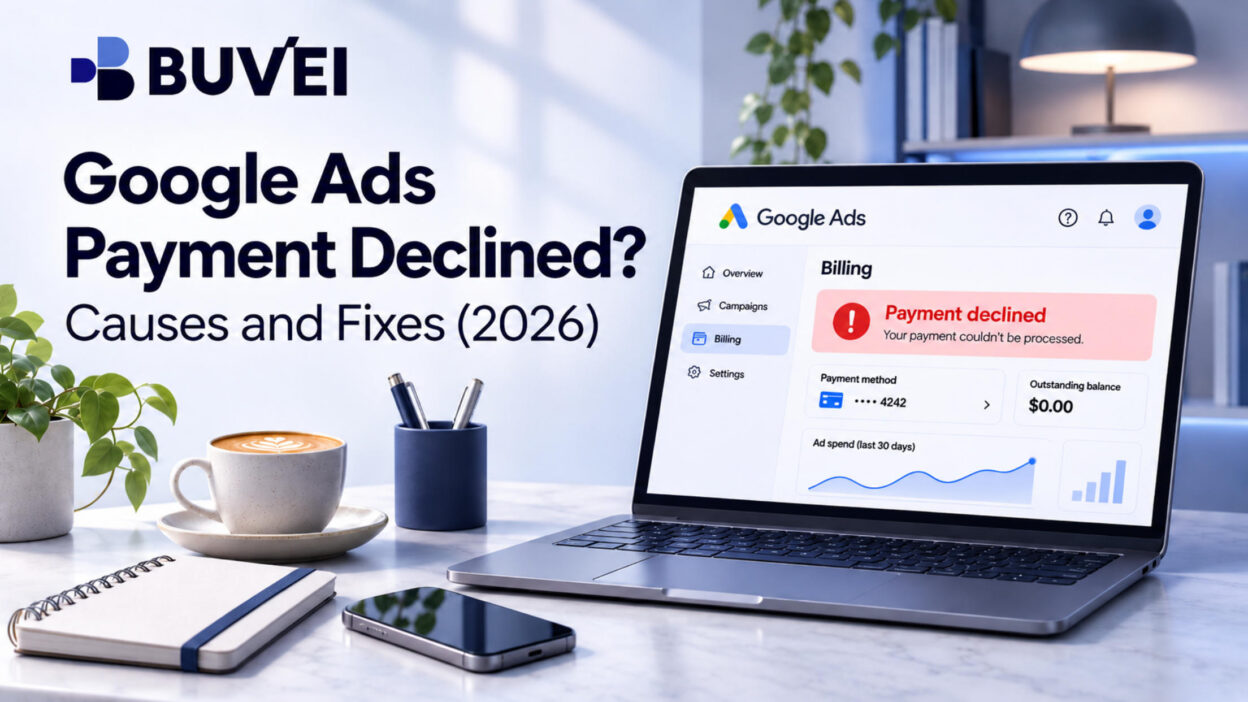
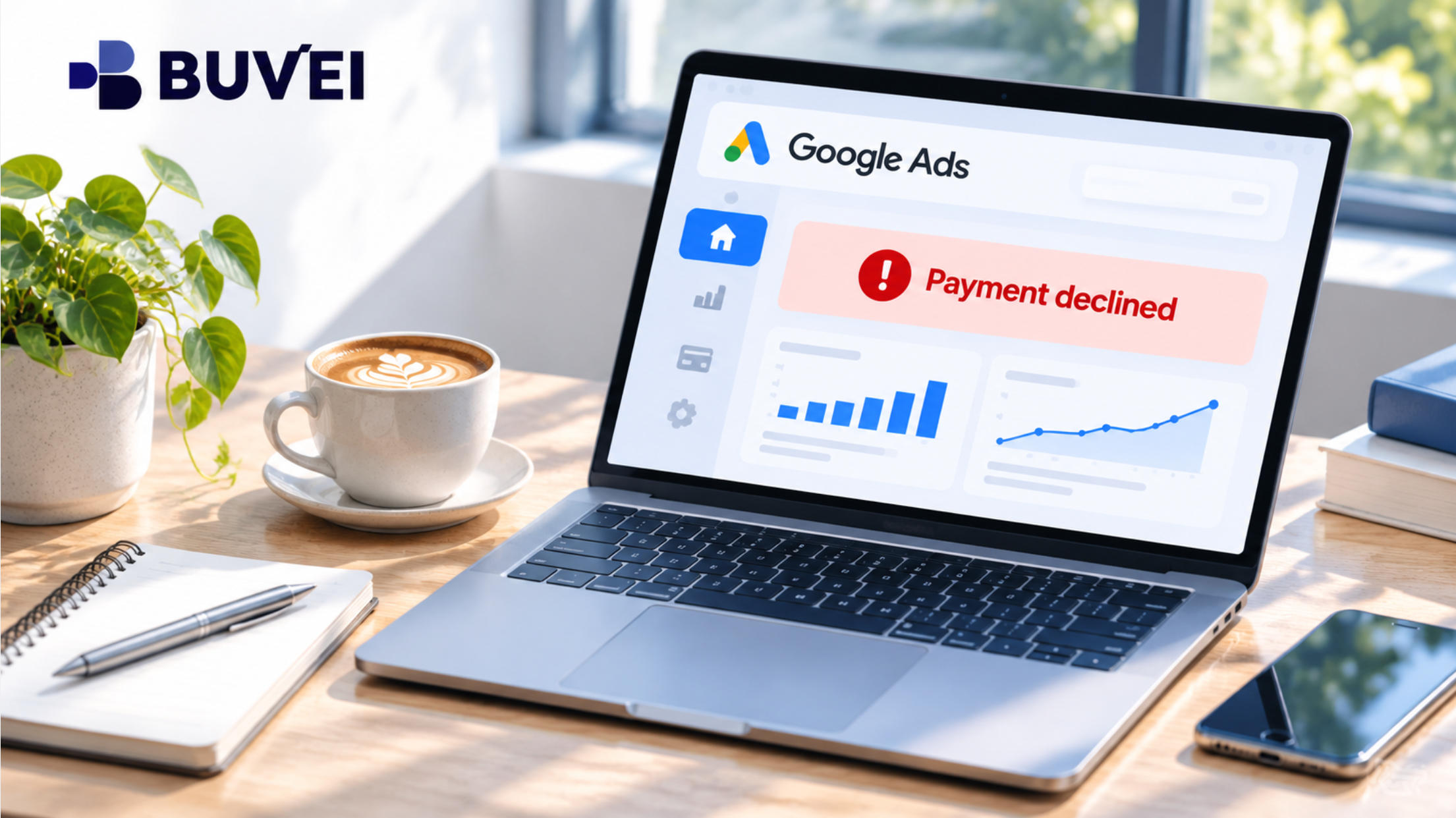
A "Google Ads payment declined" alert can disrupt campaigns at the worst possible time. For advertisers managing multiple campaigns, a failed payment can interrupt ad delivery, delay promotions, and throw budgets off track, especially during peak advertising seasons.
Common causes include insufficient funds, bank restrictions, incorrect card details, and billing issues. Identifying the problem quickly can help advertisers restore payments and avoid further interruptions.
This guide covers the common reasons for Google Ads payment failures, how to fix them, and how businesses can manage their advertising payments more effectively.
Why Was My Google Ads Payment Declined?
Several issues can prevent Google Ads from processing a payment.
Insufficient Funds or Card Spending Limits
A card may be declined if its available balance is too low or the transaction exceeds its spending limit. This can happen when multiple advertising charges occur within a short period.
Incorrect or Expired Card Details
An incorrect card number, CVV, expiration date, or billing address can prevent a payment from going through. Expired or replaced cards can also cause payment failures.
Bank Restrictions
Banks may block online or international transactions for security reasons. Repeated advertising charges may also trigger fraud prevention measures, even when sufficient funds are available.
Payment Verification or Account Issues
Some transactions require additional authentication before they can be completed. If verification fails or isn't completed, the payment may be declined. Outstanding balances and Google Ads billing restrictions can also prevent successful transactions.
How to Fix a Declined Payment in Google Ads
Start by checking your Google Ads billing information. These steps can help resolve the issue.
Check Your Google Ads Billing Summary
Go to Billing → Summary and review the declined transaction, including its date, amount, and any available explanation.
Google Ads may not always show a specific decline reason. For card payments, the issuing bank generally determines whether a transaction is approved.
Contact Your Bank or Card Issuer
If your payment details are correct, ask your bank whether the transaction was blocked by security controls, international payment restrictions, or spending limits.
Once the issue is resolved, try the payment again.
Update or Re-enable Your Payment Method
Go to Billing → Settings → Payment methods and find the declined card. If the Fix it option is available, select it, check your card details, and follow the instructions to re-enable the payment method.
If the card still doesn't work, consider adding another payment method supported by your account.
Also check for outstanding balances. After resolving the payment issue, follow the instructions in your account to pay any overdue amount and restore your campaigns.
How to Prevent Future Google Ads Payment Failures
A few simple checks can help reduce avoidable payment interruptions:
- Maintain sufficient funds: Make sure your payment method can cover upcoming advertising charges.
- Check expiration dates: Replace expired cards before the next billing cycle.
- Review spending limits: Ensure card limits are suitable for your advertising budget.
- Prepare a backup method: If your account uses postpay, you may be able to add a backup credit or debit card. Google will attempt to charge it if your primary payment method is declined.
How BUVEI Helps Businesses Manage Advertising Payments
For agencies managing multiple clients, using one card for every advertising account can make expenses difficult to track. BUVEI gives businesses more flexibility in how they issue, assign, and manage virtual cards across different projects.
Manage Multiple Advertising Accounts with Separate Cards
BUVEI supports Visa and Mastercard virtual cards, multiple BIN options, and batch card issuance. Agencies can issue separate cards for different clients, advertising accounts, or projects rather than putting every expense on one card.
This makes it easier to identify which project each payment belongs to when reviewing advertising expenses.
Multiple BIN options also give users more flexibility when choosing cards for different payment needs. However, a particular BIN doesn't guarantee acceptance by Google Ads. Compatibility depends on the card and the account's billing requirements.
Control Spending with Individual Card Limits
Each BUVEI card can have its own spending limit. Agencies can set different limits based on individual client budgets and manage each card independently.
Users can also freeze, unfreeze, or close individual cards when a campaign ends or a payment method is no longer needed.
Fund Your Wallet and Track Transactions
BUVEI supports USDT deposits through TRC20 and ERC20. Users can check their wallet balance and review fund activity when preparing to issue or manage cards.
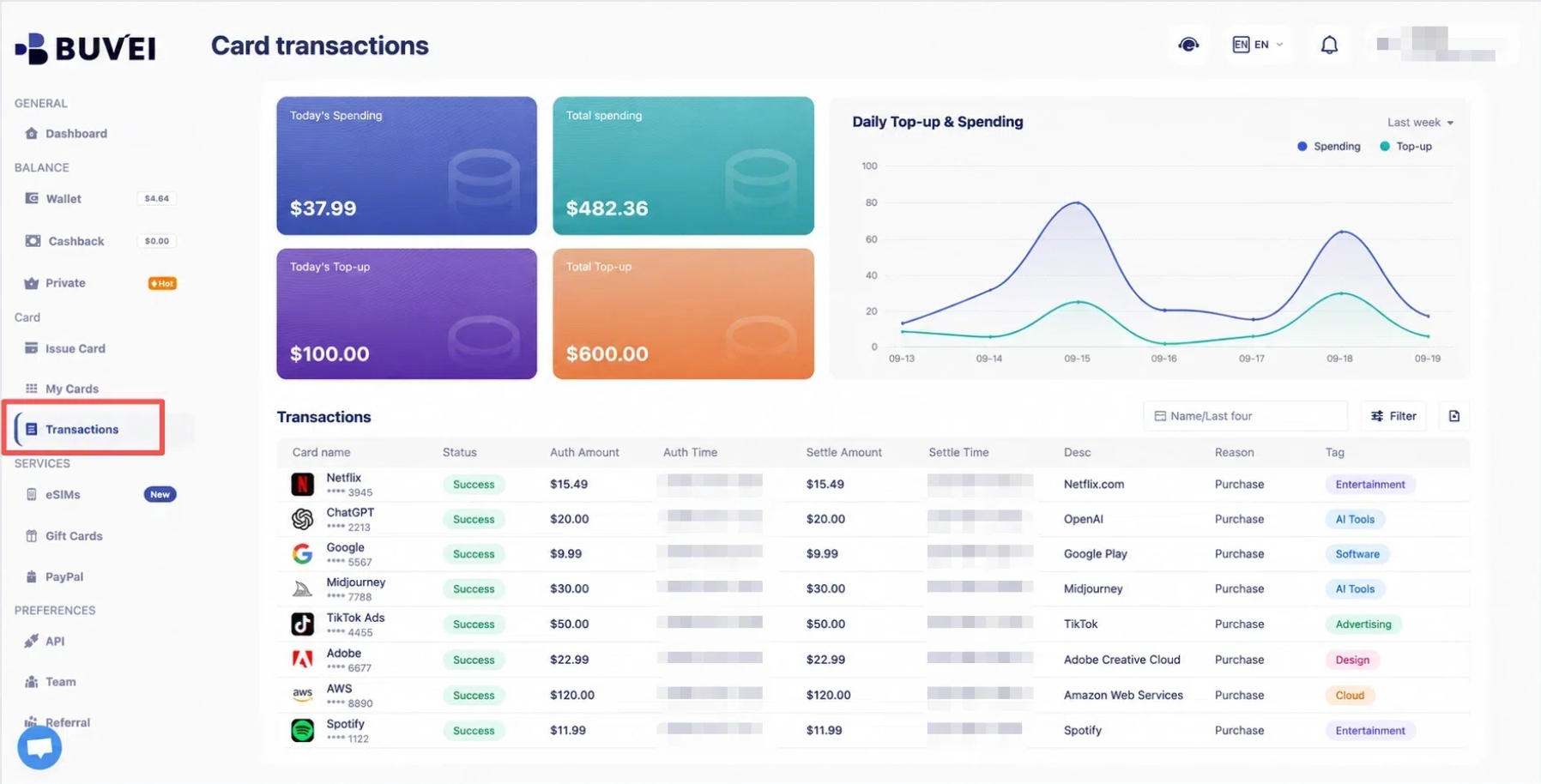
Transaction records show spending amounts, transaction times, and payment statuses. Agencies can use these details to track card activity and keep expenses separate across clients and projects.
Earn Cashback with BUVEI Advertising Cards
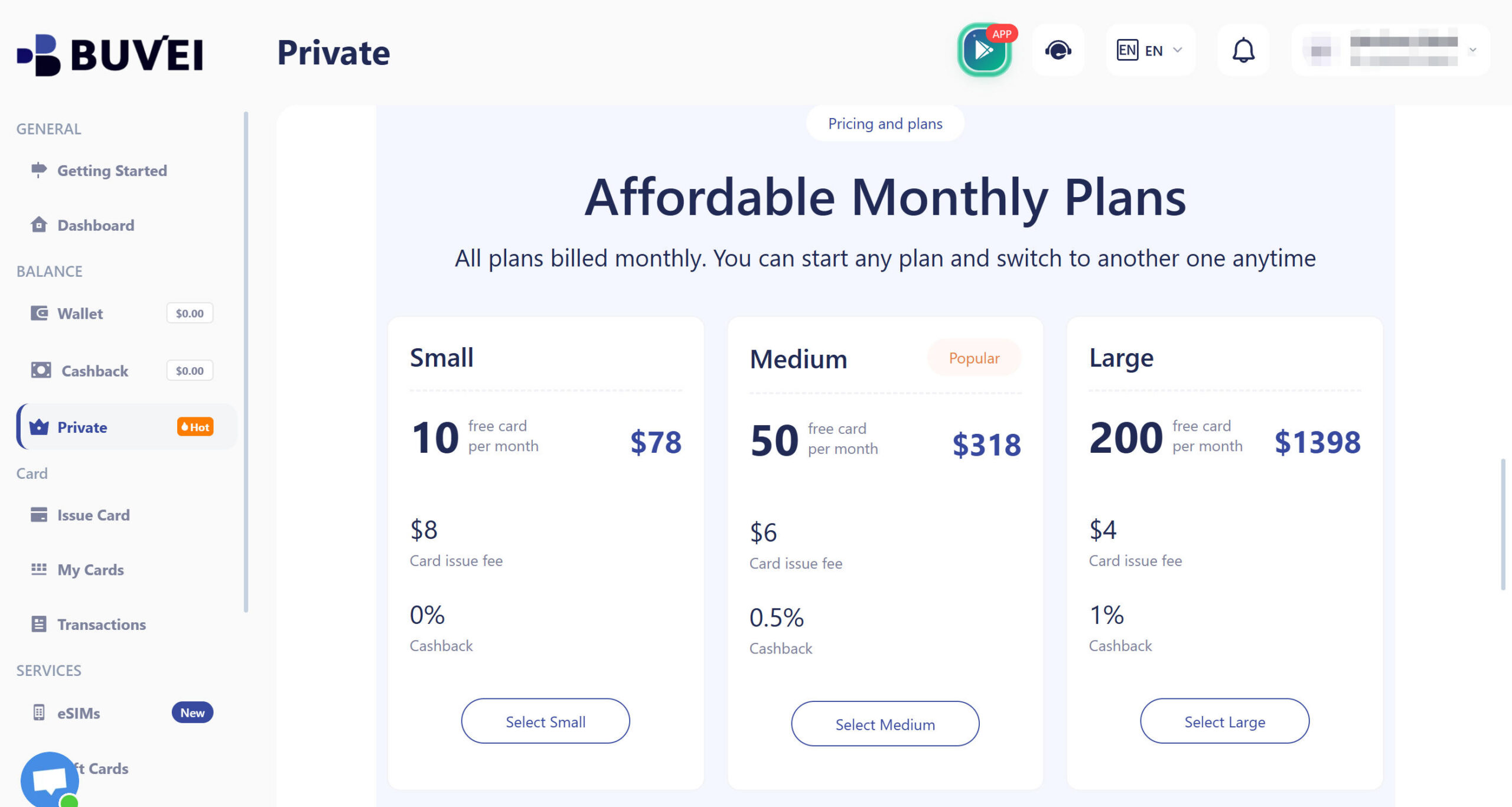
BUVEI's advertising premium service offers cashback of up to 1% on advertising card spending. It also includes up to 200 free card issuances per month.
For agencies with regular advertising expenses, these benefits can provide additional value.
How to Get a BUVEI Virtual Card for Google Ads Payments
Step 1. Register a BUVEI Account
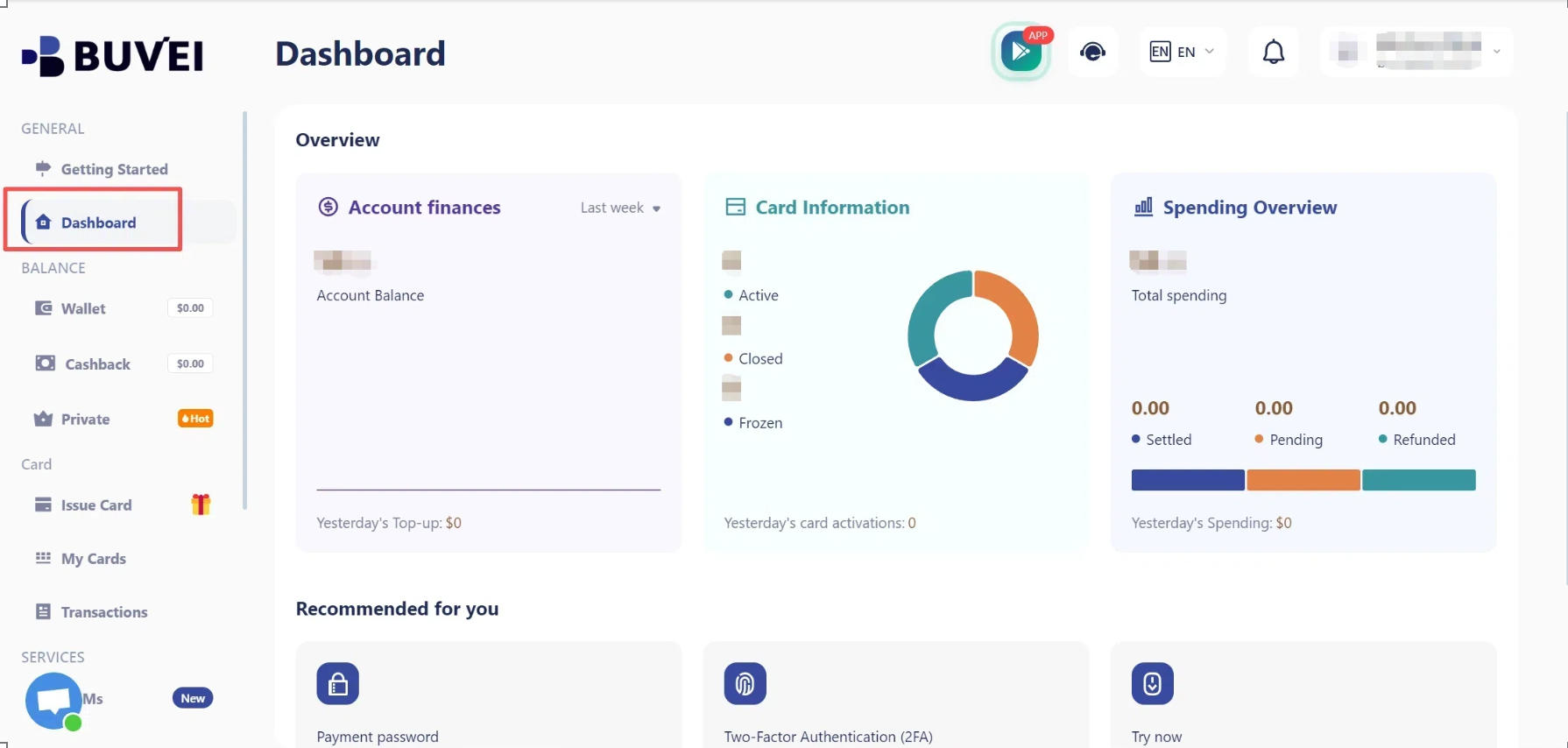
Visit buvei.com, create a free account, complete email verification, and log in to your dashboard.
Step 2. Top Up Your BUVEI Wallet
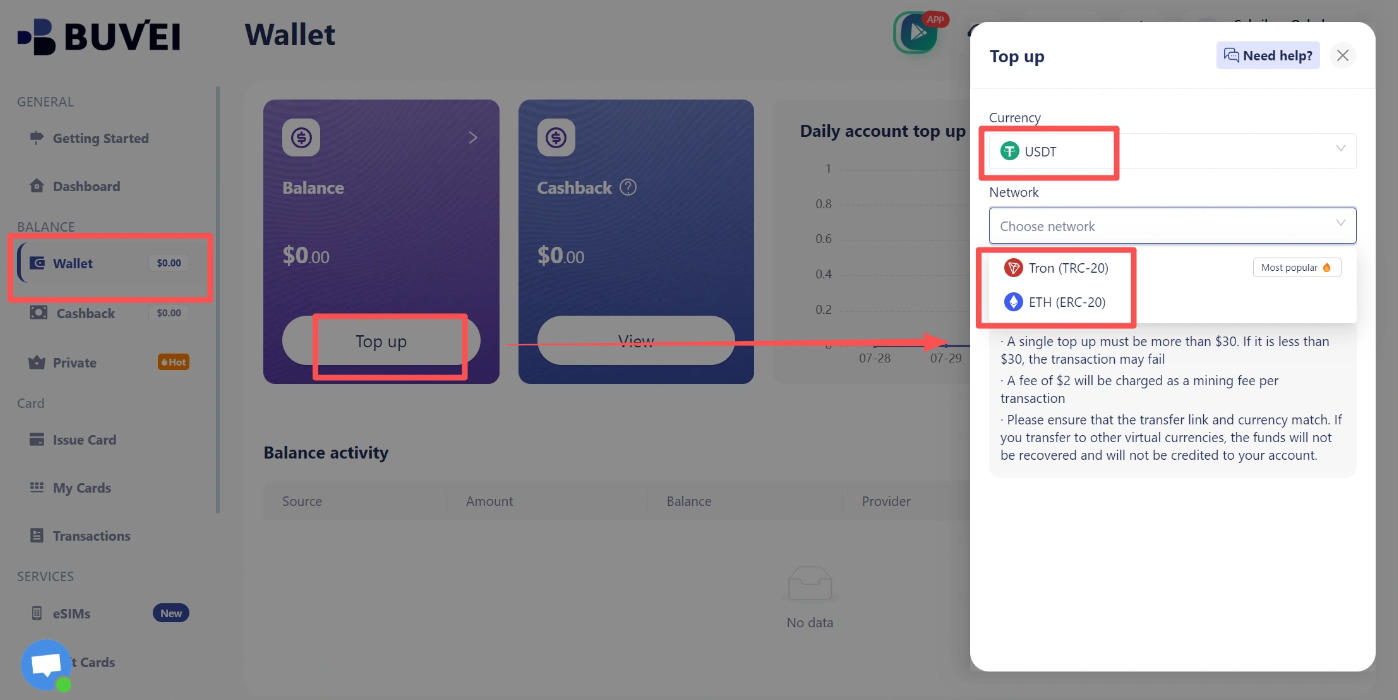
Open Wallet, select USDT TRC20 or ERC20, and copy the corresponding deposit address. Transfer USDT through the same network and wait for the funds to arrive.
Always check the network before transferring to avoid deposit errors.
Step 3. Issue a Virtual Card
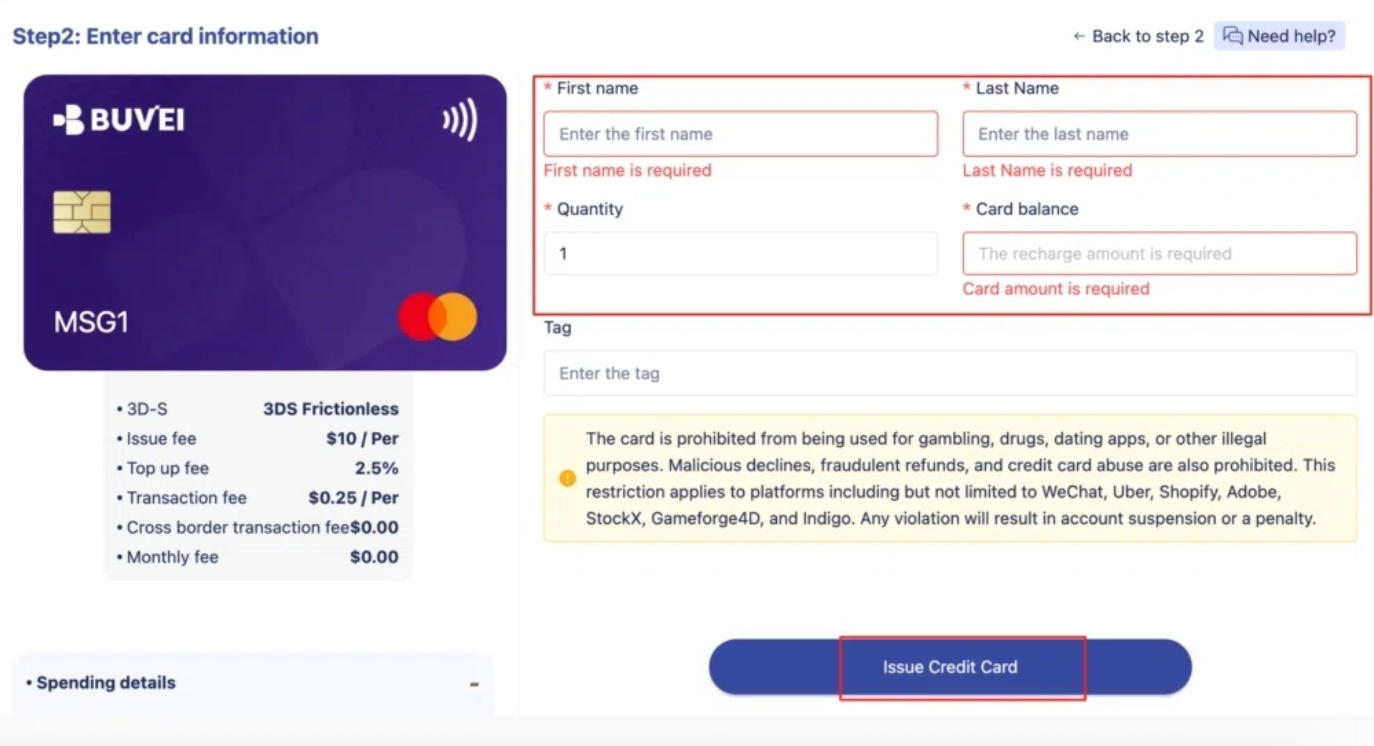
Go to Cards, choose an available BIN region and card type, enter the card name, amount, and quantity, then click Issue.
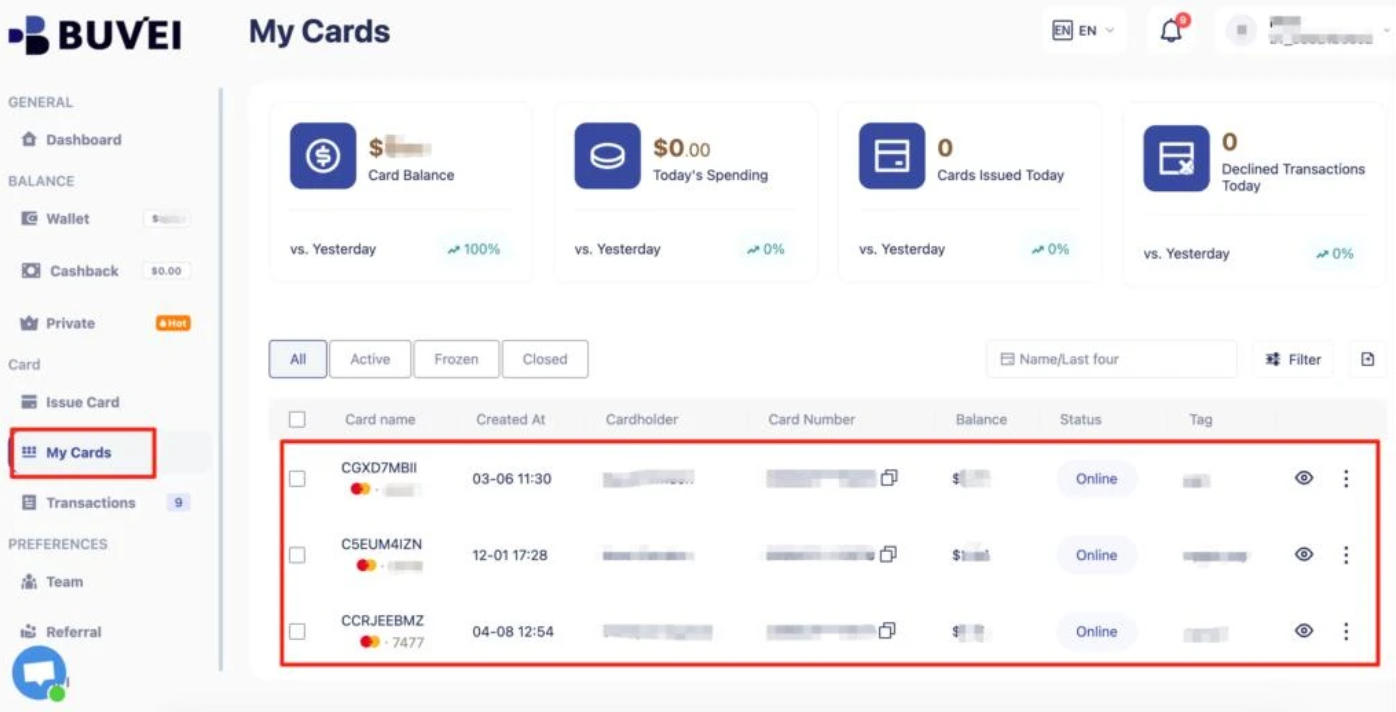
You can find the card number, expiration date, and CVV under My Cards.
Before using your BUVEI card for Google Ads, make sure it meets the payment requirements for your account's billing country and payment setup. Google Ads doesn't accept prepaid cards for postpay payments, while certain one-time virtual cards may be used for prepay in supported countries.
Frequently Asked Questions
Will a Declined Payment Stop My Google Ads Campaigns?
It can. If Google Ads cannot collect an outstanding payment, your ads may stop running until the billing issue is resolved. Some eligible accounts may continue running briefly after a decline, but you should resolve the issue as soon as possible.
Does Google Ads Always Show Why a Payment Was Declined?
No. Google Ads may display a decline reason in Billing Summary, but not every transaction includes a detailed explanation. If the reason is unclear, contact your card issuer.
Conclusion
A declined Google Ads payment doesn't always mean you need a new card. Before changing your payment method, check the decline details, confirm the issue with your card issuer, and make sure your billing information and available funds are in order. Taking these steps can help you resolve payment problems and reduce the risk of future interruptions.
For agencies managing multiple advertising accounts, keeping payment methods organized is just as important. BUVEI makes this easier with separate virtual cards, individual spending limits, and transaction tracking. These tools help teams manage client budgets and keep advertising expenses organized as their campaigns grow.