If you're managing multiple Facebook ad accounts, running international campaigns, or scaling paid media operations, linking a secure virtual card to your Fanpage ad account is no longer optional—it's essential. With rising ad spend and increasing platform scrutiny, using a trusted virtual card solution like Buvei allows you to streamline payments, control budgets by region, and reduce the risk of payment failure or account flags. Here's a step-by-step guide to setting up your Facebook ad payment method with Buvei.
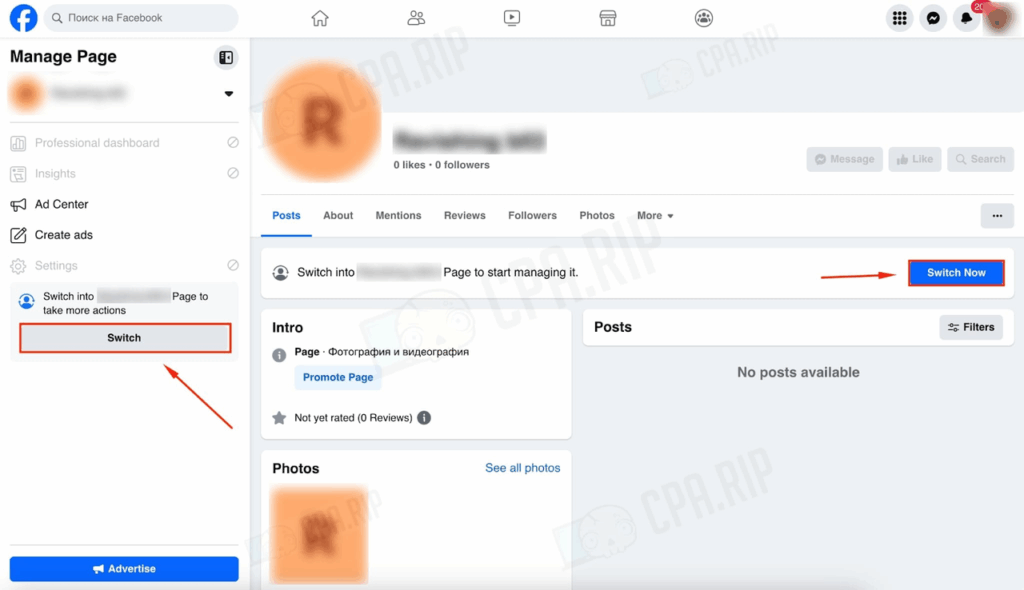
Step 1: Switch to Page Admin on Your Fanpage
-
Open your Fanpage (or create a new one if needed).
-
Click Switch in the top-right corner to ensure you're acting as the Page admin.
Step 2: Access the Ads Section
-
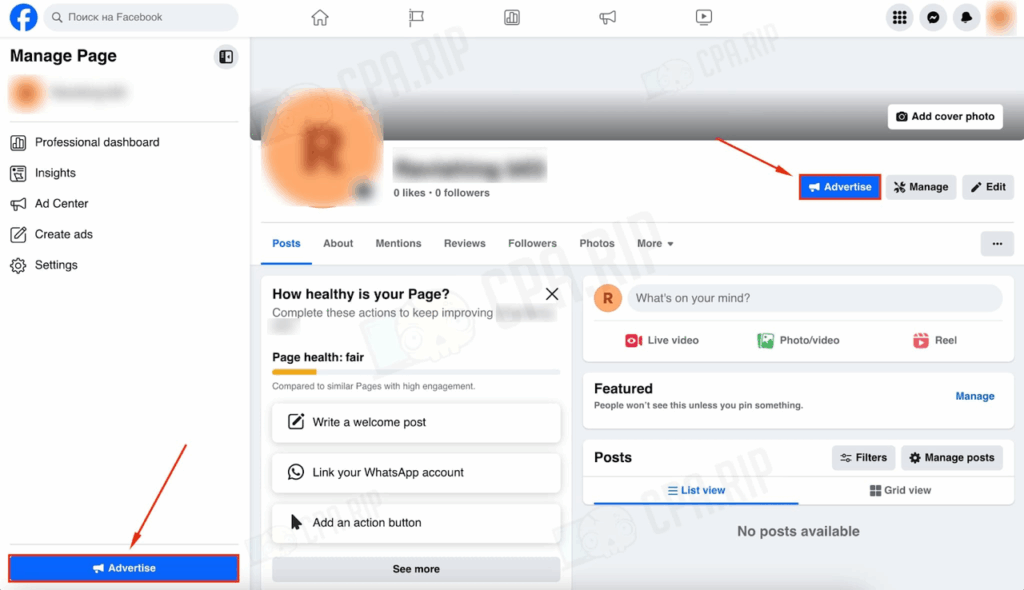
On your Fanpage, click Promote or Ads at the top.
-
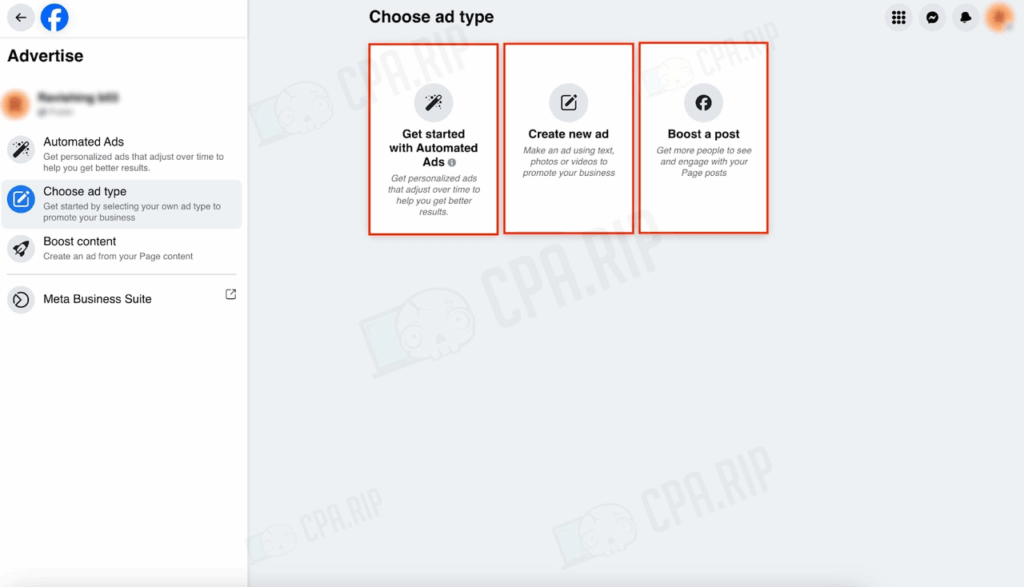
You’ll see three options: Automated Ads, Create New Ad, or Boost Post.
-
The next steps cover how to bind a virtual card for each type.
🧠 Automated Ads – Binding Virtual Card
-
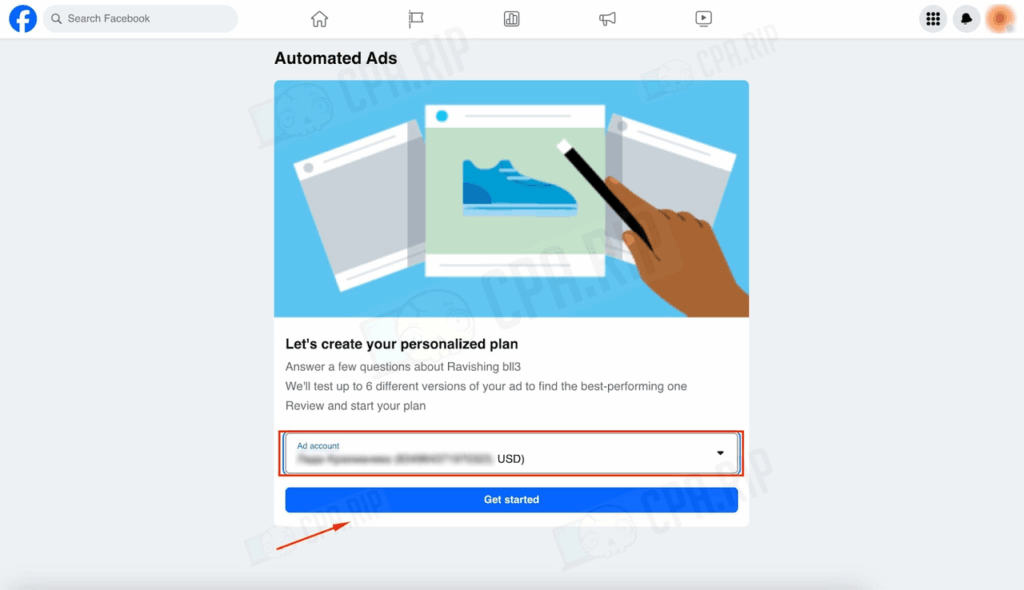
Select the ad account you're using.
-
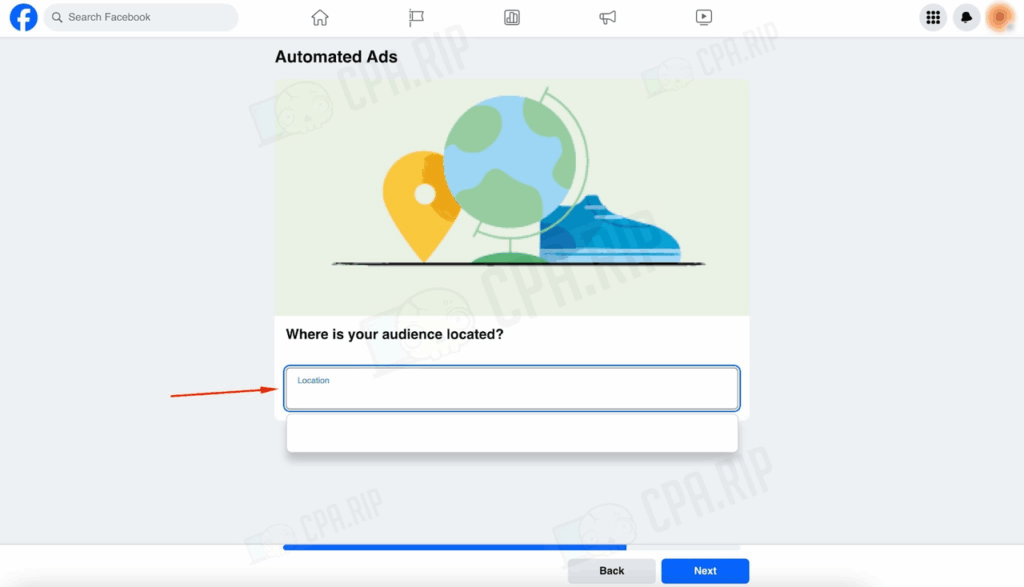
In the setup wizard, choose No when asked about GEO targeting.
-
Manually set your geographic targeting.
-
Skip the creative targeting for now.
-
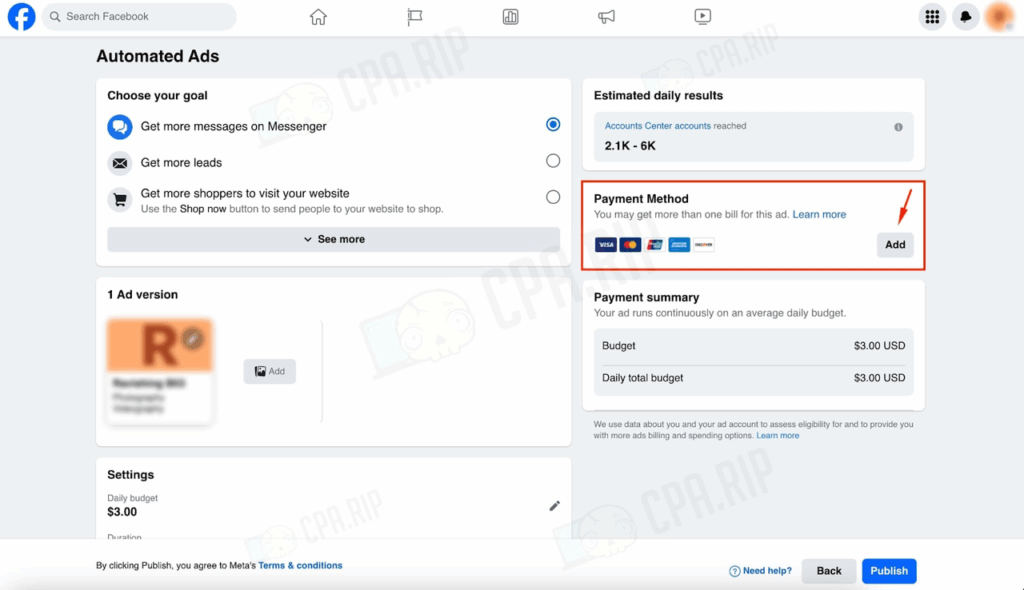
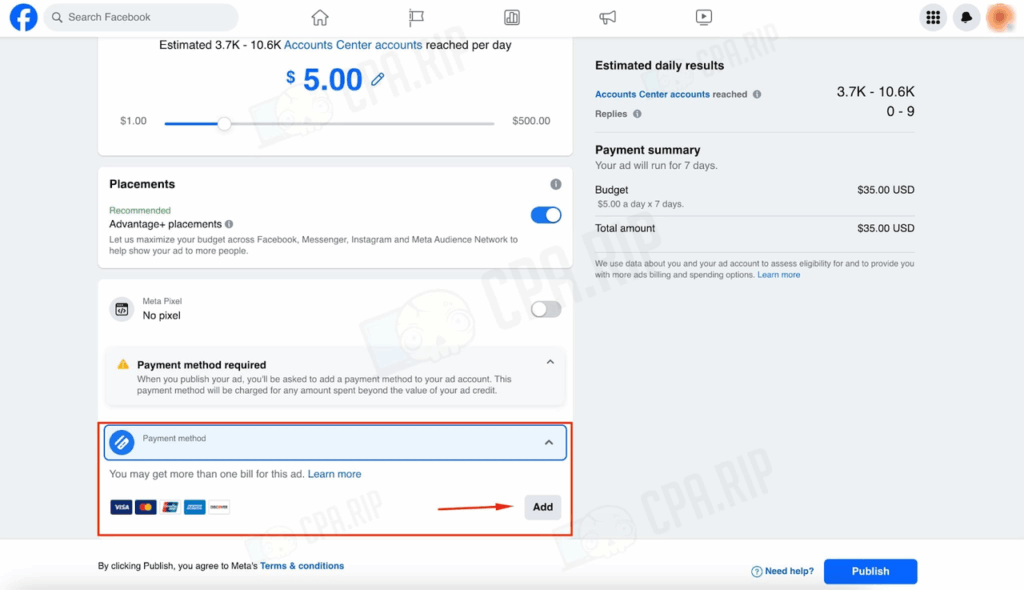
Go to the Payment Method tab and click Add.
-
Fill in standard info: country, currency, timezone, tax info.
-
Paste your Buvei virtual card details to link it securely.
🧱 Create New Ad – Attaching Virtual Card
-
From Ads Manager, select the ad account.
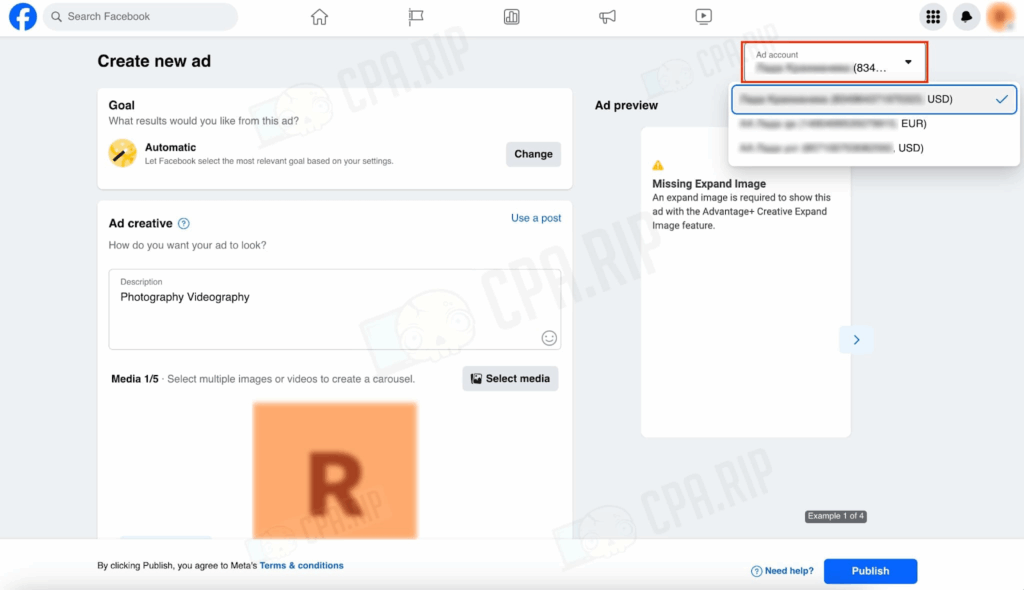
-
Scroll down to Payment Method.
-
Click Add Payment Method.
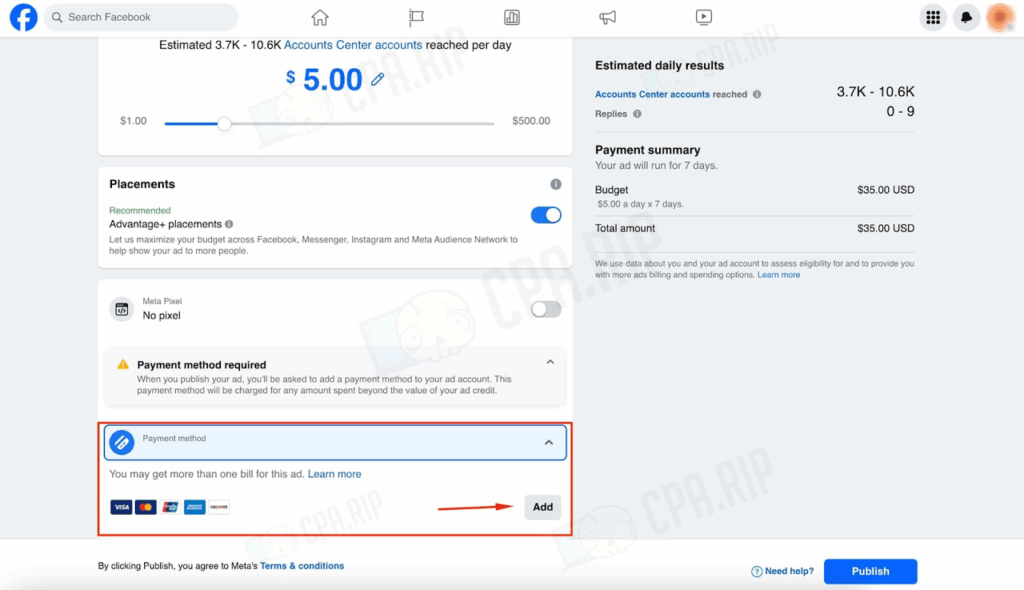
-
Enter region, currency, timezone, and tax settings.
- Paste your Buvei virtual card data to bind.
📢 Boost Post – Fast Binding
-
From Fanpage, click Boost Post under any existing post. If none exist, click Create Ad.

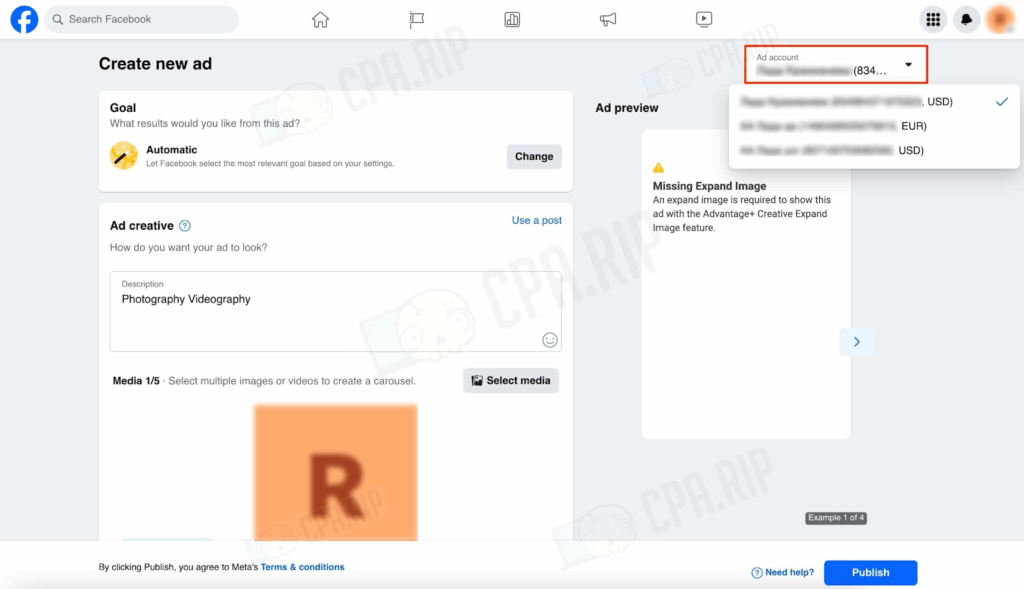
-
Choose the ad account, scroll to Payment Method, and click Add Payment Method.
-
Fill in the usual info, paste the Buvei card details to bind it.
-
Tip: When creating a new post, you can select “Promote” and set card at the same time.
✅ Why Virtual Cards Are Ideal for Ads
Whether you’re handling multiple accounts or cross-border campaigns, Buvei virtual cards are fast, secure, and allow multi-currency use—perfect for marketing teams.
👉 Learn more about Buvei Virtual Cards: Try them today to streamline your Facebook ad payments.
🔐 How to Quickly Get Started with a Buvei Virtual Card
If you haven’t created a Buvei virtual card yet, follow these simple steps to get started and begin making secure payments immediately:
-
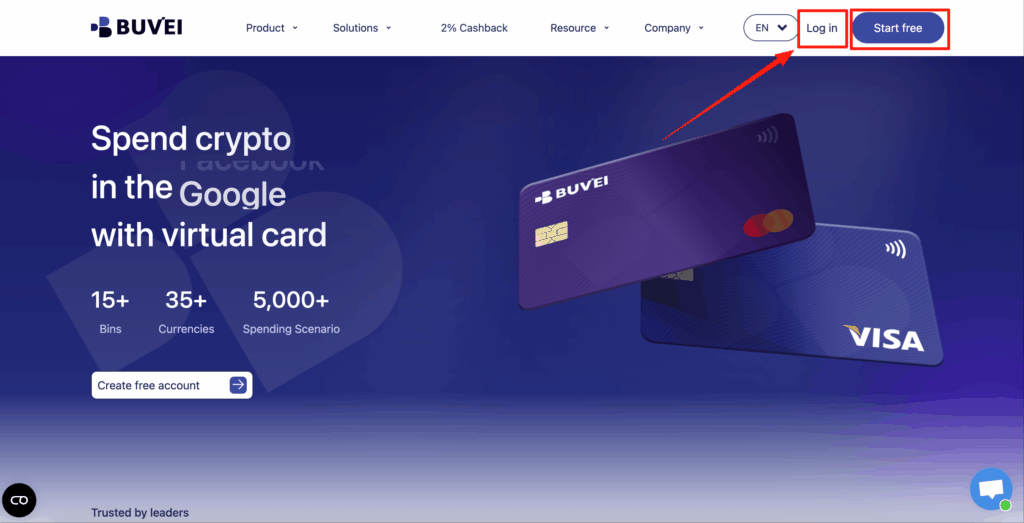
Visit the official Buvei website: Go to https://buvei.com and click the Log In/ Start free button at the top-right corner.
-
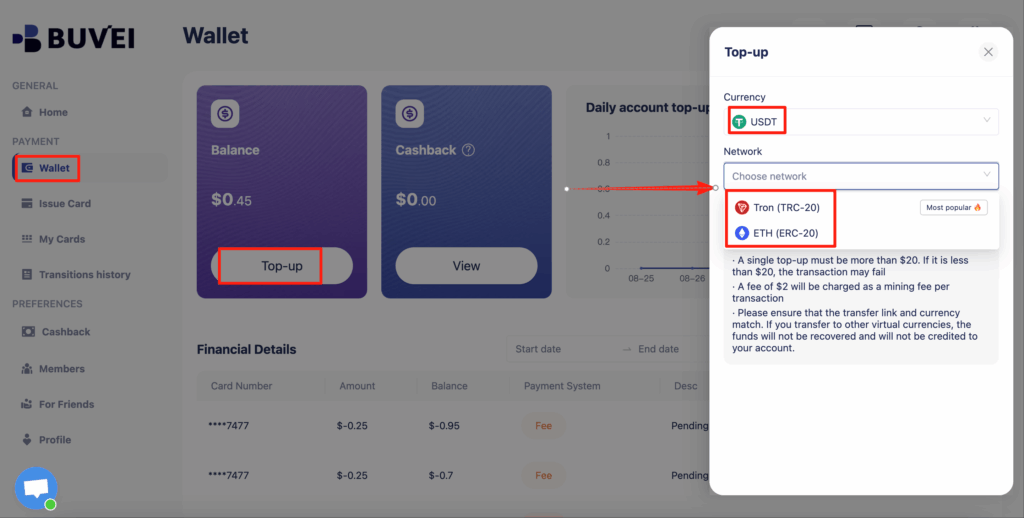
Fund your account: Navigate to the "Wallet" section in your dashboard. Select your preferred top-up method and deposit funds to your Buvei account.
-
Choose your card type: Decide whether you need a Visa or Mastercard virtual card, based on your platform compatibility or regional requirements.
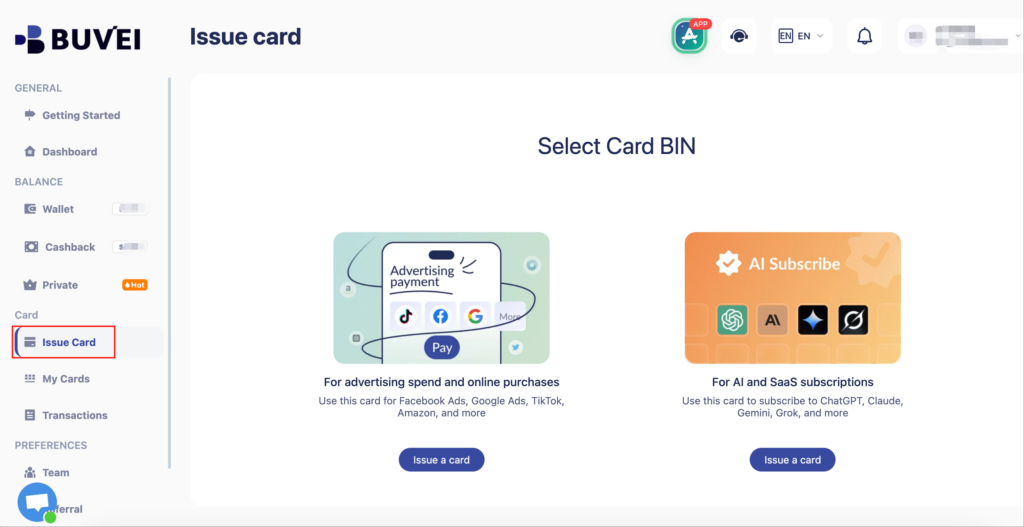
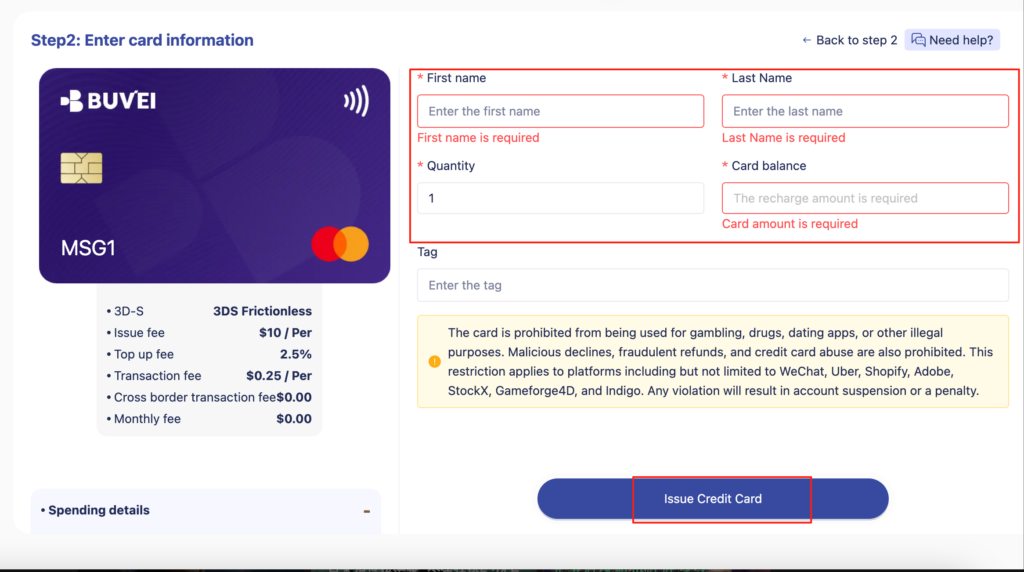
Generate your virtual card:
-
-
Enter your name and email address.
-
Specify the amount to preload onto the card.
-
Confirm and create.
-
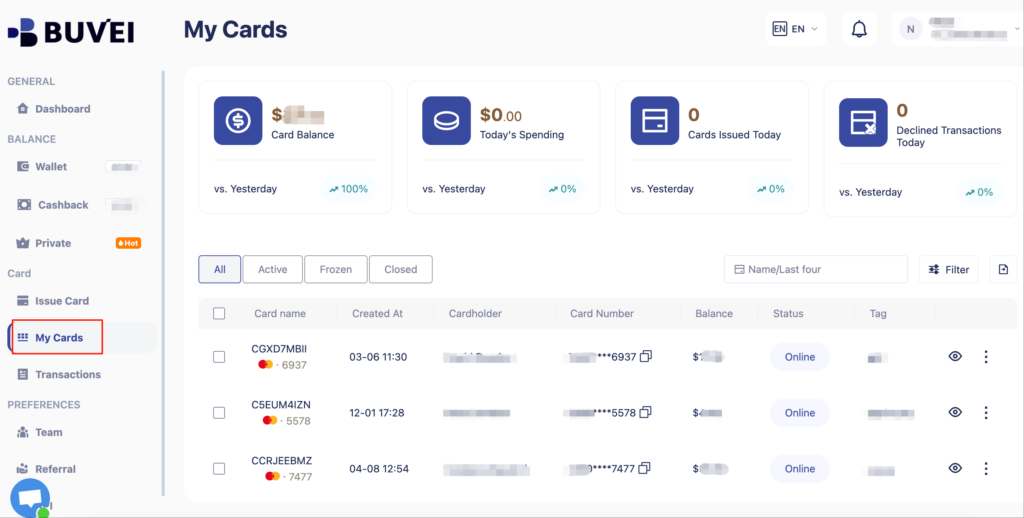
Retrieve your virtual card details: After creation, go to the "My Cards" tab. There, you’ll find your ready-to-use Buvei virtual card, including:
-
-
Full Card Number
-
Expiration Date
-
CVV Security Code
-
As digital advertising continues to scale globally, managing payment methods with flexibility, security, and precision has become more important than ever. By linking a virtual card—like those from Buvei—to your Facebook Fanpage ad account, you can:
- Prevent account instability from failed payments
- Isolate ad budgets by GEO or campaign
- Avoid card sharing risks and recurring charges
- Simplify ad account bookkeeping
For ad buyers, agencies, and cross-border sellers, this workflow is more than just a setup—it’s a strategic foundation for global performance marketing in 2025.
❓ FAQ: Connecting Virtual Cards to Facebook Ads
Q1: Can I use one virtual card for multiple ad accounts?
A1: Technically yes, but not recommended. Buvei advises creating one card per ad account to improve risk control and simplify budget tracking.
Q2: What if Facebook flags my card?
A2: No problem. Freeze or delete it instantly from Buvei dashboard and create a new one—no need to wait for a physical card.
Q3: Does Facebook accept virtual cards?
A3: Absolutely. Facebook supports major networks (Visa, Mastercard). Buvei’s cards are tested for global Meta platform compatibility.
Q4: How do I track which card is linked to which campaign?
A4: Buvei lets you label each card with region, campaign, or operator tags for clear accounting and reconciliation.