


Introduction
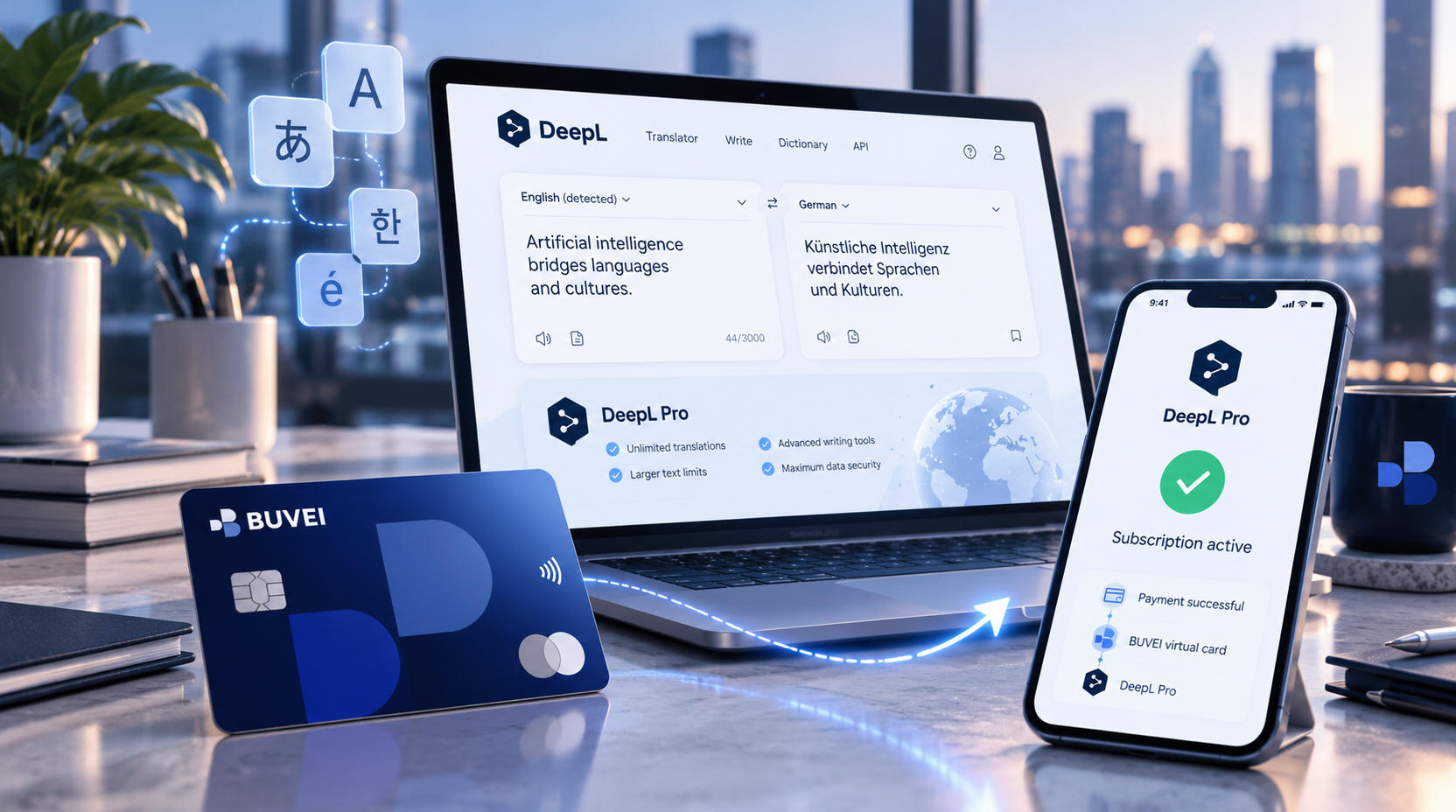
Using DeepL regularly for work, school, or everyday translations? Upgrading to DeepL Pro can be worth it, but adding another recurring payment to your main bank card isn't always ideal. If you'd rather keep your software subscriptions separate, you can pay for DeepL Pro with a virtual card.
Before checking out, it's worth knowing which payment methods DeepL accepts, how its billing plans work, and what to expect during card verification. This guide covers the entire process, from setting up a BUVEI virtual card to completing your subscription, along with a few practical fixes if your payment doesn't go through.
Can You Pay for DeepL Pro with a Virtual Card?
DeepL accepts major credit and debit cards, including Visa and Mastercard. An eligible virtual card can be used through the same checkout process, provided the issuer authorizes the transaction and supports the required security verification.
You don't need to look for a separate virtual card option. Simply select card payment and enter your card details at checkout.
DeepL also supports SEPA Direct Debit for eligible customers, but PayPal isn't currently accepted.
If you'd prefer to keep subscription expenses separate from everyday spending, BUVEI offers virtual Visa and Mastercard cards with spending limits and transaction tracking.
How to Create a BUVEI Virtual Card for DeepL Pro
If you don't have a virtual card yet, you can set one up through BUVEI before heading to DeepL's checkout page.
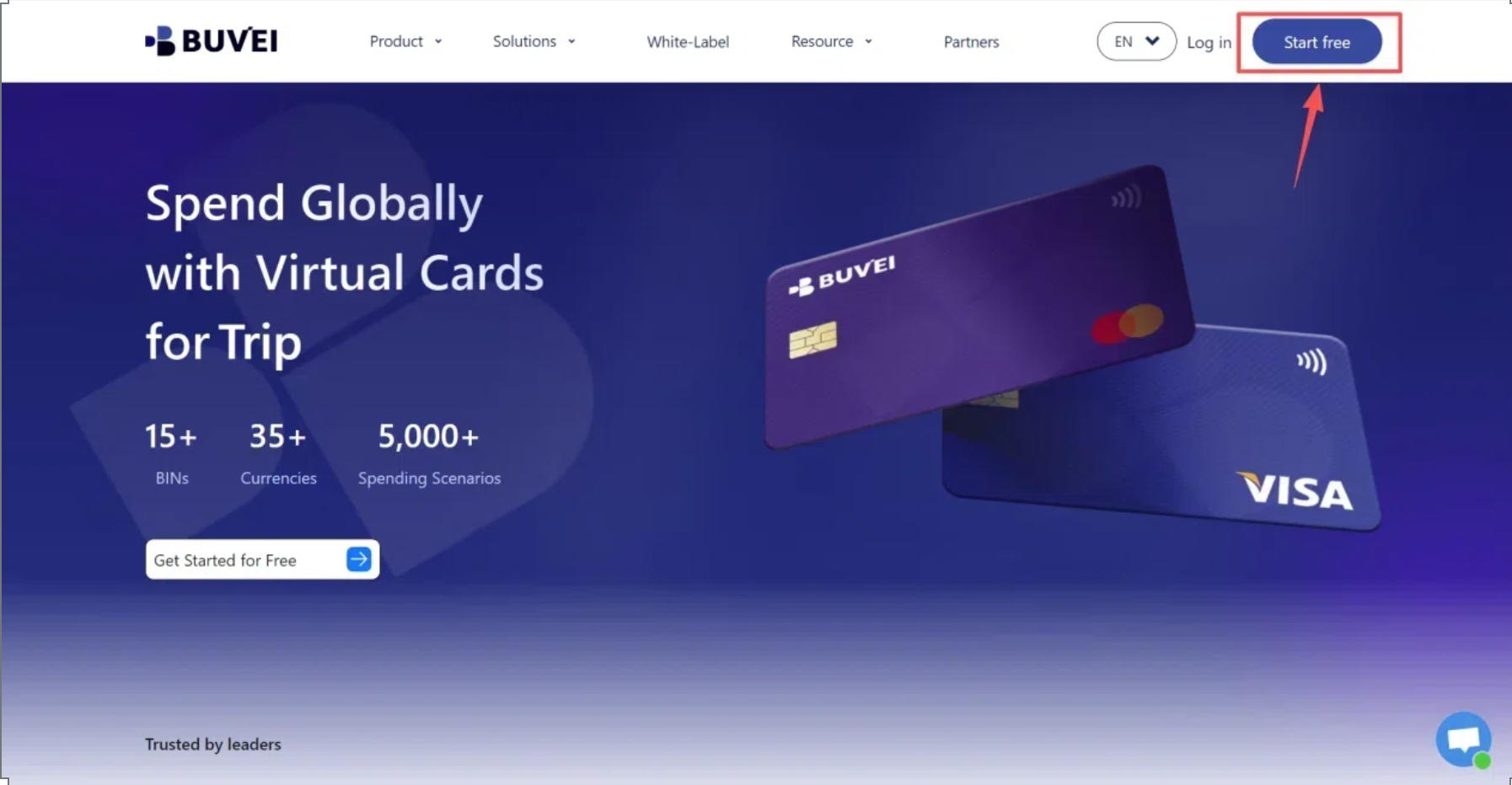
Step 1: Create a BUVEI Account
Visit BUVEI, sign up with your email address, and complete the verification process. Once you're logged in, you'll have access to your wallet, virtual cards, and transaction history.
Step 2: Fund Your BUVEI Wallet
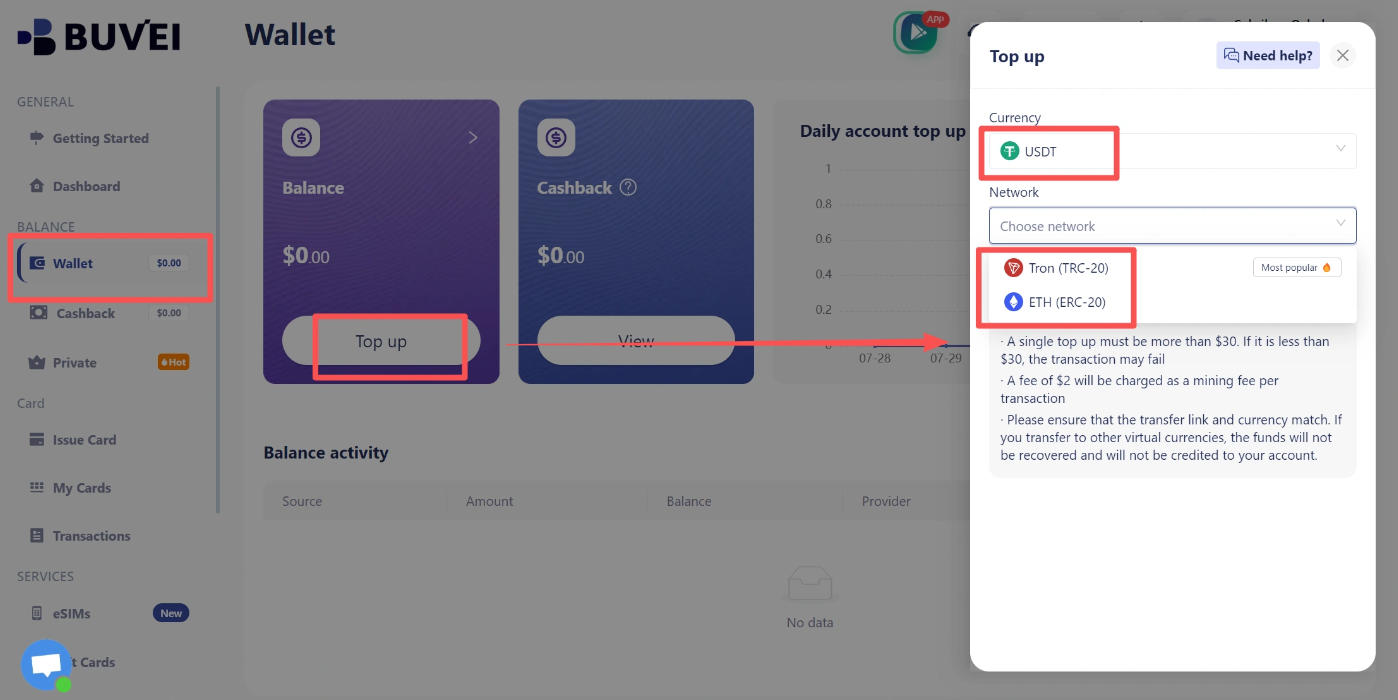
Open Wallet and select an available deposit method, such as USDT on the TRC20 or ERC20 network. Copy the deposit address shown in your account and make sure the network matches the one you're using to send funds.
Review the deposit amount and applicable fees before transferring. Once the transaction is confirmed, check that your wallet balance has been updated.
Step 3: Issue a Virtual Card
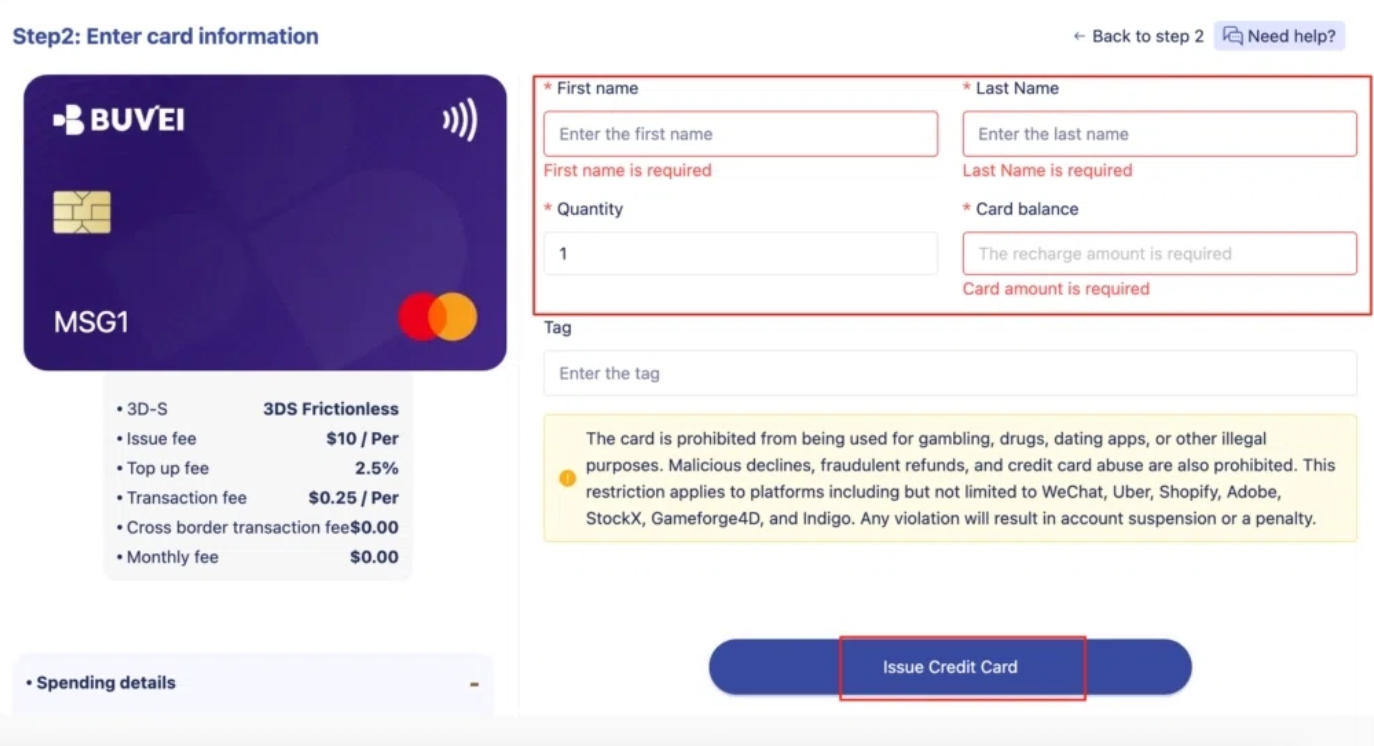
Go to Cards, choose your preferred BIN region and card type, and enter the card name, amount, and quantity. Click Issue Card to create your virtual card.
For DeepL Pro, make sure the card is suitable for recurring online payments and supports any required payment verification.
Step 4: Find Your Card Details
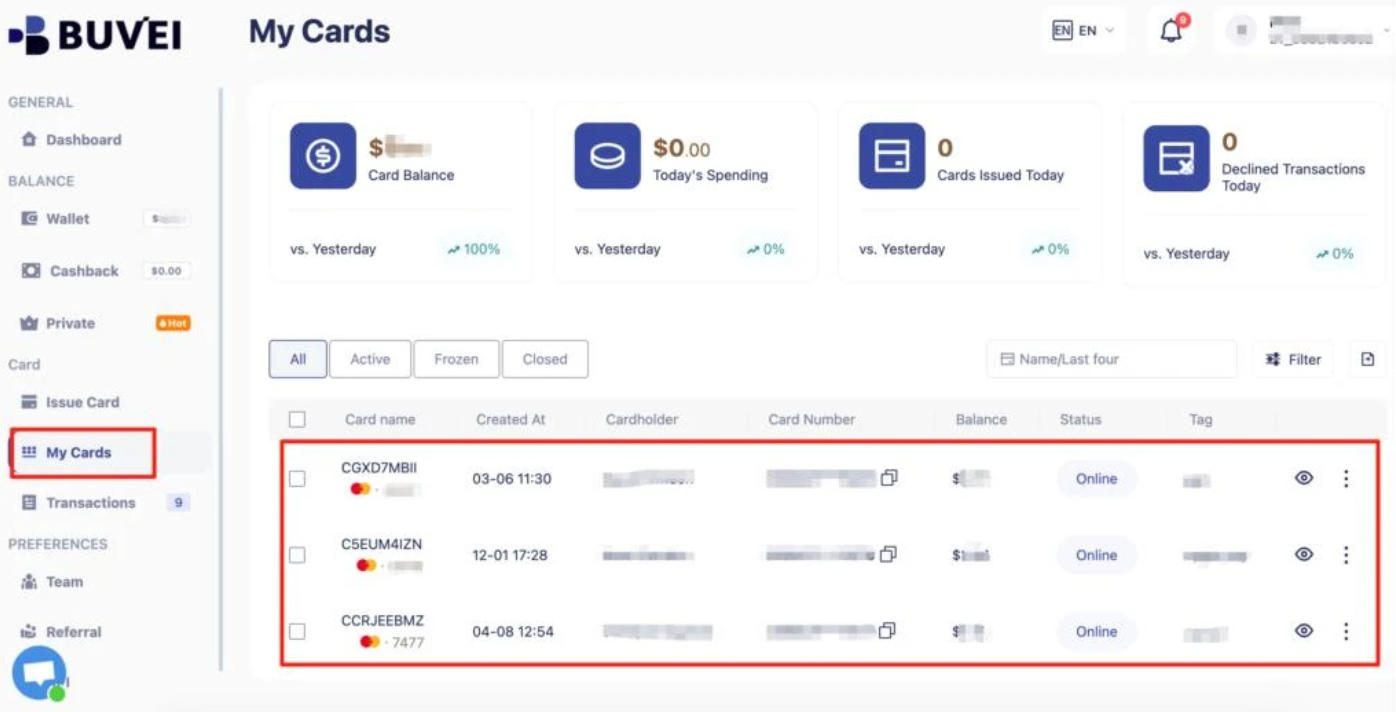
Open My Cards to view your card number, expiration date, and CVV. Check that the card is active and has enough available funds for your subscription.
Keep these details ready for checkout, and never share your full card information in public screenshots.
How to Pay for DeepL Pro with a Virtual Card
With your virtual card ready, you can complete your subscription through DeepL's website.
Step 1: Sign In to Your DeepL Account
Visit DeepL and log in to your account. If you're new to the platform, create an account using the email address you want associated with your subscription.
Step 2: Choose a DeepL Pro Plan
Open the DeepL pricing page and browse the available plans.
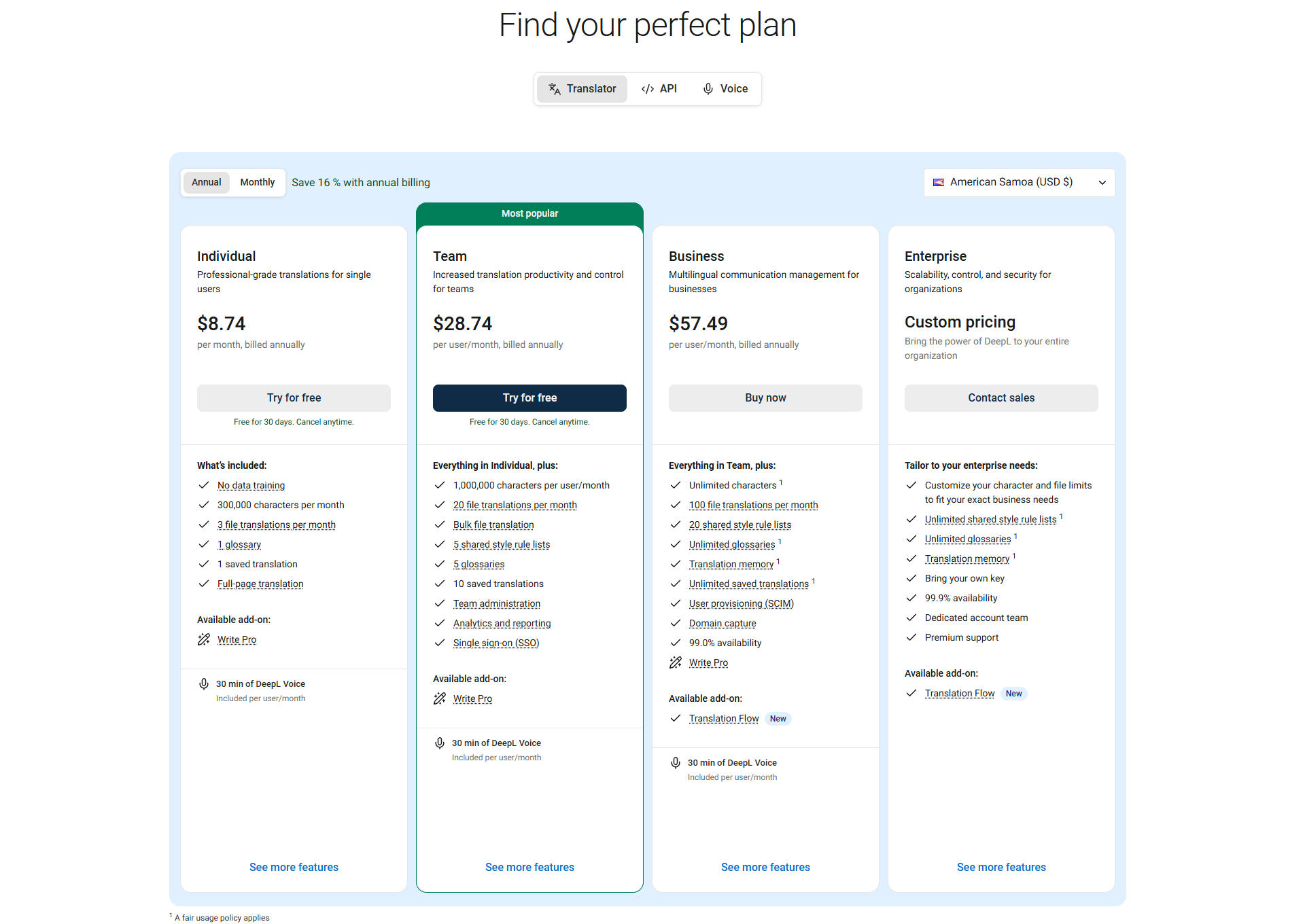
For personal use, the Individual plan is a good starting point. If you need access for multiple users, DeepL also offers plans designed for teams and businesses.
Select the plan that fits your needs and continue to checkout or the available free trial.
Step 3: Review the Billing Period and Free Trial
Before paying, check whether you've selected Monthly or Annual billing.
Annual plans may display a lower monthly price, but that figure is usually the monthly equivalent of a yearly subscription. If you choose annual billing, the full year's fee is charged upfront after any applicable free trial ends.
DeepL offers a 30-day free trial on certain plans for eligible users. If a trial is available, check when it ends, how much you'll be charged afterward, and when your subscription renews.
Review the final price and billing terms before continuing.
Step 4: Enter Your Virtual Card Details
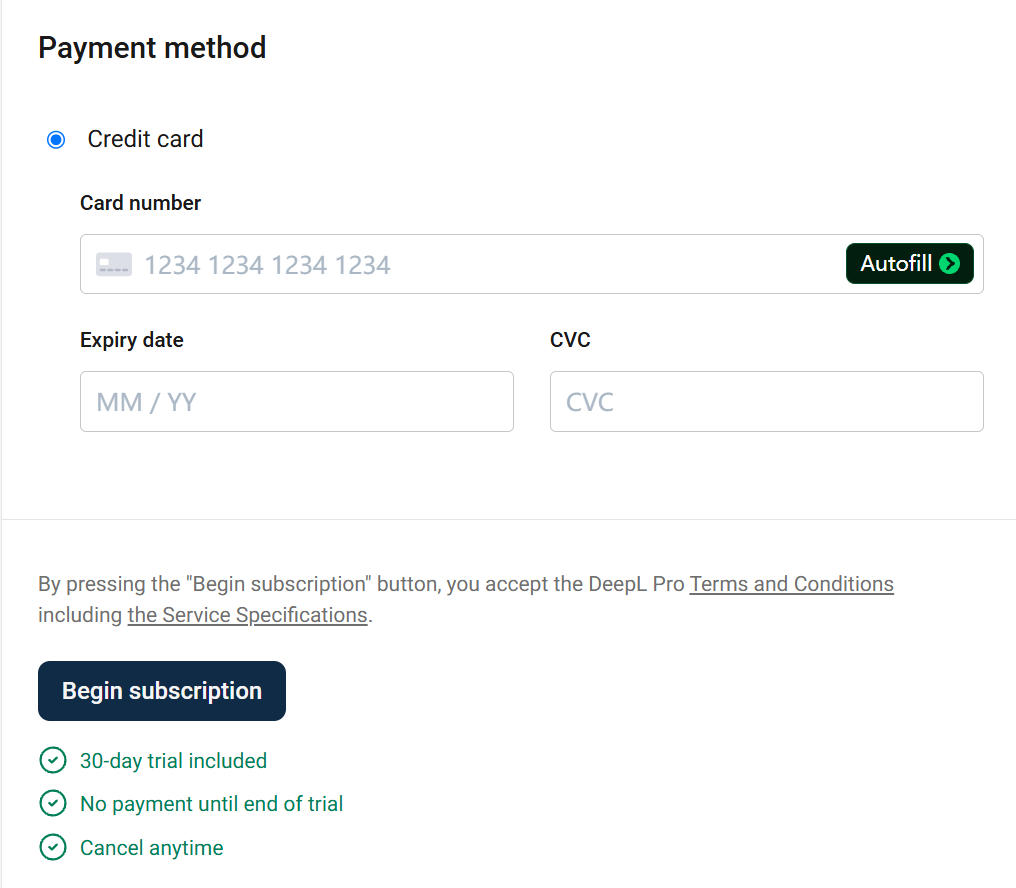
At checkout, select Credit card and enter your BUVEI card number, expiration date, and CVC. Double-check your information before proceeding.
DeepL may require 3-D Secure verification, so complete any security prompts from your card issuer if they appear.
If your checkout includes a free trial, review the trial terms and the charges that apply afterward. Once everything looks correct, click Begin subscription.
Step 5: Confirm Your DeepL Pro Subscription
After completing checkout, open Subscription in your DeepL account to check your current plan and subscription status.
If you've already been charged, you can review your invoices under Billing. An invoice marked PAID means DeepL has recorded the payment successfully.
If your card was charged but your subscription hasn't updated, check your billing information before submitting another payment.
What If DeepL Doesn't Accept Your Virtual Card?
If your payment is declined, check the following before trying again:
- Available balance: Make sure your card can cover the full charge, especially if you've selected annual billing.
- Card and billing details: Double-check the card number, expiration date, CVC, and billing address.
- 3-D Secure verification: Confirm that your card supports the required verification and that your browser allows the security window to open.
- Card restrictions: Check whether your issuer allows international, online, and recurring payments.
If you're unable to start a new subscription, the issue may be with your DeepL account rather than your card. An existing subscription or unpaid invoice can prevent you from purchasing another plan.
You can review your account's subscription and billing details to identify any outstanding charges.
Keep Your DeepL Subscription Payments Organized
DeepL might be one of several tools you pay for regularly. Between Grammarly, QuillBot, ChatGPT, and other software subscriptions, it's easy to lose track of what's being charged to your card.
With BUVEI, you can create separate virtual cards for different services, set spending limits, and review transactions for each card. You can also freeze or unfreeze cards when needed, giving you more control over your online spending.
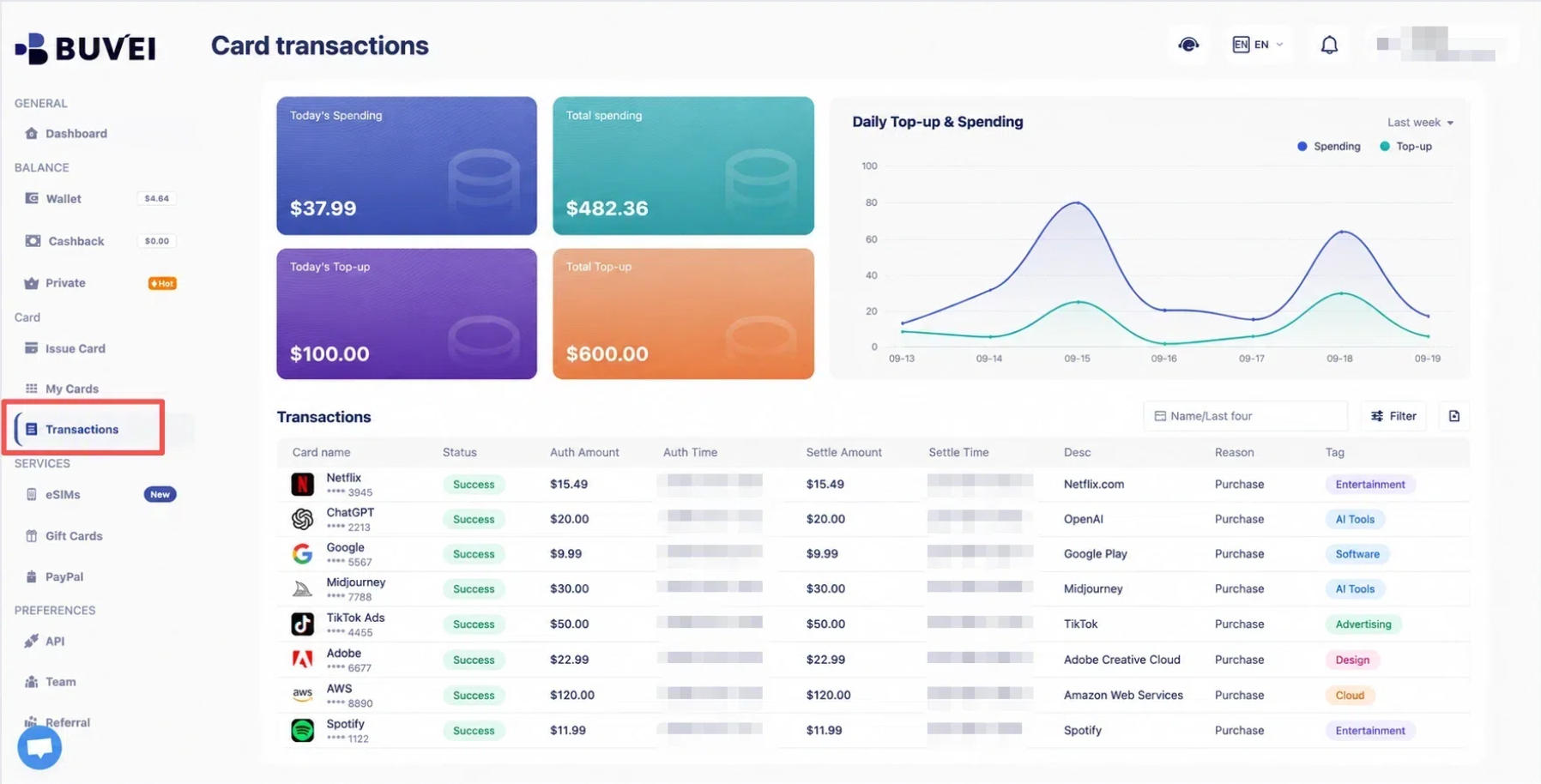
Using a dedicated card for DeepL makes it easier to identify its charges without sorting through unrelated purchases. Just remember that freezing a card doesn't cancel the subscription itself.
Frequently Asked Questions
Does DeepL Pro Accept Virtual Cards?
DeepL accepts major credit and debit cards. An eligible virtual Visa or Mastercard may work if the issuer authorizes the transaction and supports the required security verification.
Can I Pay for DeepL Pro with PayPal?
No. DeepL doesn't currently accept PayPal. Supported payment methods include credit and debit cards, along with SEPA Direct Debit for eligible customers.
Does DeepL Pro Offer a Free Trial?
Yes. Eligible Individual and Team subscribers may receive a 30-day free trial. Check the offer shown at checkout, including the trial end date and the amount due afterward.
Can I Change My DeepL Payment Method Later?
Yes. Sign in to your DeepL account, open Account, and find Payment method to update your saved payment information.
Conclusion
Paying for DeepL Pro with a virtual card is fairly simple once you've chosen your plan and checked the billing terms. Prepare your card, complete the checkout process, and confirm your subscription in your DeepL account. If the payment fails, start by checking your card details, available balance, and security verification.
If you're using DeepL alongside other paid tools, keeping their payments separate can make expenses easier to manage. BUVEI offers virtual cards with spending limits and transaction tracking, helping you stay on top of recurring charges without mixing them with everyday spending.