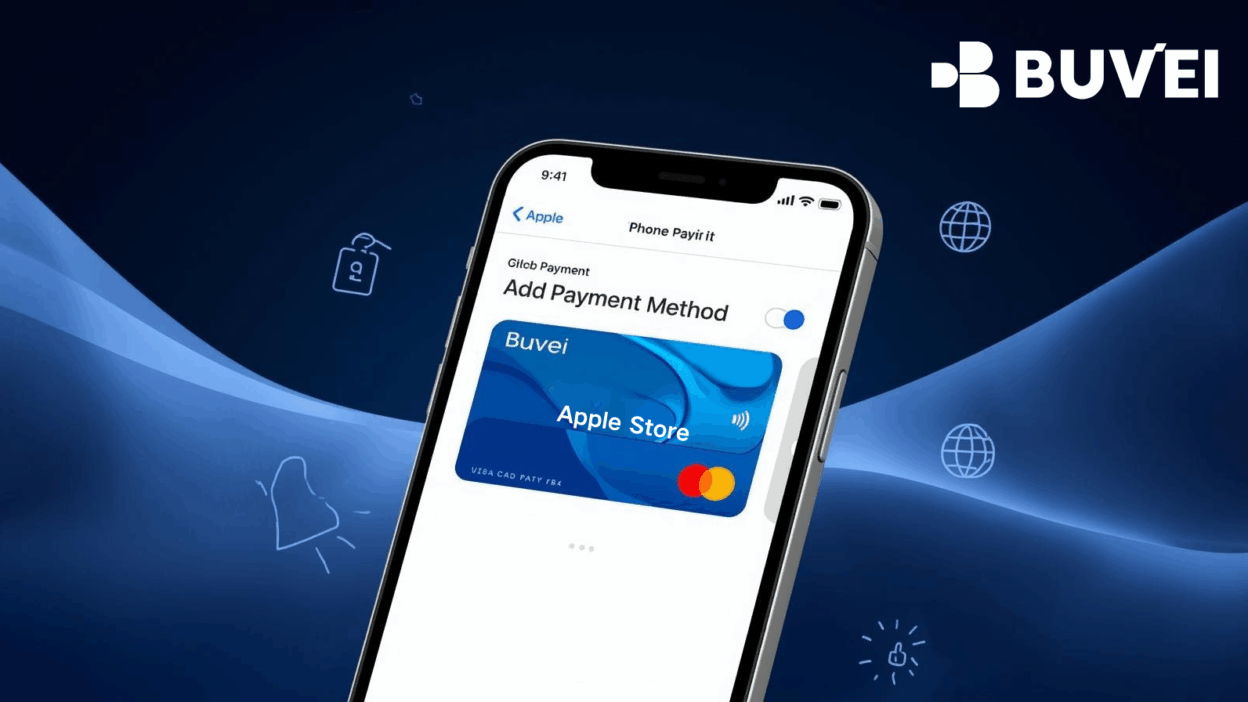
As Apple Pay and App Store subscriptions continue to expand globally, more users are switching to virtual cards for online payments and cross-region subscriptions. With high-approval-rate BINs, global compatibility, and fast USDT top-ups, Buvei virtual cards have become one of the most reliable options for adding a payment method to the Apple Store.
This guide provides a clear, professional, and comprehensive walkthrough for binding a Buvei virtual card to your Apple ID—covering requirements, step-by-step instructions, correct billing address formatting, and troubleshooting tips to ensure smooth activation.
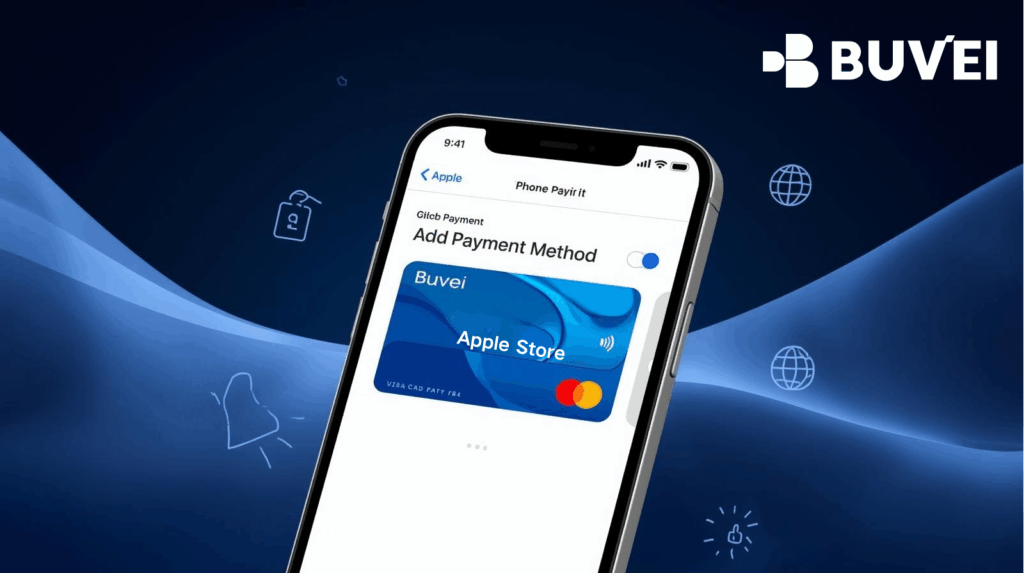
Why Use a Buvei Virtual Card for Apple Store Payments?
Buvei is designed for subscription-based spending such as Apple Music, iCloud, ChatGPT, and in-app purchases. Key advantages include:
-
High-approval BINs (HK/US/UK/SG available)
-
No complex KYC for monthly spending under $10,000
-
Instant USDT (TRC20/ERC20) top-ups for global users
-
Compatible with Apple Pay and Apple Store subscriptions
-
Enhanced security with multi-card control, spend limits, and risk filtering
Before You Bind a Buvei Virtual Card to Apple Store
To complete the binding process successfully, make sure the following requirements are met.
1. Apple ID Region Must Match the Card BIN Region
This is the most important rule.
Correct combinations include:
-
Hong Kong Apple ID → Buvei HK BIN
-
United States Apple ID → Buvei US BIN
-
United Kingdom Apple ID → Buvei UK BIN
-
Singapore Apple ID → Buvei SG BIN
If the Apple ID region does not match the BIN region, most bindings will fail.
2. Your Card Must Have a Small Balance
Apple performs a $0–$3 authorization check.
Keep at least $3 USD on your card before binding.
3. Billing Address Must Follow Local Formatting
The address does not need to be your real residence—only the correct format is required.
Example (Hong Kong):
-
Street: 1 Austin Road
-
City: Hong Kong
-
Region: Kowloon
-
Postal Code: 999077
-
Phone: Enter only the phone number (do not repeat the country code)
4. Phone Number Formatting
Common mistake:
❌ Re-entering the country code again in the phone field
✔ Correct: Once the region is selected, only input the digits in the phone number field
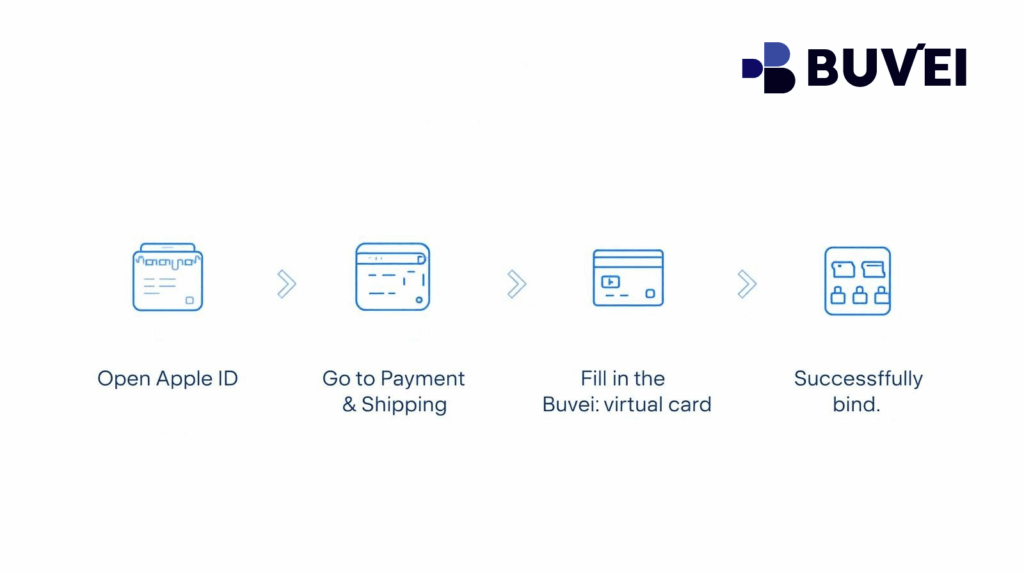
How to Bind Your Buvei Virtual Card to Your Apple ID
Step 1 — Open Apple ID Payment Settings
On iPhone:
Settings → Apple ID → Payment & Shipping
Step 2 — Add a Payment Method
Tap Add Credit/Debit Card.
Step 3 — Enter Your Buvei Card Details
Fill in:
-
16-digit card number
-
Expiration date
-
CVV
-
Cardholder name shown in Buvei
-
Correct billing address for the selected region
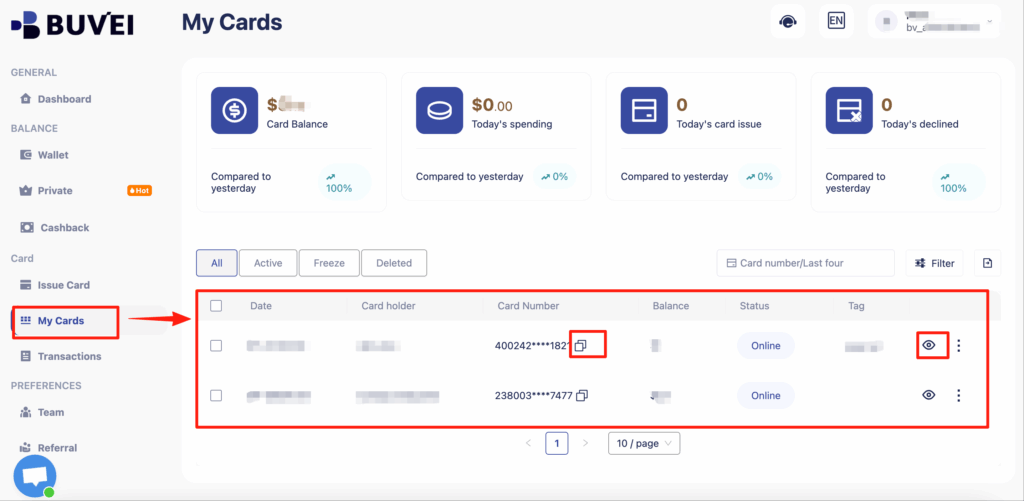
Step 4 — Save and Verify
If:
-
Apple ID region matches the BIN region
-
Billing information is correct
-
Balance is available
The card usually binds within 1 minute.
Common Issues and How to Fix Them
Issue 1: “This card cannot be used.”
Likely cause: Region mismatch
Solution: Align Apple ID region with BIN region.
Issue 2: “Your payment method was declined.”
Possible causes:
-
Insufficient balance
-
Incorrect address format
-
Wrong phone number format
-
BIN incompatible with the selected region
Checklist:
✔ Balance ≥ $3
✔ Address format correct
✔ Phone number without country code
Issue 3: Bound successfully but payment fails
Causes:
-
Cross-region subscriptions
-
Frequent IP/VPN switching
-
Additional Apple security verification
Solution:
Use a stable network and ensure IP matches the Apple ID region.
Pro Tips to Increase Binding Success Rate
Buvei recommends:
-
Always match Apple ID region with card BIN
-
Avoid switching IP/VPN frequently
-
Ensure your card has sufficient balance before subscribing
-
Avoid high-risk or repeated payment attempts that may trigger Apple risk control
Still Having Trouble? Here’s What to Check
To assist users efficiently, request:
-
Screenshot of the binding error
-
Billing address entered
-
Apple ID region
-
Buvei BIN region
Customer service example reply:
“Please send me a screenshot of the binding error, and I’ll help you check it right away.”
Buvei Makes Apple Store Subscriptions Simpler and More Reliable
Whether you need to:
-
Upgrade iCloud storage
-
Pay for in-app subscriptions
-
Bind Apple Pay
-
Complete cross-region subscriptions (ChatGPT, Netflix, Disney+, etc.)
A Buvei virtual card provides a secure, compliant, and efficient payment experience.
With the instructions in this guide, you’ll be able to bind your card successfully and maintain stable long-term use across Apple’s services.