


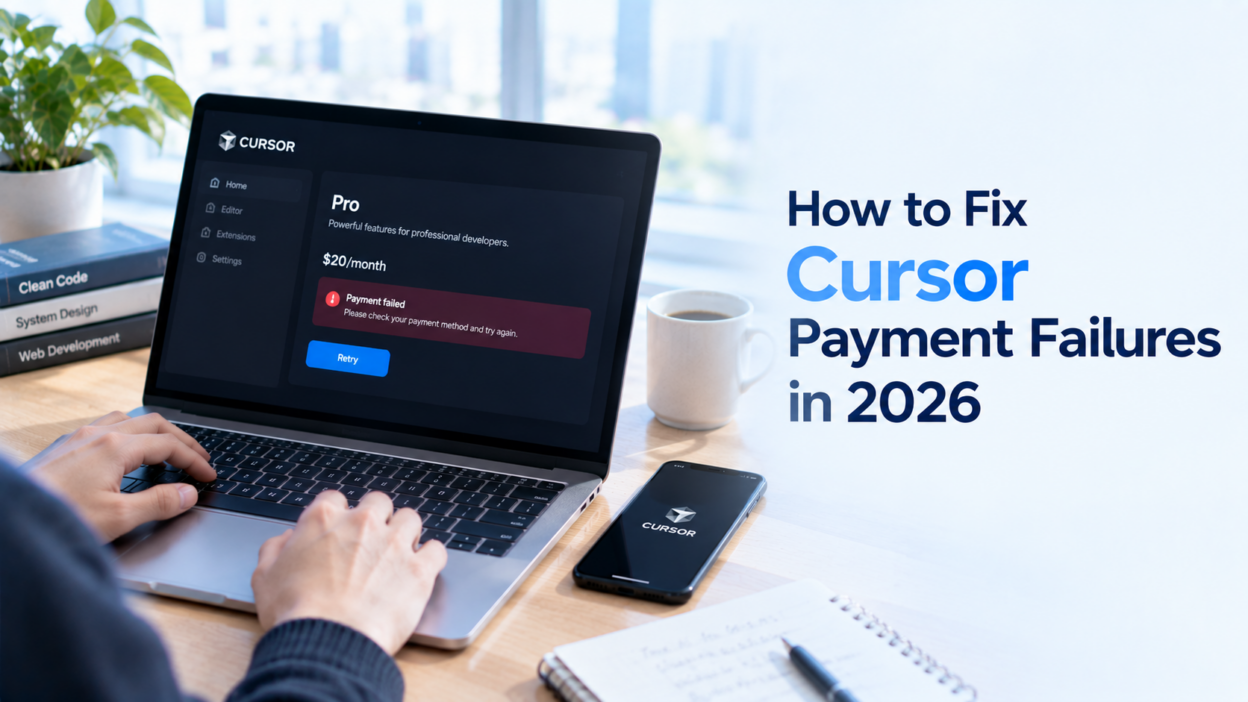
Cursor payment failures can prevent you from upgrading to Pro, renewing your subscription, or paying for additional usage. You might see a card decline during checkout, receive a failed renewal notice, or find that your payment went through but your plan hasn't changed.
These problems require different fixes. A declined transaction usually calls for checking your card or billing details, while a completed payment that hasn't activated your plan requires checking the payment confirmation and account status first.
This guide explains how to troubleshoot Cursor payment failures, update your payment method, investigate unexpected usage charges, and consider a virtual card if your current payment method isn't working.
Why Do Cursor Payment Failures Happen?
Before trying another card, identify what went wrong. The type of charge, transaction status, and error message can help you narrow down the cause.
Your Card Was Declined
Your card issuer may reject a transaction because online payments are restricted, additional authorization is required, or the card doesn't support the attempted transaction.
Check your card account for a decline notification. If the reason isn't clear, contact your issuer and ask whether it blocked the payment. Cursor's checkout page may not provide the full reason for a decline.
Your Billing Information or Available Balance Is Incorrect
An incorrect card number, expiration date, CVC, or billing address can prevent a payment from being authorized. An outdated saved card can cause the same problem.
Insufficient funds, an expired card, a frozen account, or a spending limit can also lead to a decline. Check that your available balance covers the amount due, including applicable taxes and fees.
If you're using a prepaid or virtual card, confirm that it's active and eligible for the transaction. A sufficient balance alone doesn't guarantee approval.
Your Subscription Renewal or Additional Usage Charge Failed
Not every Cursor billing issue involves your regular subscription.
Your subscription renews according to its billing cycle. Additional usage charges may occur when you exceed your plan's included usage and on-demand usage is enabled. Teams accounts can also incur prorated charges when paid seats are added during a billing cycle.
If a charge appears outside your usual renewal date, check the invoice and usage records before assuming your subscription renewal failed.
Your Payment Is Pending, Not Failed
A pending transaction is not necessarily a declined payment. The card issuer or payment processor may still be processing the authorization, even if Cursor hasn't updated its billing status.
Don't keep retrying while the first transaction is unresolved. Multiple attempts can complicate the payment history and may create duplicate authorization attempts or charges. Check the transaction status before submitting another payment.
How to Troubleshoot Cursor Payment Failures
If Cursor reports a declined payment, an unpaid invoice, or a failed renewal, follow these steps in order.
Step 1: Check Your Cursor Billing Dashboard
Start by confirming the payment status and identifying the charge involved.
- Open the Cursor billing page.
- Sign in to the account associated with your subscription.
- Review your current plan and available billing records.
- Look for a failed charge, unpaid invoice, or pending transaction.
- Determine whether the charge relates to your subscription or additional usage.
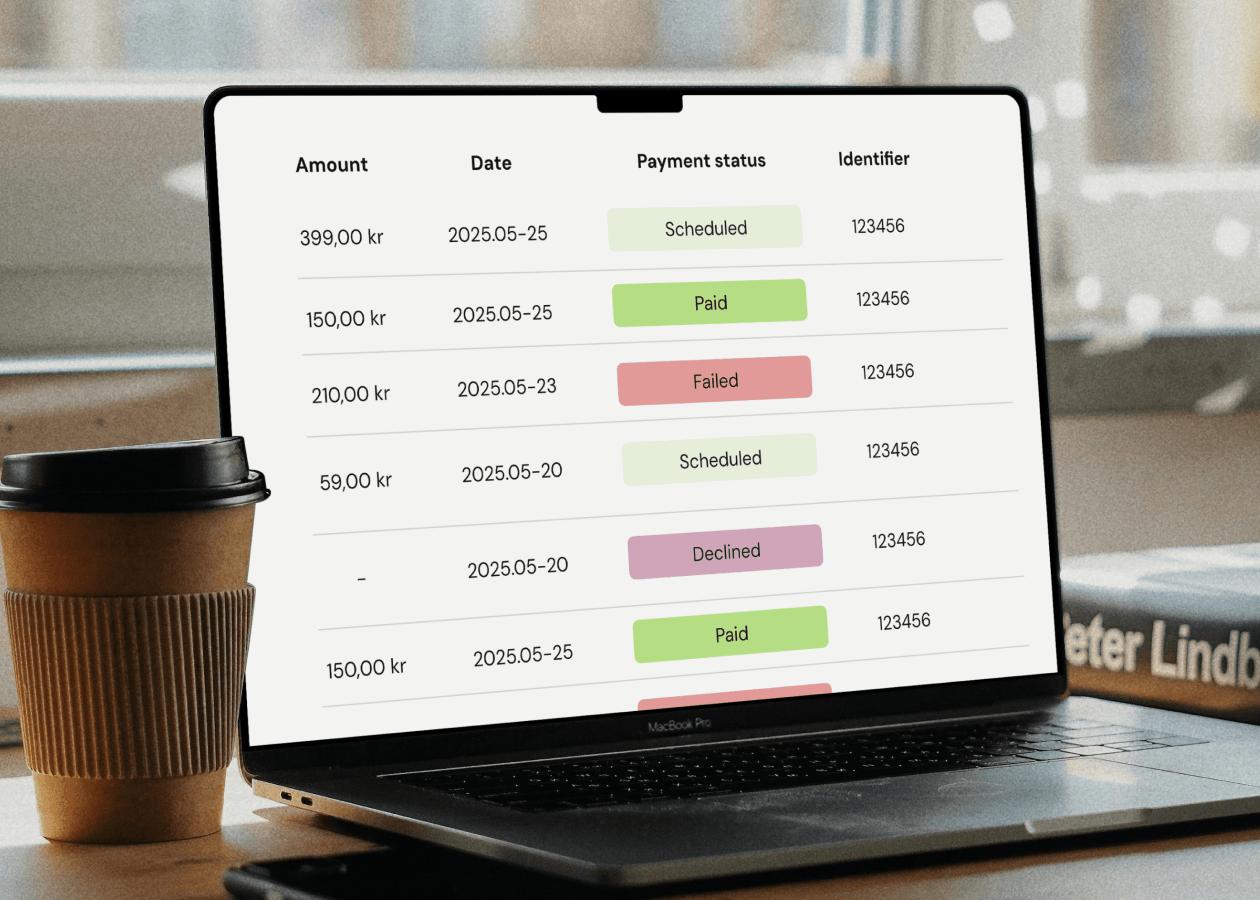
If the transaction is pending, wait for its status to become clear before retrying. If it has failed, note the amount and date so you can compare the record with your card provider's transaction history.
Step 2: Verify Your Card and Billing Details
If Cursor confirms that the payment failed, check the saved payment method.
- From the billing page, click Manage Subscription to open the Stripe billing portal.
- Review the card number, expiration date, CVC, and billing address where displayed.
- Confirm that the card is active and allowed to make online payments.
- Check that sufficient funds are available for the amount due.
- Correct any inaccurate details before trying again.
Use the billing information requested by Cursor and supported by your card issuer. Don't substitute an address simply because it appears more compatible with the card's issuing region.
If everything looks correct but the payment still fails, move to the next step.
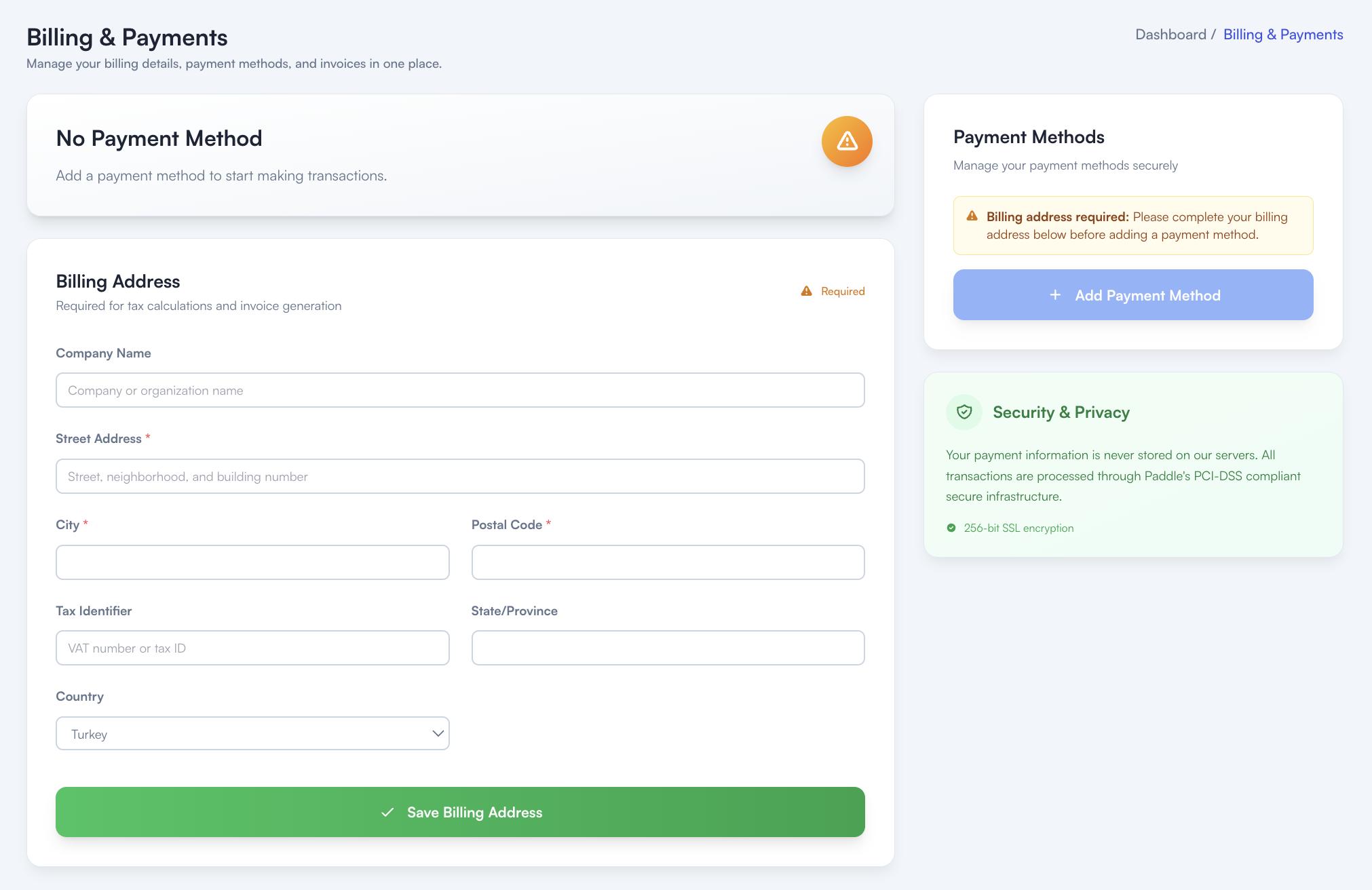
Step 3: Contact Your Card Issuer
If your card details are correct and you have enough funds, ask your card issuer to investigate the declined transaction.
Confirm whether the issuer rejected the payment and whether restrictions apply to online purchases, international transactions, or the specific transaction type.
If you're using a prepaid or virtual card, ask whether it supports the intended payment and whether any spending or merchant restrictions apply.
If the issuer confirms that the card is eligible but can't explain the decline, consider another payment method supported by Cursor.
Step 4: Update Your Payment Method and Retry
If your existing card can't complete the payment, you can update it through the Stripe billing portal.
- Return to the Cursor billing page and click Manage Subscription.
- Open the payment method section.
- Add an eligible card or update the existing details.
- Set the intended card as the default payment method if that option is available.
- Return to Cursor and follow the instructions to retry the failed payment.
Before retrying, confirm that the previous transaction was unsuccessful rather than pending or completed.
Another credit or debit card may resolve a problem specific to your current card, but changing cards doesn't guarantee approval. The replacement must still meet Cursor's payment requirements and pass authorization.
Step 5: Check Whether Additional Usage Is the Problem
If your subscription appears active but you've received another billing notification, investigate on-demand usage separately.
- Open your Cursor Dashboard and select Spending.
- Review your usage records and on-demand spending.
- Check whether you've used the allowance included in your plan.
- Review your on-demand usage settings and monthly spending limit.
- Check Billing & Invoices for the relevant charge or invoice.
Cursor's individual plans require on-demand usage to be enabled before additional usage can be billed. Teams plans have separate defaults and administrative controls.
If you don't want additional usage charges, review whether you can disable on-demand usage or set a spending limit. Disabling it may prevent you from continuing to make requests after your included allowance runs out.
If you subscribed through the Apple App Store or Google Play, your base subscription is billed through that platform. Additional usage purchased through Cursor's website may use a separate payment method, so identify the failed charge before changing your card.
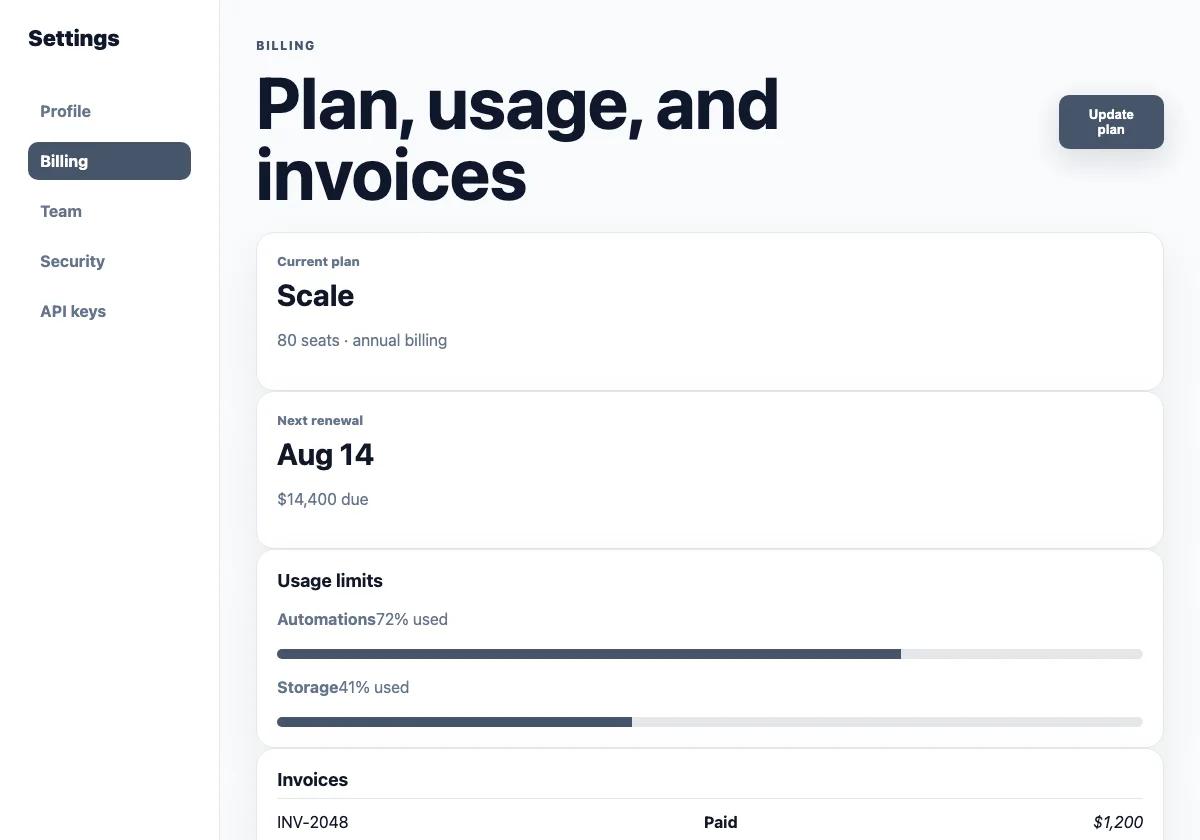
What to Do if Your Cursor Payment Succeeded but Your Plan Hasn't Updated
This is a separate issue from a declined payment. If you have confirmation that your payment went through, don't pay again immediately. Cursor's official troubleshooting guide recommends checking for a synchronization delay and confirming the account associated with the charge.
Step 1: Wait a Few Minutes and Refresh the Dashboard
Open your Cursor Dashboard, wait a few minutes, and refresh the page.
Sometimes payment confirmation arrives before the updated subscription status appears. Check your plan again after refreshing.
Step 2: Check Your Payment Confirmation Email
Look for a payment confirmation or receipt from Cursor or Stripe.
Confirm the payment amount and date, and keep the receipt available in case you need to contact support.
If you can't find a confirmation, check the billing portal and your card transaction records to determine whether the payment actually completed. A pending authorization isn't necessarily the same as a completed charge.
Step 3: Sign Out and Sign Back In
If your plan still hasn't updated:
- Sign out of your Cursor account.
- Sign back in.
- Return to the Dashboard.
- Check your subscription status again.
This refreshes your session and may resolve a stale plan display.
Step 4: Confirm You're Using the Correct Account
Make sure the email address you're currently using matches the account associated with the purchase.
If you have multiple Cursor accounts, compare the signed-in email with the address shown in your payment confirmation. A completed payment on one account won't necessarily activate a different account.
Step 5: Contact Cursor Support if Your Plan Is Still Inactive
If you've completed these checks and your plan remains inactive, contact Cursor Support while signed in to the affected account.
Include the email address associated with your purchase, the payment amount and date, a receipt or confirmation, and a screenshot showing your current plan status.
Explain that the payment was completed but the plan hasn't updated. Don't share your full card number, CVC, or authentication codes.
For this issue, focus on payment confirmation and account activation rather than replacing the card unnecessarily.
Can a Virtual Card Help With Cursor Payment Failures?
A virtual card may be worth considering if your current payment method is unavailable or has a restriction that can be resolved by changing cards. It can also help you keep software expenses separate from everyday spending.
However, a virtual card isn't a guaranteed fix. Cursor and its payment processor determine which payment methods are accepted, and the card must meet the applicable requirements and pass authorization.
When Should You Consider a Virtual Card?
First, identify why your original payment failed. A different card may help if the problem is specific to your existing card, but it won't resolve every billing issue.
Before switching payment methods, check that the card type and issuing region meet the merchant's requirements, online transactions are permitted, and sufficient funds are available.
Don't assume that selecting a US BIN will bypass regional restrictions. A card's issuing region, the merchant's acceptance rules, and the billing information provided can all affect authorization. Use accurate billing details and confirm compatibility before retrying.
How to Prepare a BUVEI Virtual Card for Cursor Payments
BUVEI offers virtual card creation, wallet funding, and transaction management for supported online payments. If you want to try a BUVEI card as an alternative, prepare it first and confirm Cursor's current payment requirements before submitting a transaction.
- Register: Visit BUVEI.com, create an account, complete the required email verification, and log in to the dashboard.
- Fund your wallet: Open Wallet, select an available method such as USDT via TRC20 or ERC20, verify that the sending and receiving networks match, and transfer your funds. Wait for confirmation and check your balance.
- Create a card: Open Cards, select an available BIN region and card type, enter the requested card details, and submit the issuance request. A US BIN may be worth considering when it fits the merchant's requirements, but it doesn't guarantee acceptance.
- Add the card if supported: Open My Cards to review the card's status and details. Then return to Cursor's Stripe billing portal and add the card if Cursor accepts it. Complete any required verification and follow Cursor's instructions for retrying the payment.
Afterward, check Cursor's billing status and BUVEI's transaction records. If the payment is declined, use the available transaction information to determine whether to contact Cursor or BUVEI support.
This approach gives you another payment method to evaluate without assuming that a virtual card will work for every account or transaction.
What to Do if Cursor Still Rejects Your Payment
If you've checked your card details, contacted your issuer, and tried another eligible payment method without success, check whether Cursor has reported a relevant service issue.
Check Cursor's Service Status
Visit the Cursor Status page to review current service availability and reported incidents.
If an incident affecting the relevant service is reported, wait for updates before repeatedly changing your payment details. If the status page shows normal operations, continue with the billing investigation or contact support.
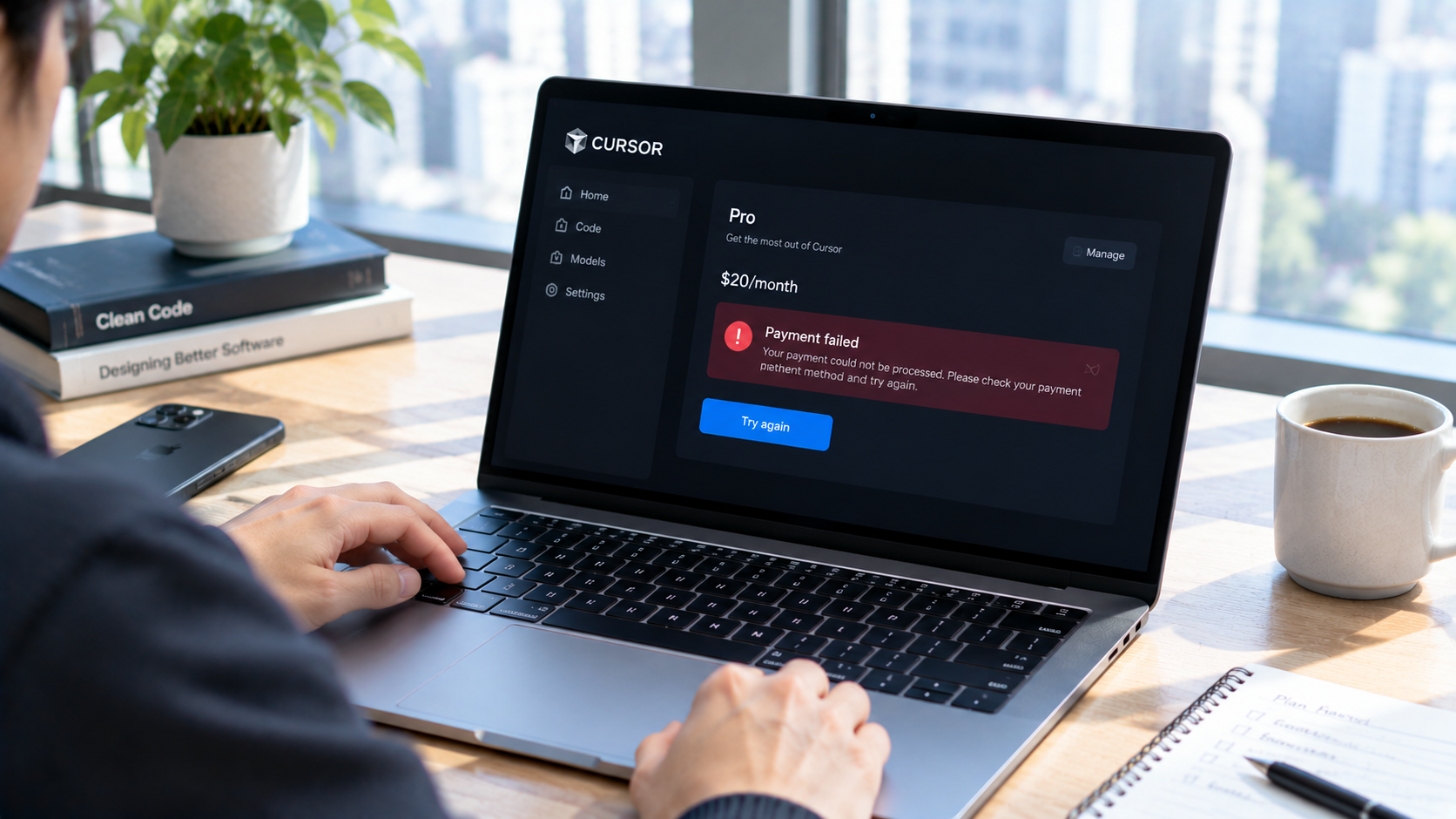
Contact Cursor Support
If the payment still fails, contact Cursor Support while signed in to your account.
Include your account email, payment amount and date, any receipt or transaction ID, a screenshot of the billing status, and a brief description of the steps you've already tried.
State whether the problem involves a declined card, a failed renewal, an additional usage charge, or a completed payment that hasn't activated your plan. This helps support identify the correct billing record.
Never share your full card credentials or authentication codes through unofficial channels.
Conclusion
Cursor payment failures can stem from a declined card, incorrect billing details, a failed renewal, or an additional usage charge. Start by checking the billing records and identifying the transaction before changing payment methods. If a payment is still pending, confirm its status before retrying.
If your payment succeeded but your plan hasn't updated, refresh the Dashboard, check your confirmation email, sign in again, and confirm that you're using the account associated with the charge. For additional usage issues, review the separate usage records and spending settings.
A virtual card may provide another payment option when it meets Cursor's requirements. BUVEI offers card creation, wallet funding, and transaction management to help organize supported online payments. Whatever payment method you choose, confirm the transaction result and subscription status before attempting another charge.