



Subscriptions like Canva Pro are essential for creators, marketers, and businesses. But managing recurring billing—especially across regions—can sometimes lead to failed payments or unexpected interruptions.
That’s why many users are switching to virtual cards Canva Pro subscriptions to gain more control and improve payment reliability. A properly configured Canva Pro payment virtual card setup can help you avoid declines and keep your subscription running smoothly.
In this guide, we’ll explain how Canva billing works, why payments fail, and how to set up a working solution step by step.
How Canva Pro Subscription Billing Works
Understanding Canva’s billing system helps prevent issues.
Subscription Model
- Monthly or yearly plans
- Automatic recurring billing
Payment Processing
- Charges are applied on renewal dates
- Failed payments may downgrade your account
Requirements
- Valid card details
- Sufficient balance
- Recurring billing support
Even small issues can interrupt access to premium features.
Why Virtual Cards Get Declined on Canva Pro
Not all virtual cards work reliably with Canva.
1. Unsupported BIN Regions
- Some cards are not accepted globally
- Region mismatch may trigger declines
2. Recurring Payment Restrictions
- Some cards don’t support subscriptions
- Canva requires ongoing authorization
3. Insufficient Balance
- Renewal charges exceed card limits
- Currency conversion affects final cost
4. Risk Control Flags
- New cards may be flagged
- Multiple failed attempts increase risk
5. Currency Compatibility Issues
- Canva may charge in different currencies
- Cards without proper support may fail
Most issues are due to configuration rather than the platform itself.

What Makes a Virtual Card Suitable for Canva
To ensure smooth payments, your card setup must meet certain criteria.
Multi-BIN Support
- Improves acceptance across regions
Recurring Billing Compatibility
- Essential for subscription services
Multi-Currency Capability
- Supports USD and local currencies
Stable Authorization
- Consistent approval for renewals
Adjustable Spending Limits
- Prevents declines due to insufficient funds
Choosing the right features ensures stable billing.
Using Buvei Virtual Cards for Canva Pro
For users looking for a reliable payment solution, Buvei offers strong advantages.
Multi-BIN Cards
- Increase payment success rates on Canva
Strong SaaS Compatibility
- Works with subscription-based platforms
Crypto-Based Funding
- Supports USDT (TRC20/ERC20)
- Fast and cost-efficient deposits
Flexible Card Creation
- Create dedicated cards for Canva subscriptions
- Manage budgets easily
Real-Time Monitoring
- Track payments and renewals
- Adjust limits when needed
Transparent Fees
- Clear pricing with no hidden costs
How to Use Buvei for Canva Pro (Step-by-Step)
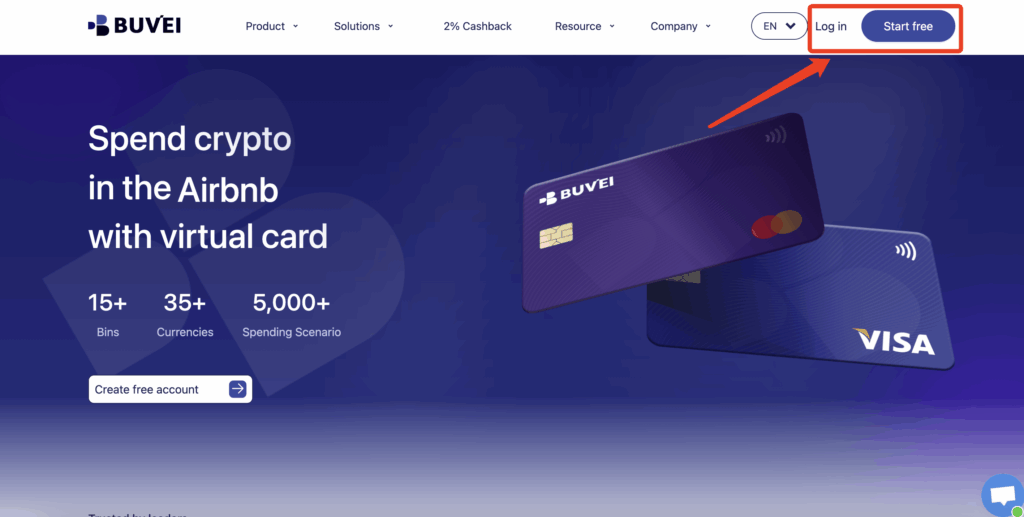
Step 1 — Register a Buvei Account
- Visit https://buvei.com
- Create a free account
- Verify your email
- Log in to the dashboard
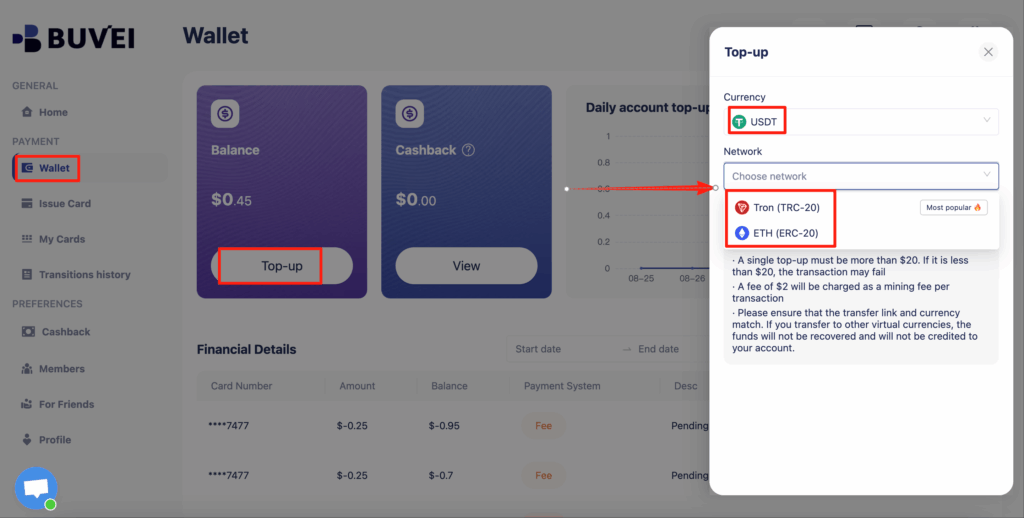
Step 2 — Fund Your Wallet
- Go to the Wallet tab
- Deposit USDT (TRC20/ERC20)
- Copy your dedicated address
- Transfer funds and confirm
Step 3 — Create a Virtual Card
- Navigate to the Cards section
Select BIN region (U.S. recommended)
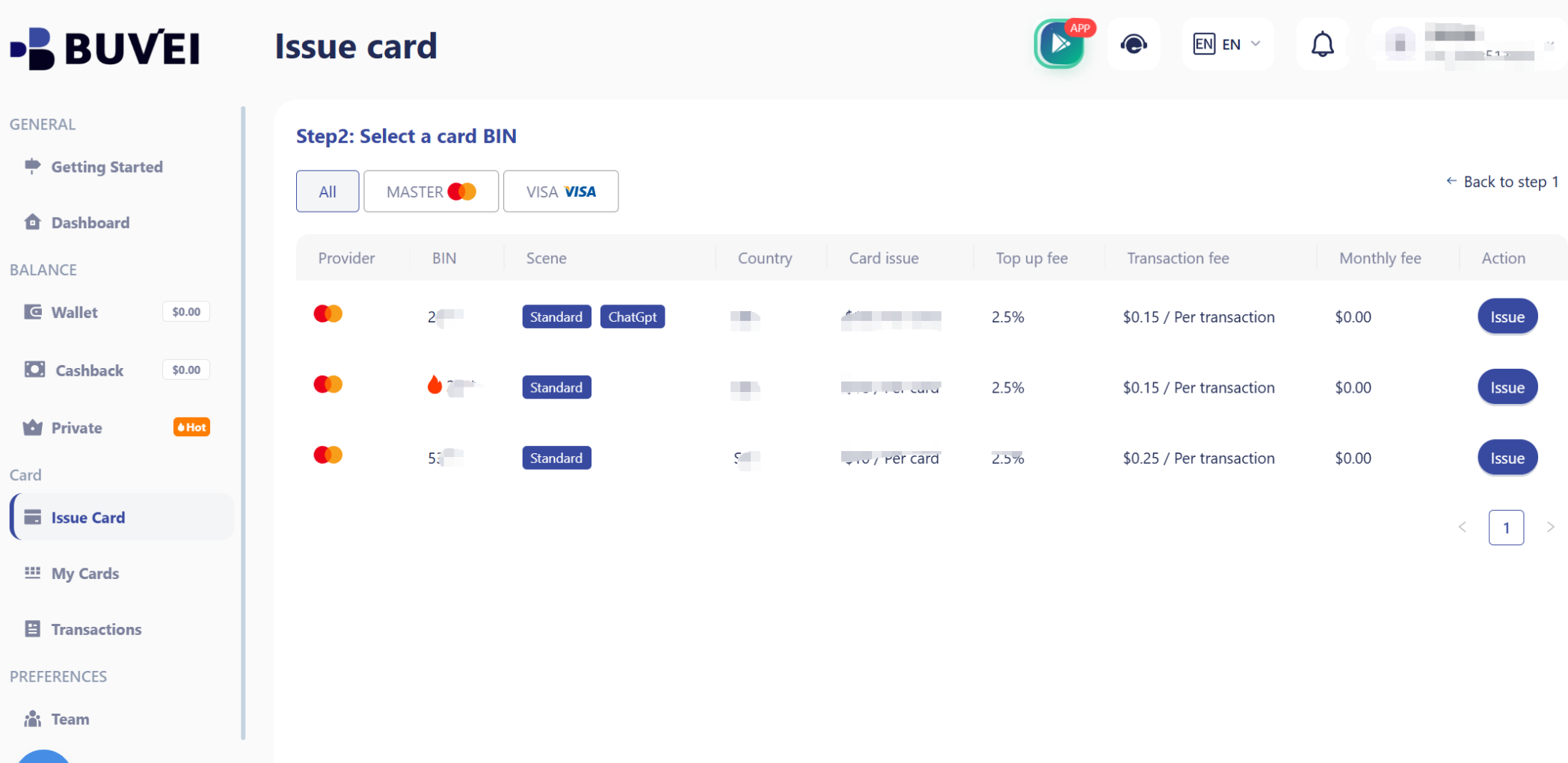
Choose card type
Enter details (Canva subscription name, budget)
Click Issue Card

After issuance, visit My Cards to view:
-
card number
-
expiration date
- CVV

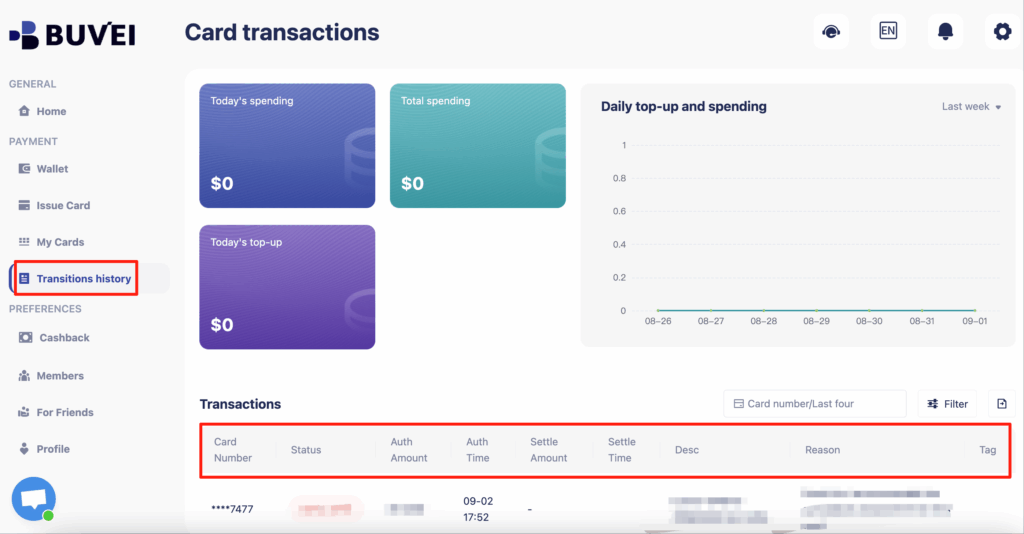
You can also track payments, monitor renewals, and manage multiple cards from the dashboard.
Step 4 — Add Card to Canva
- Log in to your Canva account
- Go to billing settings
- Add your virtual card as payment method
Step 5 — Monitor Subscription Payments
- Track renewal dates
- Ensure sufficient balance
- Adjust limits if needed
Tips to Avoid Renewal Failures
To maintain uninterrupted Canva access, follow these best practices.
Use a Dedicated Card
- Assign one card specifically for Canva
Maintain a Balance Buffer
- Keep extra funds for renewals
Set Proper Limits
- Ensure limits cover subscription fees
Monitor Billing Cycles
- Stay aware of renewal dates
Avoid Repeated Declines
- Fix issues immediately after a failed payment
Prepare Backup Cards
- Keep a secondary card ready
Final Thoughts
Managing subscriptions like Canva Pro requires a reliable payment setup. Virtual cards Canva Pro users rely on today provide better control, enhanced security, and improved payment success rates.
A well-configured Canva Pro payment virtual card can help you avoid interruptions, manage costs, and ensure continuous access to your design tools. Platforms like Buvei make it easy to implement this approach, giving users a flexible and scalable way to handle SaaS payments in 2026.