


Paying AWS bills without a credit card can be challenging when a traditional corporate card is unavailable or you want to separate cloud expenses from other business spending. Depending on your AWS account, region, and payment setup, an eligible virtual or debit card may provide an alternative payment option.
This guide explains how to prepare a virtual card, add it to AWS Billing, complete any required verification, and monitor your AWS payments.
Can You Pay AWS Without a Credit Card?
AWS supports multiple payment methods depending on the applicable account, AWS service provider, and region. The available options can therefore vary between accounts.
AWS manages payment methods through the Billing and Cost Management console. From Payment preferences, authorized users can view payment methods, add a payment method, and designate a default payment method. AWS also notes that some Billing pages require specific IAM permissions.
For businesses that do not want to rely on a traditional credit card, an eligible virtual card may be an alternative when it meets the applicable AWS and card-program requirements. However, not every virtual card is guaranteed to work with AWS. Card compatibility, account requirements, billing information, and verification requirements can affect whether a payment is accepted.
Why Use a Virtual Card for AWS Billing?
A virtual card can be useful when AWS is one of several recurring digital expenses managed by a business.
A dedicated card can help separate AWS expenses from SaaS subscriptions, advertising, and other online payments. This makes cloud-related transactions easier to identify during expense reviews.
Virtual cards can also provide additional spending control. Since AWS charges can change with usage, an appropriate card limit can help create a defined budget without putting every online expense on the same payment method.
Dedicated card activity can also improve payment visibility, making it easier to review successful payments, declined transactions, and unexpected charges.
What You Need Before Paying AWS
Before adding a virtual card to AWS, prepare:
- An active AWS account
- A compatible virtual card
- Sufficient available balance
- Accurate billing information
- A reasonable spending buffer
Because AWS charges can change with usage, avoid funding the card with only the exact amount you expect to pay. A higher-than-expected charge could otherwise result in a declined payment.
How to Pay AWS Bills Without a Credit Card
Once you have a suitable virtual card, the process can be broken down into five steps.
Step 1: Choose a Virtual Card
Start by choosing a virtual card that is suitable for online business payments and compatible with the requirements of your AWS account.
If you use BUVEI, you can create a virtual card from the dashboard and configure it according to your payment requirements. A dedicated card can be useful for AWS because it keeps cloud infrastructure expenses separate from other business payments.
- Visit https://buvei.comand sign up for a free account
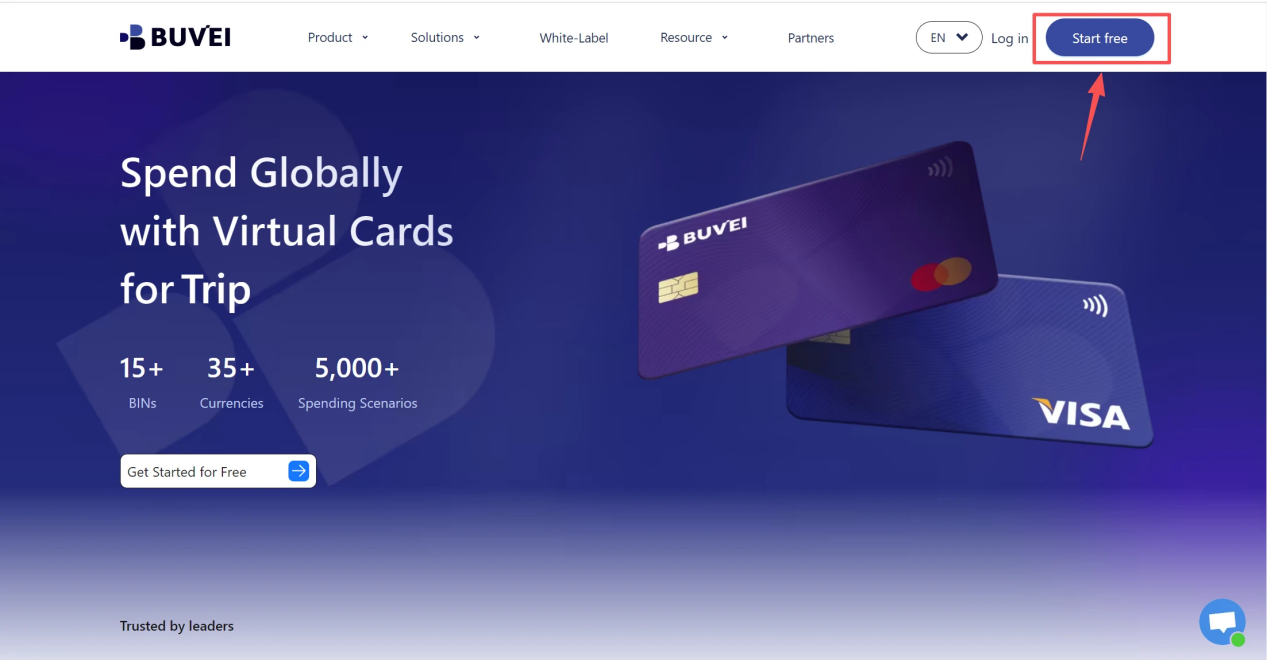
- Choose your preferred BIN region , (recommends using US BIN)
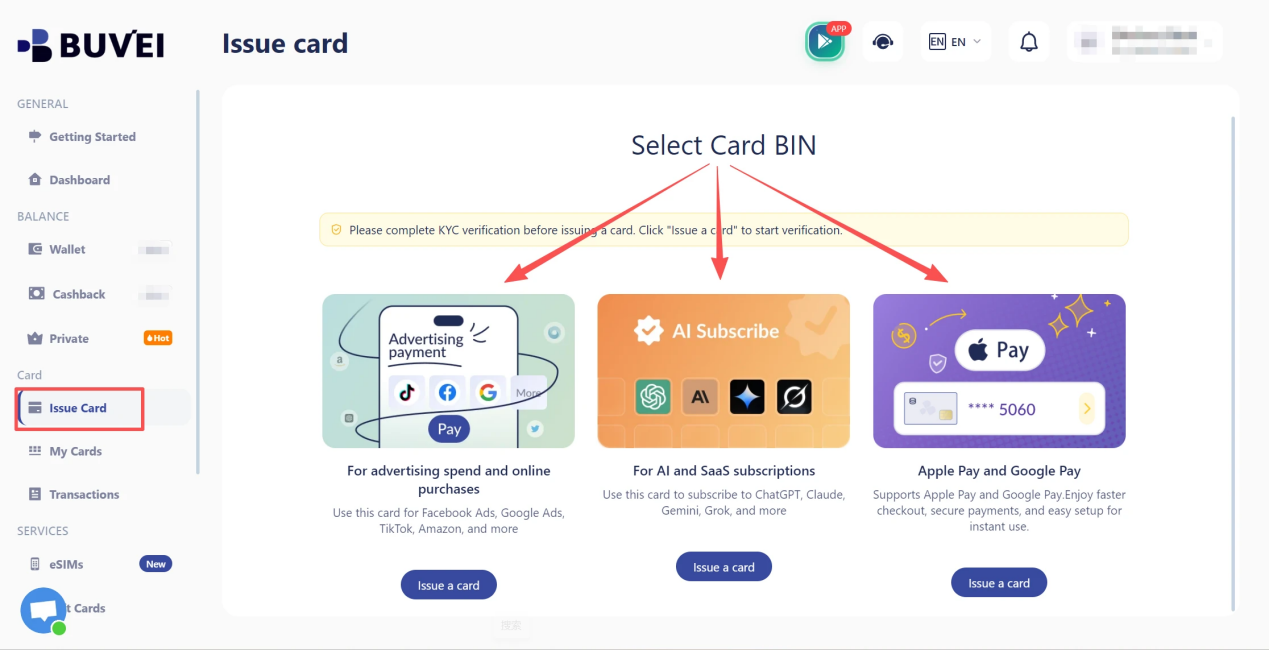
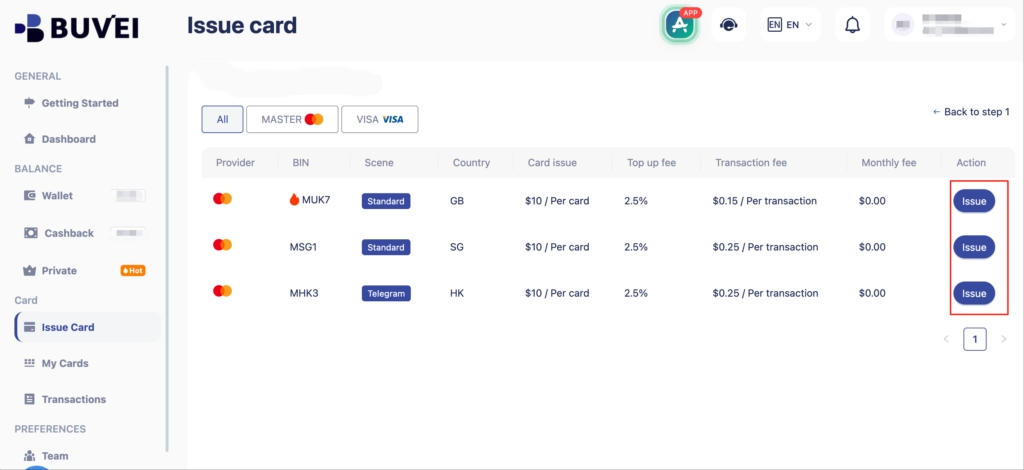
- Select your card type and Click Issue
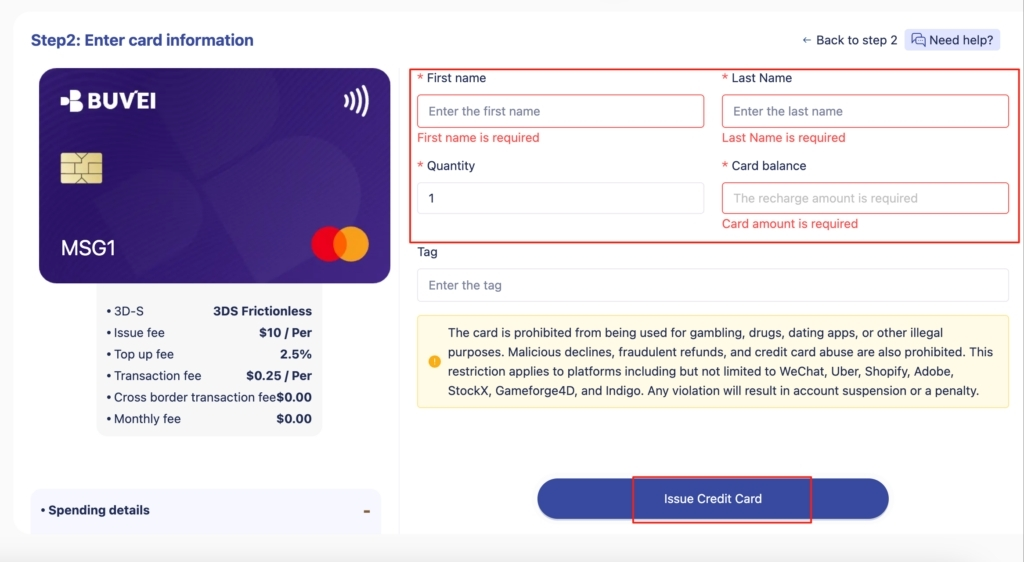
- Fill in the virtual card details, including name, amount, and number of cards, then Click Issue Card
Before using the card, confirm that it is active and available for online payments.
Step 2: Prepare the Card for AWS Billing
Before adding the card to AWS, check its available balance, status, and spending settings. If you use BUVEI, you can review the Wallet and card settings before using the card for AWS billing.
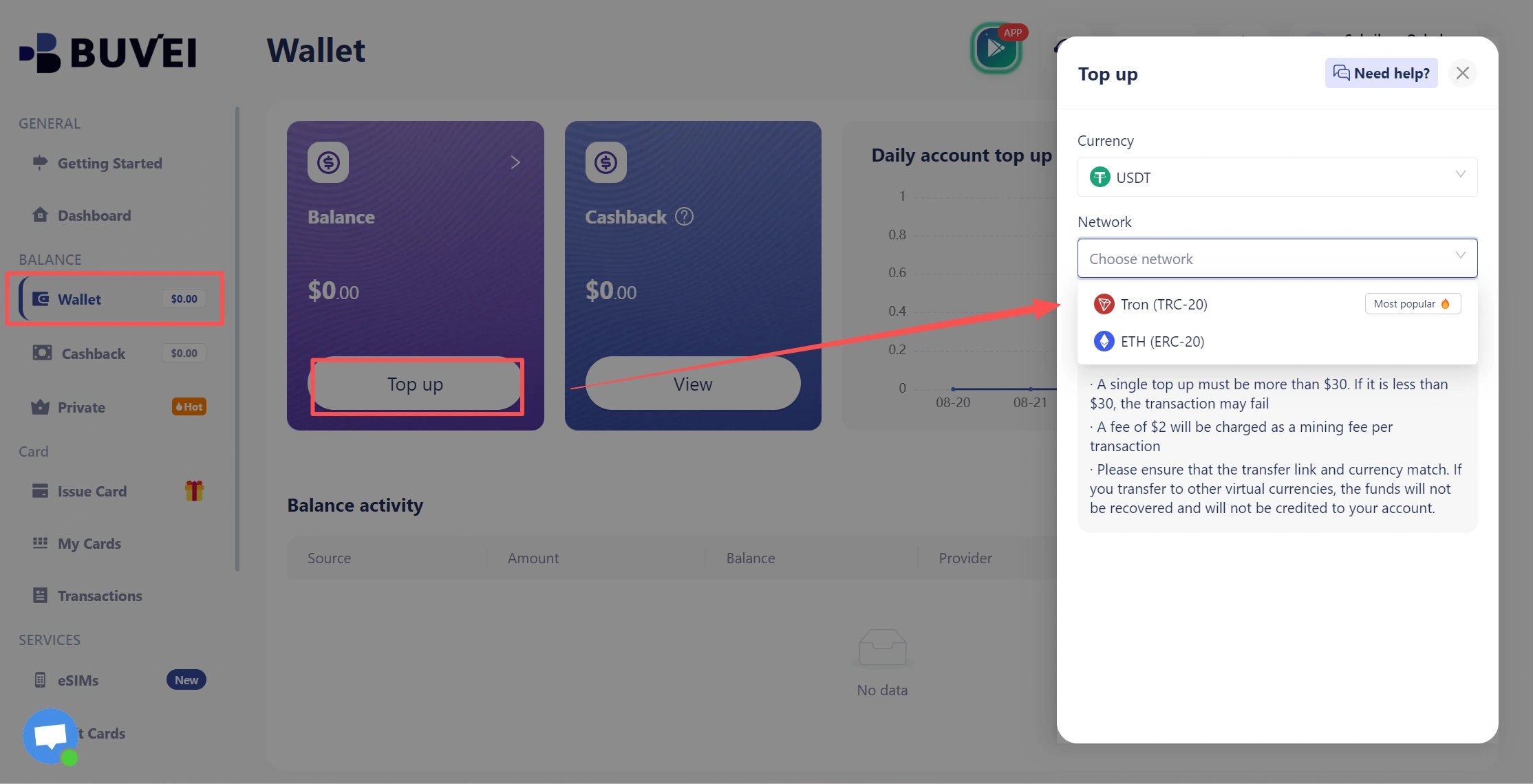
For AWS, consider leaving a reasonable spending buffer. If your monthly usage increases unexpectedly, a card limit or available balance that is too close to your normal bill may result in a declined payment.
The goal is to maintain enough capacity for legitimate AWS charges while keeping spending within your intended budget.
Step 3: Add the Card to AWS Billing
Once the virtual card is ready, sign in to the AWS Management Console and open Billing and Cost Management.
AWS currently manages payment methods through Payment preferences. The exact interface can vary slightly depending on your account configuration and AWS service provider, so use the labels shown in your current AWS Console. The general workflow is:
- Sign in to your AWS account.
- Open Billing and Cost Management.
- Select Payment preferences.
- Choose Add payment method.
- Select the applicable card option.
- Enter the required card information.
- Enter the required billing address.
- Review the information and add the payment method.
AWS’s current documentation specifically lists Payment preferences → Add payment method as the route for adding a card. Depending on the payment setup, AWS may ask for card details and a billing address before the payment method can be saved.
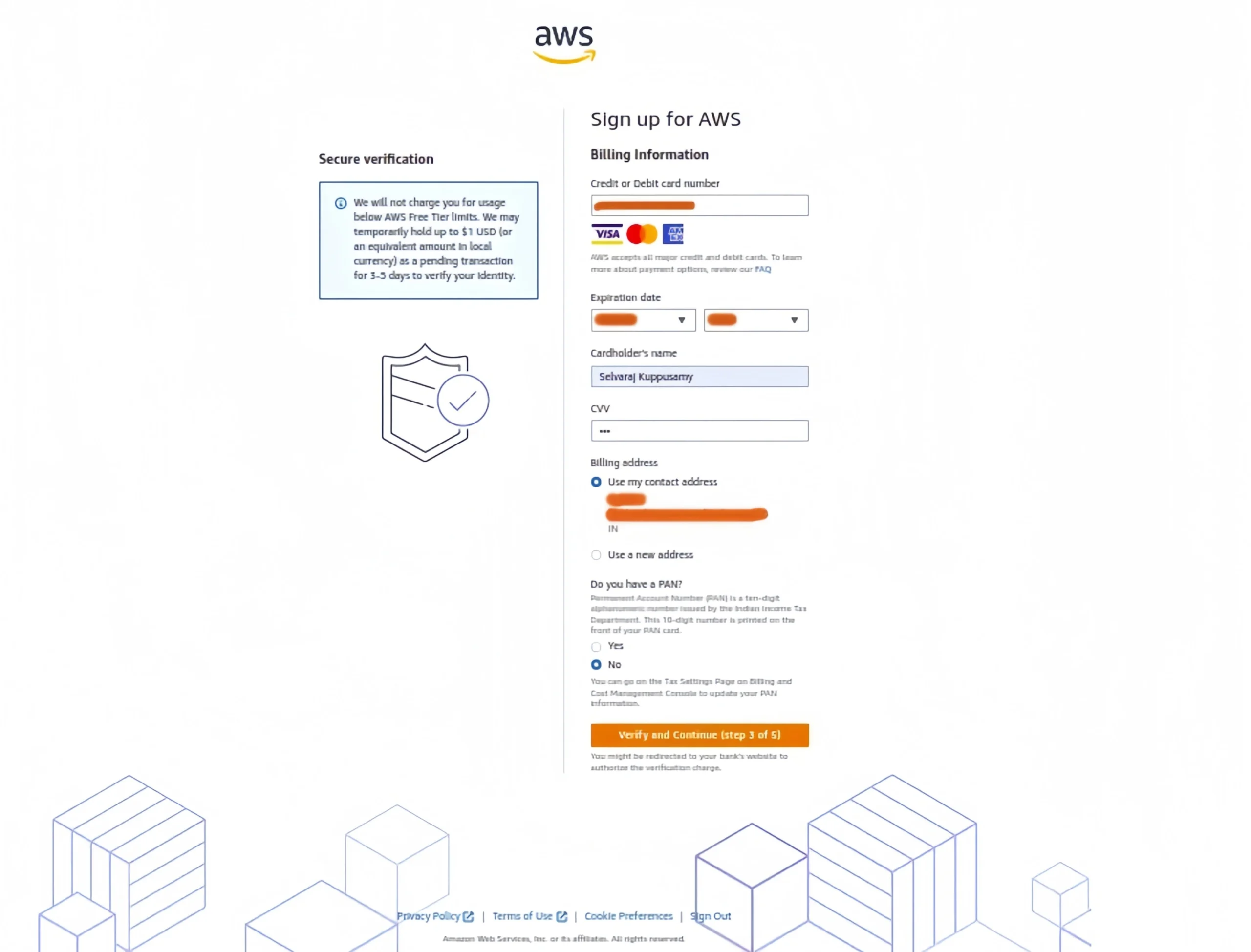
When entering the card information, use the details provided by your virtual card provider.
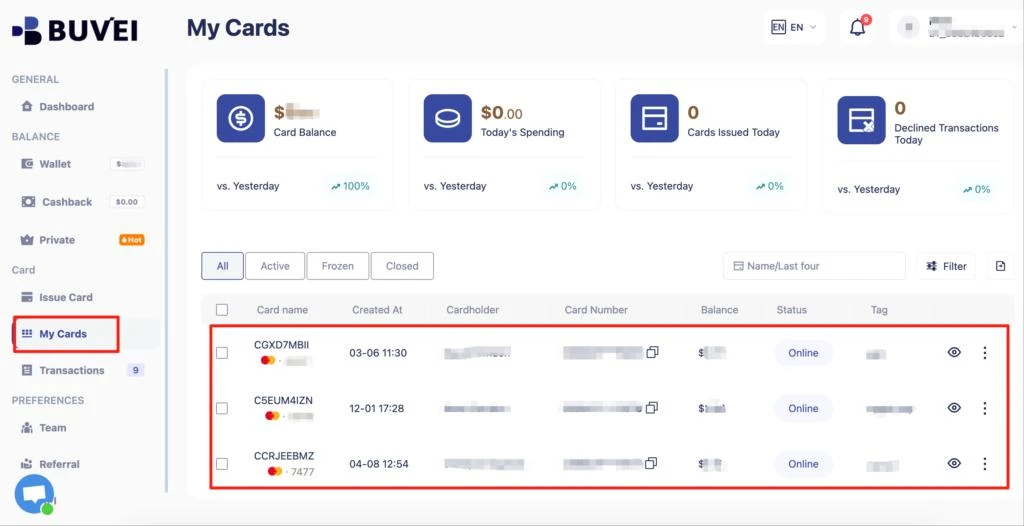
For a BUVEI card, for example, you can open the card details page to retrieve the information required by the AWS payment form.
AWS’s current card-management documentation includes fields such as card information and billing address, although the exact fields and requirements can vary by payment setup.
After adding the card, you can manage it through Payment preferences. If appropriate for your account, AWS also allows you to designate a payment method as the default.
Step 4: Complete Payment Verification
AWS may require additional verification when a payment method is added or when a payment is processed.
For example, AWS notes that an unverified card can require verification through the AWS Billing console, and your bank may request additional verification before the payment method can be used.
If AWS or your card provider requests additional verification, follow the instructions displayed during the process.
Do not assume that every account will use the same verification method or authorization amount. Requirements can vary depending on the payment method, account, and region.
Step 5: Monitor Your AWS Payments
Adding a virtual card to AWS is only the beginning. Because AWS billing can fluctuate with usage, regularly review both your AWS billing activity and your card transactions.
With a dedicated BUVEI card, transaction activity can help you identify AWS-related payments and review whether spending remains within your intended budget.
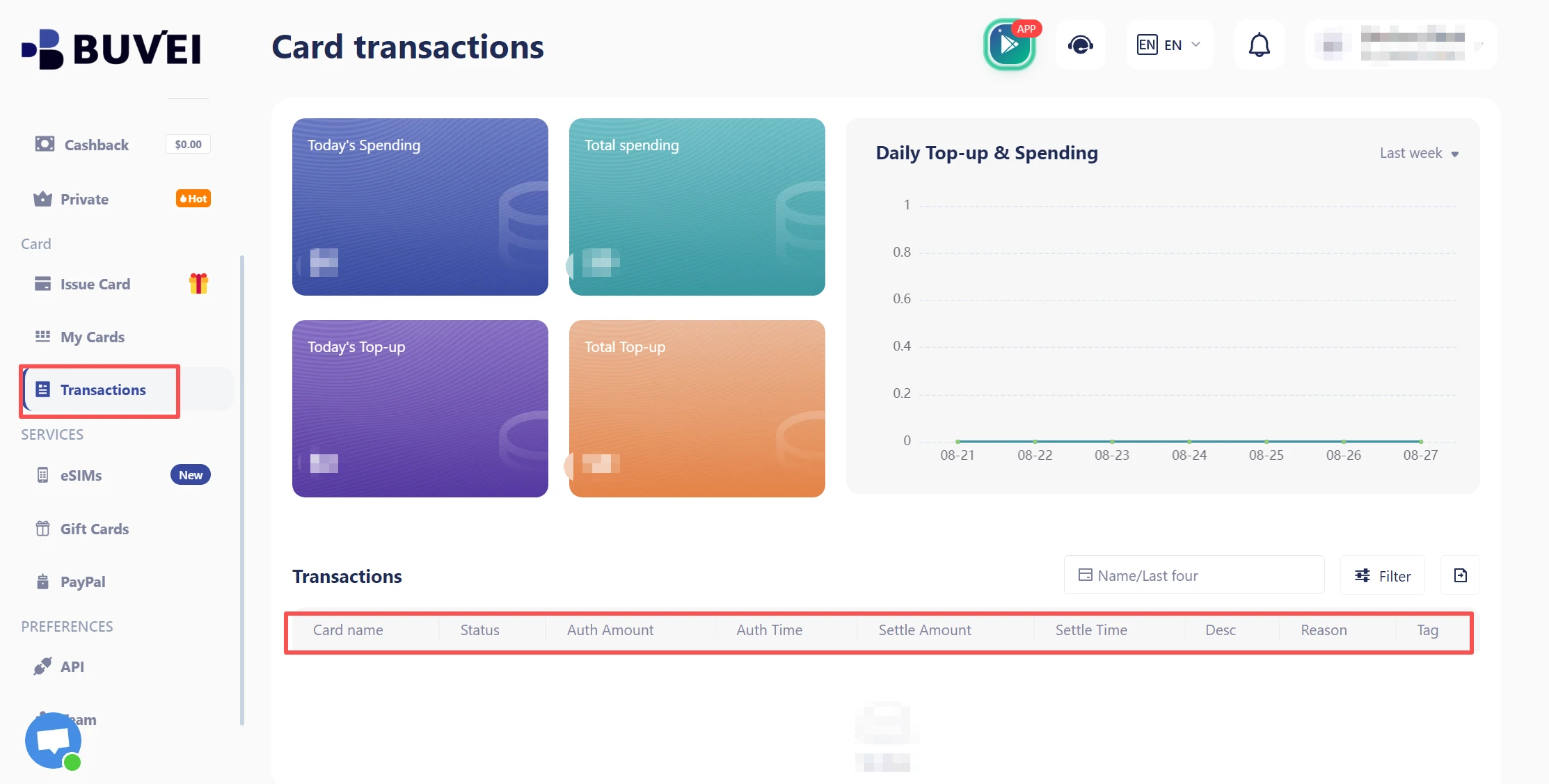
Pay attention to:
- Successful AWS payments
- Declined transactions
- Available card balance
- Spending limits
- Unexpected payment activity
Monitoring both AWS billing and card activity can make it easier to identify payment problems before they interrupt your cloud services.
How to Avoid AWS Payment Failures
Even when a virtual card is suitable for AWS, payment issues can still occur. Before retrying a failed payment, check the card and billing information first.
Keep Enough Balance
AWS charges can change as your usage changes. Maintain enough available balance to accommodate normal fluctuations instead of funding the card based only on a fixed monthly estimate.
Set a Reasonable Spending Limit
A spending limit that is too restrictive can cause legitimate AWS charges to be declined. Review your typical AWS spending and adjust the limit when your workloads or monthly expenses change.
Keep Billing Information Consistent
Enter the required billing information accurately when adding the payment method. Incorrect or inconsistent information can interfere with payment verification or processing.
Check Your Card Status
Before retrying a failed AWS payment, confirm that the virtual card is:
- Active
- Not expired
- Not frozen
- Sufficiently funded
If the card appears to be working normally but AWS still rejects the payment, review the payment status and any verification instructions displayed in your AWS account.

Using BUVEI for AWS Billing
For businesses that want to separate AWS expenses from other online payments, BUVEI provides virtual card capabilities for business payment management.
A dedicated virtual card can be assigned to AWS-related expenses rather than using one payment method for every online transaction. This can make cloud spending easier to identify and manage.
BUVEI also provides card-level spending controls that can help businesses establish limits for individual payment cards instead of relying on a single shared payment method.
Transaction visibility can further support expense tracking and reconciliation. When AWS payments are associated with a dedicated card, related transactions can be easier to identify during routine financial reviews.
The same approach can also be applied to other recurring digital business expenses. Businesses can use dedicated virtual cards to organize payments across different online services while maintaining greater control over individual spending categories.
Frequently Asked Questions
Can I pay AWS without a credit card?
AWS offers different payment options depending on the applicable account, AWS service provider, and region. An eligible virtual or debit card may provide an alternative to a traditional credit card when it meets the applicable AWS and card-program requirements.
Can I use a virtual card to pay AWS bills?
A virtual card may be used when it meets the payment requirements applicable to your AWS account and is supported by the relevant card program. Check compatibility before relying on a particular virtual card as your primary AWS payment method.
Can I use a virtual card for recurring AWS payments?
AWS can use a saved payment method for future charges, subject to the applicable account and payment requirements. A virtual card should have sufficient balance and an appropriate spending limit to accommodate recurring or usage-based charges.
Why did my AWS virtual card payment fail?
Common areas to check include insufficient balance, an overly restrictive spending limit, an inactive or frozen card, incorrect billing information, or an AWS or card-provider verification requirement. Check both the AWS payment status and the virtual card status before retrying.
Conclusion
Paying AWS bills without a credit card can be possible when an eligible alternative payment method is supported by your AWS account and card provider. A virtual card can help businesses separate AWS expenses, manage spending limits, and monitor payment activity. For businesses looking for a more structured way to manage cloud and other digital payments, BUVEI can be an option to consider.