



Gemini API billing failed? A declined payment, incomplete billing setup, or depleted prepaid balance can stop your API requests from working. Before changing payment methods or creating another API key, identify the actual cause.
This guide walks you through the most common Gemini API billing errors, how to fix them, and what to do if your requests still fail. If your existing payment method is the problem, you'll also learn how to prepare a Buvei virtual card as a possible alternative.
Why Is Gemini API Billing Failing?
Most billing-related problems fall into four categories:
- Payment declined: Google couldn't process your payment, or your billing account needs attention.
- Billing account not linked: Your Google Cloud project isn't linked to an active billing account.
- Prepaid credits depleted: Your Prepay balance has reached zero.
- API access or quota issue: Project restrictions, authentication problems, or usage limits are preventing requests from succeeding.
Each issue requires a different fix. Start by checking your billing status rather than repeatedly submitting payments.
How to Fix Gemini API Billing Failed Step by Step
Step 1: Check Your Billing Status in Google AI Studio
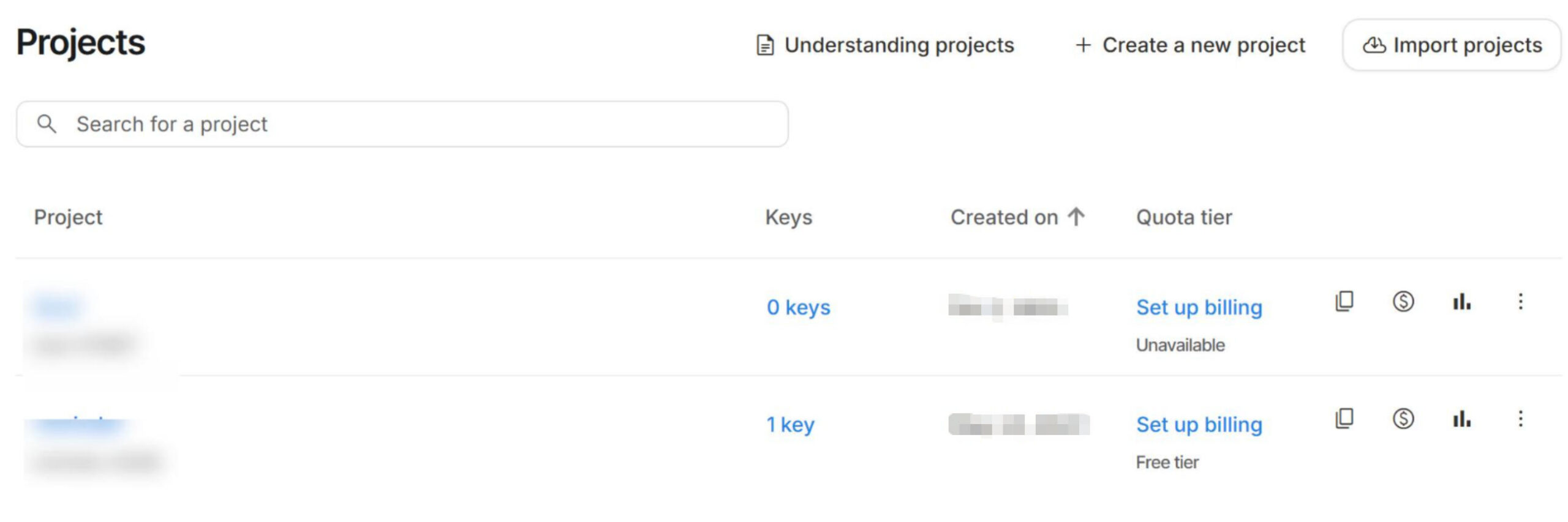
Open Google AI Studio and sign in with the Google account associated with your API project. Find your project and check its Billing Tier and Status.
Look for messages such as:
- Set up billing: The project needs a billing account.
- Set up Prepay: You need to complete the required prepaid billing setup.
- No credits: Prepaid billing may not be configured, or your available balance may be depleted.
Follow the instructions shown in your account. If the problem is your project's billing status, creating another API key won't fix it.
Step 2: Check Your Google Cloud Billing Account
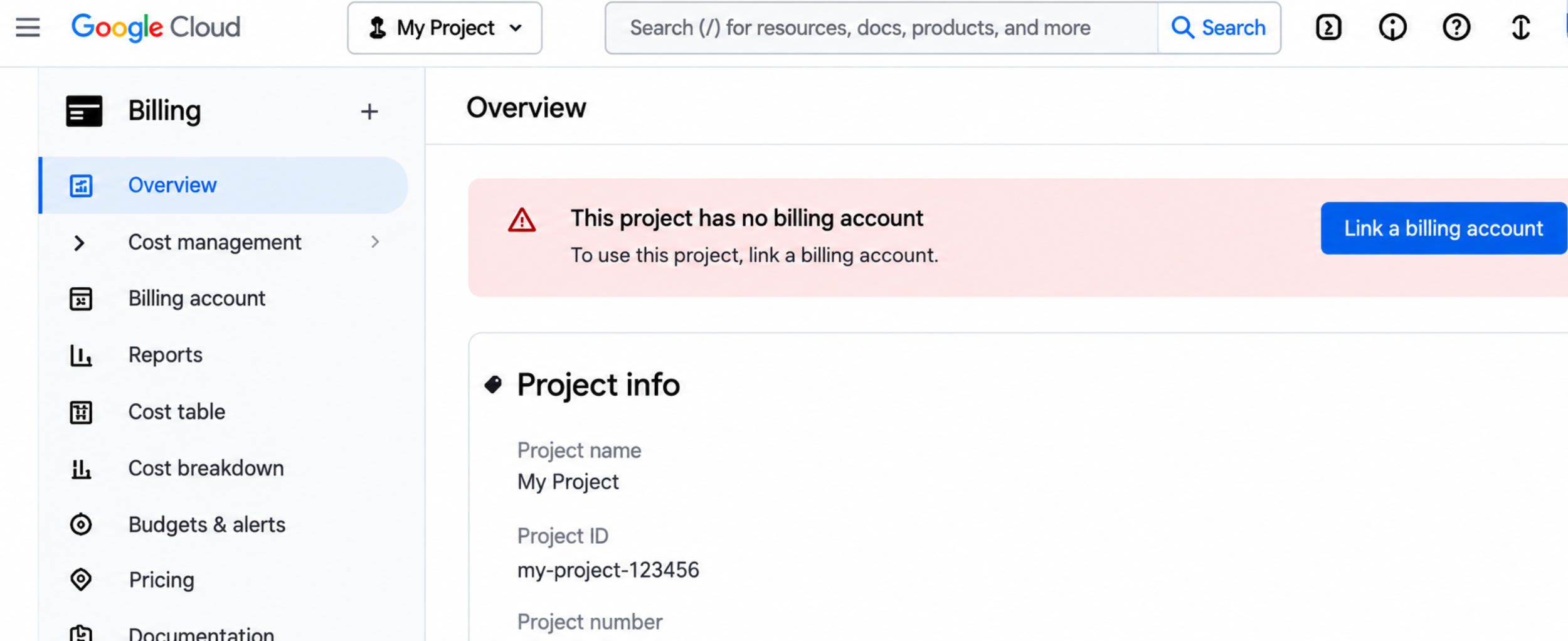
Open the Google Cloud Billing Console and select the billing account associated with your project.
Check whether the account is active and whether Google has flagged any outstanding payments, declined transactions, or account restrictions. If you're asked to update your payment method or settle an outstanding balance, follow the instructions in the console.
Having a Google Cloud project doesn't automatically mean billing is enabled for it. Your Gemini API project must be linked to an eligible, active billing account.
If the project isn't linked, open its Billing settings in Google Cloud Console and associate it with the correct account. If it's already linked, check the account's status before making further changes.
Step 3: Fix Payment or Prepaid Credit Issues
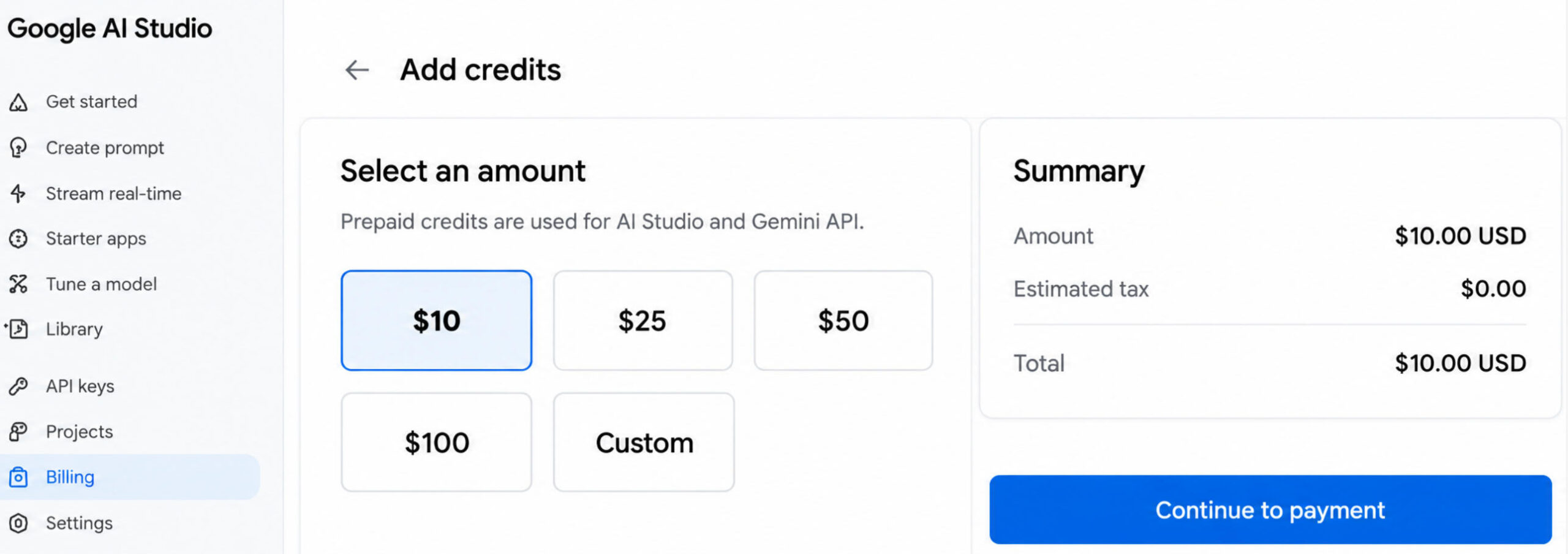
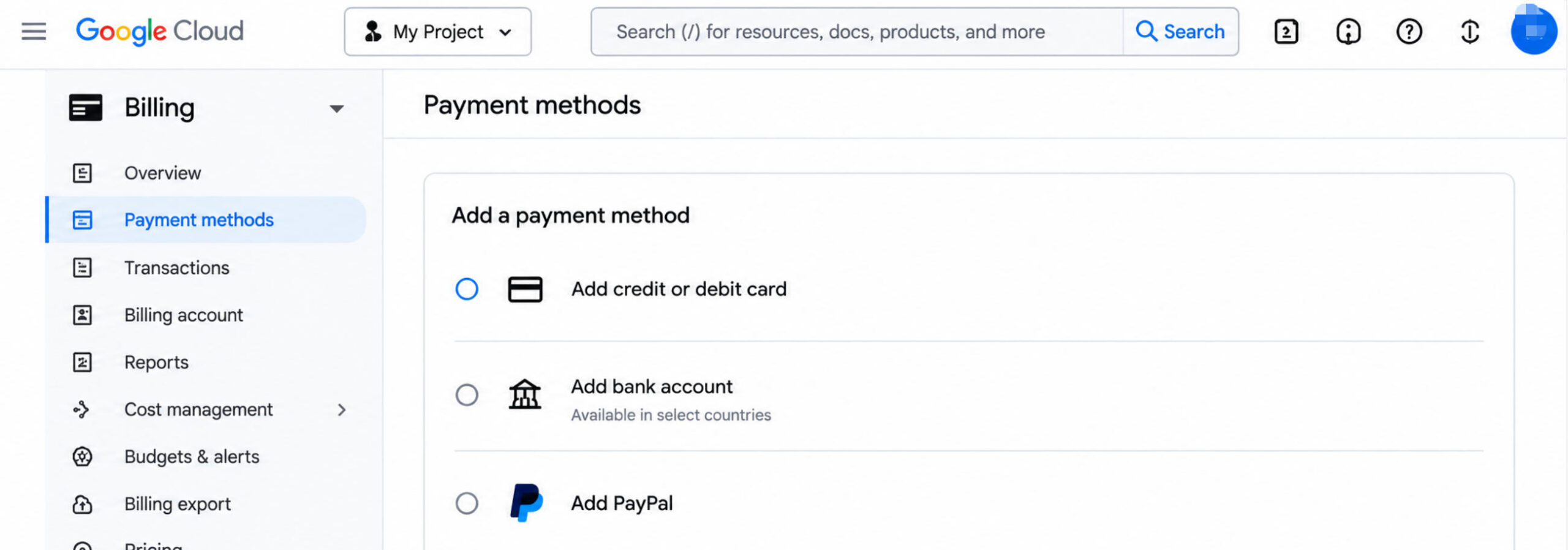
Open the Billing page in Google AI Studio and check which billing plan applies to your account.
If you're using Prepay: Check your available credit balance. If it's empty, select Buy credits when available and complete the purchase using an accepted payment method. For the applicable paid-tier setup, Google requires a minimum initial purchase of US$5 or its equivalent.
Wait for the payment to be confirmed, then check that your balance has updated. When a Prepay balance reaches zero, Gemini API requests can fail with 402 Payment Required until additional credits are available.
If you're using Postpay: Check your saved payment method, outstanding charges, and billing status. You don't necessarily need to buy prepaid credits.
Step 4: Check Your API Key, Permissions, and Usage Limits
If your billing status looks correct but requests still fail, check that your API key belongs to the right project. Then review the full error message and your current usage limits.
| Error | What to check |
|---|---|
| 400 FAILED_PRECONDITION | Check whether billing is enabled and all required prerequisites are met. |
| 401 UNAUTHENTICATED | Verify your API key and authentication settings. |
| 402 Payment Required | Check your prepaid balance and billing status. |
| 403 PERMISSION_DENIED | Check project eligibility, billing restrictions, and API permissions. |
| 429 RESOURCE_EXHAUSTED | Check request limits, token usage, and applicable quota or spending restrictions. |
A 400 FAILED_PRECONDITION error can occur when billing is disabled for a project that needs paid access. However, other errors can have different causes, so read the full message rather than relying on the status code alone.
A 429 error doesn't automatically mean your payment failed. Likewise, a 403 can indicate a project restriction or permission problem rather than a card issue.
Don't keep retrying requests that return client errors such as 400, 402, or 403. Fix the underlying problem first. For temporary rate-limit errors, follow the applicable retry guidance.

Step 5: Test Your API Request Again
Once you've corrected the billing configuration, return to Google AI Studio and check that the billing status has updated.
Send a small test request using a supported model and an API key from the correct project. If it works, your issue may be resolved. If it still fails, save the complete error response and use it to identify the remaining problem.
Keep in mind that billing updates and payment confirmations may take time to appear. If a payment is still processing, verify its status before submitting another one.
What to Do if Gemini API Billing Still Doesn't Work
If you've worked through these steps and billing still isn't working, record the full error message, project name, billing status, and time of the failed request.
For payment or account issues, contact Google Cloud Billing support. For API request errors, use the appropriate Google AI support channel.
Can a Virtual Card Help With Gemini API Billing Issues?
If your existing payment method keeps getting declined, trying another eligible card may be worth considering. A virtual card can also help you keep software expenses separate from everyday spending.
However, switching cards won't fix an unlinked billing account, an empty prepaid balance, or an API quota limit. Google must also accept the card for your account and intended transaction.
If you want to evaluate Buvei as an alternative payment method, here's how to prepare a virtual card.
How to Prepare a Buvei Virtual Card for Gemini API Payments
Step 1: Register for a Buvei Account
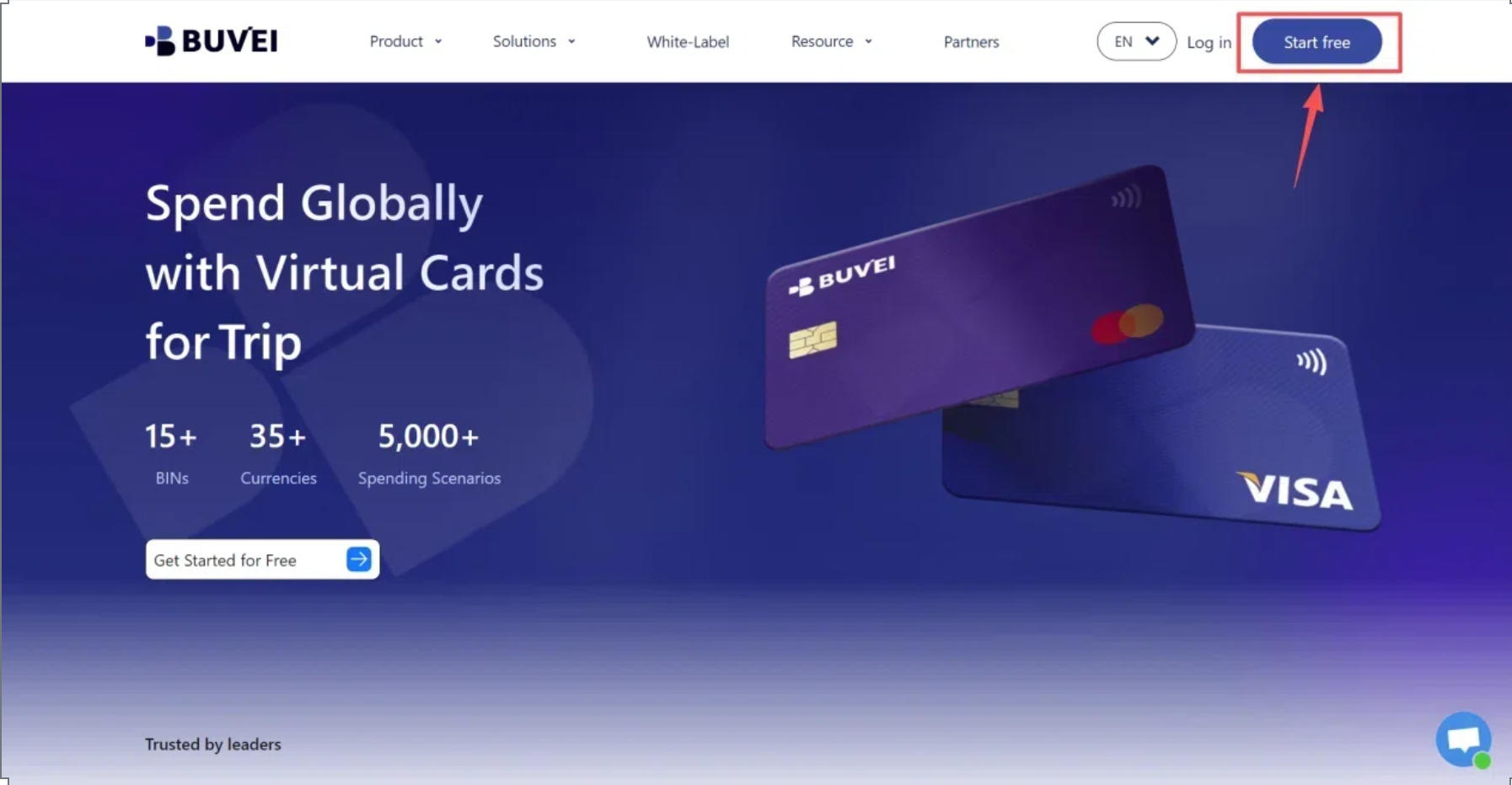
Visit Buvei.com, create an account, and verify your email address. Once you've logged in, you'll have access to your Buvei dashboard.
Step 2: Top Up Your Buvei Wallet
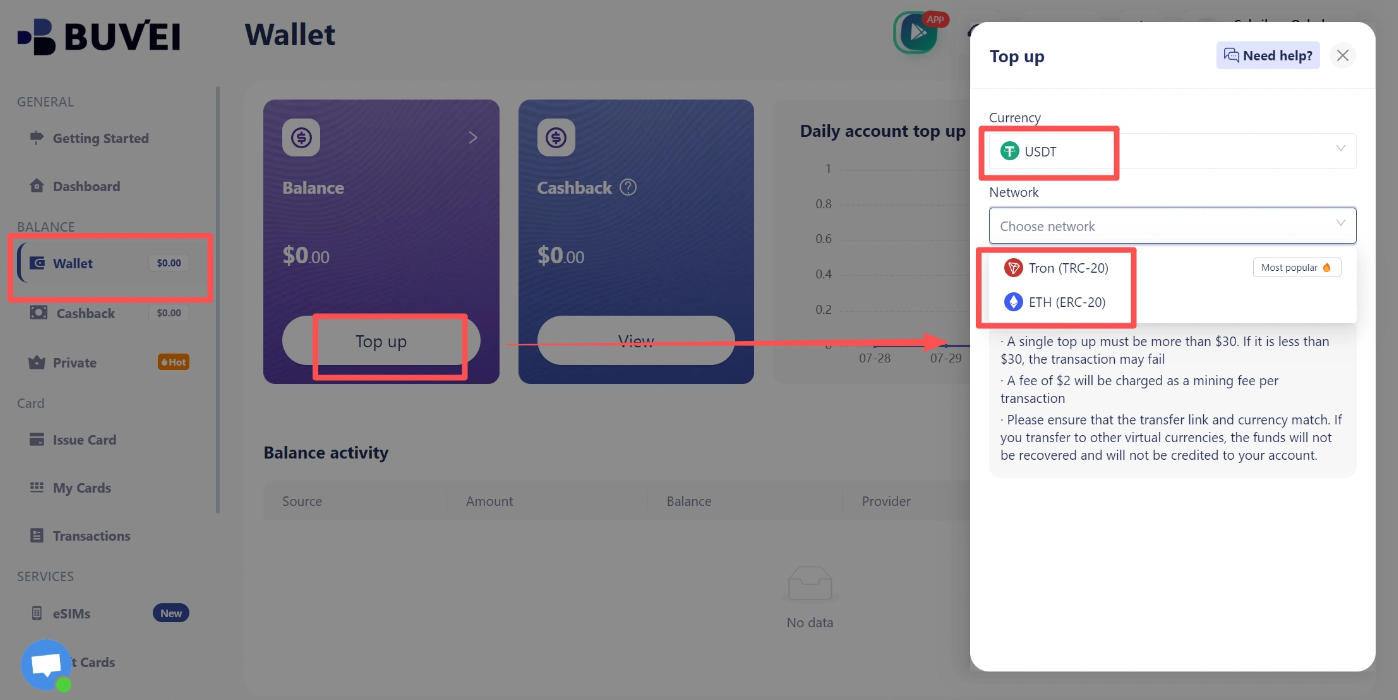
Open Wallet and choose a funding method available for your account, such as USDT via TRC20 or ERC20 if supported. Copy the deposit address, verify that you're using the correct network, and wait for the transfer to be confirmed.
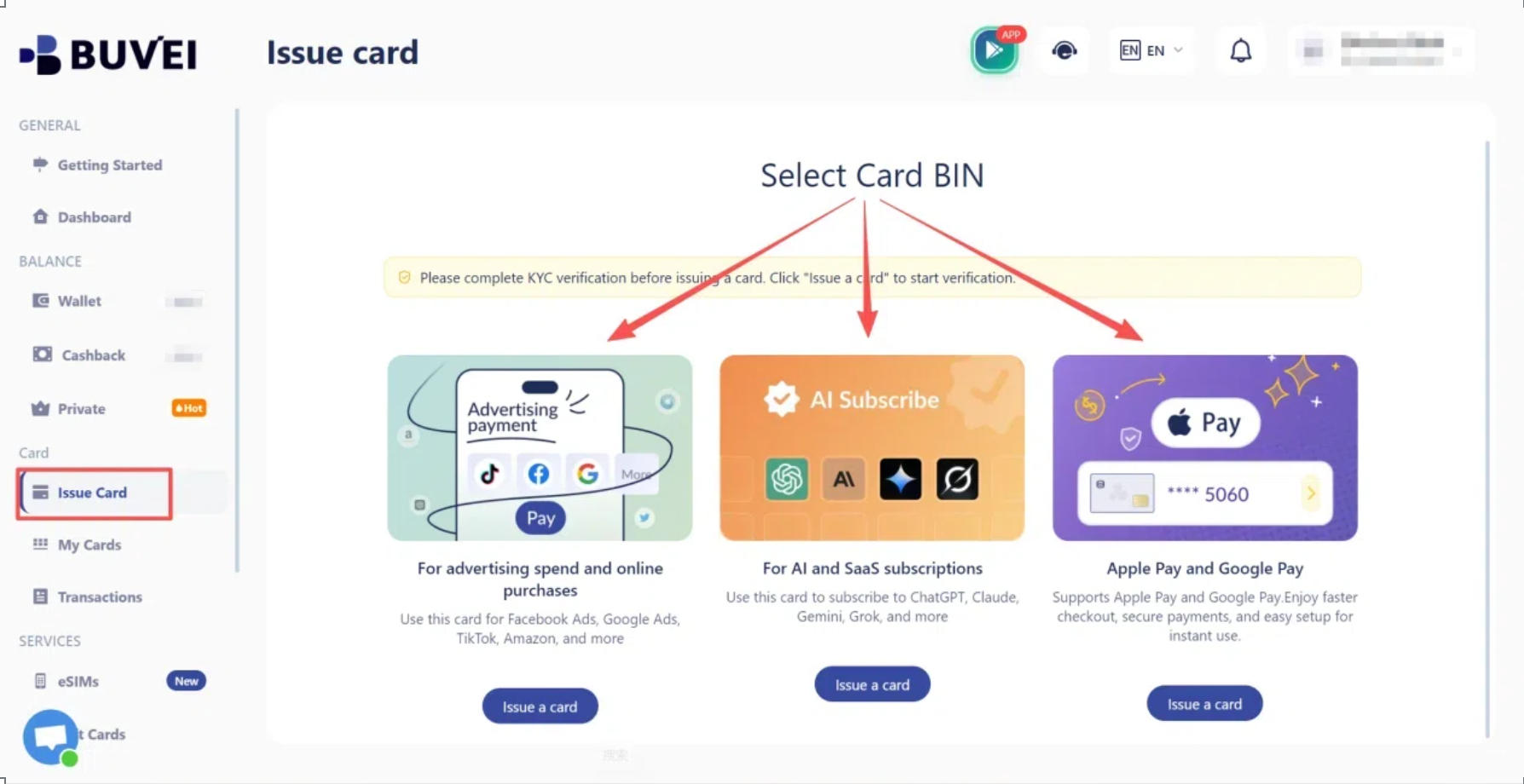
Step 3: Choose a BIN Region and Card Type
Go to Cards and review the available BIN regions and card types. Choose an option that fits your intended payment, and check its supported uses before proceeding.
Buvei offers multiple BIN options for different payment scenarios, but no particular BIN region guarantees that Google will accept the card.
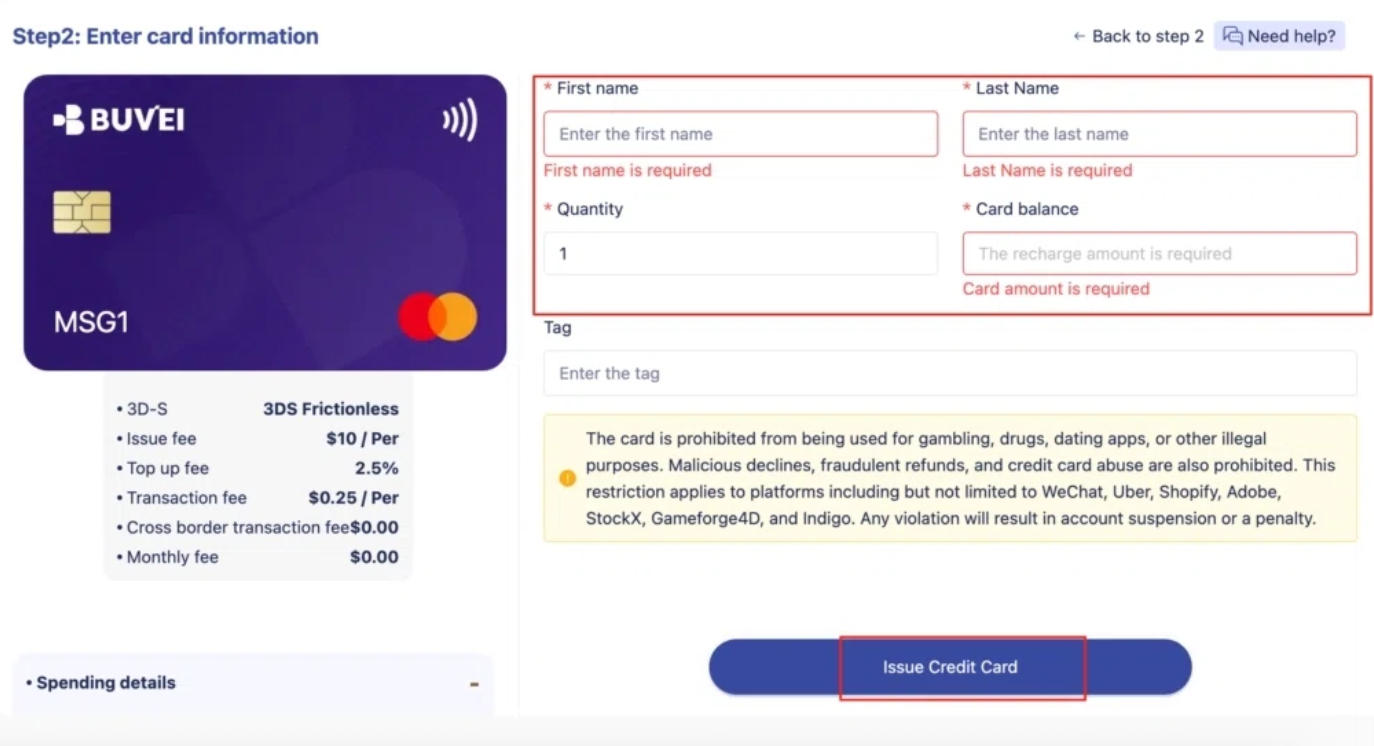
Step 4: Issue Your Virtual Card
Enter a recognizable card name, such as Gemini API Billing, set the amount and number of cards, and submit your request.
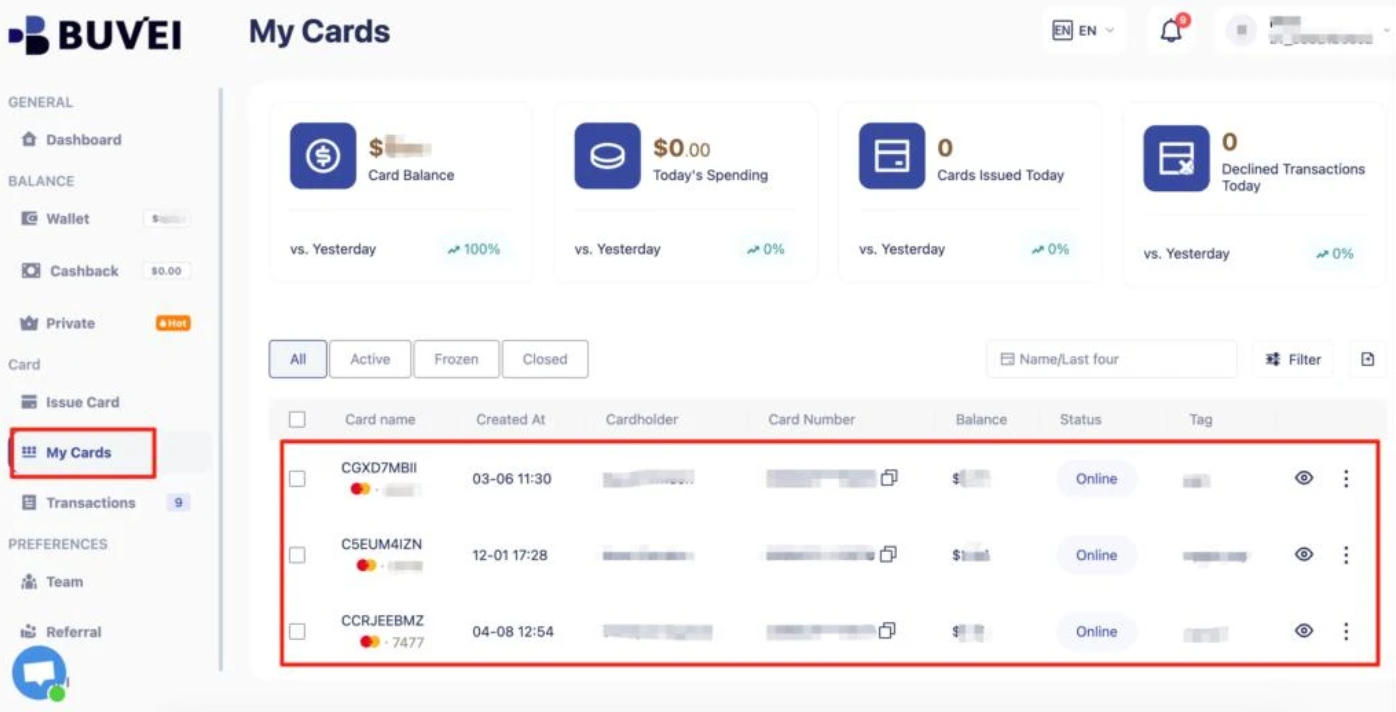
Step 5: Check Your Card Details
Open My Cards and check the card's status, expiration date, CVV, and available balance.
Step 6: Add the Card if Google Supports It
Return to Google Cloud Billing or the AI Studio Billing page and follow the available instructions for adding a payment method. Enter your card details if the option is available, complete any required verification, and check the final payment and billing status.
Adding a card doesn't guarantee approval. Acceptance depends on Google's payment requirements, your account eligibility, and the card's authorization result.
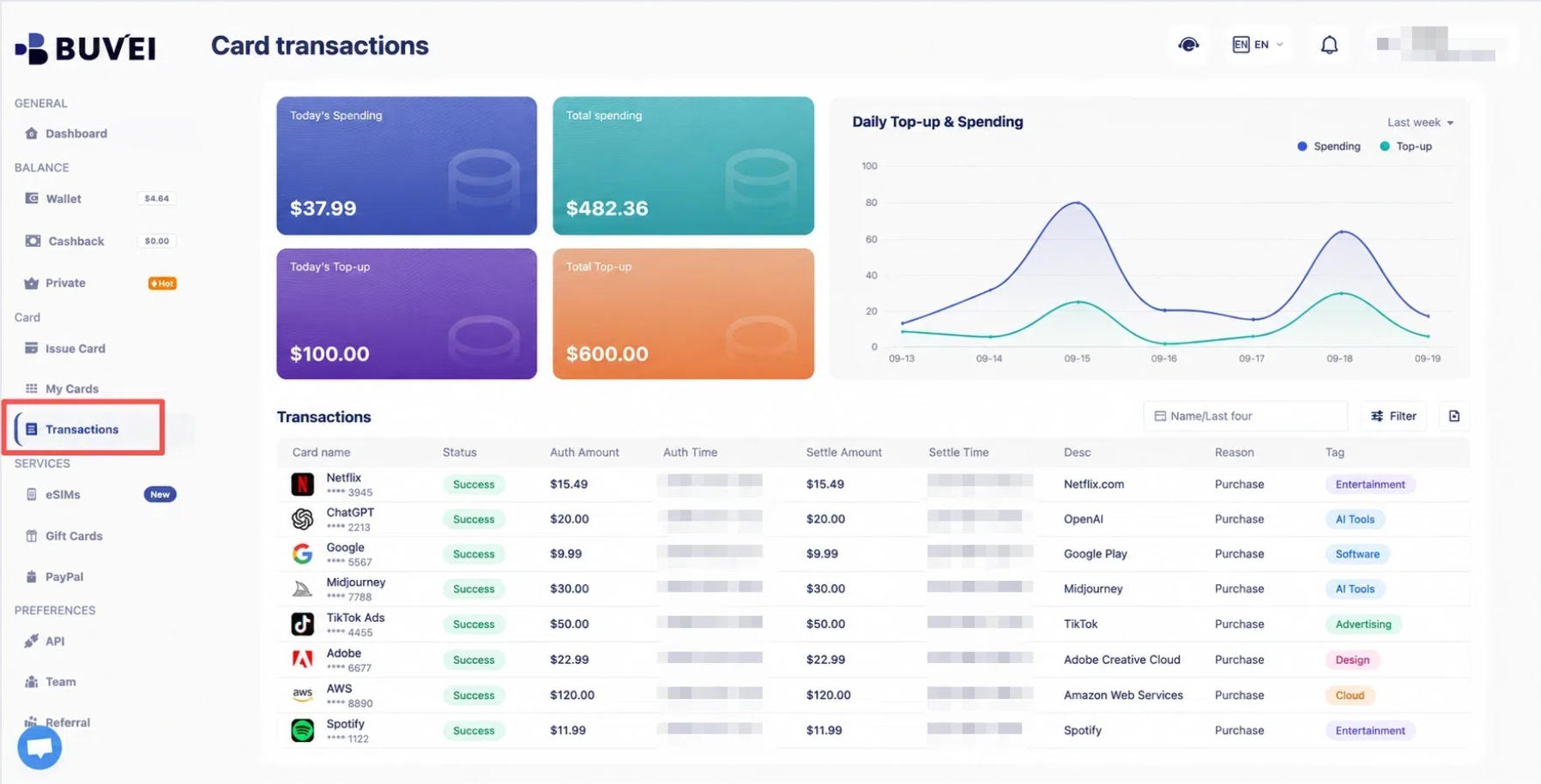
Step 7: Check Your Buvei Transaction History
If the payment doesn't go through, open Transactions in your Buvei dashboard and review the available records.
Depending on the transaction, you may see its status, authorization amount and time, settlement amount and time, and any displayed transaction reason. These details can help you determine whether the card transaction was processed or declined.
If the transaction was declined, compare the available information with the error shown in Google Cloud Billing. The transaction record may help narrow down the issue, but it won't necessarily reveal Google's exact reason for declining the payment.
Frequently Asked Questions
Why Does Gemini API Return 402 After I Enable Billing?
For a Prepay account, this can happen when your available balance reaches zero. Check your credits and add funds if required. If the balance looks correct, verify the billing status and allow time for the payment to be confirmed.
Can a New API Key Fix a Gemini API Billing Error?
Not if the problem is an unlinked billing account, depleted prepaid credits, or a project restriction. API keys use the billing configuration and limits associated with their project. Generate a new key only when the error specifically points to a key-related issue.
Can I Use a Virtual Card to Pay for Gemini API?
Potentially, if the card meets Google's payment requirements and is accepted for your account. Acceptance isn't guaranteed for every card or issuing region, so confirm compatibility before relying on it for ongoing API usage.
Conclusion
When Gemini API billing failed, start by checking your project's billing status, account association, payment configuration, and available credits. Then use the full error message to distinguish a billing problem from a permissions or usage-limit issue.
If your existing payment method is the problem, a virtual card may be another option to consider. Buvei offers virtual card issuance, multiple BIN options, and transaction monitoring to help you review card activity.