



Introduction
Your card works everywhere else, but Grammarly suddenly won't accept it. Maybe you're trying to upgrade to Grammarly Pro, or your subscription renewal just got declined. If your Grammarly payment failed, the problem might not be your card at all.
An incorrect billing country, a bank restriction, or even a checkout error could be behind the decline. Trying the same payment over and over usually won't help until you know what's causing it.
Here's how to identify the issue, fix common payment errors, and update your payment method. You'll also learn how a virtual card can help you keep Grammarly and other software subscriptions organized.
Why Is Your Grammarly Payment Failing?
A declined payment can happen for several reasons, even if you've used the same card successfully before.
1. Incorrect Card or Billing Information
A mistyped card number, expired card, or incorrect billing details can prevent a payment from going through. If your subscription is set to renew automatically, outdated card information may also cause problems.
2. Insufficient Funds or Spending Limits
Your available balance needs to cover the full subscription charge. A daily transaction limit or spending restriction can also block a payment, even when your account has enough money.
3. International or Recurring Payment Restrictions
Some banks limit international purchases or automatic subscription payments. Your card might work for regular shopping but get declined when Grammarly processes a recurring charge.
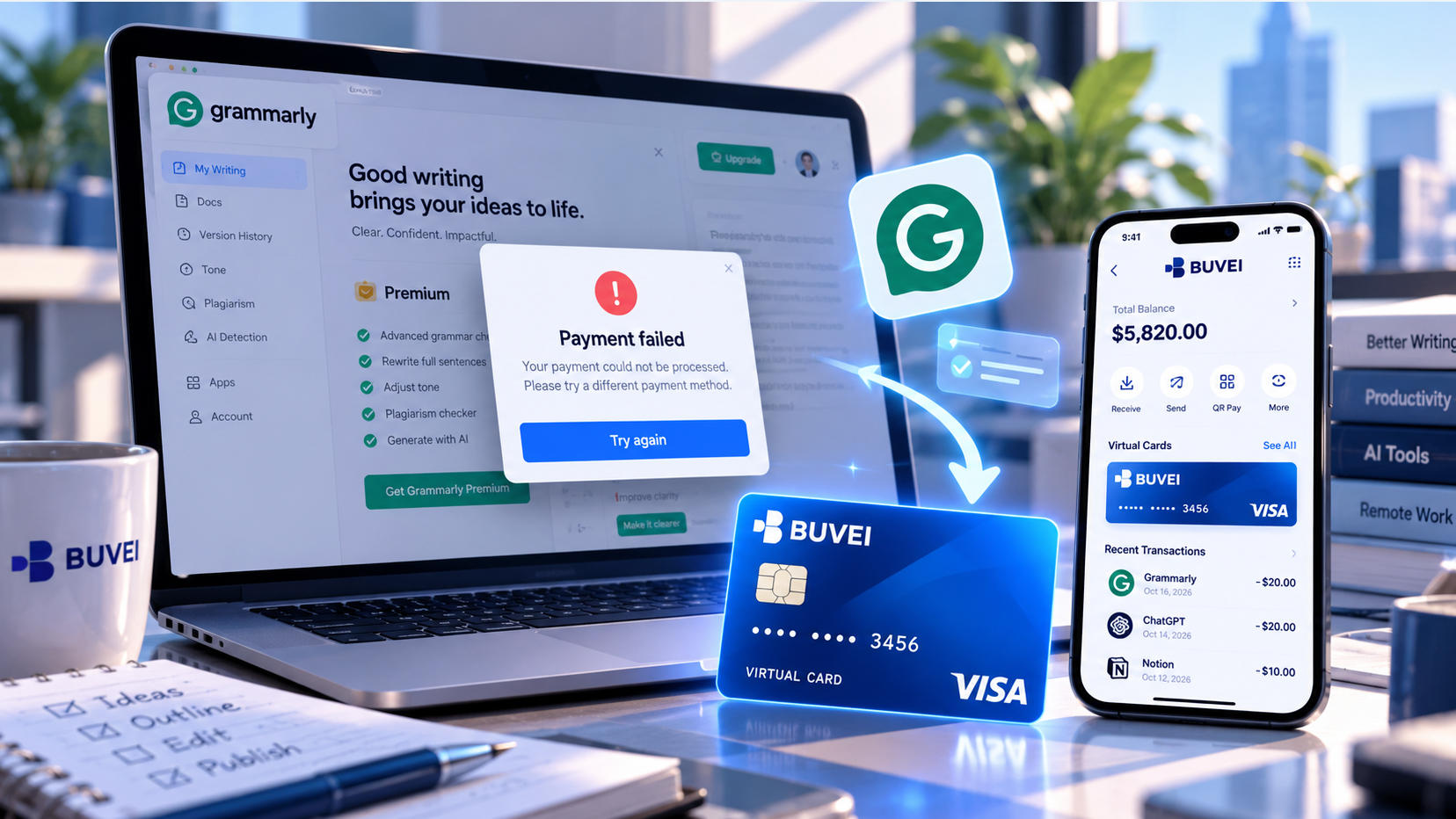
4. Billing Country Mismatch
Grammarly may reject a payment if the billing country you selected doesn't match the country where your card was issued.
For example, using a card issued outside the US while selecting the United States as your billing country could trigger an error.
5. Bank Security Checks
Your bank may flag an unfamiliar transaction and decline it as a precaution. This is more likely when you're paying an international merchant or using a card for a new type of purchase.
6. Checkout or Browser Errors
Sometimes, the card isn't the problem. A payment form that won't load, a spinning checkout button, or an Error 403 message can point to a browser or connection issue.
How to Fix a Failed Grammarly Payment
The right fix depends on what caused the payment to fail. Start with these steps before trying another card.
Step 1: Check Where You Purchased Your Subscription
Start by checking where you purchased your Grammarly subscription. If you signed up through Grammarly's website, log in to your account and click Subscription in the sidebar to view your current plan. If you purchased your subscription through the Apple App Store or Google Play, you'll need to manage your payment details through the respective app store instead.
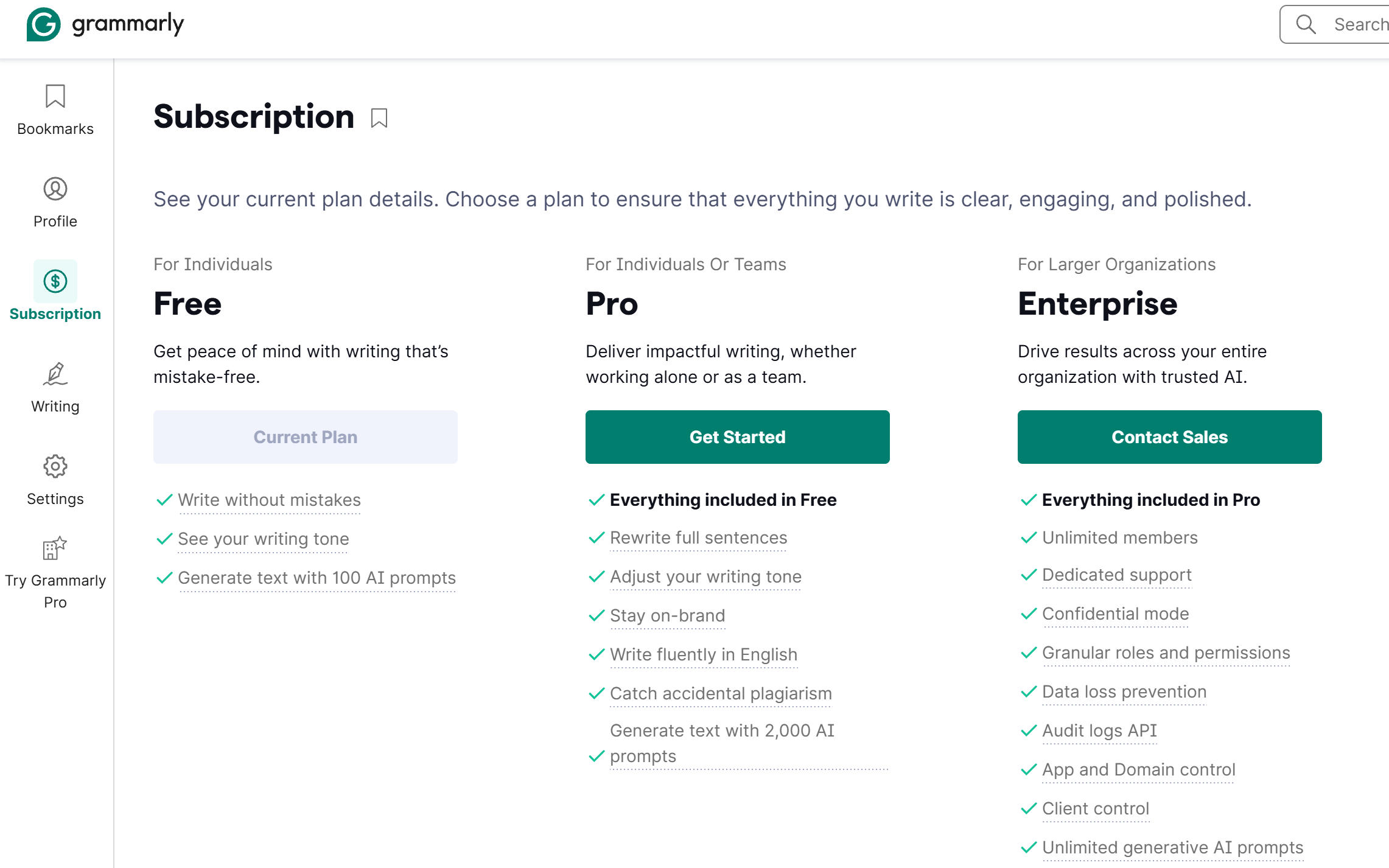
Step 2: Check Your Card Balance and Details
Make sure your card has enough funds to cover the amount due. Then check its expiration date, saved payment information, and any spending limits.
If everything looks correct, confirm that your card supports online purchases and recurring payments. Your card issuer can tell you whether either type of transaction is restricted.
Step 3: Verify Your Billing Country
If you see a billing country mismatch error, check the country selected in your payment details.
It should match the country where your card was issued. Correct any mistakes before retrying the transaction.
If the country is already correct, try another supported payment method rather than repeatedly submitting the same card.
Step 4: Update Your Grammarly Payment Method
If your saved card has expired or stopped working, you can update it through your Grammarly account.
For subscriptions purchased directly from Grammarly:
- Sign in to your Grammarly account.
- Open your Subscription page.
- Find Payment Method and click Update.
- Enter your new card details and save the changes.
If you're signing up for Grammarly Pro for the first time, select Credit or debit card at checkout and enter your payment details. If a free trial is offered, check the renewal terms before clicking Start free trial.
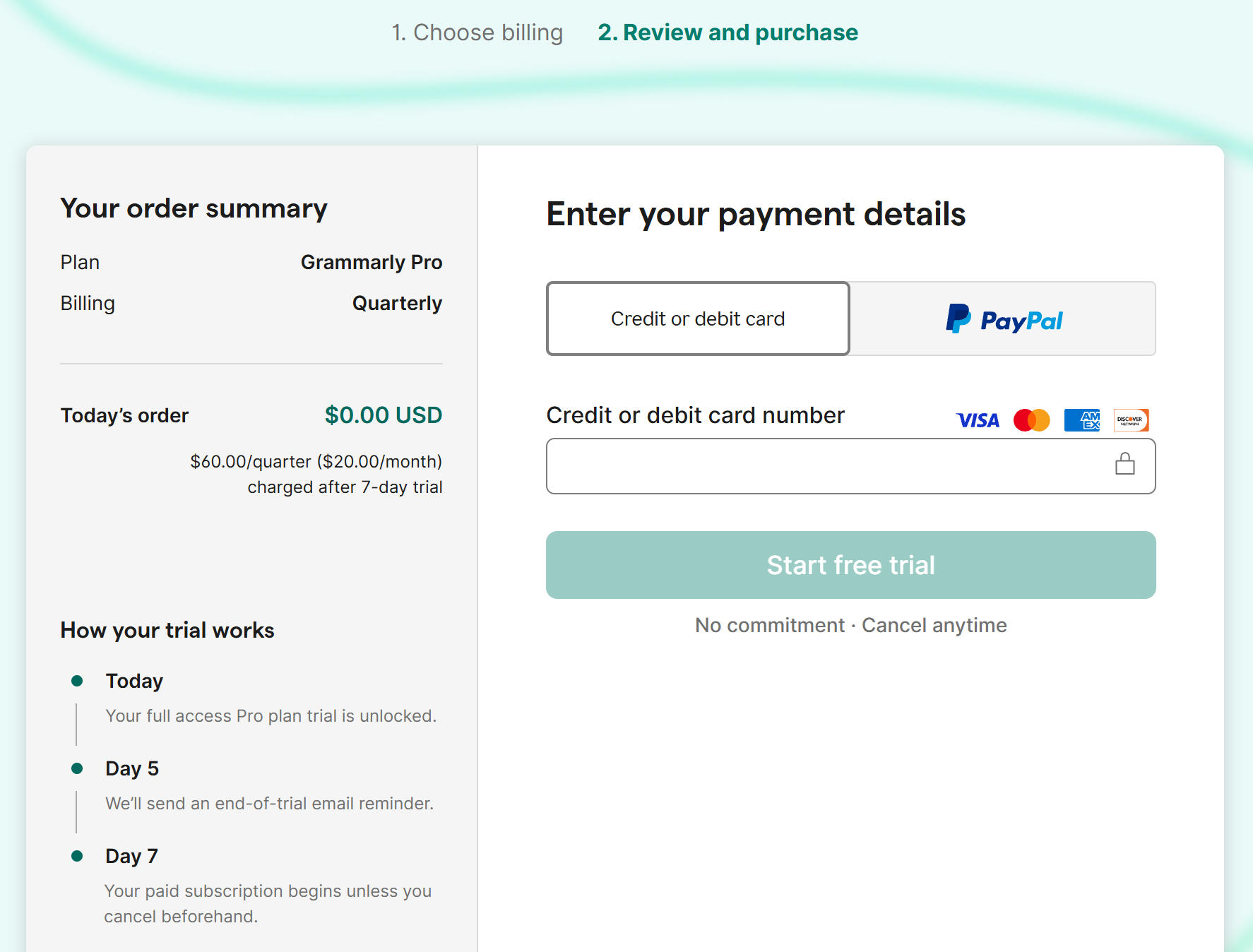
If you use PayPal, check the payment method linked to your PayPal account.
Step 5: Fix Checkout Page Errors
If Grammarly's payment form won't load, the payment button keeps spinning, or you see an Error 403 message, the issue may be related to your browser or network rather than your card.
Start by refreshing the page. If that doesn't work, clear your browser's cache and cookies, then try again. If you're using a VPN, try turning it off and reloading the payment page.
Once the form loads properly, double-check your details before submitting the payment again.
Step 6: Check Your Subscription and Payment Status
If your card was charged but your Grammarly subscription hasn't been updated, don't rush to pay again. Sign in to the account you used for the purchase and open Subscription to check your current plan and billing details.
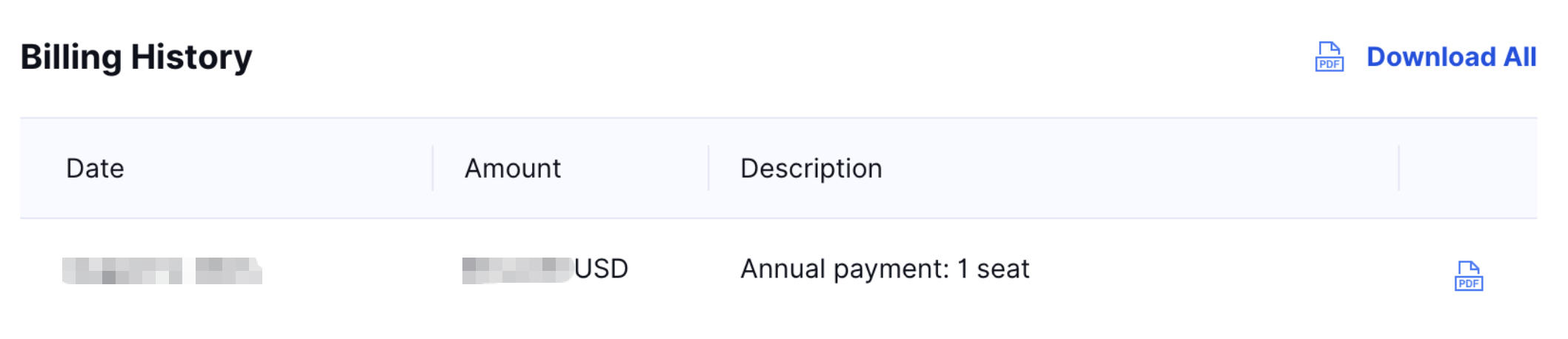
You can also review past payments under Billing History and download receipts if needed. If the payment went through but your paid features are still unavailable, keep your receipt and transaction details handy to help resolve the issue.
Can You Pay for Grammarly with a Virtual Card?
Yes. A virtual card can be used for Grammarly payments as long as it's accepted for the transaction and supports recurring online charges.
Grammarly accepts major credit and debit cards, including Visa and Mastercard. Eligible prepaid cards may also work, depending on the card issuer's authorization.
Virtual cards offer a practical way to keep software subscriptions separate from everyday spending. For example, BUVEI provides virtual Visa and Mastercard cards with multiple BIN options, spending limits, and transaction tracking.
If you're paying for Grammarly alongside other online tools, having a dedicated card for each service can make recurring charges easier to manage.
How to Create a BUVEI Virtual Card for Grammarly
If you need a virtual card for your subscription, here's how to set one up with BUVEI.
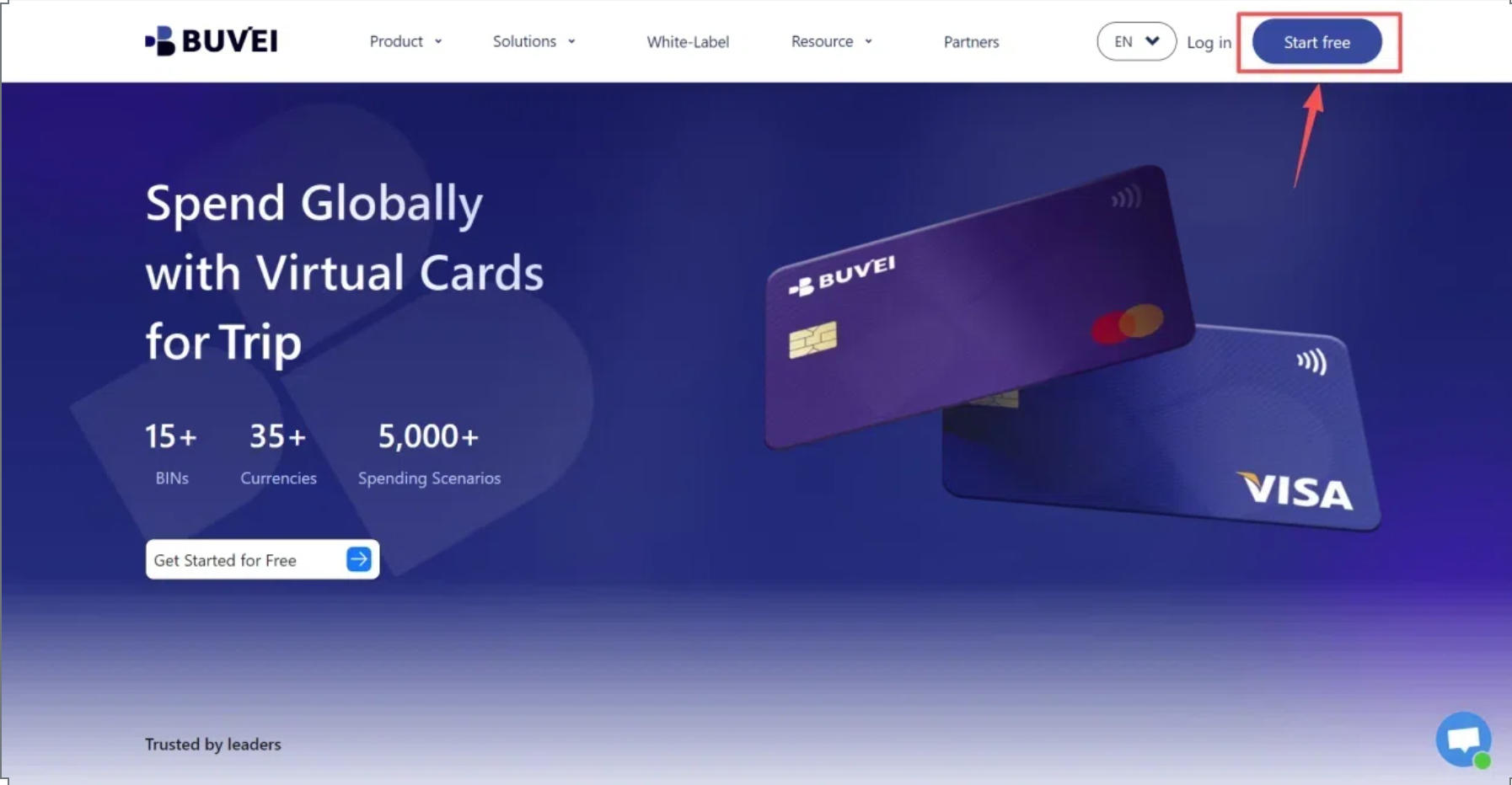
Step 1: Create a BUVEI Account
Visit BUVEI, create an account, and verify your email address. Once you're signed in, you'll have access to your dashboard and card management tools.
Step 2: Fund Your BUVEI Wallet
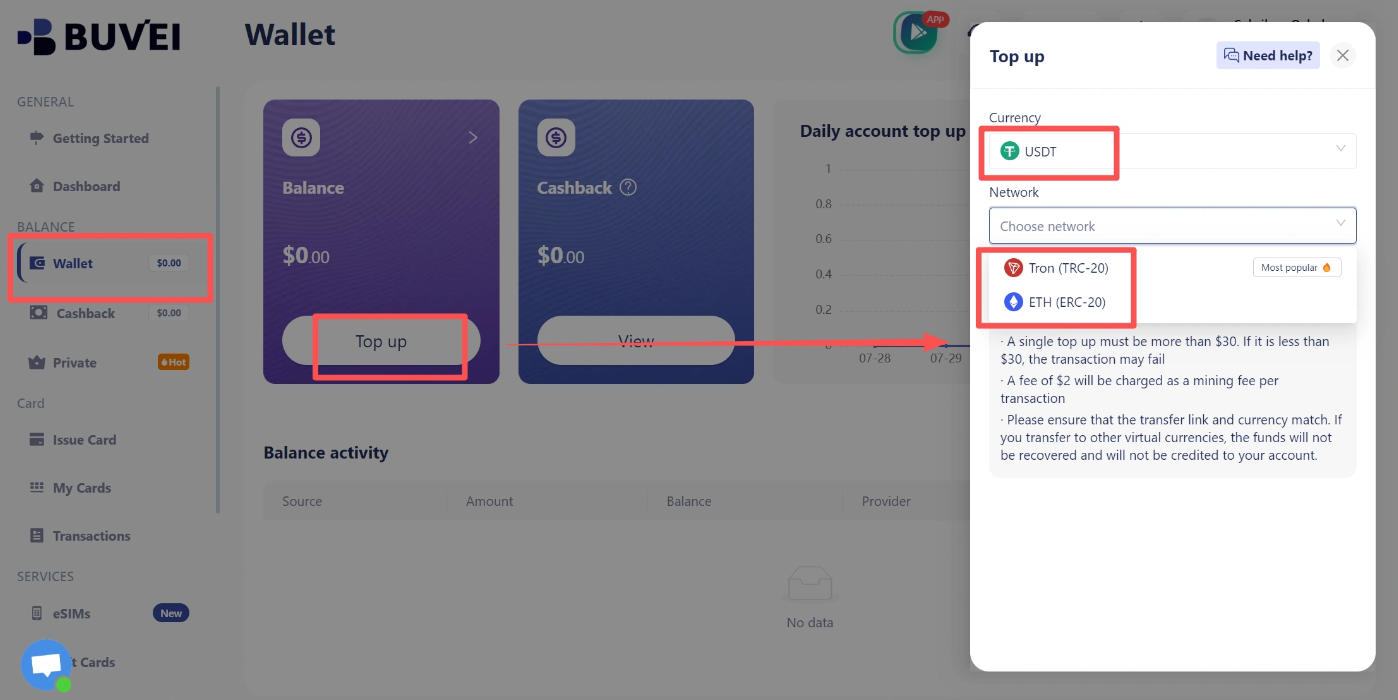
Open Wallet and select an available deposit method, such as USDT through TRC20 or ERC20.
Copy the deposit address displayed in your account and make sure the transfer network matches your selection. Review the amount and any applicable fees before sending funds.
Once the transfer is confirmed, check your wallet balance.
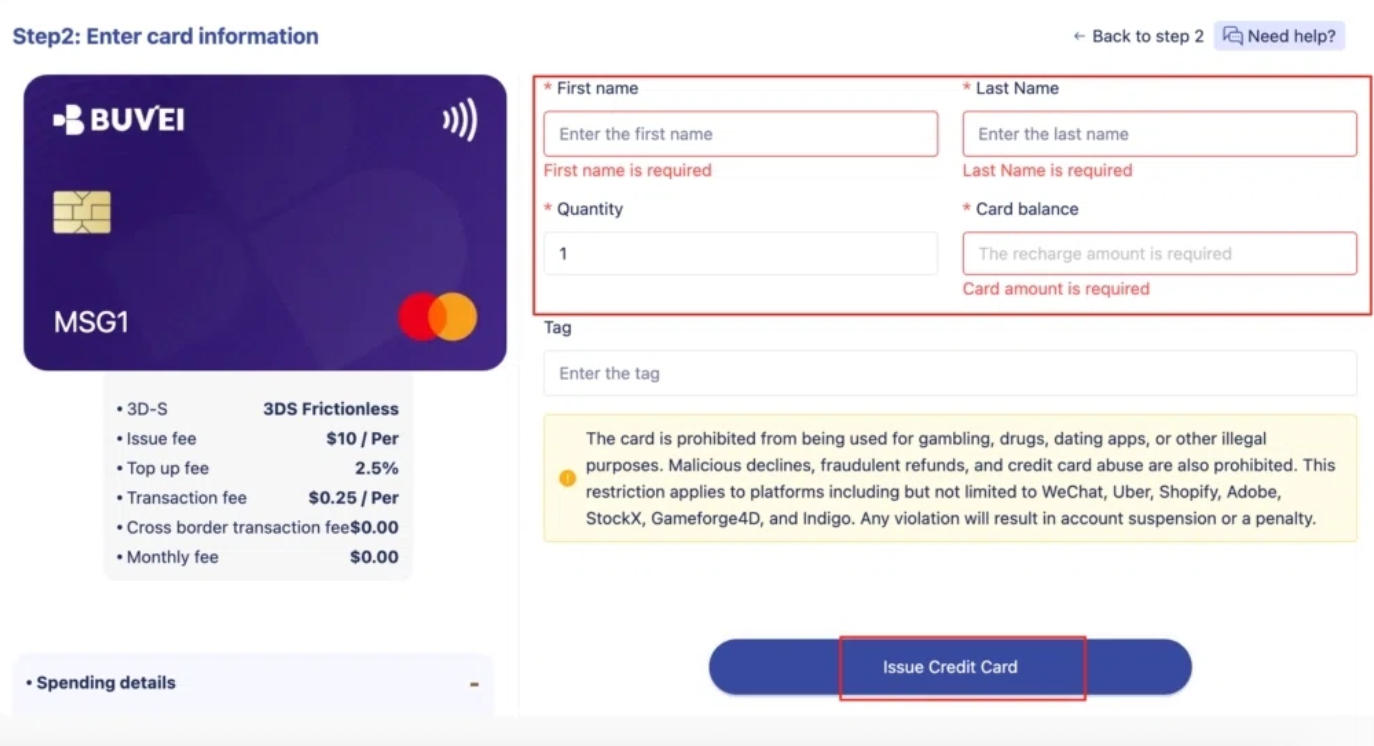
Step 3: Issue a Virtual Card
Go to Cards and choose your preferred BIN region and card type.
Enter the card name, amount, and number of cards you want to issue, then click Issue Card.
For subscription payments, check that the card type supports recurring online transactions.
Screenshot placement: BUVEI card issuance page.
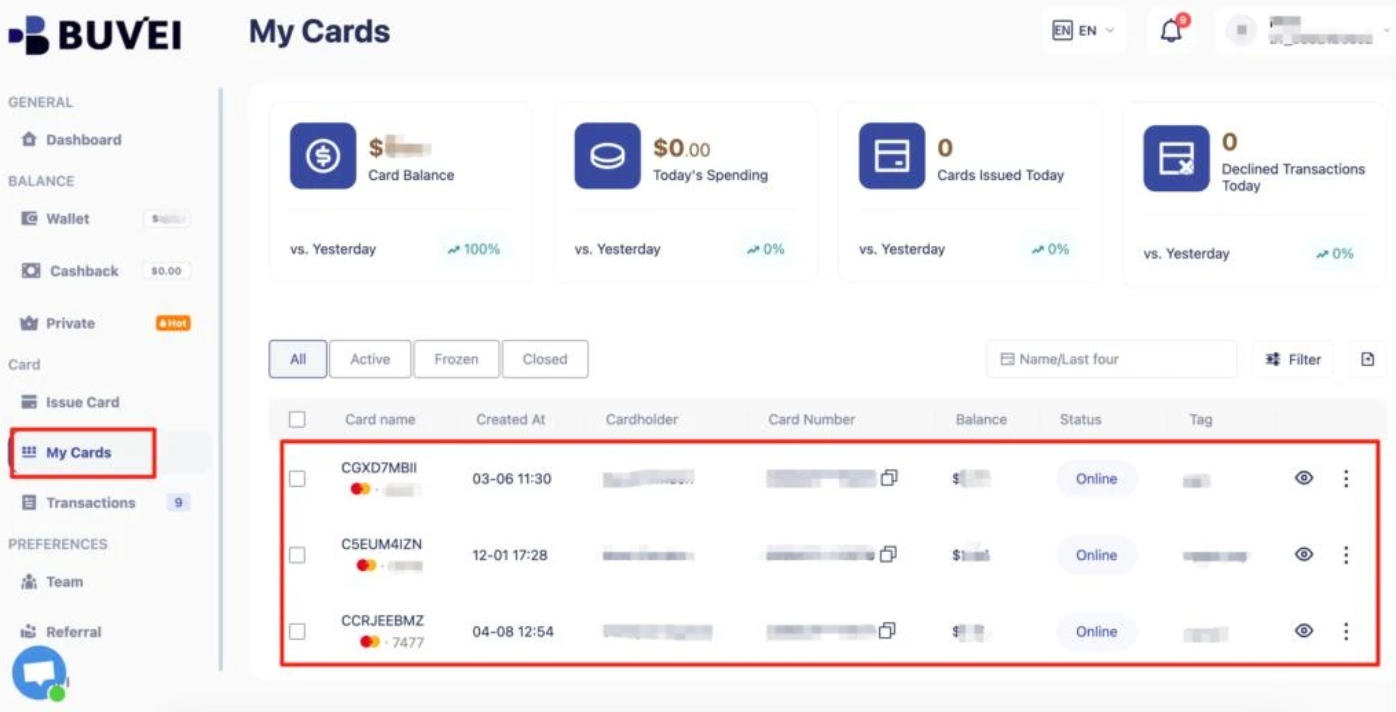
Step 4: Find Your Card Details
Open My Cards to view your card number, expiration date, and CVV.
Once you've confirmed the card is active and funded, return to Grammarly's checkout or payment settings and enter your new card information.
Keep Your Grammarly Subscription Payments Organized
Grammarly is rarely the only online tool you're paying for. Add ChatGPT, QuillBot, Canva, and a few other services, and recurring charges can quickly become difficult to keep track of.
With BUVEI, you can create separate virtual cards for different subscriptions, set spending limits, and review transactions for each card. You can also freeze or unfreeze cards when needed.
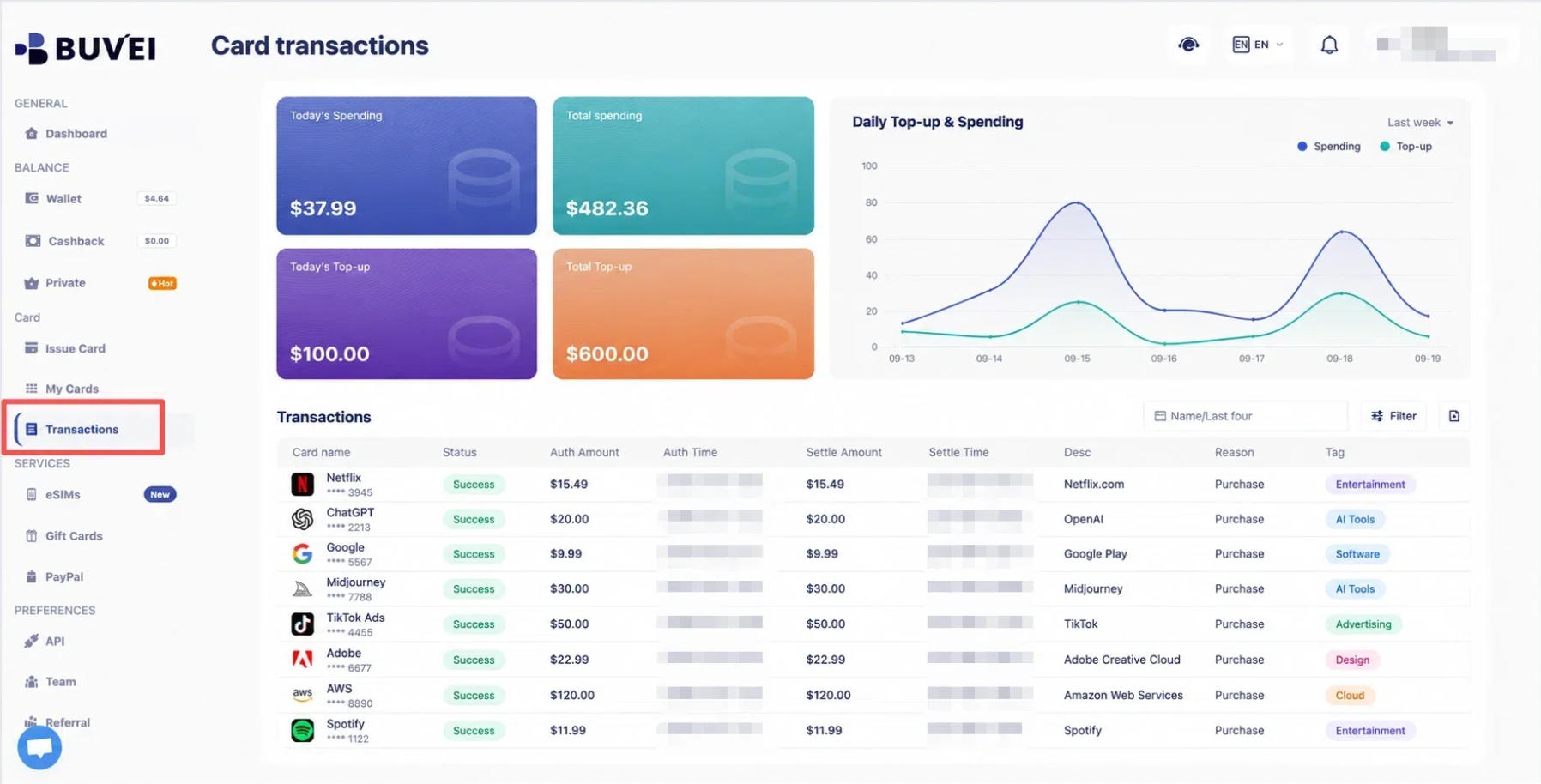
That makes it easier to see which services are charging you and how much you're spending without sorting through unrelated purchases.
Just remember that freezing a card doesn't cancel the subscription. If you no longer want Grammarly to renew, cancel it through the platform where you originally subscribed.
Frequently Asked Questions
Why Does Grammarly Keep Declining My Card?
If your details are correct and you have enough funds, the issue may be a bank restriction or security check. Ask your card issuer whether the transaction was blocked and whether recurring or international payments are enabled.
Can I Pay for Grammarly Pro with a Virtual Card?
Yes, provided the card is accepted and supports recurring online payments. Virtual Visa and Mastercard cards can be entered through Grammarly's regular card payment fields.
What Happens If My Grammarly Renewal Payment Fails?
Check the payment method saved to your subscription and replace it if necessary. You can review your billing details through Grammarly's Subscription page or the app store where you purchased your plan.
What If Grammarly Charged Me but My Subscription Isn't Active?
Check that you're signed in to the account associated with the payment. Review your subscription status and billing history, then use your receipt and transaction information to resolve any remaining discrepancy.
Conclusion
A failed Grammarly payment doesn't always mean your card needs replacing. Start with your balance, billing details, and payment settings. If the issue comes from your bank, check for transaction restrictions. If the checkout page isn't working, try the browser troubleshooting steps before submitting another payment.
For anyone paying for Grammarly alongside other online tools, keeping subscriptions separate can make managing expenses easier. BUVEI offers virtual cards with spending limits and transaction tracking, helping you stay on top of recurring charges and manage your online spending.