


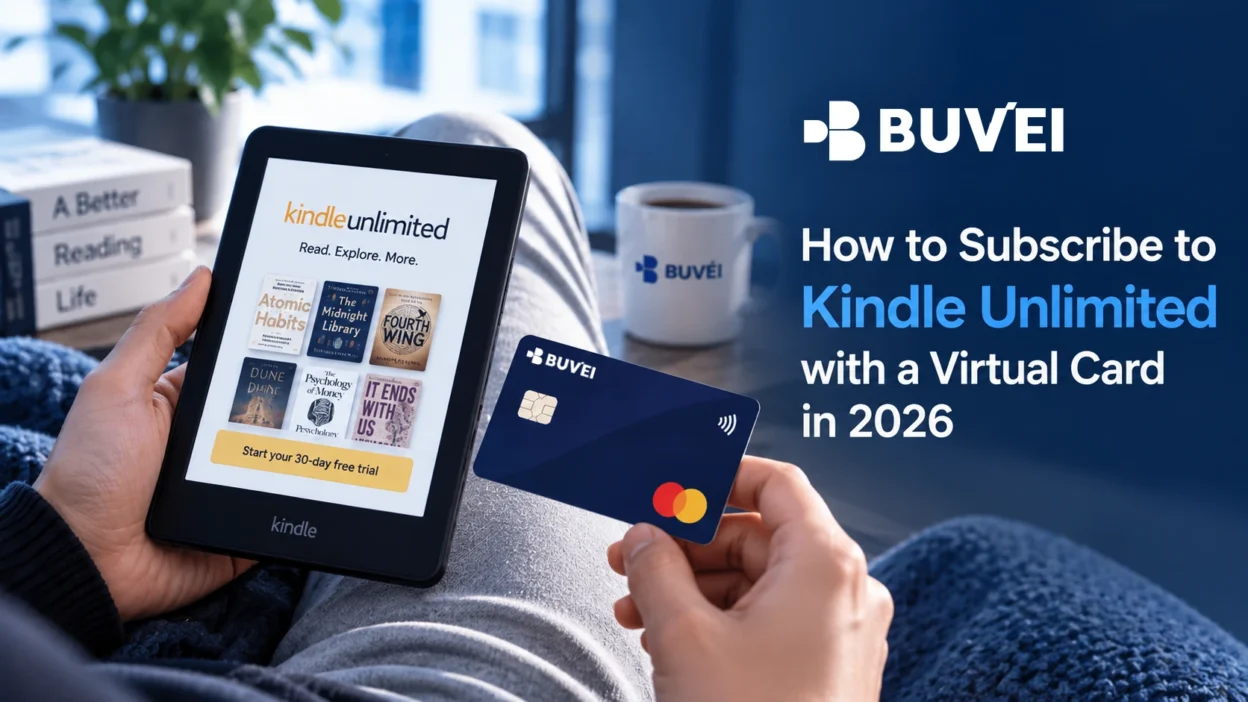
A Kindle Unlimited virtual card can be a practical way to pay for a recurring digital subscription without putting the charge on your primary debit or credit card. It can also make subscription spending easier to separate from other online purchases.
The signup itself is handled through Amazon, but there are a few details worth checking before you submit the payment. Your card must be active, your available balance must cover the charge, and the payment and billing information you enter at checkout must be accurate.
This guide walks through the Kindle Unlimited subscription process in 2026, including how to prepare a virtual card, add it to Amazon, complete the payment, and check the card before future renewals.
What You Need to Subscribe to Kindle Unlimited
Before you start, make sure your Amazon account is ready and that the virtual card you plan to use has enough available balance for the charge. You’ll need:
- An active Amazon account
- A BUVEI account
- A funded BUVEI wallet
- An active virtual card
- Enough available balance for the subscription
- Accurate card and billing information
If you already have a suitable virtual card, there’s no need to create another one just for Kindle Unlimited. Check the card’s status, balance, and spending settings before using it.
It’s also worth checking the Amazon marketplace associated with your account. Kindle Unlimited availability, pricing, promotions, and payment requirements can vary by market.
Create a BUVEI Virtual Card for Kindle Unlimited
If you don’t already have a card ready for the subscription, you can create one in BUVEI before starting the Amazon checkout.
Log In to Your BUVEI Account
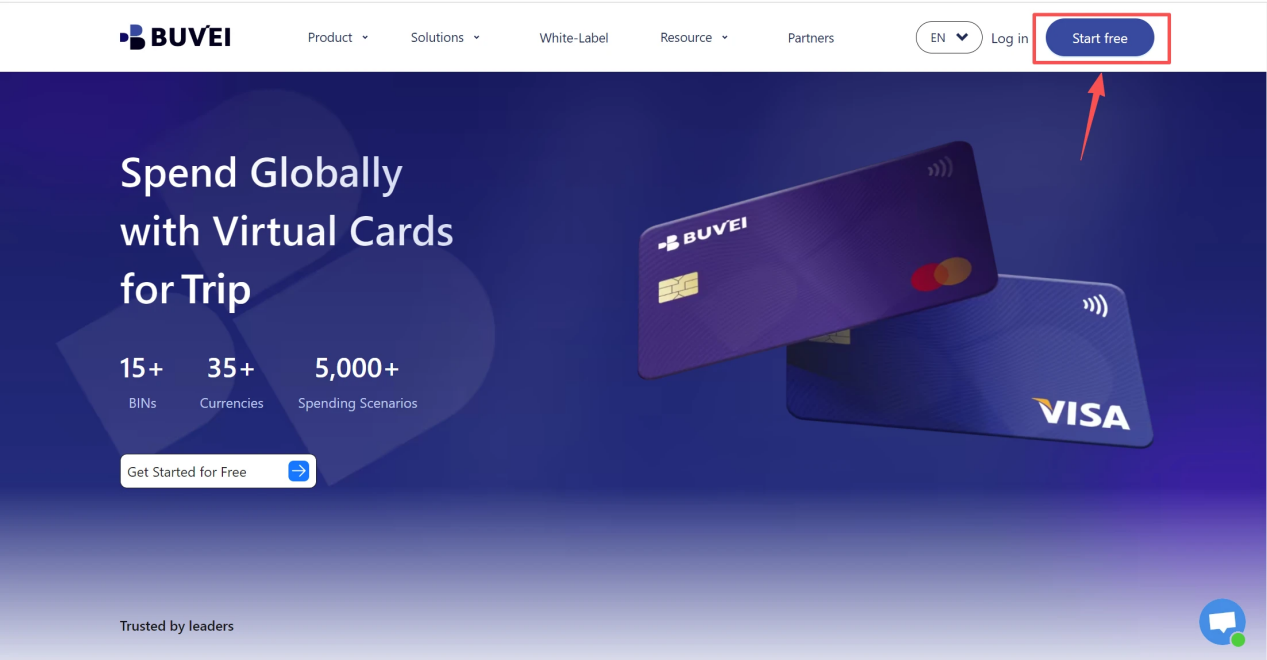
visit https://buvei.com, then click 'Start Free' to register quickly with your email.
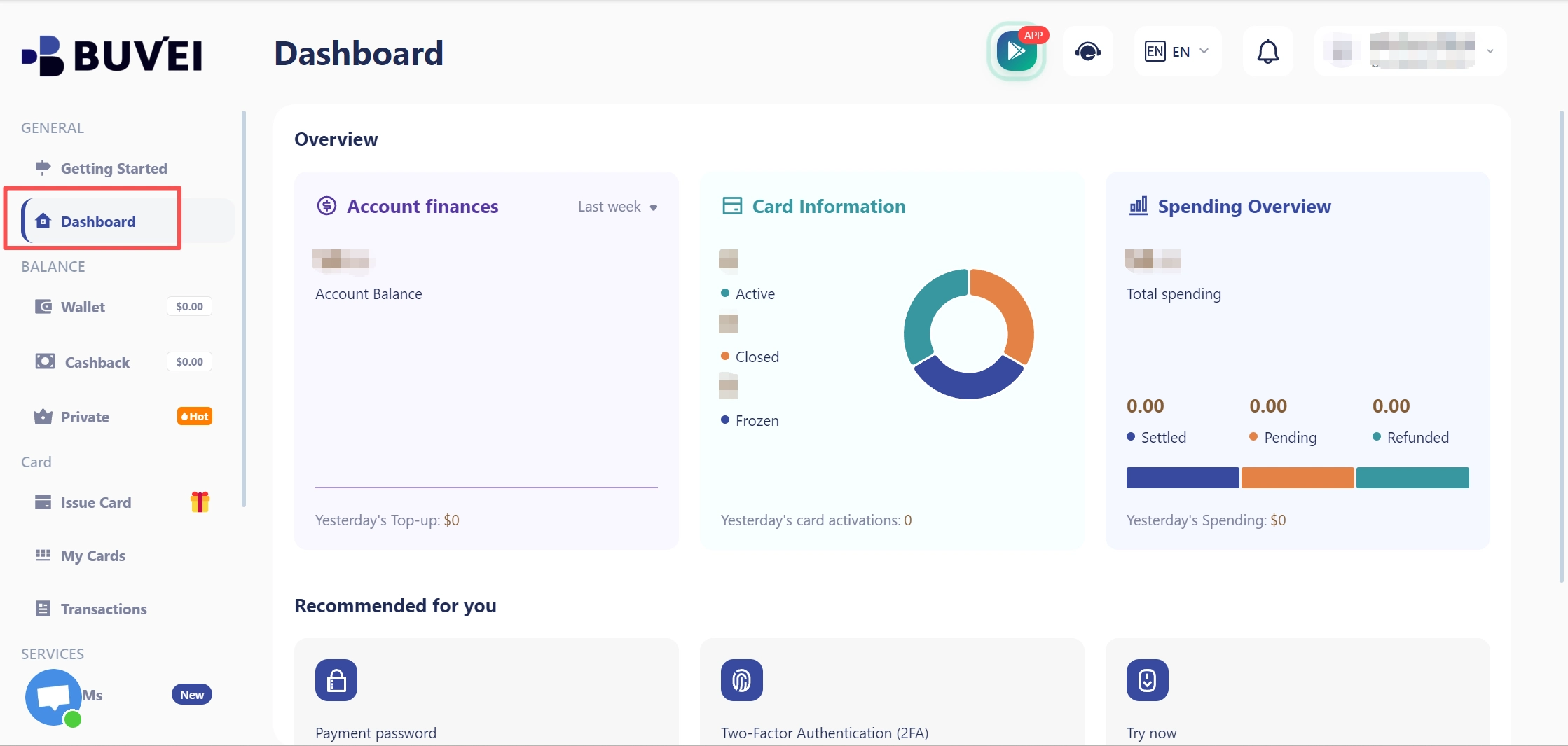
Sign in to your BUVEI account and open the dashboard. From there, go to the card section where you can create and manage your virtual cards.
Fund Your BUVEI Account
Start by making sure your BUVEI account has enough available funds for the transaction.
The amount you need depends on the Kindle Unlimited price shown in your Amazon account. Promotional offers and local pricing can affect the amount displayed at checkout, so use the current price shown on your own account rather than relying on a fixed amount.
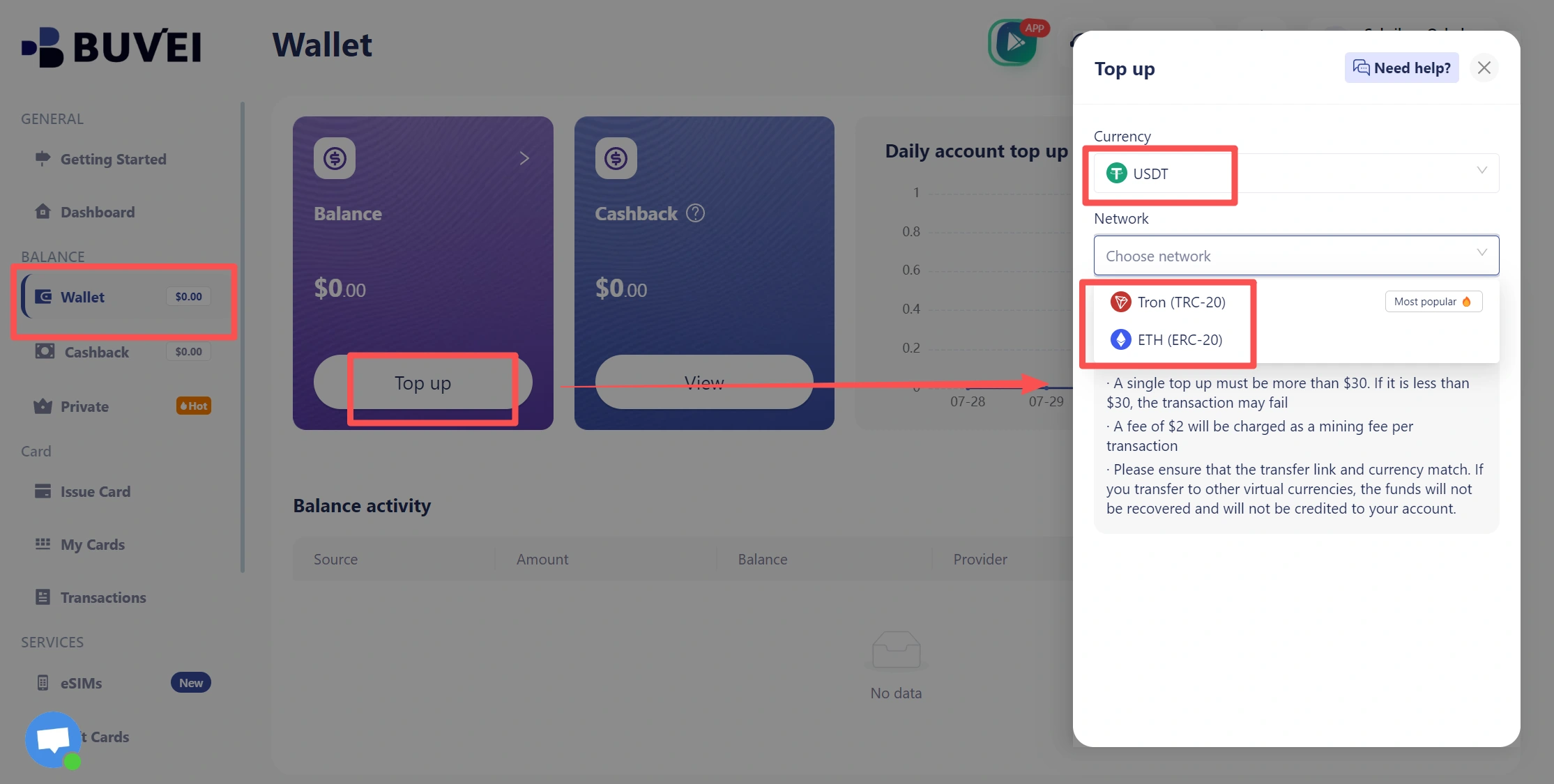
- Navigate to the Wallet tab and top up using supported stablecoins like USDT (TRC20/ERC20). You’ll receive a unique address—copy it and send your funds.
- Once confirmed, your balance will appear in the wallet for immediate use.
Once the funds are available, you can create the card you’ll use for the subscription.
Create Your Virtual Card
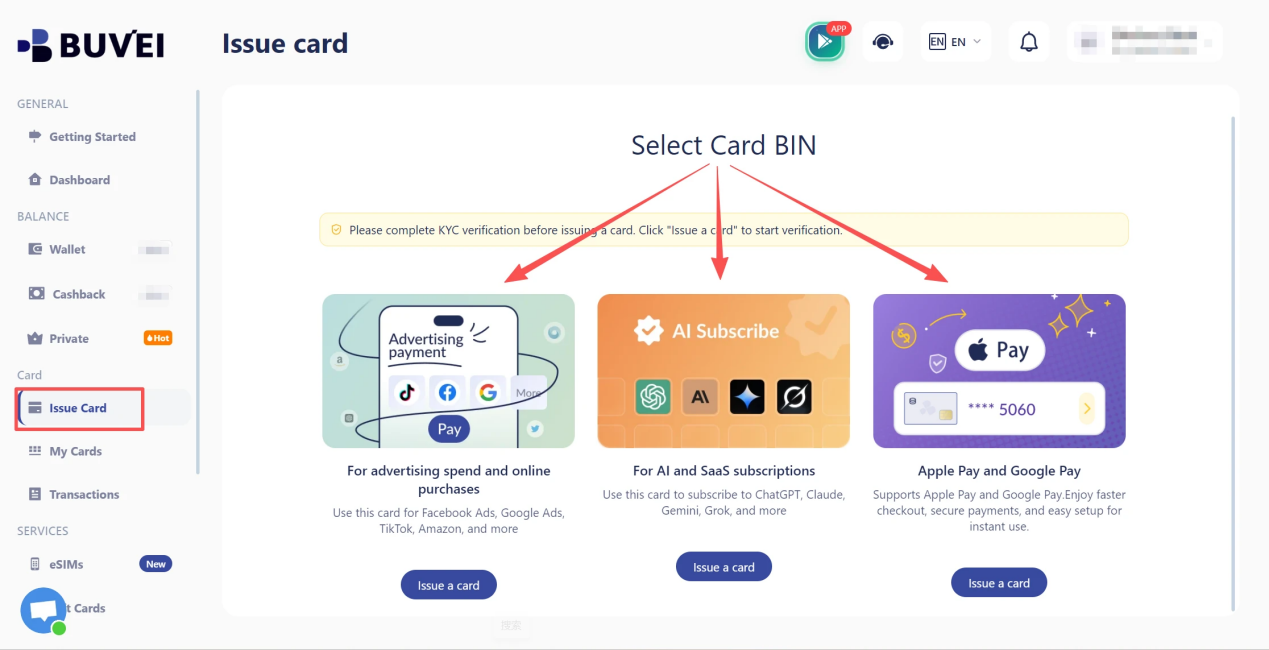
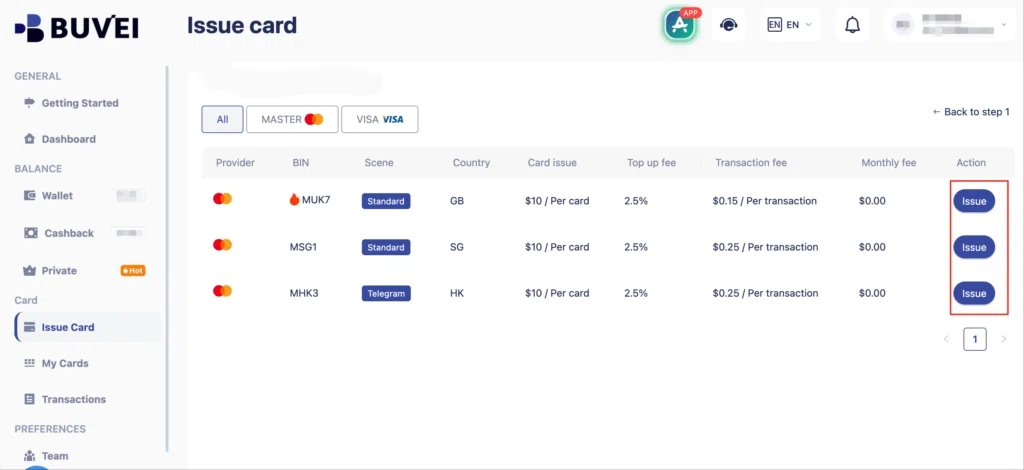
Go to the Card tab, choose your preferred BIN region (a US BIN is recommended), select your card type, and click Issue to create your virtual card.
Fill in the virtual card details, including name, amount, and number of cards, then click Issue Card.
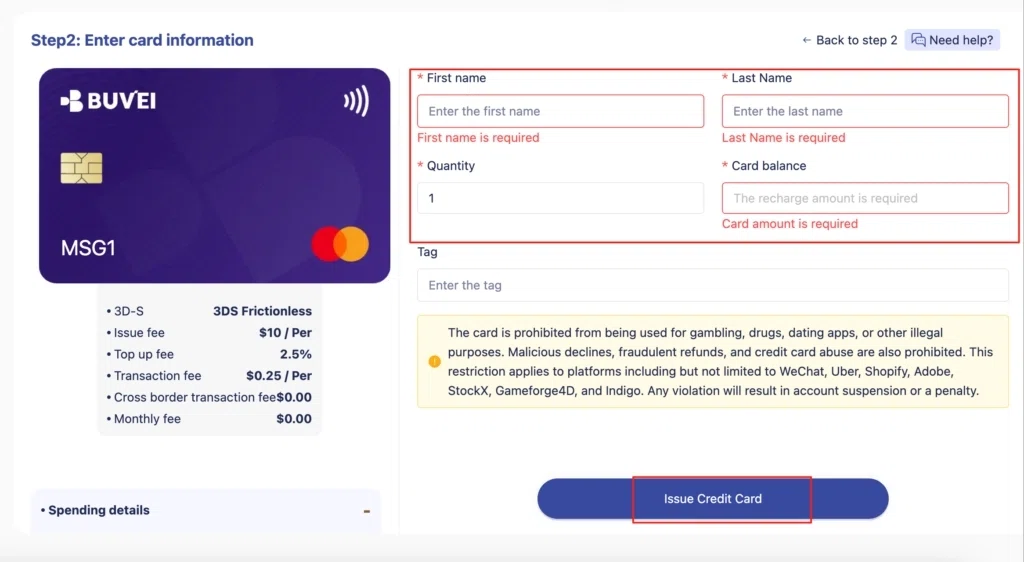
For a recurring service such as Kindle Unlimited, pay attention to the card’s status and spending settings. The card needs to remain available for online payments, and its limits should be sufficient for the transaction.
After the card is issued, it should appear in your card management area.
Check Your Card Details
Open the card and review the information you’ll need when adding it to Amazon. This includes the card number, expiration date, security code, and cardholder information if required by the payment form.
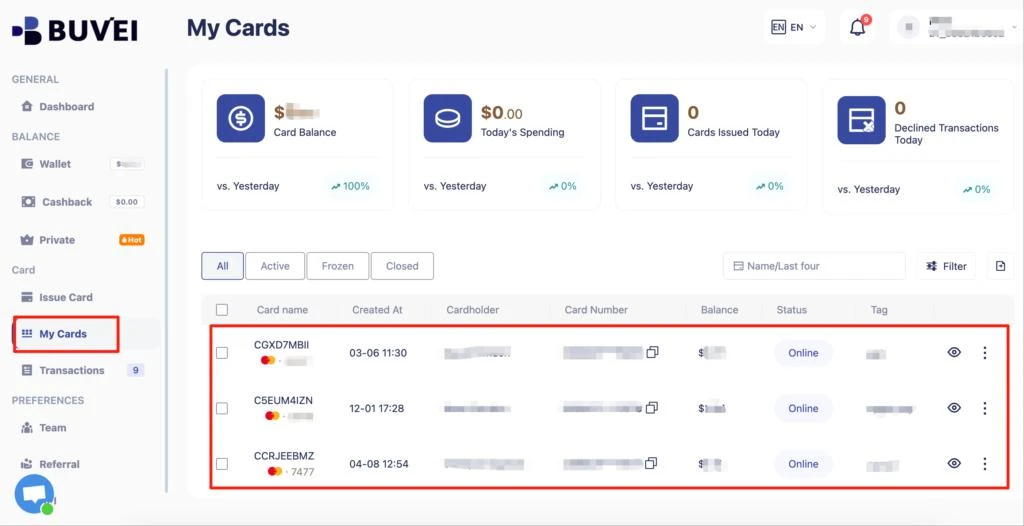
Keep these details available while completing the Amazon checkout. If you already have an active BUVEI card, you can skip the card creation process and move directly to the payment setup.
How to Subscribe to Kindle Unlimited with Your Virtual Card
Once the card is ready, the rest of the process takes place on Amazon.
Open Kindle Unlimited on Amazon
Sign in to the Amazon account you want to use for Kindle Unlimited and open the Kindle Unlimited membership page.
Take a moment to review the membership option shown for your account. If Amazon is displaying a promotional offer, check its terms before continuing rather than assuming the promotional price will apply to future renewals.
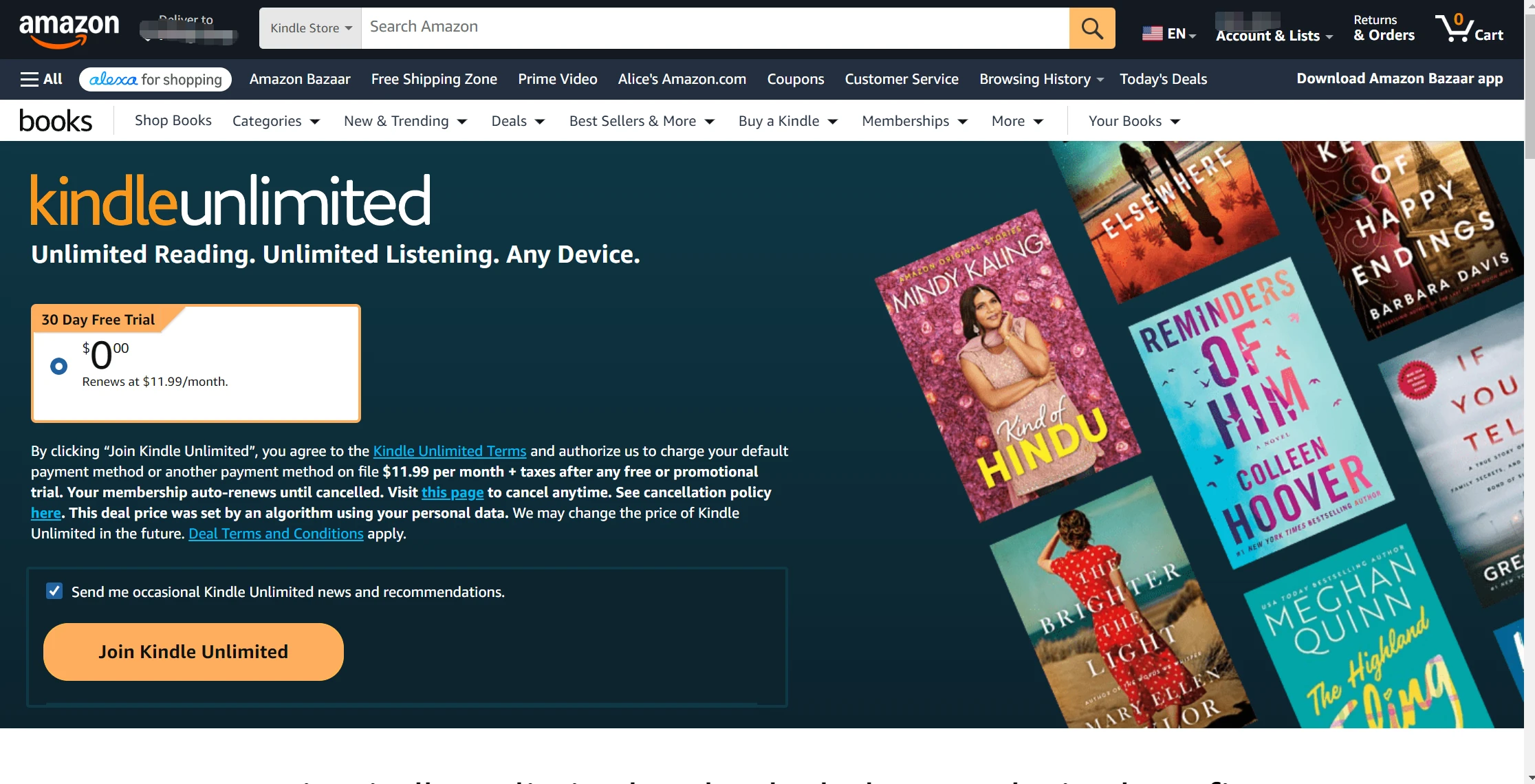
The available options and pricing may differ depending on your Amazon marketplace and account.
Add Your Virtual Card as a Payment Method
When Amazon asks you to select a payment method, choose the option to add a new card. Enter the information from your BUVEI card into the payment form. Depending on what Amazon requests, this may include:
- Card number
- Expiration date
- Security code
- Cardholder name
Amazon may also request billing information. Enter the required details carefully and use information that is consistent with your payment method where applicable.
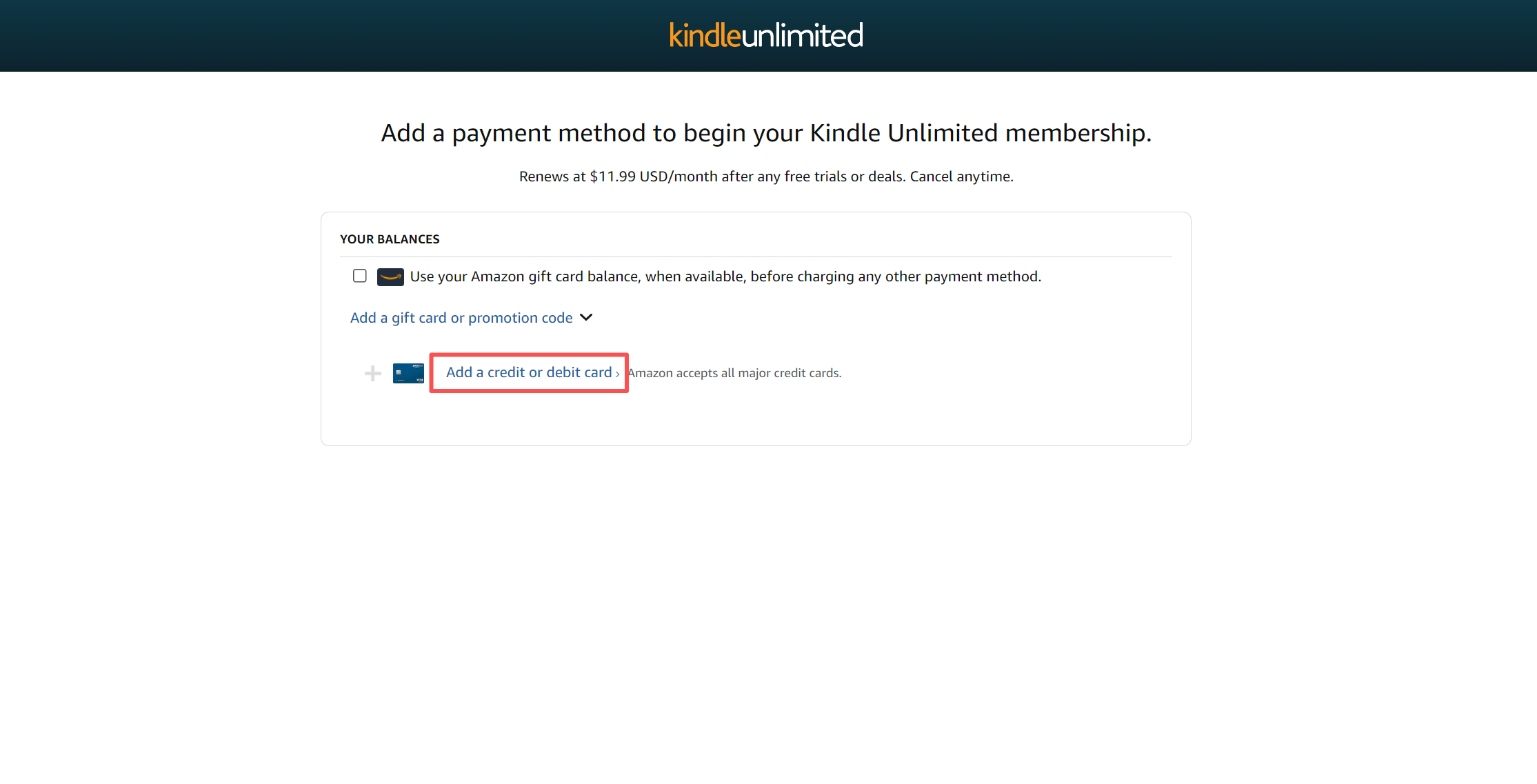
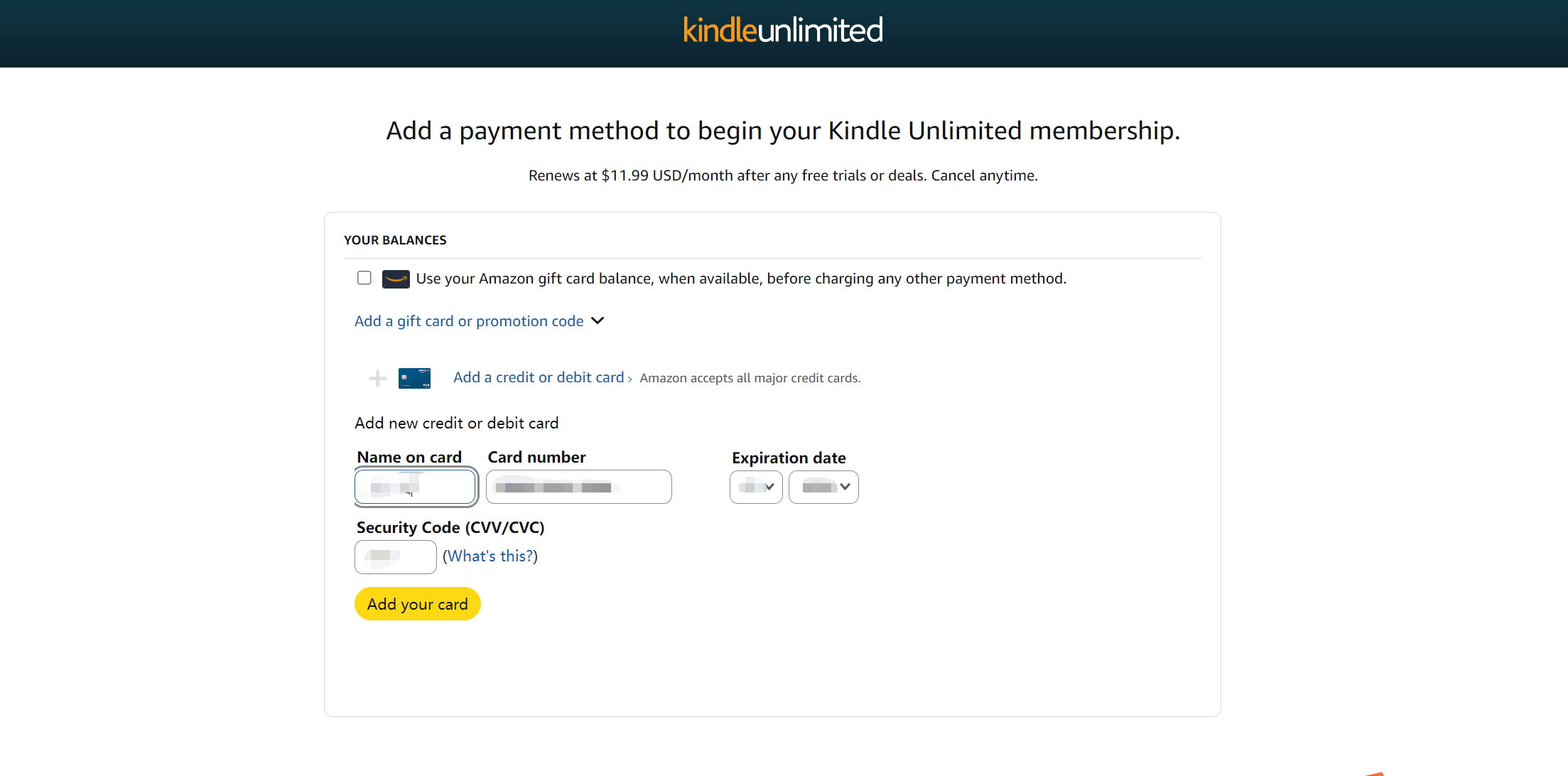
A small error in the card or billing information can be enough to stop a payment from going through, so it’s worth checking the details before continuing.
Review the Payment Details
Before submitting the subscription, review the checkout page rather than going straight to the confirmation button. Check the Kindle Unlimited plan, amount due, payment method, and any promotional terms shown by Amazon. If the amount or membership option isn’t what you expected, go back and correct it before completing the purchase.
Complete the Subscription
Once the payment details look correct, submit the order through Amazon’s checkout. If Amazon accepts the transaction, the membership information should update in your account and Amazon should provide the relevant confirmation. At this point, the initial subscription is complete. If the membership is set to renew automatically, there’s one more thing worth checking.
Check Your Kindle Unlimited Subscription and Renewal Details
A successful first payment doesn’t necessarily mean the subscription is set up for trouble-free renewals. The card used for the initial charge also needs to remain usable when Amazon attempts future payments.
Check Your Membership Status
Open your Kindle Unlimited membership information in your Amazon account and confirm that the membership is active. This is also a good opportunity to make sure the subscription attached to your account is the one you intended to purchase.
Review the Payment Method and Renewal Date
Check the payment method associated with the membership and look for the next billing or renewal date.
If you’re using a virtual card for the subscription, make sure it will still be available when the next charge is due. A card can work normally at signup and later fail because it has expired, been frozen, reached a spending limit, or no longer has enough available balance.
For recurring subscriptions, checking the card before renewal is often more useful than waiting for a failed payment notification.
What to Do If Kindle Unlimited Declines Your Virtual Card
A declined Kindle Unlimited payment can come from the card itself, the information entered at checkout, or Amazon’s payment processing. The simplest checks are usually the best place to start.
First, review the card details you entered. Make sure the card number, expiration date, and security code match the information provided by your card issuer.
Then check the available balance. The card needs to have enough funds to cover the amount Amazon is attempting to charge.
If both look correct, check the card’s status and spending settings. A frozen, expired, closed, or restricted card won’t work normally until the relevant issue is resolved.
Billing information is another possible source of trouble. If Amazon requests billing details, make sure the information is entered accurately and consistently with the payment method where required.
If the card appears to be working normally elsewhere but Amazon continues to reject the transaction, the problem may be related to Amazon’s payment processing or account-specific requirements rather than the card itself.
It’s also worth checking the Amazon marketplace you’re using. Subscription availability, pricing, and payment requirements can vary between markets.
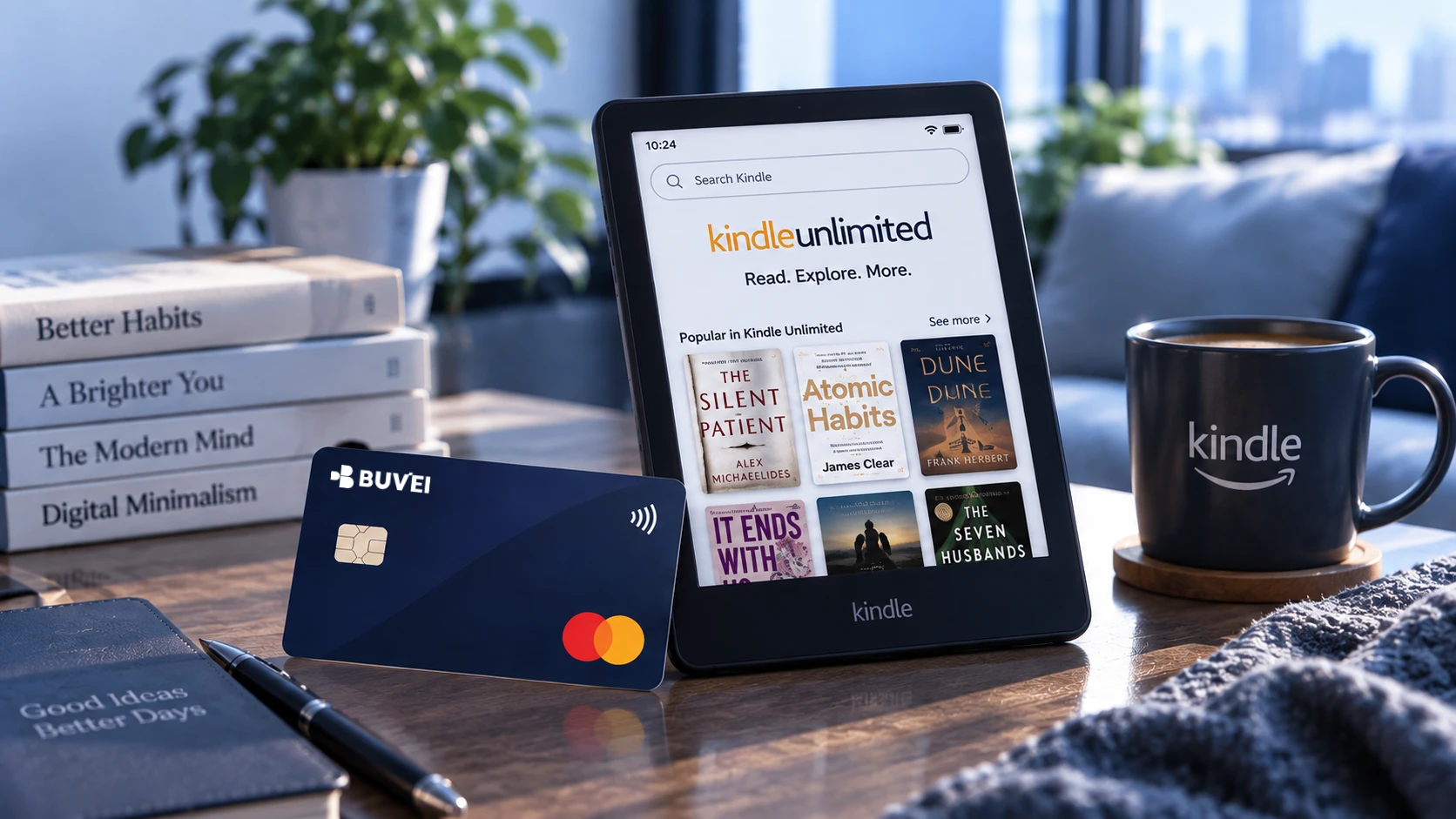
Managing Kindle Unlimited With a BUVEI Virtual Card
For a recurring subscription, the useful part of using a virtual card isn’t limited to the initial checkout. You also need to know what happens when the next charge comes around.
Using a separate card for selected digital subscriptions can make recurring charges easier to identify and monitor. Instead of mixing every subscription with your primary payment card, you can keep certain online expenses more clearly separated.
With BUVEI, you can monitor transactions and manage card settings from your account. That can be useful when a recurring charge is approaching and you want to check the card’s status or available spending capacity beforehand.
If the card needs to be replaced or becomes unsuitable for future charges, update the payment method on the Amazon account before the next renewal rather than waiting for the subscription payment to fail.
The goal isn’t simply to make the first Kindle Unlimited payment. It’s to keep the payment method workable for as long as you want the subscription to remain active.
Frequently Asked Questions
Can I Use a Virtual Card for Kindle Unlimited?
Kindle Unlimited may accept a virtual card as a payment method, provided the card meets Amazon’s payment requirements. Make sure the card is active, has enough available balance, and that the required billing information is entered correctly.
Does Kindle Unlimited Automatically Renew?
Kindle Unlimited memberships can renew automatically depending on the subscription and account settings. Check your Amazon membership details for the next billing date and the payment method associated with the subscription.
Why Was My Kindle Unlimited Payment Declined?
A declined payment can be caused by incorrect card details, insufficient available balance, an inactive or restricted card, billing information issues, or Amazon’s payment processing. Check these details before trying the payment again.
Can I Use a BUVEI Virtual Card for Kindle Unlimited?
You can use a BUVEI virtual card for Kindle Unlimited if Amazon accepts the card for the transaction and the card meets the applicable payment requirements. Keep the card active and funded if the membership is set to renew.
Conclusion
Subscribing to Kindle Unlimited with a virtual card follows the same basic Amazon checkout process as other payment methods. The main preparation happens before checkout: make sure the card is active, funded, and ready for the transaction.
If you plan to keep Kindle Unlimited beyond the first billing period, check the card’s balance, status, and expiration date before future renewals. With a BUVEI virtual card, you can also keep track of the transaction and manage the card from your BUVEI account as the subscription continues.