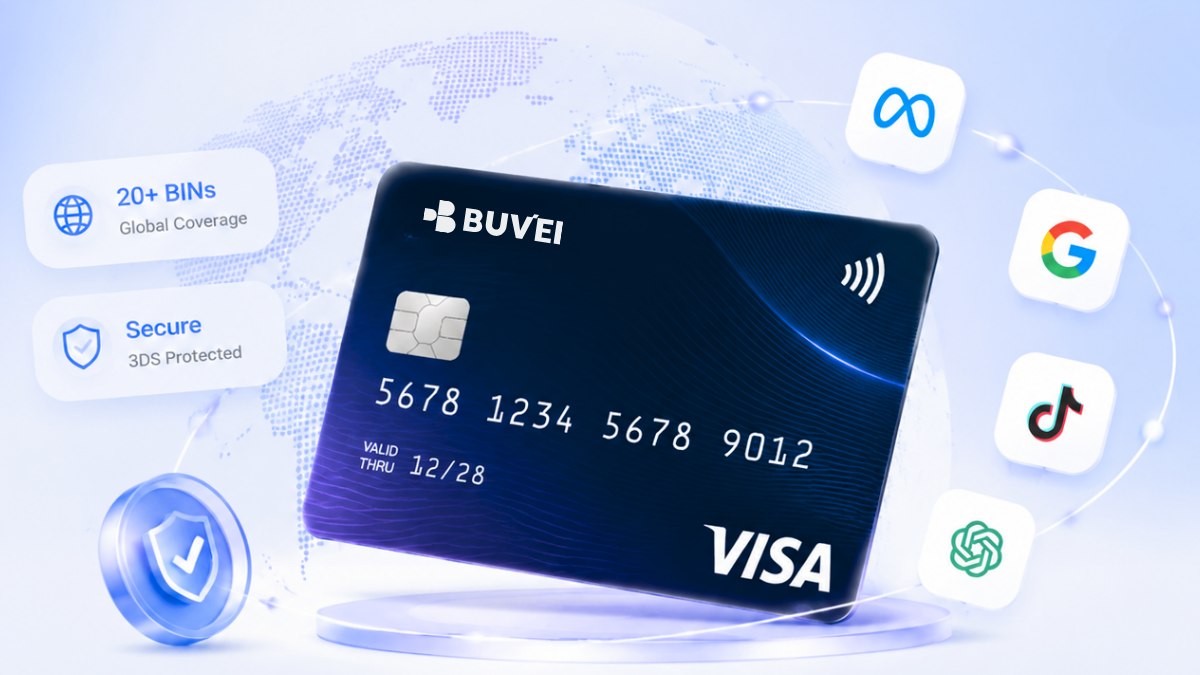



An Airbnb virtual card gives travelers another way to pay for a booking while keeping the payment separate from other card activity. It can also make it easier to control spending on a specific reservation. However, payment issues can still happen, including declines caused by spending limits, billing details, card restrictions, or cross-border transactions.
With BUVEI, you can choose your Airbnb stay first, confirm the final price, and then create a virtual card for the payment. After checking the card details and available balance, you can use it at Airbnb checkout and review the transaction afterward.
This guide covers the process from creating the card to completing the Airbnb payment and checking the transaction in BUVEI.
Find an Airbnb Stay and Check the Total Price
Start on Airbnb by searching for your destination and travel dates. Select the property and number of guests, then continue to the booking page.
Before creating the virtual card, check the final amount Airbnb shows for the reservation. The total may include the nightly rate, cleaning fees, service fees, taxes, or other charges, so use the checkout amount rather than the advertised nightly price.
Also check the payment currency. If the booking is charged in a different currency, make sure the card has enough available balance for the transaction.
Create a BUVEI Virtual Card for Your Airbnb Payment
Once you know the amount you need to pay, you can prepare the virtual card.
Step 1: Log In to BUVEI
If you haven’t signed up yet, simply click 'Start Free' to register quickly with your email. Sign in to your BUVEI account and open the dashboard. From there, go to the section for creating a virtual card.


Step 2: Create a Virtual Card
Select the option to create a virtual card and complete the required setup. For an Airbnb booking, using a dedicated card keeps the reservation separate from other online spending. If your card supports spending controls, you can also set a limit that matches the amount you plan to spend.
From the Card tab, choose the BIN region that fits your payment needs. A US BIN is recommended for Airbnb payments when appropriate.

After selecting the card type, click Issue to create the virtual card.

Fill in the virtual card details, including name, amount, and number of cards, then click Issue Card.

Once the card is created, go to My Cards to view the Card Number, Expiration Date, and CVV, and confirm that the card is active before using it for the Airbnb booking.
Step 3: Fund the Card Before Payment
Make sure the card has enough available balance to cover the Airbnb charge.
- Navigate to the Wallet tab and top up using supported stablecoins like USDT (TRC20/ERC20). You’ll receive a unique address—copy it and send your funds.
- Once confirmed, your balance will appear in the wallet for immediate use.

Use the final booking amount as your reference rather than the property’s nightly rate. If you have set a spending limit, the limit should also be high enough to cover the transaction.
The funding options available to you depend on your BUVEI account and payment methods. Use the funding method shown in your dashboard and confirm the card balance before returning to Airbnb.
Step 4: Check Your Card Before Using It
Open the card details and review the information you will need at checkout. Check the card status, available balance, expiration date, and spending limit. Keep the card details available when you return to the Airbnb payment page.

Pay for Airbnb with Your Virtual Card
With the card ready, return to Airbnb and continue with the booking.
Open the Airbnb Payment Page
Review the reservation before entering your payment information. Check the property, dates, number of guests, and final amount. The payment page is the best place to confirm the actual amount that will be charged.

Enter Your Virtual Card Details
Add the BUVEI virtual card as the payment method and enter the information requested by Airbnb, such as the card number, expiration date, and security code.
If Airbnb asks for billing information, enter the required details as shown on the payment page.

Before submitting the payment, make sure the card has enough available balance for the amount shown at checkout.
Review the Booking and Complete Payment
Take one last look at the reservation details and payment amount. If everything is correct, submit the payment through Airbnb.
Once the payment is approved, Airbnb should display the booking confirmation and reservation details.
Review Your Airbnb Payment in BUVEI
After completing the booking, check the transaction in BUVEI.
Check the Transaction
Open the transaction section in your BUVEI account and look for the Airbnb payment.
Check the merchant, amount, date, and transaction status. This gives you a quick way to confirm the charge and keep the Airbnb expense separate from other card activity.

If the transaction does not appear immediately, allow some time for the payment to process before treating it as a failed transaction.
What If Airbnb Declines Your Virtual Card?
If Airbnb declines the payment, start by checking the card rather than submitting the same transaction repeatedly.
Make sure the available balance covers the final booking amount and that the card is active and has not expired. If you use a spending limit, check that it is high enough for the transaction.
If those details are correct, review the billing information entered at checkout. A payment can also be affected by restrictions from the merchant or card provider.
If the card still does not work after these checks, review the decline message and contact the card provider for further information.

Managing Airbnb Payments with a Virtual Card
A dedicated virtual card can make Airbnb payments easier to track and control. With BUVEI, you can set spending controls for the card and review the transaction after the payment is processed. Keeping the booking separate from other online spending can also make it easier to monitor your travel expenses.
Conclusion
Paying for Airbnb with a virtual card starts with the booking itself. Choose the stay, confirm the final price, then create and prepare a virtual card with enough available balance.
Once the card is ready, enter the details at Airbnb checkout and review the transaction in BUVEI after payment. Keeping the card, spending limit, and available balance in check can help avoid common payment problems and make the booking easier to manage.