




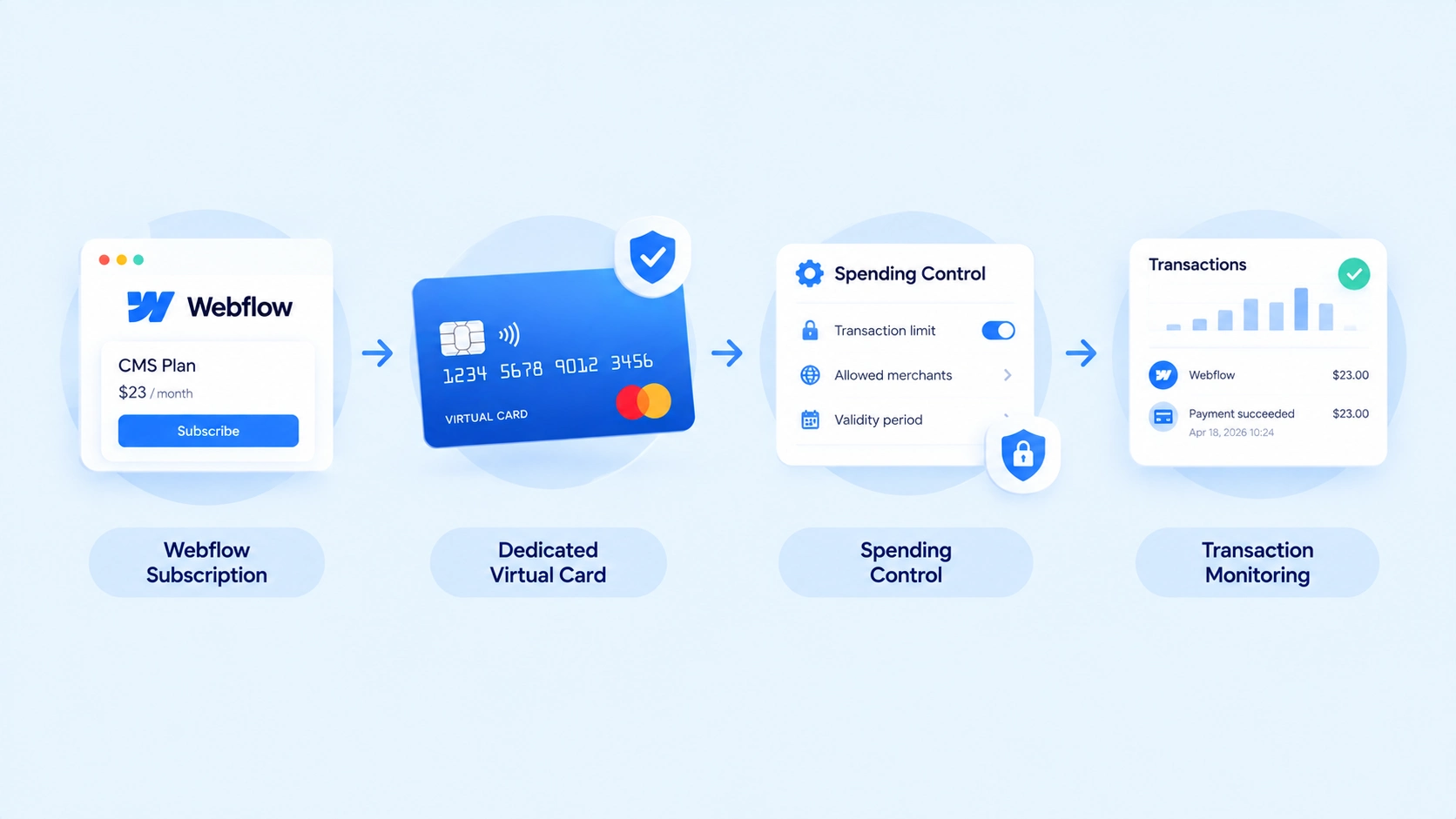
Paying for Webflow with a virtual card can make recurring website expenses easier to separate, control, and monitor. For businesses managing multiple websites or SaaS subscriptions, a dedicated virtual card for Webflow can help keep Webflow charges separate from a primary business card.
Webflow stores the payment card associated with a Workspace and uses it for applicable Workspace and Site plan purchases and recurring subscription charges. Webflow supports major card networks, including Visa and Mastercard, although whether a specific virtual card works can depend on the card issuer and billing setup.
This guide explains how to pay for Webflow with a virtual card, what to check before adding one, how recurring billing works, and how BUVEI can help you manage Webflow expenses after the initial payment.
Why Use a Virtual Card for Webflow?
Webflow can become a recurring business expense, particularly when you manage multiple sites, paid Workspace plans, or other services connected to your web operations. A dedicated virtual card provides another way to structure these payments without relying on a general-purpose business card.
Separate Webflow Expenses
A dedicated card can keep Webflow charges separate from unrelated business spending. For example, a business could use one virtual card for Webflow while using other cards for design software, advertising, cloud services, or AI subscriptions. This makes it easier to associate transactions with a specific expense category.
Add Spending Controls
Virtual cards can provide an additional layer of control over online spending. Depending on the card provider, businesses may be able to establish spending limits or manage card status independently. For a Webflow subscription, setting an appropriate limit can help keep website expenses within an intended budget.
Protect Your Primary Business Card
Using a dedicated virtual card means you do not have to use your primary business card for every SaaS subscription. If the dedicated card later needs to be frozen or closed, you can manage that card separately without necessarily replacing the primary card used for other business expenses.
Improve Transaction Visibility
A dedicated Webflow card can also make recurring charges easier to identify during expense reviews. Instead of searching through transactions from multiple merchants, finance teams can review activity associated with the Webflow card and reconcile website-related spending more efficiently.
What to Check Before Using a Virtual Card for Webflow
Before adding a virtual card to Webflow, verify that the card is suitable for the expected transaction and future subscription charges.
Check Card Network Compatibility
Webflow currently accepts major credit and debit card networks, including Visa, Mastercard, American Express, Discover, JCB, and Diners Club. Webflow also notes that international debit cards may require recurring international auto-debit to be enabled.
If you are using a virtual Visa or Mastercard, check whether the card issuer allows online and recurring merchant charges.
A supported card network does not necessarily mean that every virtual card will be accepted. The specific card, issuer, billing information, and transaction type can also affect the result.
Check Available Funds
Make sure the card has sufficient available funds for the Webflow payment. If the card will remain attached to Webflow for recurring billing, consider the expected renewal amount as well rather than funding it only for the initial purchase.
Review Spending Controls
If the virtual card has a spending limit, make sure the limit is appropriate for the expected Webflow charge. Avoid setting the limit so close to the subscription price that a legitimate plan change or additional eligible charge could cause the payment to exceed the limit.
Confirm Recurring Charge Support
Webflow uses the payment card on file for applicable future subscription payments. Make sure your card issuer allows the type of recurring or merchant-initiated charge required for the subscription.
Tip: A virtual card that works for the initial Webflow payment should also be monitored for future renewal payments. Keeping the card active and properly funded is part of maintaining the subscription.
How to Pay for Webflow with a Virtual Card
Once you have a suitable virtual card, you can add it to your Webflow billing setup and use it for the applicable plan payment.
Step 1: Create a Virtual Card
First, create a virtual card that you want to use for Webflow.
BUVEI provides Visa and Mastercard virtual cards with instant issuance, allowing businesses to create dedicated cards for different online payment scenarios. Multiple cards can also be managed separately, making it possible to organize Webflow alongside other SaaS expenses.
For example, you could create a dedicated Webflow card rather than using one general card for every subscription.
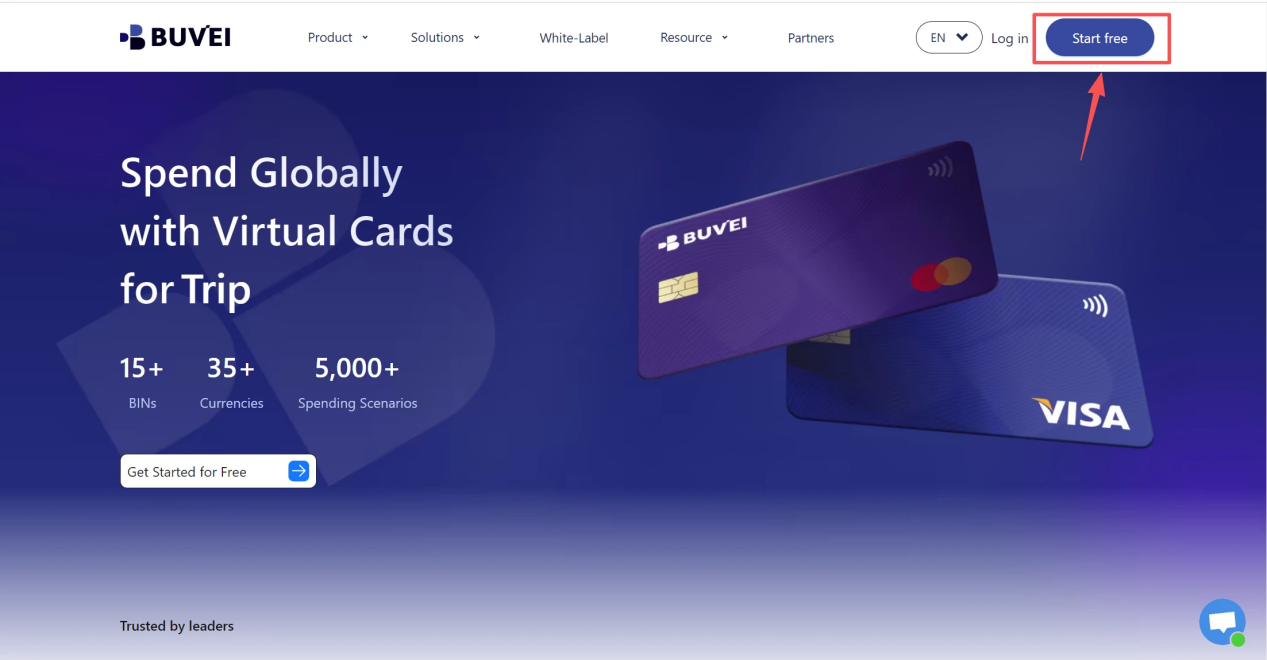
- Sign up/Sign in at buvei.com
-
- visit https://buvei.com and create a free account.
- After email verification, log in to access the Buvei dashboard.
- Create a Virtual Card
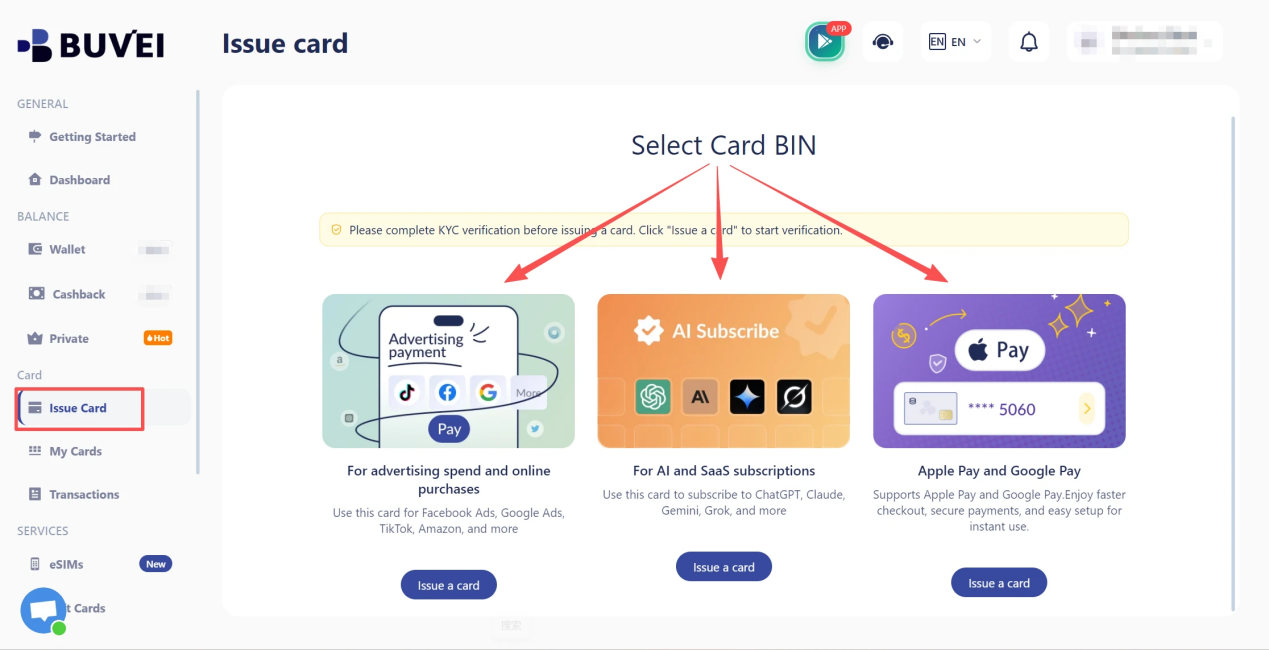
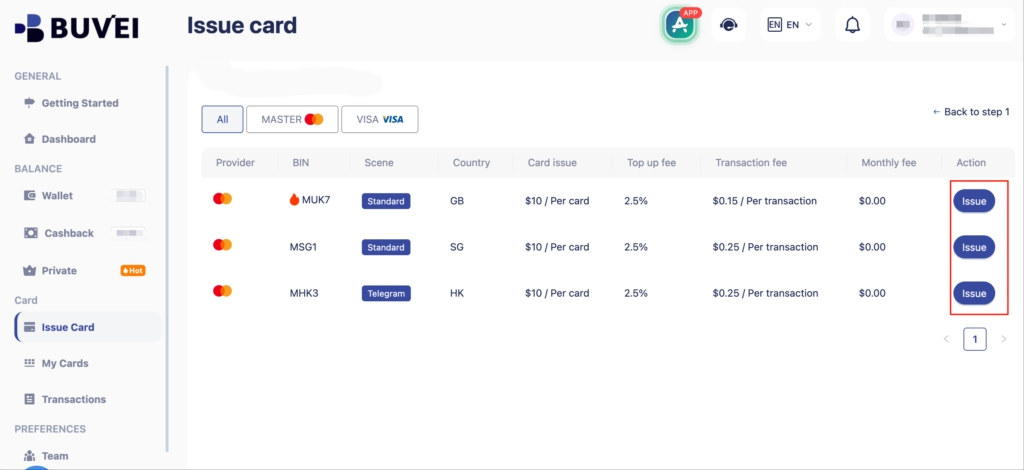
- Fill in the virtual card details, including name, amount, and number of cards.
- Click Issue Card
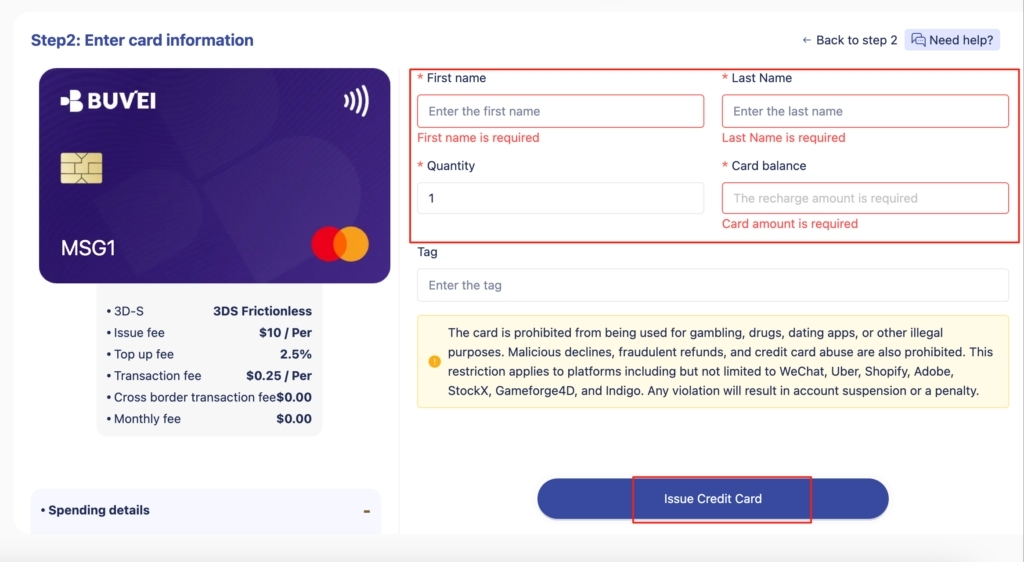
When setting up the card, consider both the current Webflow subscription and potential future renewal charges.
Step 2: Check Your Virtual Card Details
After creating the card, open the card details and confirm the information required for the Webflow payment. Check the card number, expiration date, security code, card status, available funds, and any applicable spending controls. The card should be active and available for online transactions before you add it to Webflow.
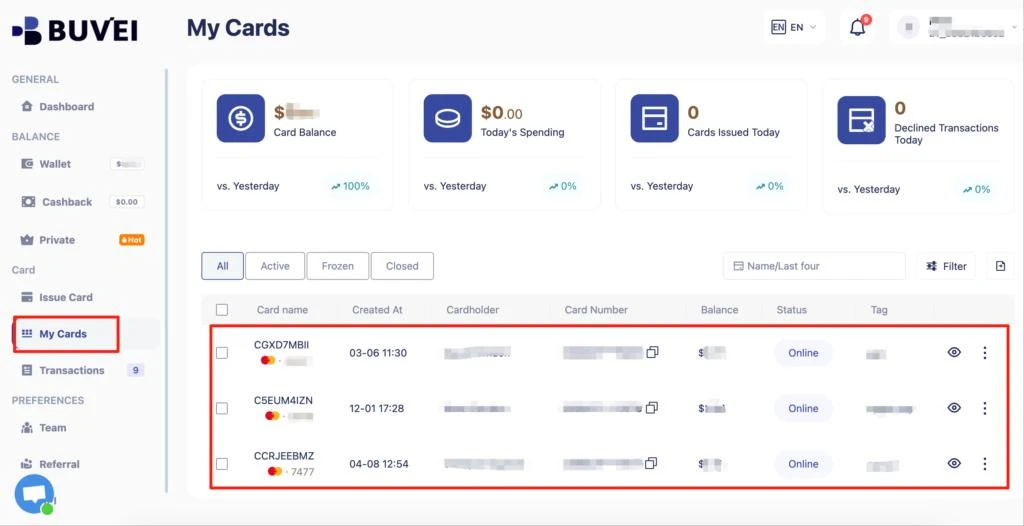
If you are using a dedicated card, this is also a good point to confirm that its spending settings match the purpose of the card.
Step 3: Open Webflow Billing Settings
Log in to Webflow and open the billing settings for the relevant Workspace. Webflow’s billing area lets you manage items such as Workspace plans, Site plans, paid seats, add-ons, invoices, and the payment card associated with the Workspace.
There is an important detail to understand before proceeding: Webflow stores one payment card on file at the Workspace level.
That card is used for applicable Workspace and Site plan purchases within that Workspace. If you manage multiple websites under the same Workspace, those Site plans use the Workspace’s payment card rather than having an independent payment card for each individual site. Different Workspaces can have their own payment cards.
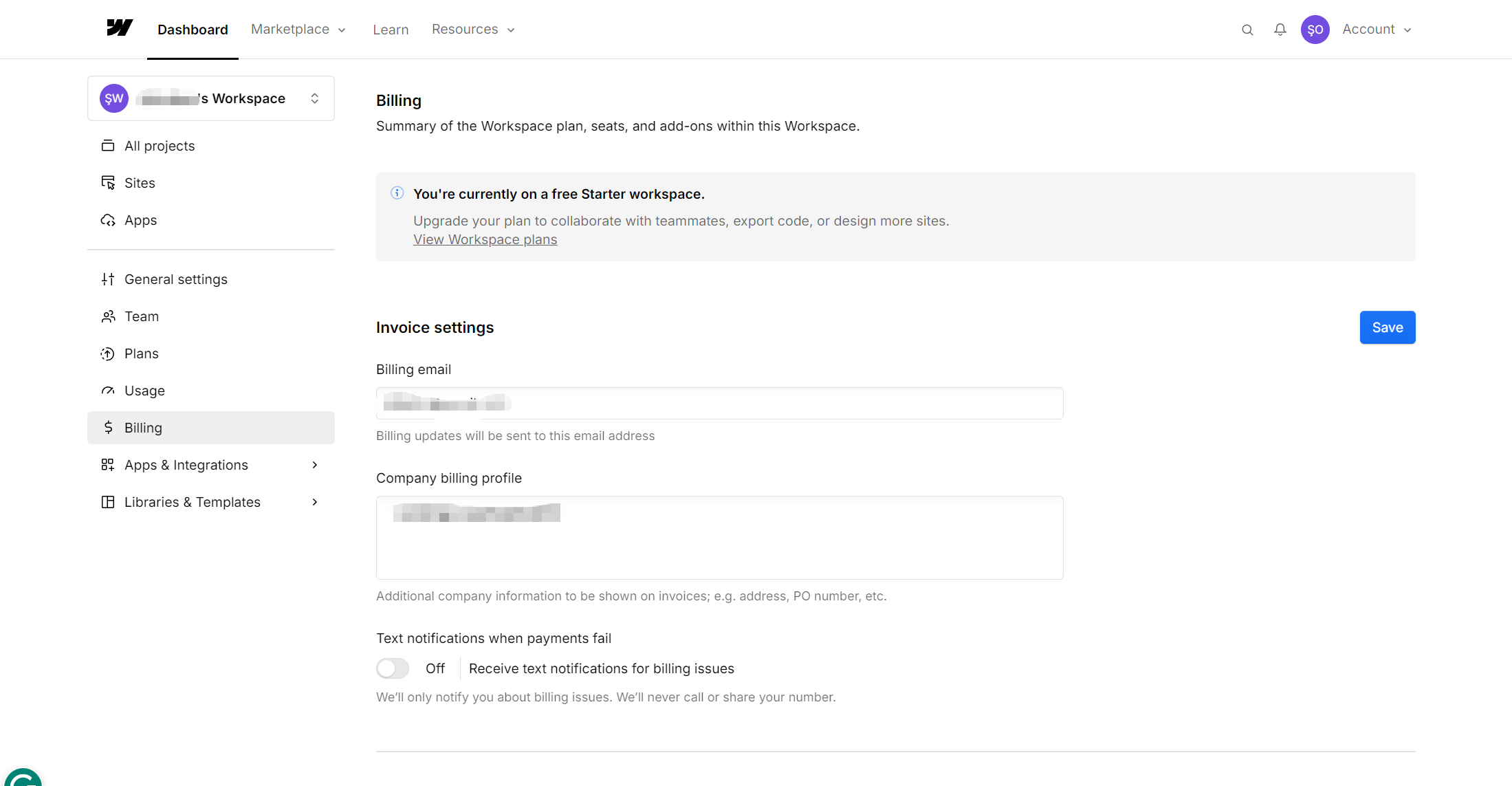
This Workspace-level billing structure is important when deciding how to organize your Webflow expenses.
Step 4: Add Your Virtual Card as the Payment Method
In the Webflow billing settings, locate the payment method or payment card section.
Enter the virtual card details requested by Webflow, such as the card number, expiration date, and security code. You may also need to provide the required billing information.
Webflow allows the payment card associated with a Workspace to be updated through the Workspace billing settings. Review the information carefully before saving the new payment method.
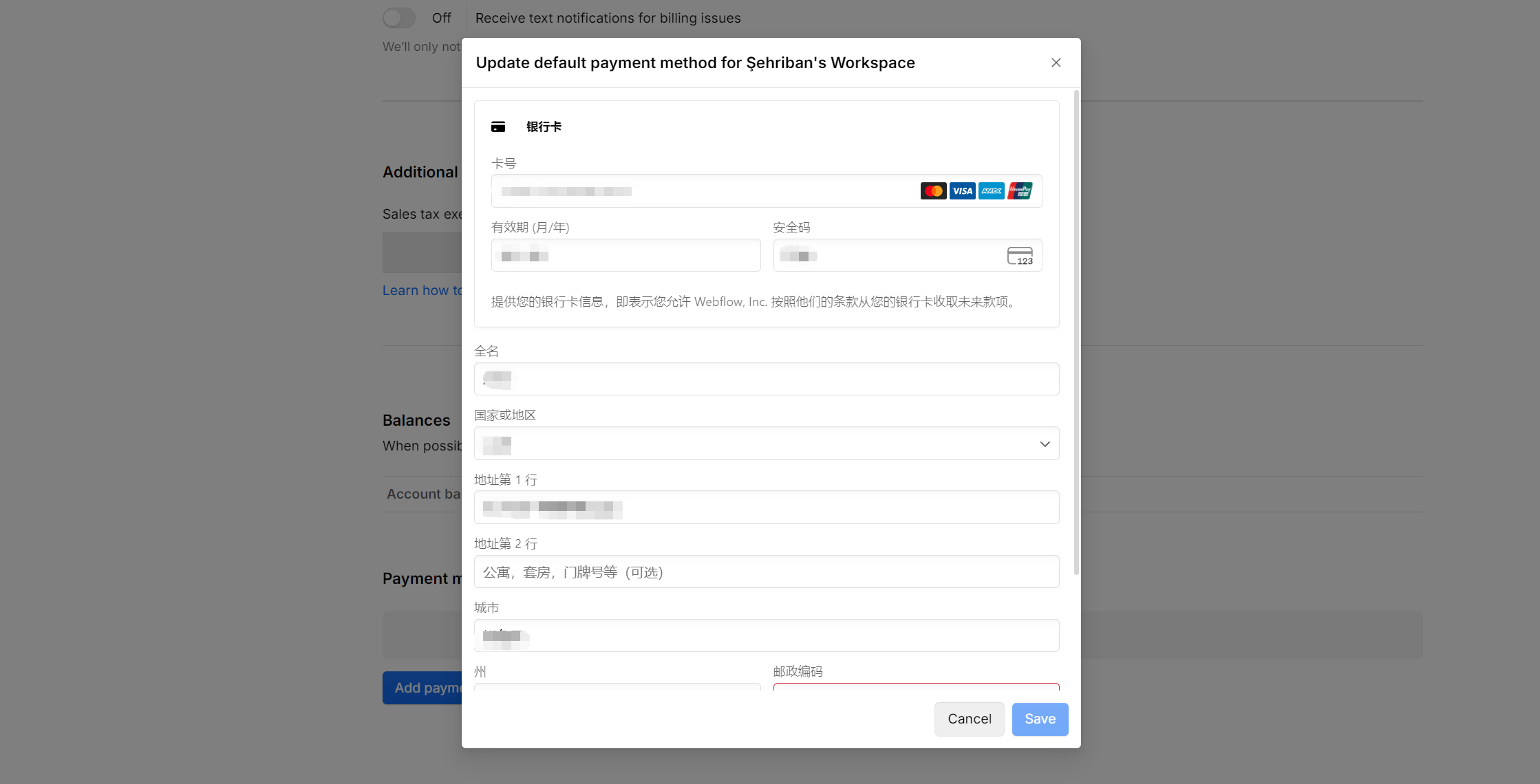
Important: Webflow supports major card networks, but it does not guarantee that every virtual card will work. If the payment fails, review the card’s status, available funds, spending controls, billing information, and recurring-payment compatibility.
Step 5: Complete Your Webflow Payment
After adding the virtual card, proceed with the relevant Webflow purchase.
For a Site plan, the current Webflow flow is to open Site settings → Plans, choose the Website or Ecommerce option, select the billing frequency and plan, continue to payment, review the purchase, and complete the transaction.
Site plans are associated with individual websites but are billed using the payment card associated with the relevant Workspace. Workspace plans and Site plans are separate billing components, so make sure you are purchasing the plan you actually need.
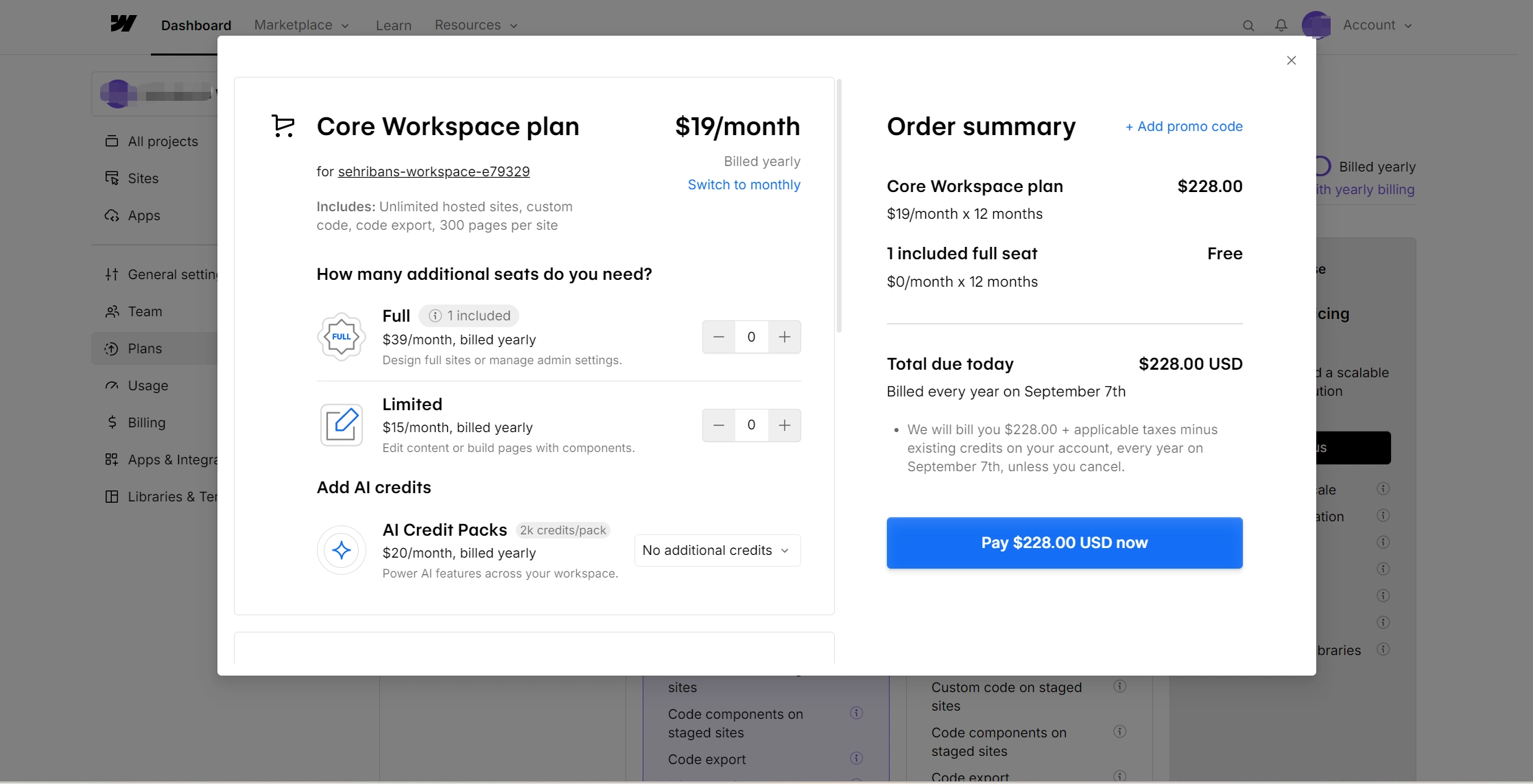
After the payment method is successfully saved, Webflow can use the card on file for applicable future subscription payments within that Workspace.
How Webflow Recurring Billing Works with a Virtual Card
Paying for Webflow with a virtual card is not limited to the first checkout. Eligible Webflow plans renew automatically at the end of their billing cycle, with the payment card on file used for future subscription payments.
The basic workflow is: Initial Payment → Subscription Active → Automatic Renewal → Future Card Charge
This means the card needs to remain usable after the initial transaction.
Keep the Card Funded
Before a renewal date, make sure the virtual card has sufficient available funds for the expected charge. If you use a dedicated funding workflow, include Webflow renewals in your regular subscription-payment schedule.
Keep Spending Controls Practical
Spending controls are useful when managing SaaS expenses, but they should leave enough room for legitimate changes to the subscription. If you upgrade a Webflow plan or otherwise change your billing arrangement, review the card settings before the next charge.
Monitor Renewal Transactions
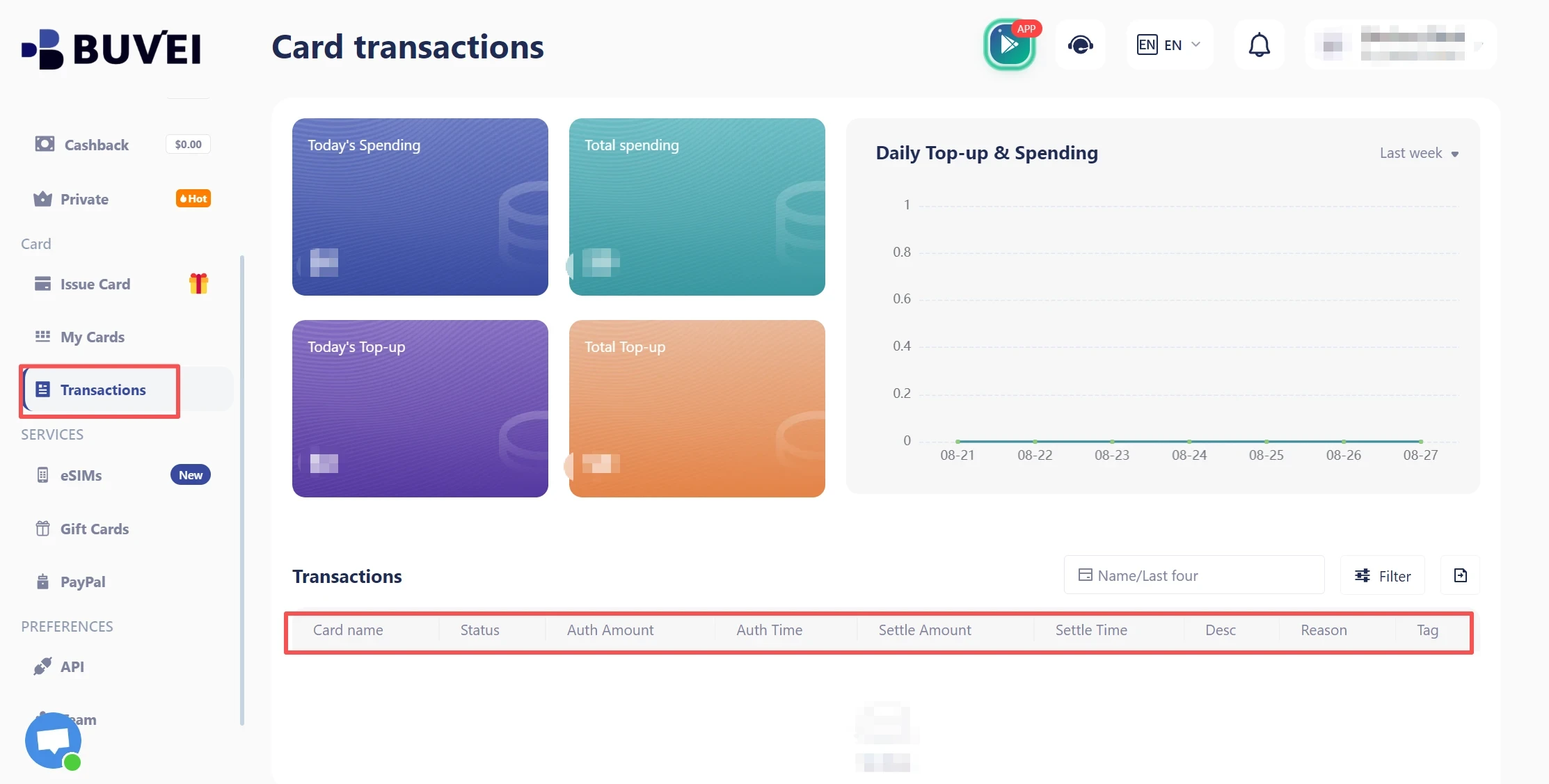
Regular transaction reviews help confirm that Webflow charges match your expectations. BUVEI provides transaction monitoring that can help businesses review card activity and identify recurring SaaS expenses. This is particularly useful when several virtual cards are used for different services.
How to Manage Webflow Payments with BUVEI
For businesses using Webflow alongside other SaaS platforms, the main benefit of a virtual-card workflow is not just making the first payment. It is creating a more structured way to manage recurring online expenses.
Create Dedicated Cards for SaaS Expenses
With BUVEI, businesses can create multiple virtual cards and assign them to different spending scenarios. A simple structure could look like this:
| Expense | Suggested Card Setup |
| Webflow | Webflow virtual card |
| Figma | Design software card |
| AI tools | AI subscription card |
| Advertising | Marketing card |
| Cloud services | Cloud infrastructure card |
This approach can make recurring transactions easier to identify and can provide clearer visibility into different categories of online spending.
Set Spending Controls
BUVEI supports spending controls that can be applied to virtual-card usage. For a Webflow card, you can establish a limit based on the expected subscription cost while leaving reasonable room for legitimate billing changes. This is more practical than applying the same unrestricted card to every online service.
Monitor Transactions
Transaction monitoring helps finance teams review when and where cards are being used. For recurring services such as Webflow, transaction visibility can make it easier to confirm renewal charges and identify unexpected activity.
Manage the Card Lifecycle
BUVEI also supports card lifecycle management, allowing businesses to manage the status of virtual cards as their payment requirements change. For example, an unused card can be frozen or closed when it is no longer needed.
However, remember that closing a payment card does not cancel a Webflow subscription. If you no longer need the Webflow service, cancel the applicable plan through Webflow first.
Scale with Multiple Cards and API Integration
As the number of SaaS subscriptions grows, businesses may need more than manually created individual cards. BUVEI supports multiple virtual cards and API integration, providing a foundation for businesses that want to build more structured virtual-card issuance and payment-management workflows.
What If Webflow Rejects Your Virtual Card?
If Webflow does not successfully process your virtual card, do not immediately assume that Webflow does not accept virtual cards. Several factors can affect whether a payment is processed successfully.
Check the Card and Payment Settings
Start by checking whether:
- The card is active and has not expired or been frozen.
- Sufficient funds are available.
- The spending limit allows the transaction.
- The billing information is correct.
- Recurring or merchant-initiated transactions are permitted by the card issuer.
If the initial payment succeeds but a later renewal fails, pay particular attention to the card’s recurring-payment settings and available funds.
Update the Payment Method
If the payment continues to fail, Webflow recommends updating the payment method through the Workspace billing settings so another payment attempt can be made. Webflow also states that failed payments may be retried during a grace period before unresolved payment issues can eventually affect the plan.
This means a failed virtual-card payment does not necessarily mean that you need to abandon virtual cards altogether. Check the specific card and billing configuration first.
Best Practices for Using a Virtual Card with Webflow
A virtual card works best when it is part of a broader expense-management process.
For Webflow, consider using a dedicated card or a clearly defined SaaS spending card. Set a practical spending limit, keep enough available funds for renewals, and review transactions regularly.
If you manage several Webflow sites, remember that payment cards are associated with Workspaces rather than individual Site plans. This should be considered when designing your card and expense structure.
Finally, if you stop using Webflow, cancel the applicable Webflow plan before freezing or closing the payment card. A card-management action does not automatically terminate the underlying subscription.
Frequently Asked Questions
Can I pay for Webflow with a virtual card?
Yes, a virtual card may be used for Webflow when it meets the applicable payment requirements. Webflow supports major card networks including Visa and Mastercard, but acceptance of a specific virtual card can depend on the card issuer, billing information, and transaction type.
Does Webflow accept Visa virtual cards?
Webflow accepts Visa cards, so a Visa virtual card may work if it meets Webflow’s payment requirements and the card issuer allows the transaction. However, Webflow does not guarantee acceptance of every virtual card.
Can I use a virtual card for recurring Webflow payments?
Potentially. Webflow uses the payment card on file for applicable future subscription charges. The virtual card should therefore remain active, adequately funded, and capable of supporting the required recurring transaction type.
What should I do if Webflow rejects my virtual card?
Check the card status, available funds, spending controls, billing information, and recurring-payment settings. If the payment still fails, update the payment method in Webflow’s billing settings and retry the payment.
Can I use BUVEI for Webflow payments?
BUVEI provides Visa and Mastercard virtual cards for online payment scenarios, along with multiple-card management, spending controls, transaction monitoring, card lifecycle management, and API integration.
For Webflow, businesses can create a dedicated virtual card, add it as the applicable payment method, and monitor the resulting transactions through their card-management workflow.
Conclusion
Paying for Webflow with a virtual card can help businesses separate website expenses, control recurring payments, and monitor subscription activity more efficiently.
The process is straightforward: create a suitable virtual card, add it to your Webflow Workspace, and complete the applicable plan payment. For businesses managing multiple SaaS subscriptions, BUVEI provides virtual card issuance, spending controls, transaction monitoring, card lifecycle management, and multiple-card support to build a more organized payment workflow.