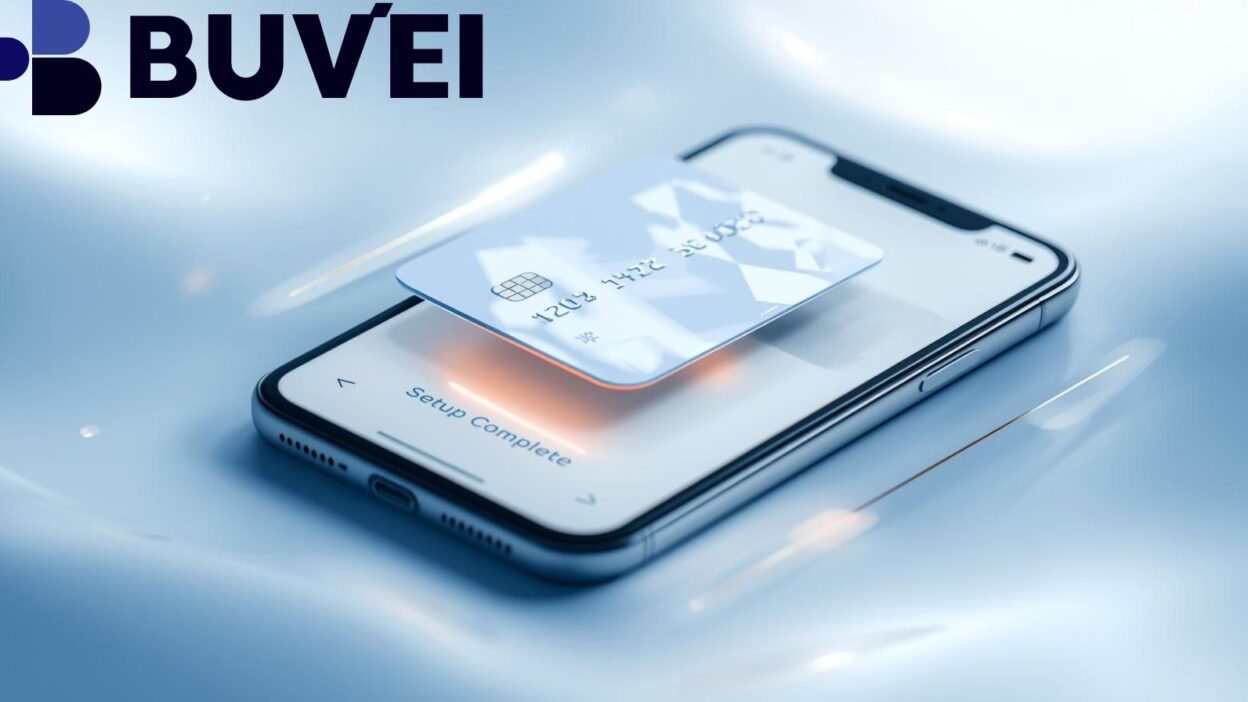
In today’s fast-paced digital world, virtual cards have become an essential tool for secure and convenient payments. With the rise of Apple Pay, linking a virtual card to your mobile wallet allows instant, contactless transactions while protecting your financial information. This guide walks you through everything you need to know to set up virtual cards on Apple Pay, maximize security, and manage your cards efficiently.
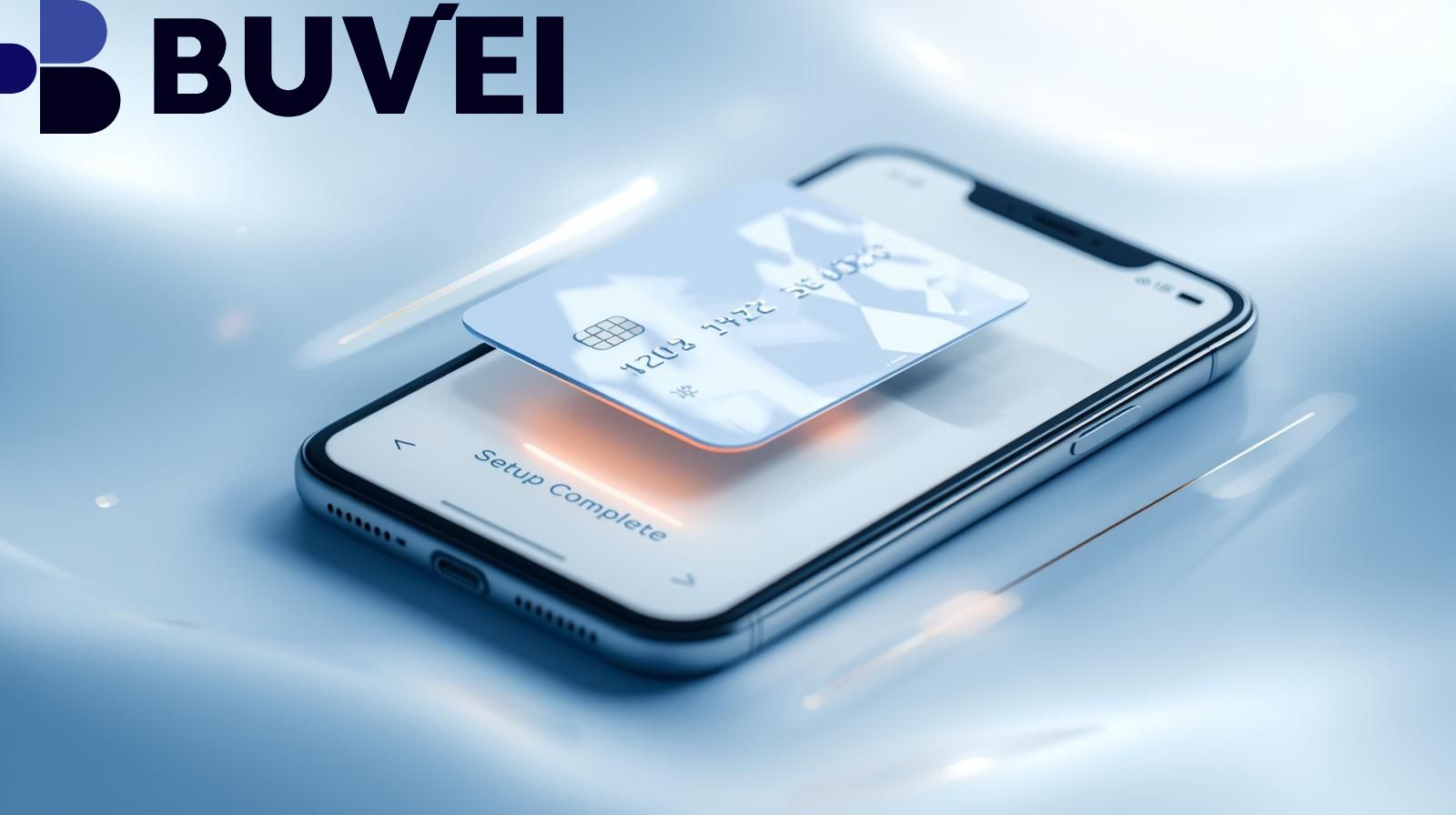
Understanding Virtual Cards and Apple Pay
Before diving into setup, it’s crucial to understand what virtual cards are and how they work with Apple Pay. A virtual card is a digital version of a physical debit or credit card, generated instantly by your bank or payment provider. These cards allow you to:
-
Make secure online and in-store payments without exposing your main account.
-
Limit spending with customized card limits.
-
Protect against fraud and unauthorized charges.
When linked to Apple Pay, your virtual card can be used anywhere Apple Pay is accepted, offering the same convenience as a physical card but with enhanced security.
Choosing the Right Virtual Card Provider
Not all virtual cards are created equal. When selecting a provider for Apple Pay, consider:
-
Instant issuance: Look for providers that generate cards immediately for use in Apple Wallet.
-
Compatibility with Apple Pay: Ensure the card is fully supported for contactless and online payments.
-
Security features: Providers should offer options like one-time-use numbers and transaction alerts.
-
Multiple currency support: Ideal for frequent travelers or online shoppers.
Popular choices include digital banks and fintech companies that prioritize security, convenience, and real-time control over your virtual cards.
Step-by-Step Setup of Virtual Cards in Apple Pay
Setting up a virtual card in Apple Pay is straightforward:
-
Obtain a virtual card from your bank or fintech app. Ensure it is compatible with Apple Pay.
-
Open Apple Wallet on your iPhone.
-
Tap the “+” icon to add a new card.
-
Select “Add a Credit or Debit Card” and follow the on-screen prompts.
-
Enter your virtual card details, including card number, expiration date, and CVV.
-
Verify the card via your provider’s authentication process.
-
Complete setup and confirm the card appears in Apple Wallet.
Once added, you can pay instantly using Apple Pay at retailers, online stores, or apps supporting contactless payments.
Tips for Managing Virtual Cards on Apple Pay
Maximizing the benefits of virtual cards requires proper management. Consider the following tips:
-
Create separate cards for different purposes: Use one card for subscriptions, another for shopping, and another for travel.
-
Monitor transactions in real time: Apple Wallet and your card provider’s app often provide instant notifications.
-
Set spending limits and expiry dates: Prevent overspending and reduce exposure to fraud.
-
Regularly update virtual cards: For enhanced security, generate new virtual cards periodically.
By following these practices, you ensure that your Apple Pay virtual cards remain secure, organized, and efficient for everyday transactions. 
Conclusion
Virtual cards on Apple Pay combine the convenience of mobile payments with the security of digital finance. By understanding the setup process, choosing the right provider, and managing your cards wisely, you can enjoy safe, instant, and flexible transactions without exposing your primary account. Implement these steps today to maximize both security and convenience in your digital payments.