


Introduction
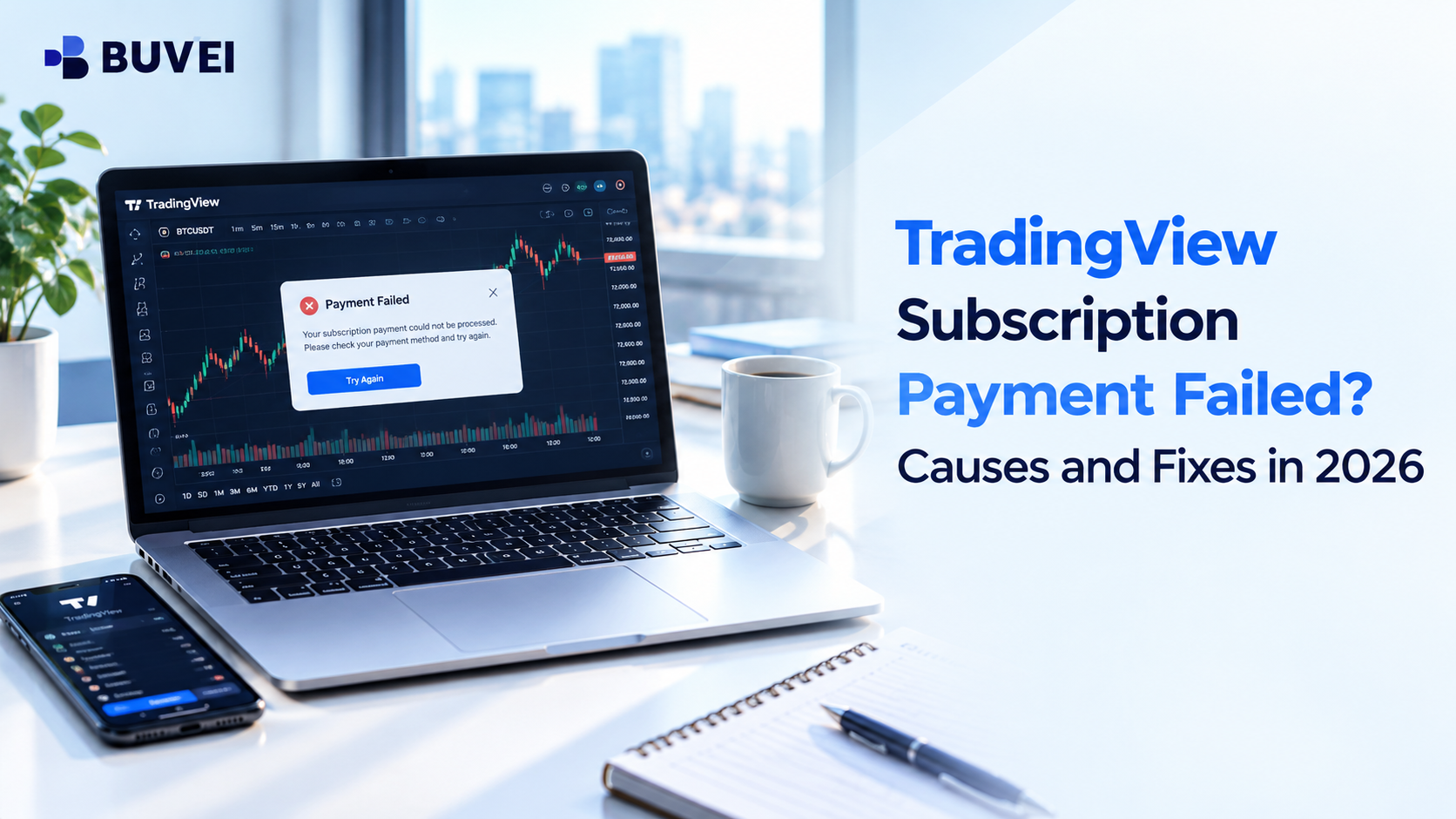
If your TradingView payment failed during checkout or subscription renewal, don't rush to try another card. The problem could be an incorrect billing detail, a card restriction, or a payment security check—and each requires a different fix.
This guide shows you how to troubleshoot the most common payment errors, update your payment method, and check whether your subscription is still active. If your usual card isn't working, you'll also learn how to prepare a virtual card for online payments.
Why Is My TradingView Payment Failing?
1. Incorrect Card or Billing Details
Even a small mistake can cause a payment to be declined. Check your card number, expiration date, and CVV, then make sure your billing ZIP code matches the information on file with your card issuer.
If you've recently replaced your card, make sure you're using the updated details. It's worth checking these basics before trying another payment method.
2. Insufficient Funds or Card Restrictions
Your card needs enough available funds to cover the subscription charge and any applicable fees. Even if the balance looks sufficient, a spending limit or a restriction on online or recurring payments could prevent the transaction from going through.
Check your available balance, card limits, and online payment settings before trying again.
3. Your Payment Method Isn't Supported
The payment options available on TradingView can vary by country and purchase method. Depending on your location, you may be able to pay with a credit or debit card, PayPal, a digital wallet, or another supported method.
If your preferred option isn't available at checkout, choose one of the alternatives shown in your account. If you subscribed through the iOS or Android app, you'll need to manage payments through the relevant app store.
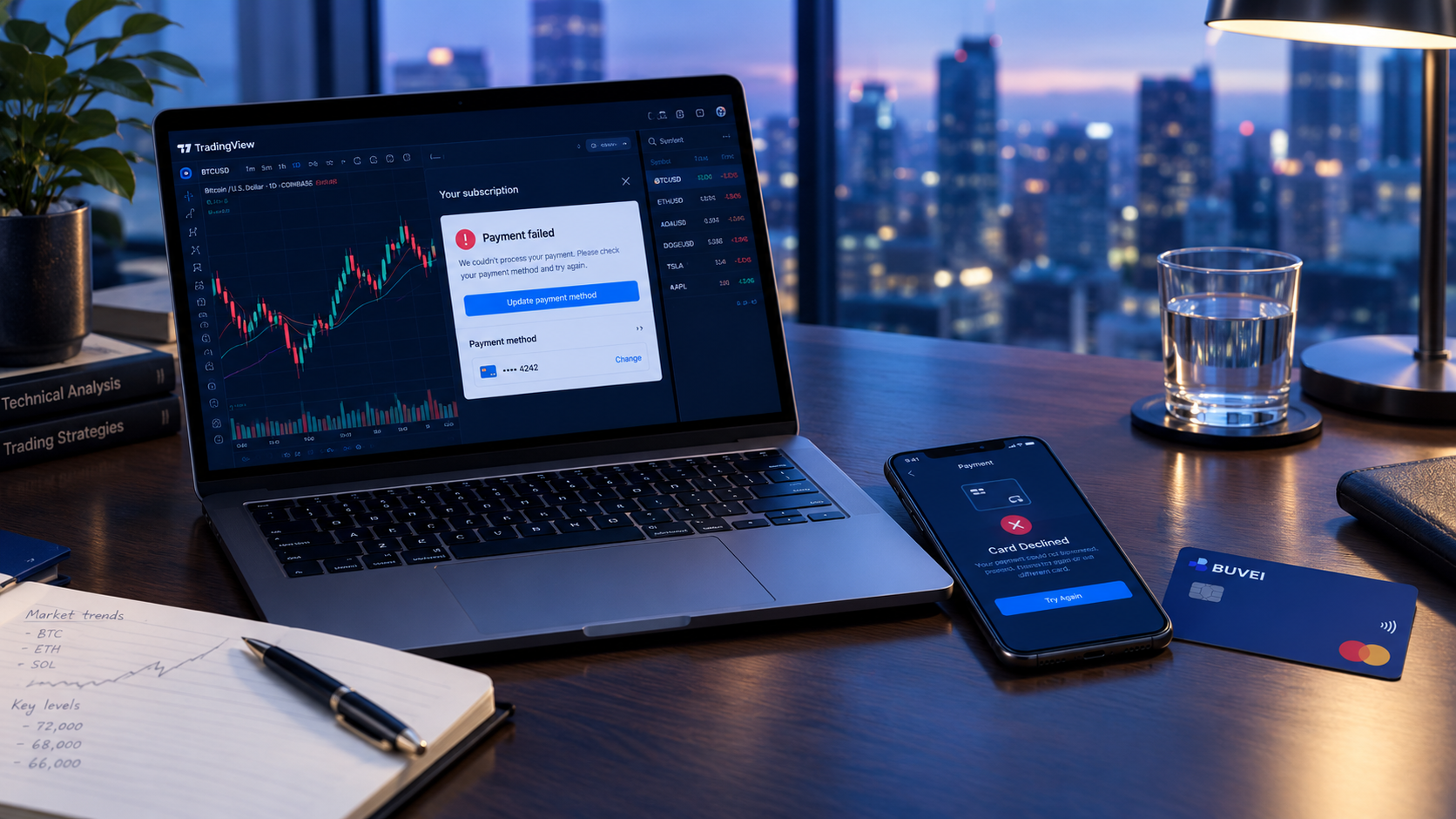
4. TradingView Has Temporarily Blocked Your Payment
Sometimes a payment gets flagged by security checks, even when your card details and balance are correct.
If TradingView tells you that your payment attempts have been blocked, wait 24 hours before trying again. Repeated attempts during that period are unlikely to help. Instead, double-check your billing details and review the payment information you've entered.
5. Your Subscription Renewal Didn't Go Through
A card that worked for your last payment may fail at renewal. Your card could have expired, your balance may have changed, or your card issuer may have declined the recurring charge.
Check your subscription status and any renewal emails from TradingView. If your subscription has been canceled because payment couldn't be collected, you'll need to subscribe again.
How to Fix a Failed TradingView Payment
Once you have an idea of what went wrong, work through these steps in order.
Step 1: Check Where You Bought Your Subscription
Did you subscribe through the TradingView website or a mobile app? This determines where you'll need to manage your payment.
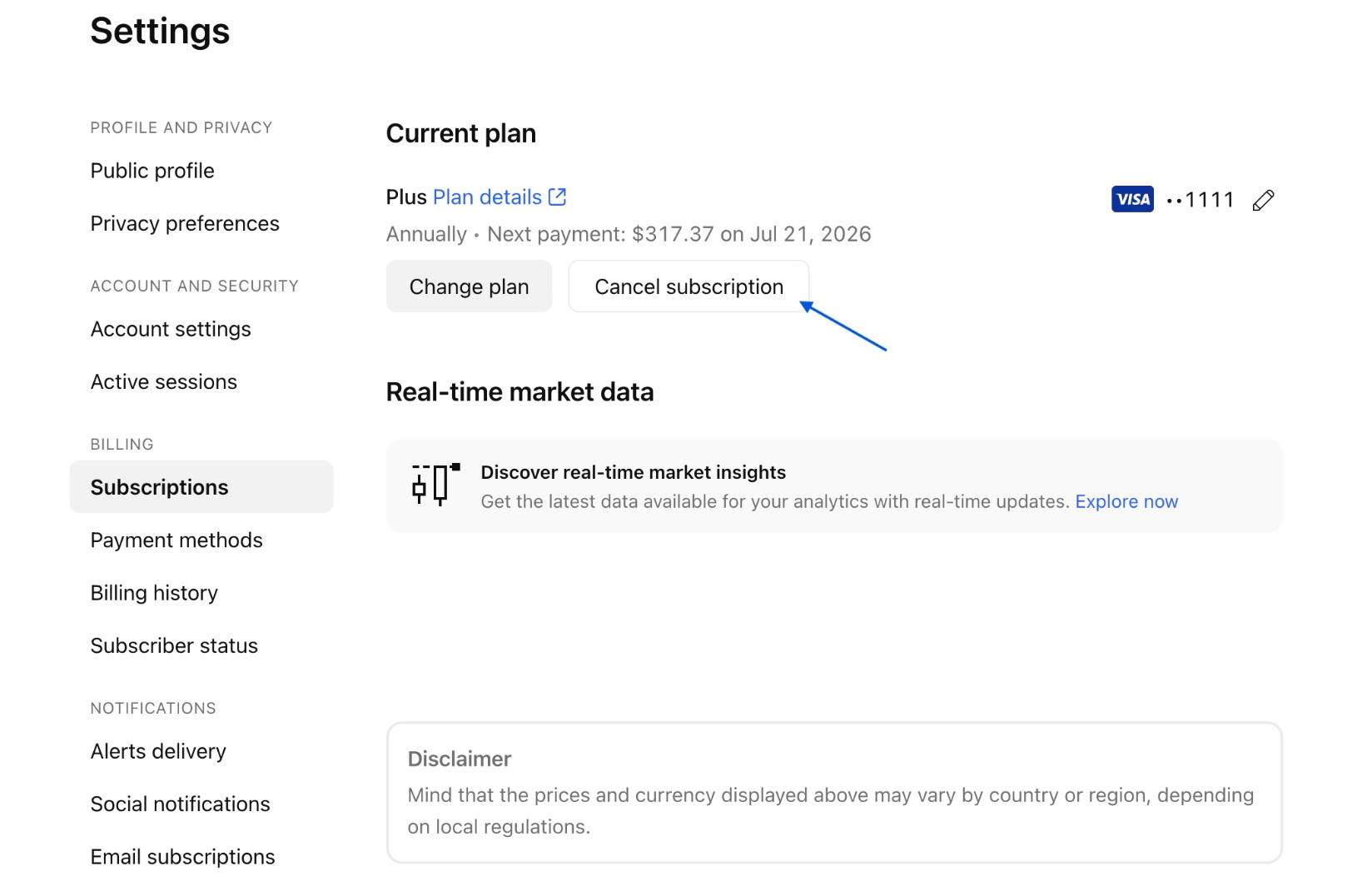
For a website subscription, sign in to your TradingView account and open your subscription settings. If you subscribed through Apple or Google, check your subscriptions and payment settings in the relevant app store.
Step 2: Check Your Balance and Card Settings
Make sure your available balance covers the subscription price. Check your card's spending limits and confirm that online and recurring payments are enabled.
If you're paying in a different currency from the one held on your card, leave room for any currency conversion costs.
Step 3: Double-Check Your Billing Information
Review your card number, expiration date, CVV, and billing ZIP code. Make sure the details match your card account.
If you've recently received a replacement card, update the saved payment information. Correcting a small detail may be all it takes to get the payment through.
Step 4: Update Your Payment Method
If you subscribed through the TradingView website, sign in to your account, open Settings and billing, and select Subscriptions. Click Manage payment method.
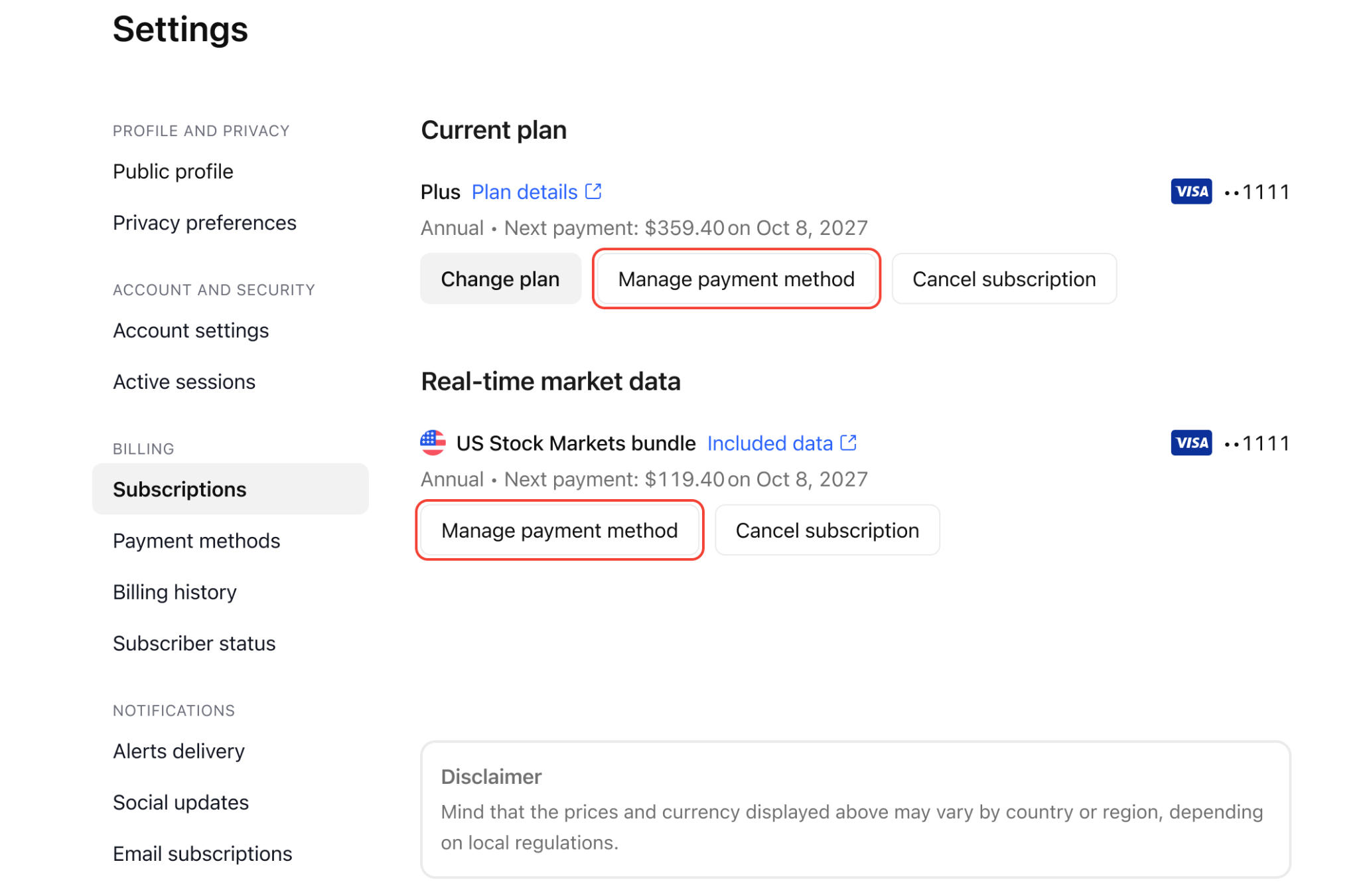
If you subscribed through a mobile app, update your payment method in the corresponding app store instead.
Step 5: Wait if Your Payment Has Been Blocked
If TradingView has temporarily blocked your payment attempts, wait the full 24 hours before trying again. Use that time to check your card details and make sure your payment information is correct.
Still getting the same error afterward? Contact your card issuer or TradingView Support to find out whether there's a restriction on the transaction.
Step 6: Check Your Payment and Subscription Status
If your card has been charged but your TradingView subscription hasn't been activated, don't make another payment just yet. First, make sure you're signed in to the account you used to purchase the subscription.
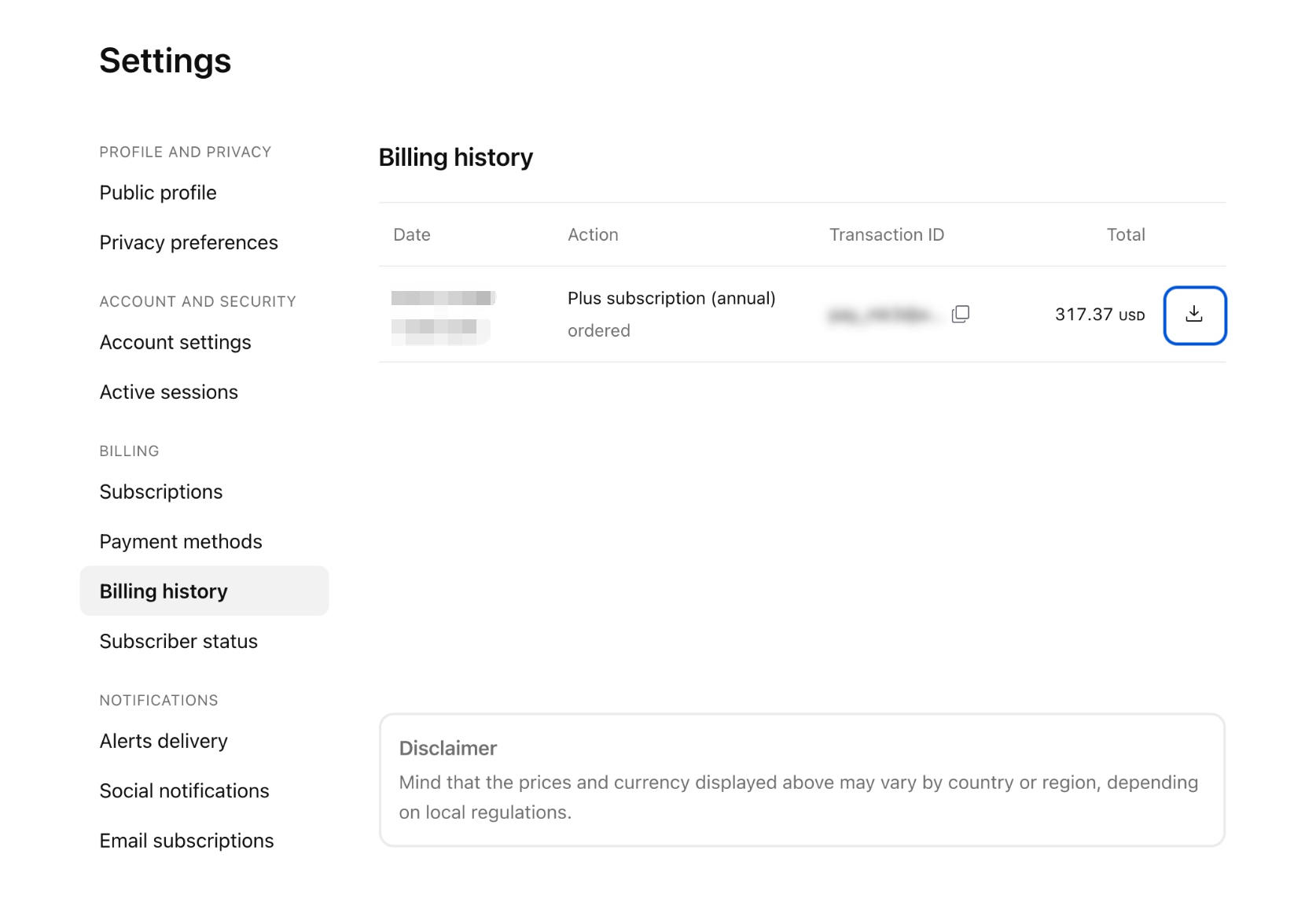
Open your subscription settings and check your billing history to confirm the transaction status. If the payment is still processing, give it some time to complete.
Can You Pay for TradingView with a Virtual Card?
If your usual card isn't working, a virtual card may be worth considering for online payments.
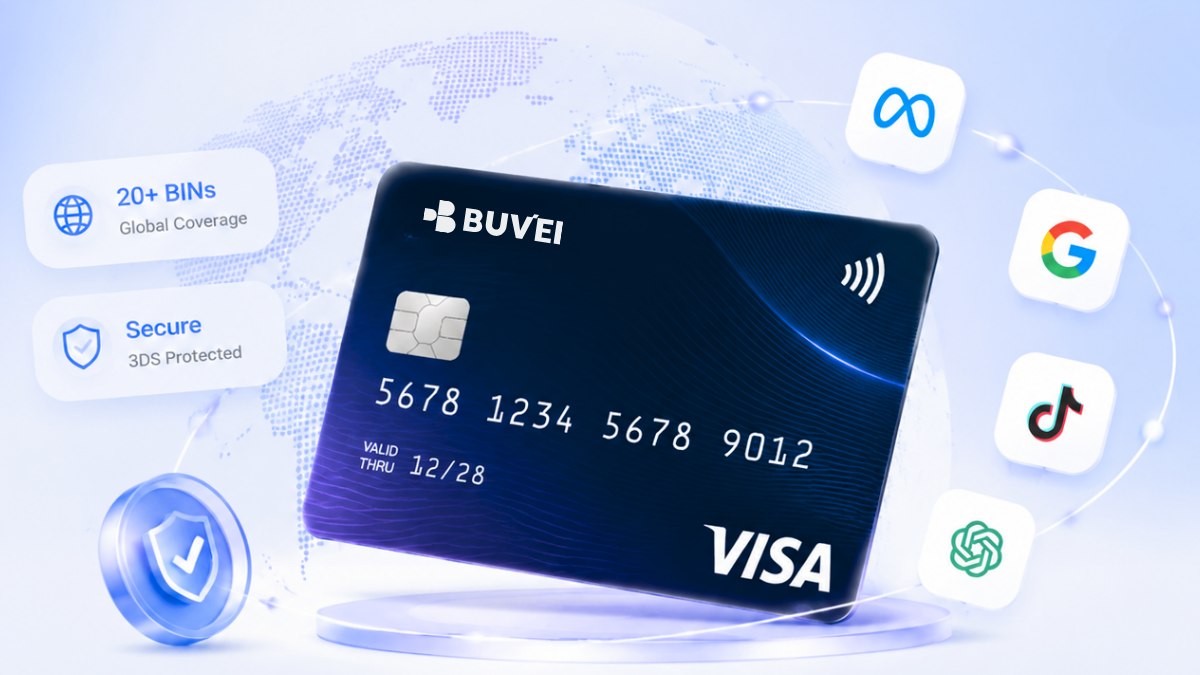
BUVEI offers virtual Visa and Mastercard cards, multiple BIN regions, and tools to manage card spending. These features can be useful if you pay for several subscriptions and want to keep their expenses separate.
For example, you could use a dedicated virtual card for a particular online service and review its transactions separately. Before using a BUVEI card for TradingView, make sure the card and payment details meet the platform's requirements.
How to Create a BUVEI Virtual Card
Step 1: Create Your BUVEI Account
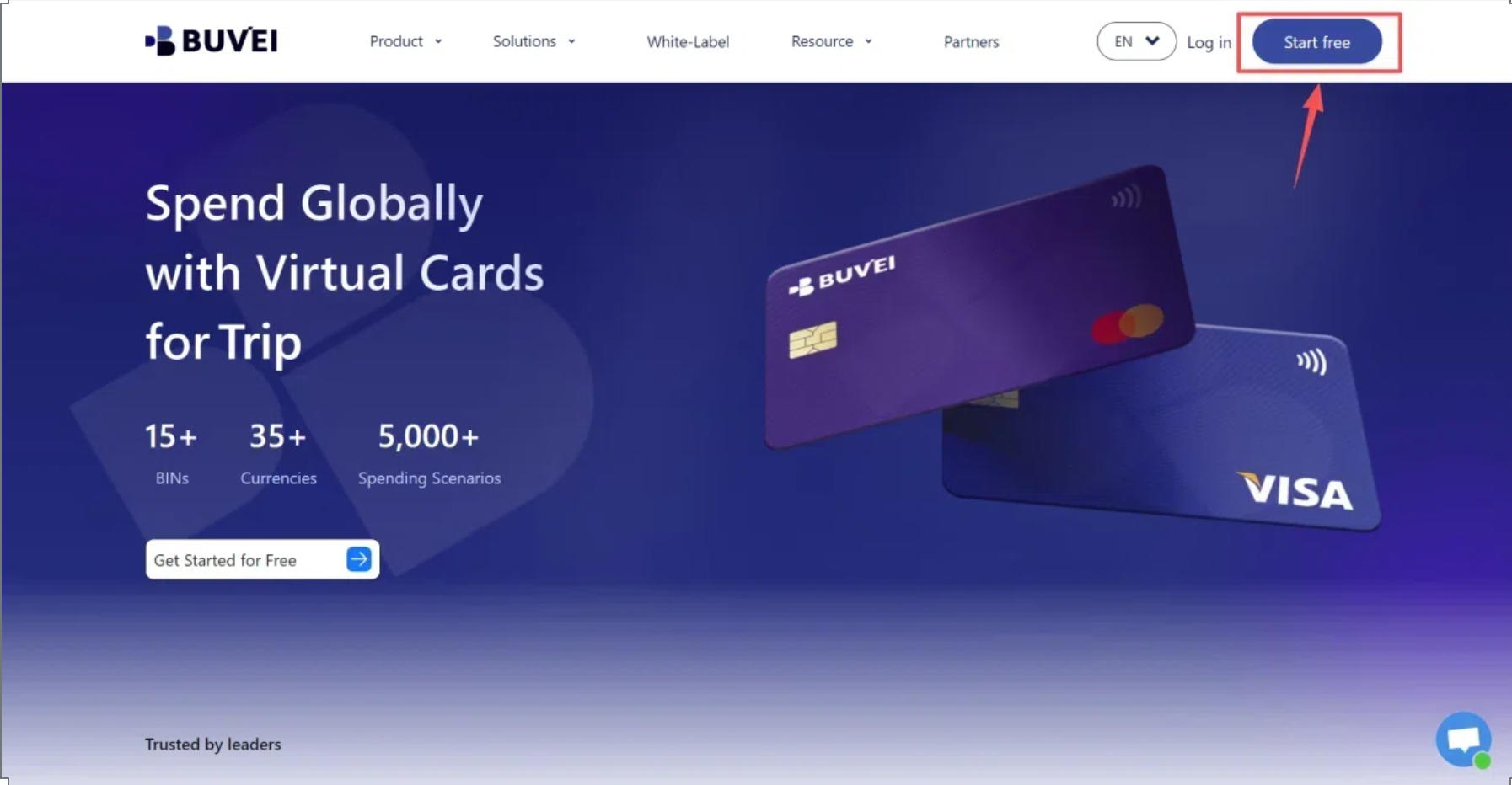
Go to BUVEI, create an account, and verify your email address. Once that's done, sign in to open your dashboard.
Step 2: Add Funds to Your BUVEI Wallet
Open Wallet and choose a funding method available to your account, such as USDT via TRC20 or ERC20.
Copy the deposit address shown in your wallet and make sure the transfer network matches the one you've selected. Check the minimum deposit and applicable fees before sending your funds. Once the transfer is confirmed, make sure the balance appears in your wallet.
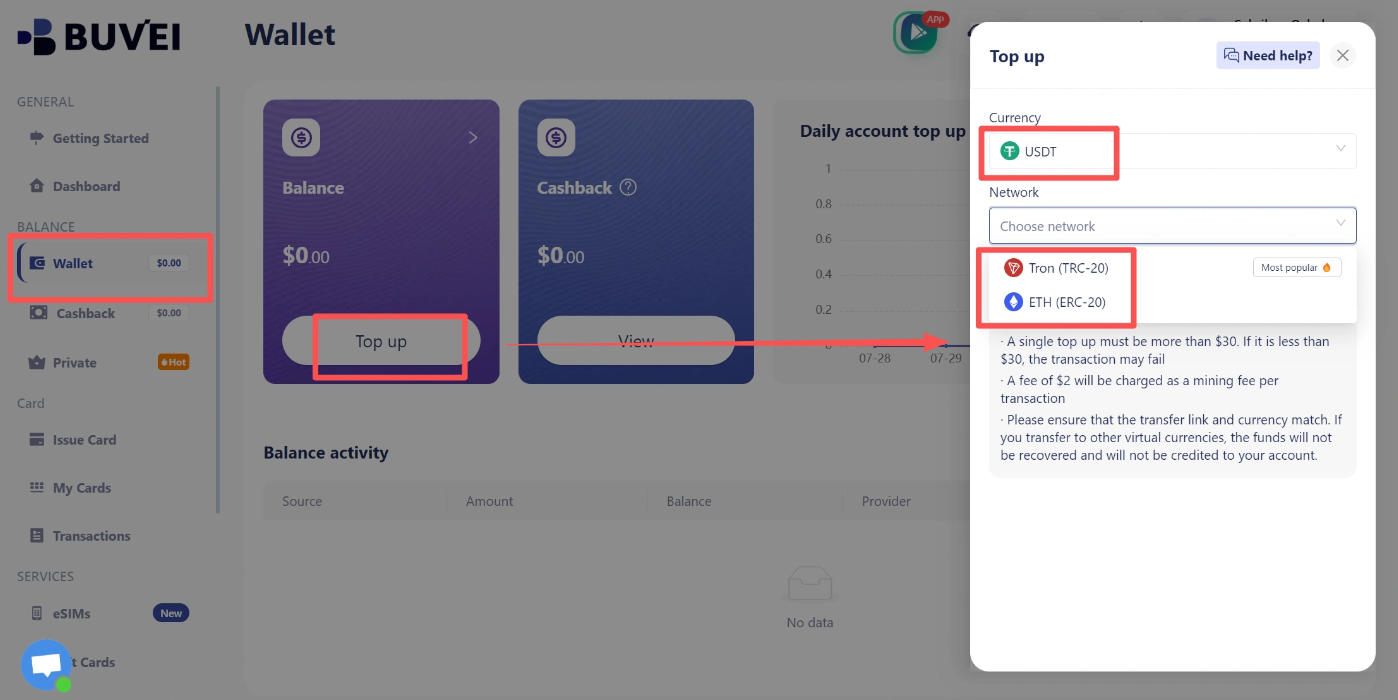
Always double-check the wallet address and network before sending crypto.
Step 3: Create a Virtual Card
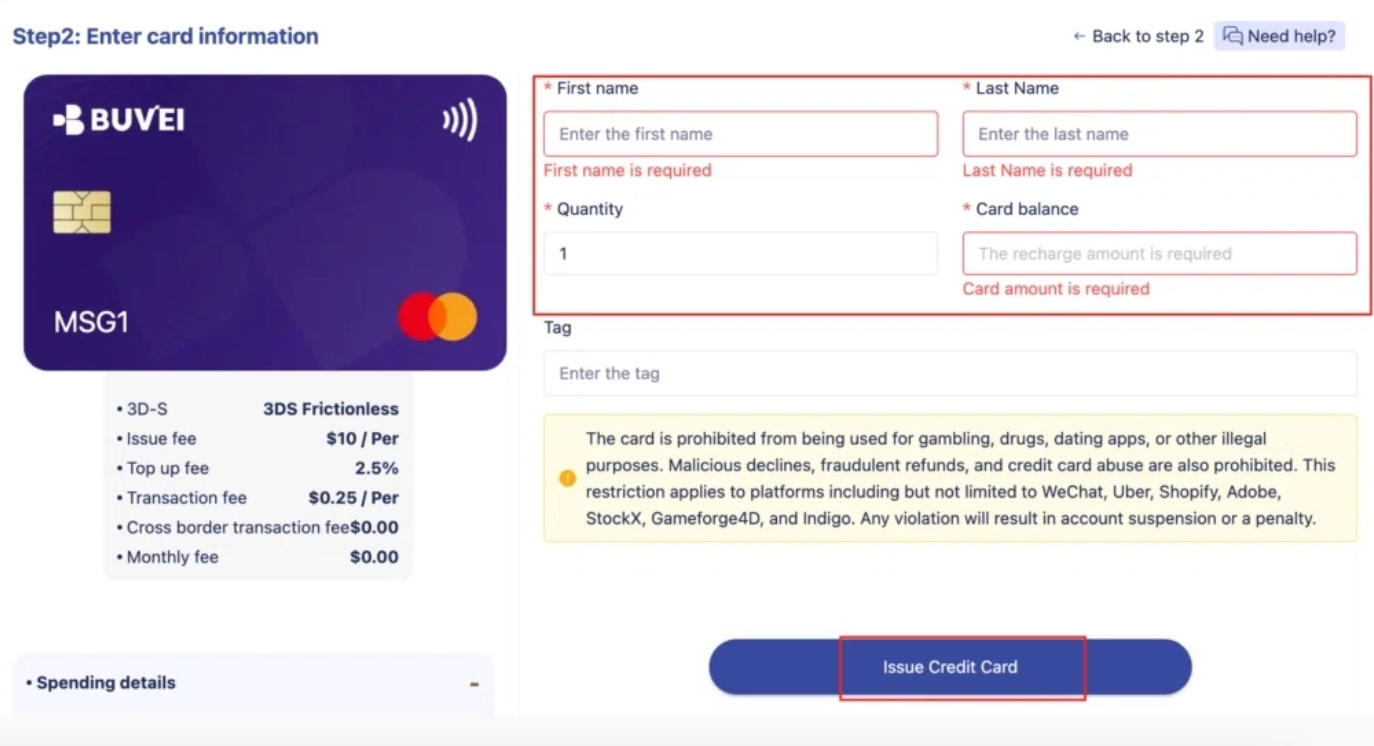
Go to Cards and choose a BIN region and card type that suit your needs. Enter a card name, the amount, and the number of cards you want to create, then click Issue Card.
Step 4: Find Your Card Details
Open My Cards to view your card number, expiration date, and CVV. Make sure the card is active and has enough funds for the payment.
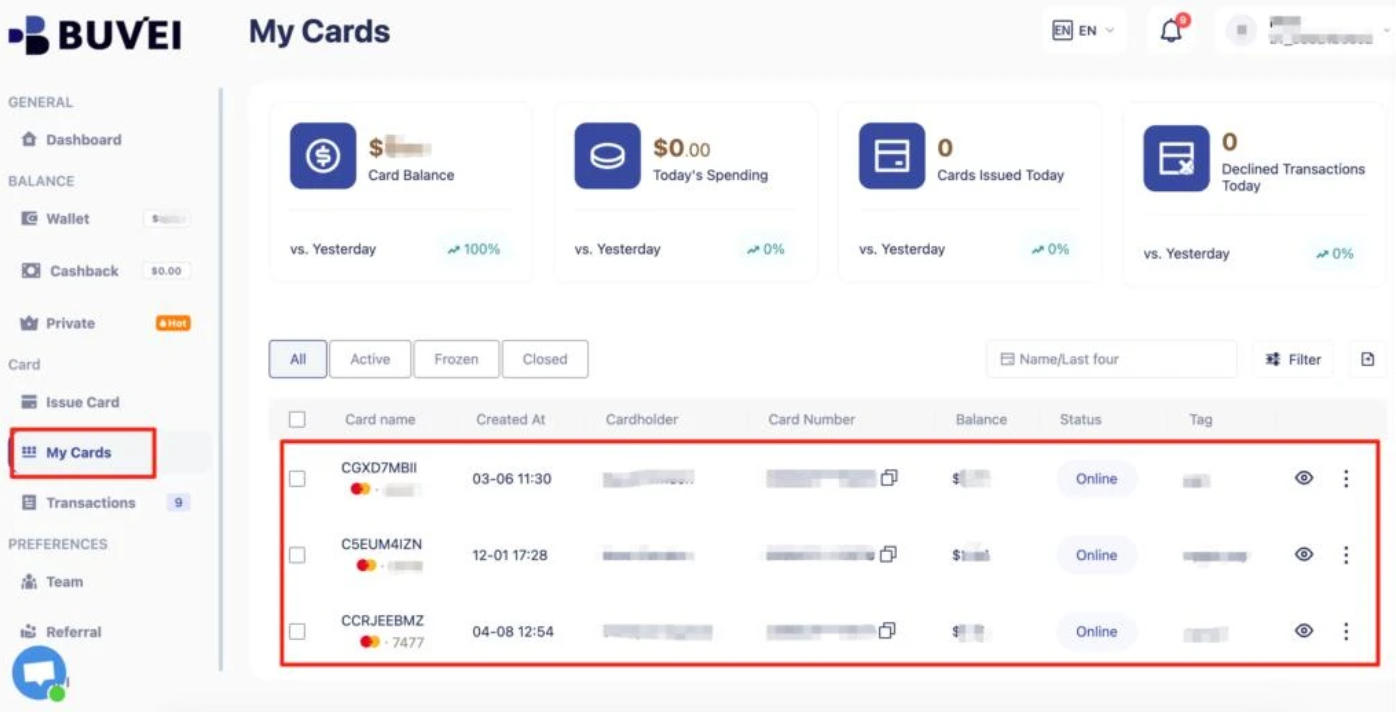
You can then enter the card details at TradingView checkout and follow the payment instructions.
Keep Your Subscription Payments Organized
If you're paying for several online services, it can be easy to lose track of recurring charges.
BUVEI's card management tools can help you stay organized:
- Spending limits: Set limits for individual cards to keep budgets under control.
- Freeze and unfreeze: Temporarily suspend a card or make it available again.
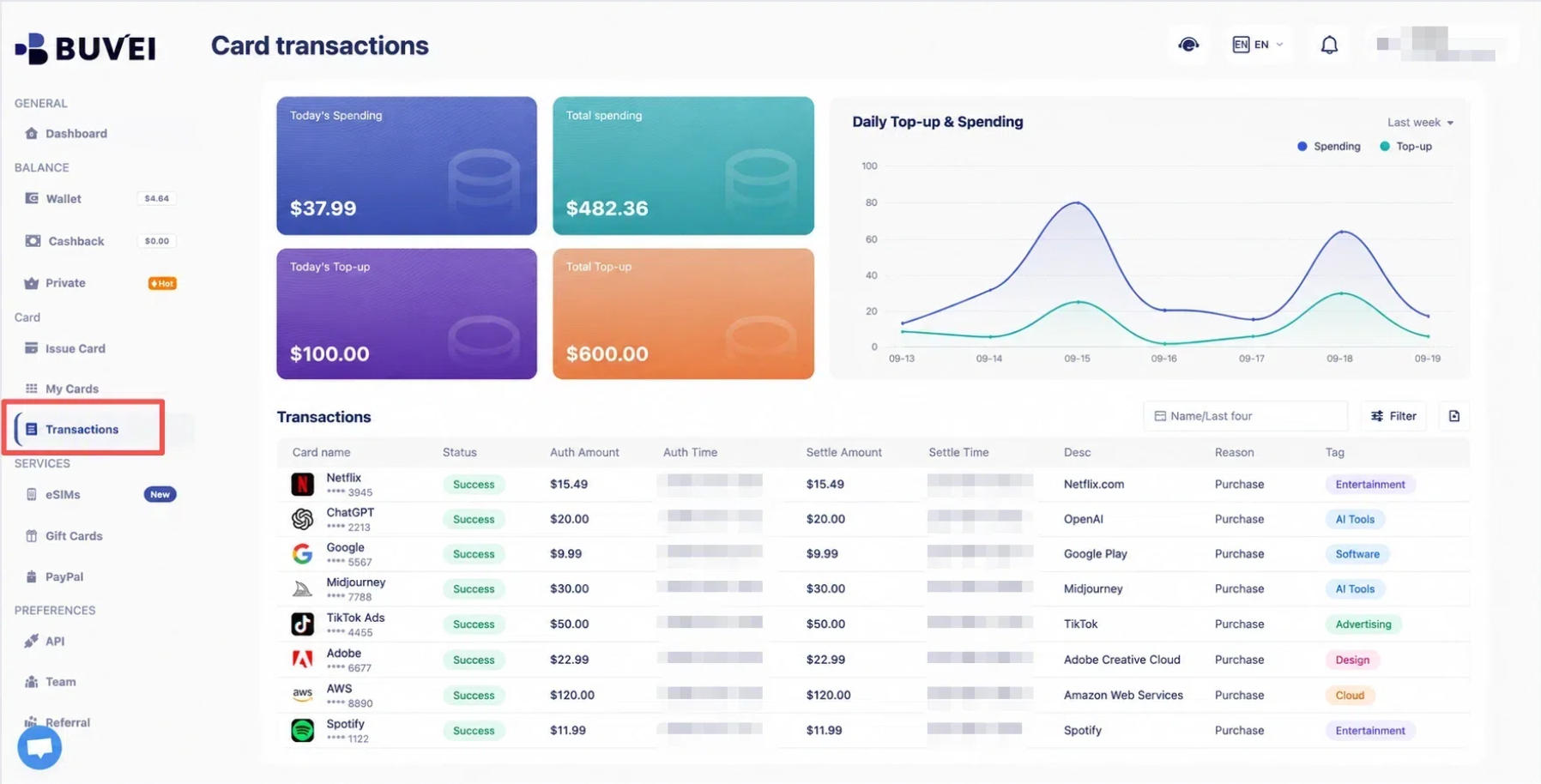
- Transaction tracking: Review payment activity and identify individual charges.
Using separate cards for different services can also make it easier to see where your money is going, especially when you're managing multiple subscriptions.
Frequently Asked Questions
Why Is TradingView Declining My Card Even Though I Have Enough Money?
A sufficient balance doesn't guarantee that a payment will be approved. Incorrect billing details, card restrictions, or a security check can still cause a decline. Double-check your information and contact your card issuer if the problem continues.
What If TradingView Charged Me but My Subscription Is Still Inactive?
First, make sure you're signed in to the correct TradingView account. Then check your billing history and allow time for the payment to process. If the charge is complete but your subscription remains inactive, contact TradingView Support before purchasing again.
Can I Use a Virtual Card to Pay for TradingView?
A virtual card may work if it's supported for your transaction and region. Make sure the card is active, has sufficient funds, and uses accurate billing information before submitting your payment.
Conclusion
A failed TradingView payment doesn't always mean you need a new card. Start by checking your billing details, available balance, and card settings. If your payment is blocked, wait 24 hours before trying again. If your subscription has been canceled, confirm its status before purchasing another plan.
For users who pay for multiple online services, keeping recurring expenses organized is just as important as resolving a failed payment. BUVEI offers virtual Visa and Mastercard cards with spending limits and transaction tracking, making it easier to separate payments and keep an eye on subscription costs.