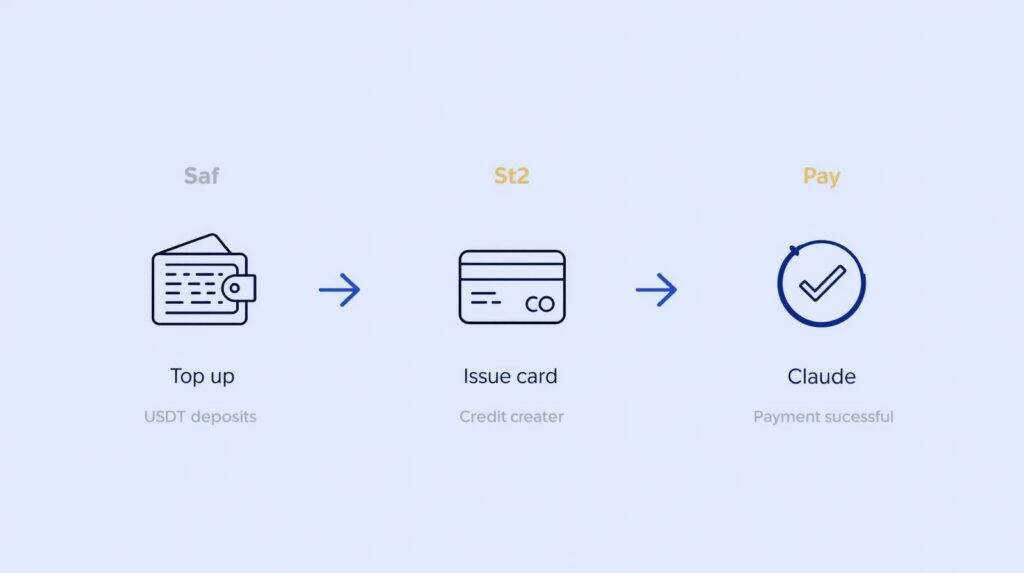
Getting declined when subscribing to Claude? The usual culprits are region/currency mismatches, billing address (AVS) failures, and first-payment risk checks. Whether you’re a solo creator or a team using Claude for writing, engineering, and collaboration, the first hurdle is often payment. This guide gives you a repeatable fix: use a Buvei multi-BIN virtual card, then follow the steps—create → top up → enter details → verify. We’ve also included a quick checklist of common decline codes and retry tactics. Follow along and you’ll typically get approved on the first try—or within two attempts.
Choose your plan on Claude.ai
Step 1: Log in to Your Claude Account
Visit the Claude official site and sign in to your existing account.

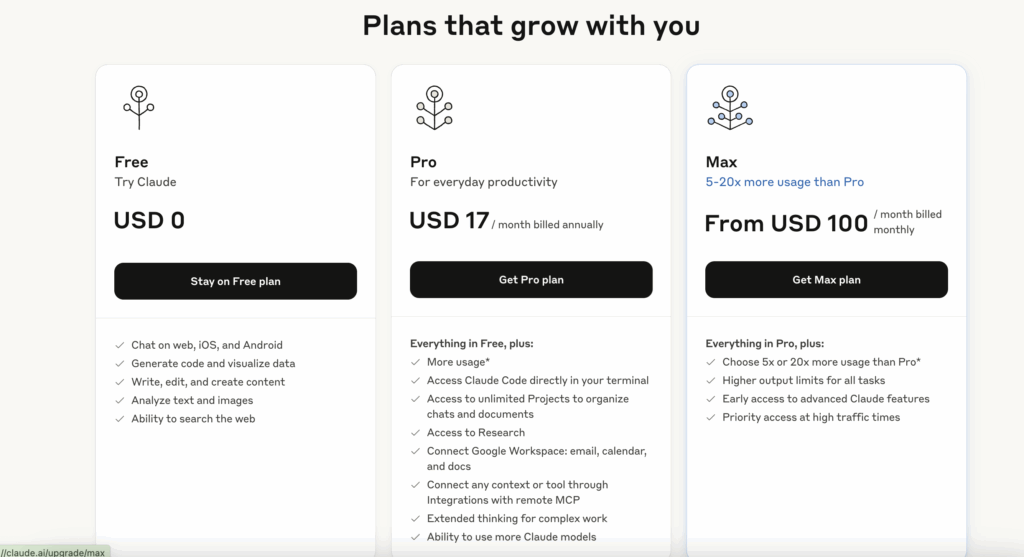
Step 2: Choose Your Subscription Plan
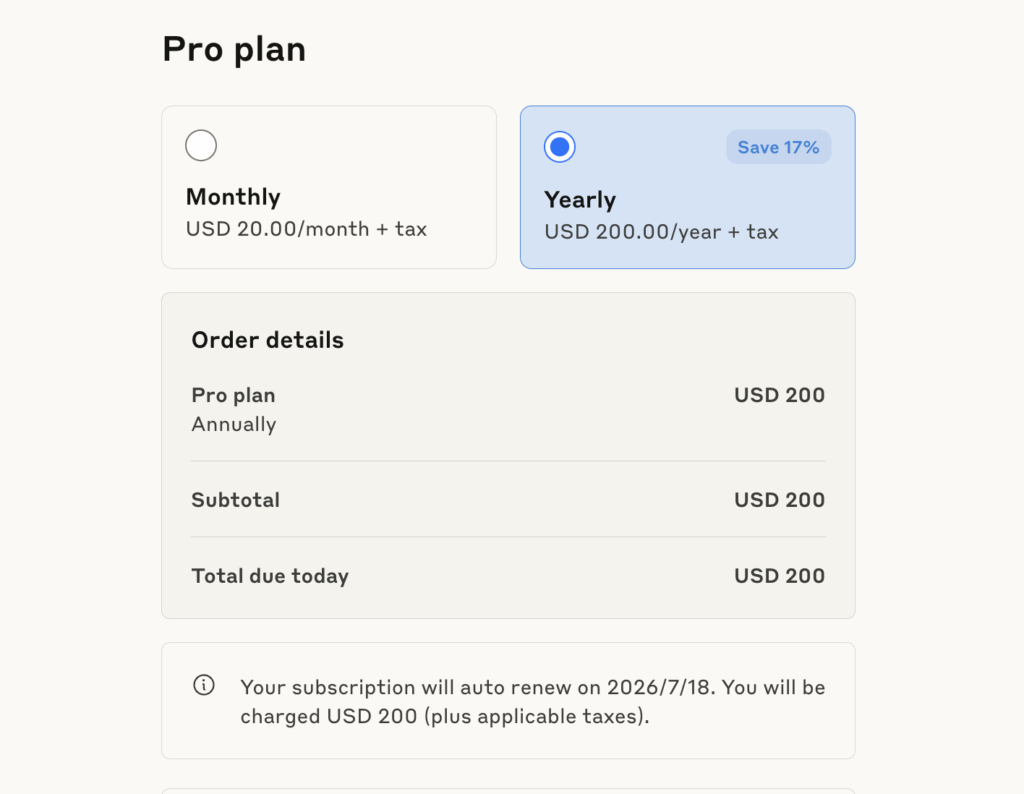
Step 3: Select Billing Frequency
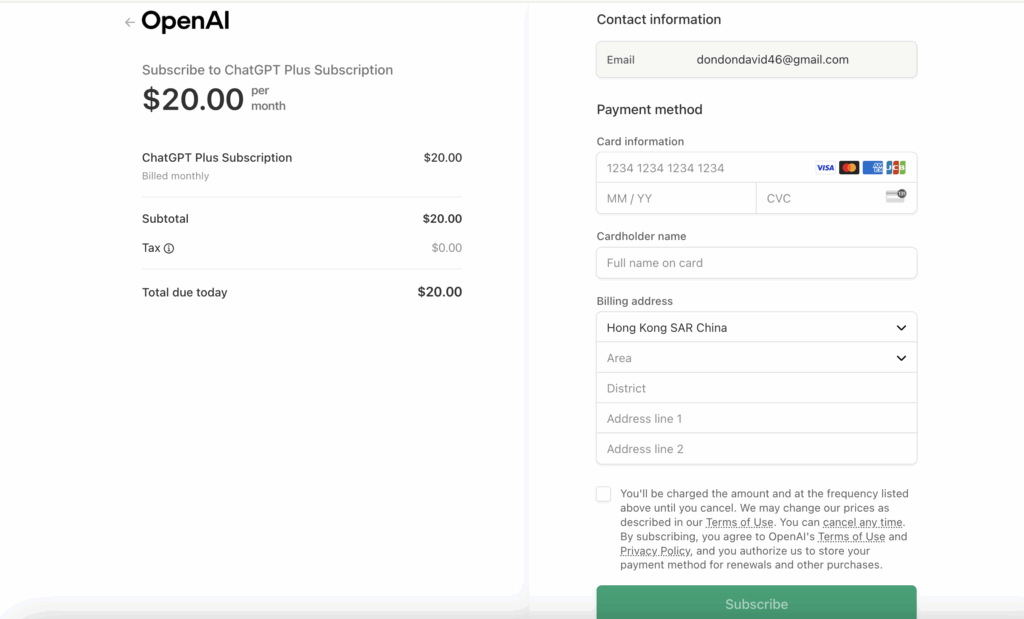
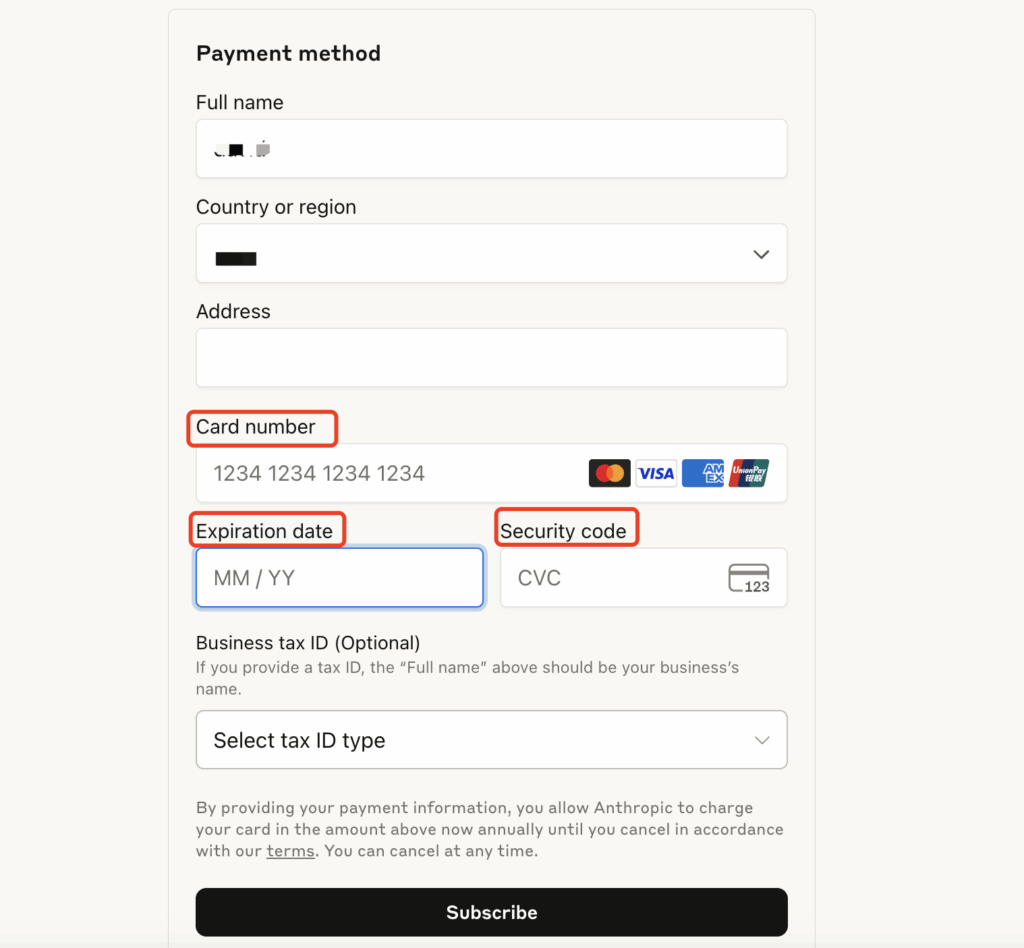
Step 4: Enter Your Payment Information
-
Full name
-
Country or region
-
ZIP code
-
Buvei virtual card details: Card number, Expiry date, CVV
-
Business tax ID (optional)
Step 5: Save and Verify
Common Errors & Troubleshooting
| Issue | Solution |
| Binding Failed | Double-check card number, expiration date, and CVV. Ensure card balance is sufficient. |
| Authorization Declined | Check card limit or contact Buvei support to remove any restrictions. |
| Payment Rejected | Make sure the card supports international online and subscription payments. |
| Multiple Accounts Using One Card | Use unique virtual cards per account to reduce risk and manage transactions safely. |

Haven’t Created a Buvei Virtual Card Yet? Follow These Steps:
-
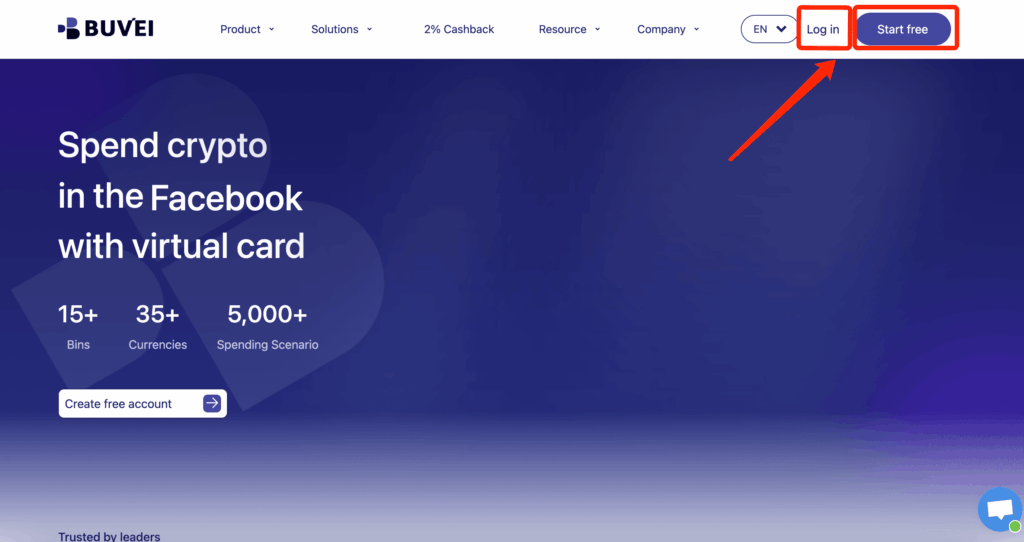
Sign up/Sign in at buvei.com
-
If you haven’t signed up yet, simply click 'Start Free' to register quickly with your email.
-
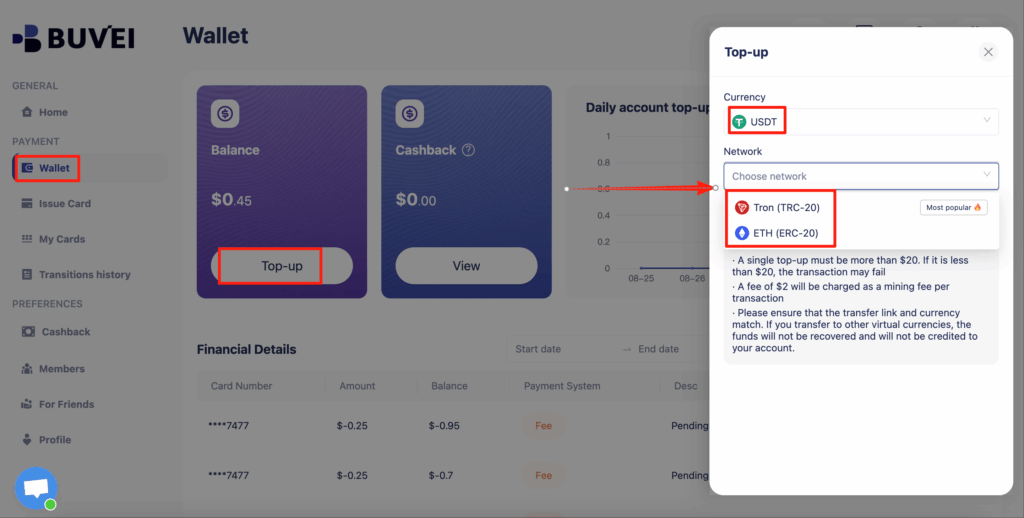
- Navigate to the Wallet tab and top up using supported stablecoins like USDT (TRC20/ERC20). You’ll receive a unique address—copy it and send your funds.
- Once confirmed, your balance will appear in the wallet for immediate use.
Create a Virtual Card
-
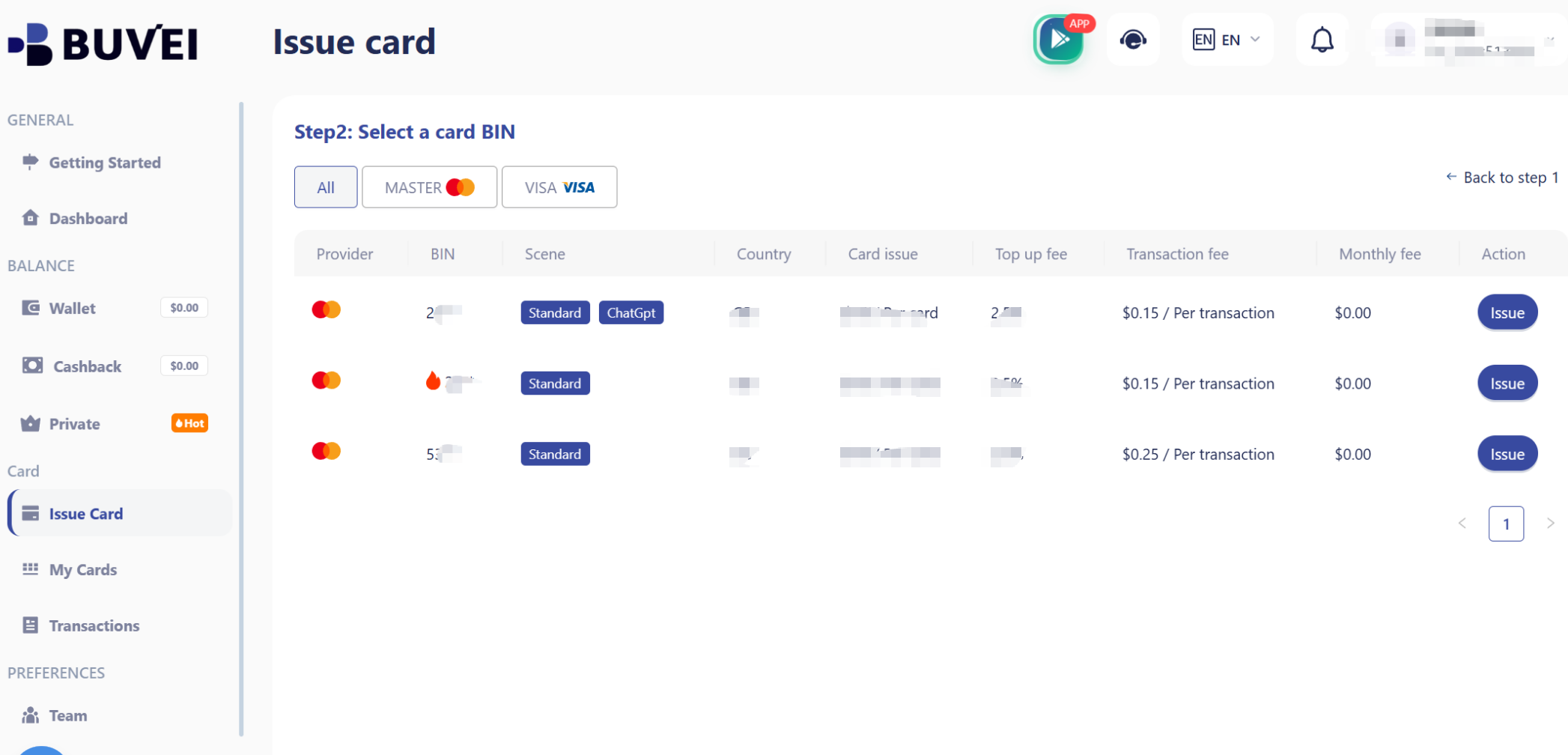
Go to the Card tab
-
Choose your preferred BIN region
-
Select your card type (Visa/Mastercard)
- Click Issue
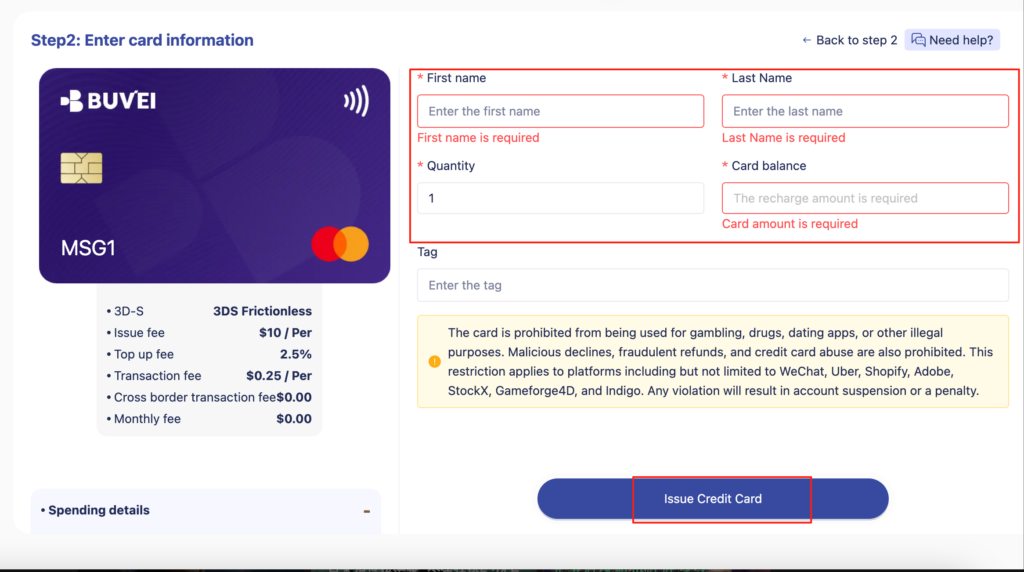
- Fill in the virtual card details, including name, amount, and number of cards.
-
Click Issue Card
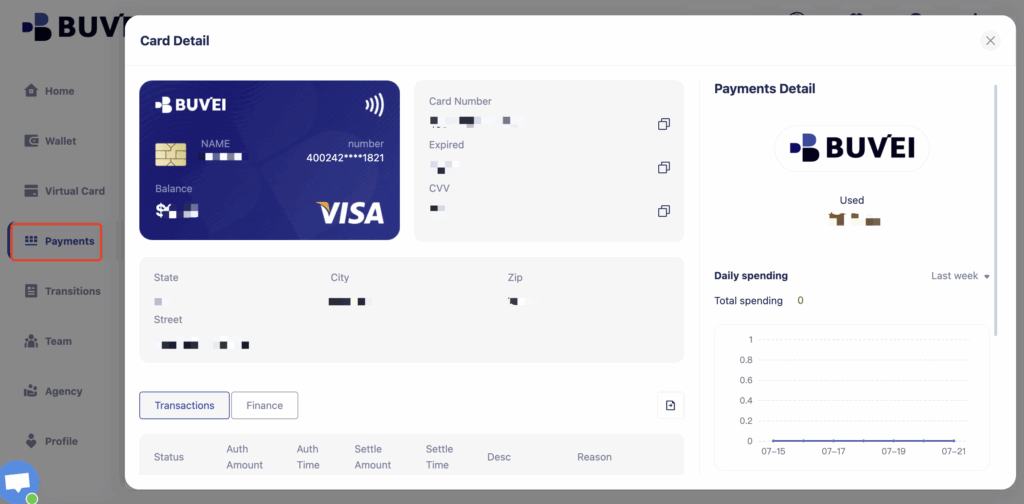
Once created, navigate to My Cards to access your card details:
-
Card Number
-
Expiration Date
-
CVV
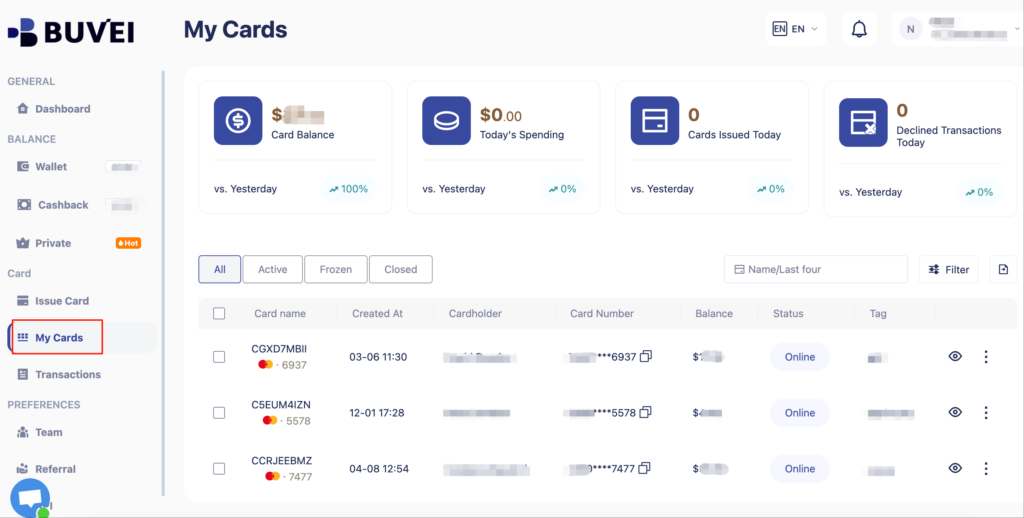
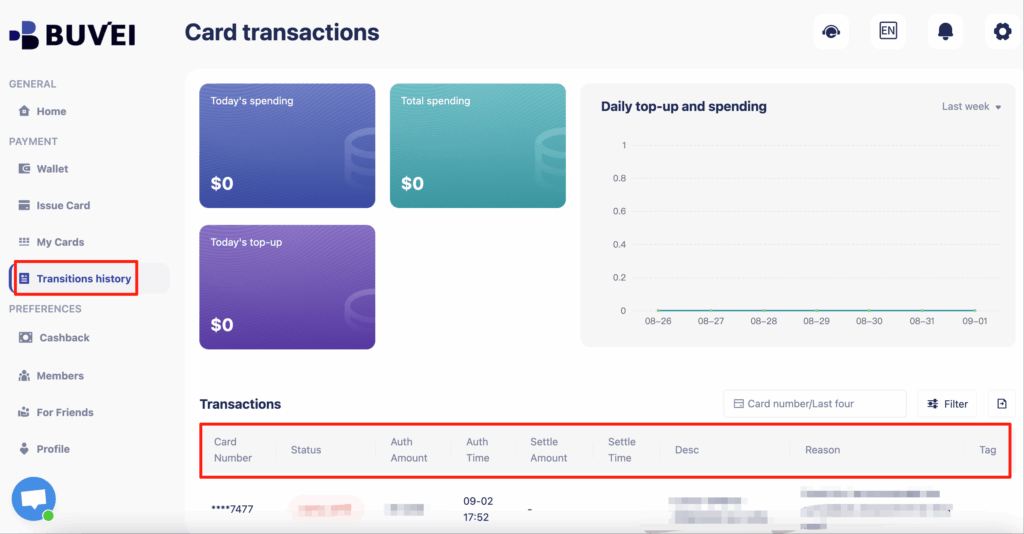
- On this page, users can view an overview of their virtual card top-ups and spending, and check all transaction details.
Step 3: Enter Card Details and Complete the Payment
-
Enter your Buvei virtual card details:
-
Card Number
-
Expiry Date (MM/YY)
-
Security Code (CVV)
-
Name: Use your Buvei account name or real name (in Latin alphabet)
-
Billing Address: Ensure consistency with the region the card supports
-
-
Click “Subscribe” to complete the payment process.