Ever tried to cancel YouTube TV… and weren’t 100% sure it actually worked?
You click cancel, get a confirmation screen, and assume you're done.
But then the next billing date comes around—and you’re charged again.
It’s not always a mistake. It’s usually how the system works.
We tested different ways to cancel YouTube TV subscription, including direct cancellation and payment-level control, to see what actually stops billing.
The conclusion is straightforward:
canceling YouTube TV is simple—but making sure charges stop requires understanding how billing and payments interact.
How YouTube TV Billing Works
Before canceling, it’s important to understand how the billing system works.
Monthly Subscription Model
YouTube TV operates on a recurring subscription basis.
That means:
- You’re billed monthly
- Charges happen automatically
- Access continues until the billing period ends
Auto-Renewal Is Enabled by Default
Once you subscribe:
- Payments renew automatically each month
- No action is required unless you cancel
Billing Date Matters
Your billing cycle depends on:
- The day you subscribed
Canceling does not:
- Immediately stop access
- Refund the current period
Payment Method Dependency
YouTube TV charges:
- The card or PayPal account on file
As long as that payment method is active:
- Charges can continue
Key takeaway:
Canceling stops future renewals—but doesn’t cancel ongoing billing periods instantly.
Step-by-Step: How to Cancel YouTube TV Subscription
Here’s the exact process that works.
Step 1: Log Into Your Account
Go to YouTube TV and sign in.
Navigate to:
- Profile icon
- Settings
- Membership
Step 2: Select “Manage Membership”
Inside your membership section:
- Click “Cancel Membership”
Step 3: Choose Cancellation Option
You may see options like:
- Pause subscription
- Cancel completely
Choose “Cancel.”
Step 4: Confirm Cancellation
Follow the prompts and confirm your choice.
Make sure you see:
- A confirmation message
- Your final access date
Step 5: Verify Cancellation Status
Go back to your account and check:
- Membership status
- Billing information
Why YouTube TV Cancellation Sometimes Fails
Even if you follow the steps, issues can still happen.
Billing Cycle Confusion
Many users expect:
- Immediate cancellation
But instead:
- Access continues until the end of the billing period
Subscription Through Third Parties
If you subscribed via:
- Apple App Store
- Google Play
- Bundled services
You must cancel through that platform.
Multiple Accounts
Some users:
- Have multiple Google accounts
- Cancel the wrong one
Payment Method Still Active
Even after cancellation:
- The payment method remains valid
- Future reactivation may trigger charges
Bottom line:
Canceling through the platform is necessary—but not always sufficient.
How to Make Sure YouTube TV Stops Charging You
If you want to fully stop billing, you need an extra layer of control.
Double-Check Cancellation
Always confirm:
- Membership status shows canceled
Remove or Change Payment Method
If possible:
- Remove your card
- Replace it with another method
Use Payment-Level Control
This is the most reliable method.
Instead of relying only on the platform:
- Control the payment source
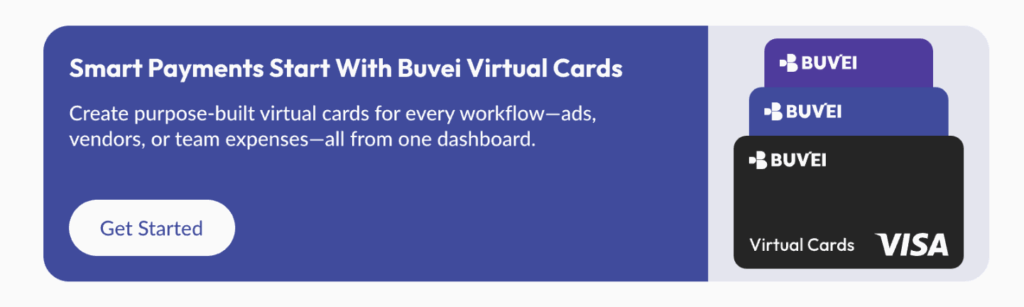
Using Virtual Cards to Stop Recurring Charges
This is where things become much more predictable.
Why Virtual Cards Work
With a virtual card, you can:
- Block payments instantly
- Set spending limits
- Replace cards easily
Control Over Subscriptions
Instead of depending on:
- Platform cancellation flows
You can:
- Disable the card
- Stop charges directly
What Happens When Payment Fails
When YouTube TV attempts to charge:
- The transaction fails
- The subscription stops
In practice:
This is often more reliable than relying on cancellation alone.
Common Mistakes to Avoid
Even with virtual cards, there are pitfalls.
Using One Card for Multiple Subscriptions
This reduces control.
Forgetting Billing Timing
Cancel before the next billing date for best results.
Not Tracking Active Subscriptions
Keep a list of:
- Services
- Payment methods
Step-by-Step: Setting Up Virtual Cards for Subscription Control
If you want better control going forward, setup matters.
Step 1: Register on a Virtual Card Platform
Start with a platform like Buvei.
- Sign up with your email
- Access your dashboard
Step 2: Fund Your Account
- Choose USDT (TRC20 recommended)
- Transfer funds
- Confirm balance
Step 3: Create a Dedicated Card
Instead of using your main card:
- Create a separate virtual card for YouTube TV
Step 4: Set Spending Limits
Set a limit equal to:
- Monthly subscription cost
Step 5: Use the Card for Subscription
Add it to your YouTube TV account.
Why Buvei Works Well for Subscription Management
From testing different setups, control and flexibility make the biggest difference.
Buvei provides:
- Instant card issuance
- Multiple BIN options
- High platform compatibility
- Flexible limits
- Multi-card management
This allows you to:
- Control subscriptions precisely
- Stop unwanted charges instantly
- Manage multiple services efficiently
Conclusion
Learning how to cancel YouTube TV subscription is straightforward—but ensuring stop YouTube TV billing completely requires more than just clicking cancel.
Platform cancellation helps, but payment-level control is what guarantees results.
Using virtual cards gives you that control:
- You decide when payments stop
- You prevent unexpected renewals
- You manage subscriptions more efficiently
And once you set it up properly, recurring charges stop being a problem—and become something you fully control.