As digital payments become more widely adopted, virtual cards have quickly become a preferred method for secure online and in-store transactions. These cards protect your real card number, offer better control over spending, and integrate smoothly with digital wallets. Google Pay remains one of the most versatile mobile payment platforms, supporting a large number of global issuers and fintech providers. This guide explains the essential requirements, setup process, verification steps, usage methods, and troubleshooting strategies for adding and using a virtual card in Google Pay.
What You Need Before Adding a Virtual Card to Google Pay
Not every card can be added to Google Pay, and not every phone supports the wallet. Before starting, make sure you meet the following conditions:
Device Requirements
-
An Android device running Android 7.0 or later.
-
The latest version of the Google Wallet app.
-
NFC support if you want to make in-store payments.
-
Device must not be rooted or modified, as Google Pay enforces strict security checks (SafetyNet/Play Integrity).
Account and Region Requirements
-
A Google account in a supported country.
-
Location and language settings compatible with Google Wallet services.
-
The virtual card issuer must officially support tokenization on Google Pay.
Card Requirements
Your virtual card must:
-
Be issued by a bank or fintech that supports Google Pay tokenization.
-
Have 3-D Secure, OTP verification, or app-based authentication enabled.
-
Support online or contactless transactions, depending on your usage.
How to Add a Virtual Card to Google Pay on Android
The process varies slightly depending on whether you add the card manually or through an issuer’s app, but the core steps are consistent.
Step-by-Step Guide
-
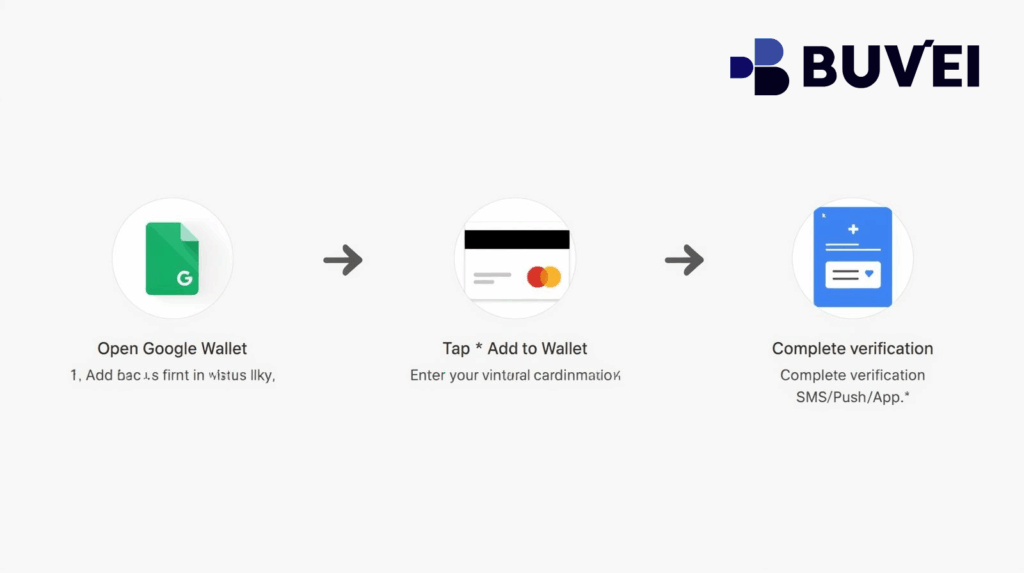
Open the Google Wallet app.
-
Tap Add to Wallet and select Payment Card.
-
Choose New credit or debit card.
-
Enter your virtual card details manually or auto-fill using your device.
-
Confirm your billing information.
-
Complete the issuer’s authentication process (SMS OTP, push notification, or in-app verification).
-
Wait for Google Pay to generate a tokenized card number.
-
Your card will appear in your Wallet once activation is complete.
Adding Through a Fintech App
Some fintech platforms (e.g., multi-currency card providers, digital banks) offer direct "Add to Google Pay" buttons.
Using this method reduces errors and ensures your card tokenizes properly.
How to Verify and Activate the Virtual Card
Verification is essential for your virtual card to function correctly. Google Pay supports several verification methods:
Common Verification Methods
-
SMS OTP: The most widely used method.
-
Email verification: Less common, but some fintech issuers use it.
-
App-based authentication: Confirming via the issuer’s app for higher security.
-
Customer support verification: Used when automated methods fail.
Why Verification May Fail
-
Wrong or outdated phone number on file.
-
The issuer does not support tokenization for this card type.
-
Region mismatch between your Play Store account and your card issuer.
-
Risk or fraud flags from your bank or fintech provider.
When verification fails, contacting the issuer is usually the fastest solution.
How to Pay Online and In-Store Using Google Pay
Google Pay allows payments in two major ways: online checkout and NFC tap-to-pay.
Online Payments
You can pay online anywhere Google Pay is accepted:
-
Select Google Pay at checkout.
-
Choose your virtual card from your wallet.
-
Authenticate using fingerprint, face unlock, or PIN.
Benefits:
-
Merchants never see your real card number.
-
Your virtual card uses a tokenized number for added protection.
-
Faster checkout, especially on Android apps.
In-Store NFC Payments
To pay in-store using your virtual card:
-
Ensure your Android phone has NFC enabled.
-
Set Google Pay as the default tap-to-pay service.
-
Unlock your phone and tap it on the payment terminal.
-
Wait for the confirmation message.
Note: Not all virtual cards support NFC tokenization. Some are online-only virtual cards, meaning they cannot be used at physical terminals.
Common Issues When Adding a Virtual Card to Google Pay
Adding virtual cards sometimes fails due to issuer restrictions, tokenization limits, or device security issues. Below are common problems and solutions.
1. "Your card can’t be added"
Possible reasons:
-
The issuer does not support Google Pay in your region.
-
Temporary tokenization outage from the bank.
-
Incorrect billing address.
Solution: Update account information or contact the card provider.
2. "Your phone doesn’t meet security requirements"
This occurs when:
-
The device is rooted.
-
Bootloader is unlocked.
-
Play Integrity checks fail.
Solution: Use a verified, unmodified Android device.
3. Verification SMS not received
-
Check international SMS restrictions.
-
Ensure your phone number matches the issuer’s records.
-
Disable SMS-blocking apps.
4. Virtual card works online but not in-store
This means:
-
The card supports online payments only.
-
The issuer has not enabled NFC tokenization.
Solution: Confirm with the provider whether contactless payments are supported.

Best Virtual Cards That Work Well With Google Pay
The best virtual cards share several characteristics: strong compliance, stable tokenization, low fees, and global acceptance. Cards that generally perform well with Google Pay have:
-
Multi-currency support for international purchases.
-
Strong 3-D Secure authentication.
-
Consistent tokenization reliability.
-
Issuers with a strong compliance record.
These types of virtual cards are often offered by:
-
Digital banks
-
Global fintech payment providers
-
Spend-management platforms
-
Multi-currency wallet services
When choosing a virtual card, prioritize providers with proven Google Pay compatibility and a clear regulatory framework.
Conclusion
Google Pay offers a secure and streamlined way to use virtual cards for both online and physical purchases. By meeting device and account requirements, completing verification correctly, and using issuers that support reliable tokenization, users can enjoy safer and faster transactions. As digital wallets continue to expand globally, virtual cards remain one of the most effective tools for privacy protection, international payments, and everyday convenience. Ensuring that your chosen card provider supports Google Pay will give you the smoothest experience possible.