
Google Pay is widely used for online payments, subscriptions, and in-store transactions. However, not all virtual cards can be successfully added to Google Pay. Many users encounter verification failures, unsupported card errors, or silent declines during checkout.
This guide explains how Google Pay determines card compatibility, why many virtual cards fail, and how to create and use a Google Pay–compatible virtual card with Buvei.

Google Pay Card Compatibility Explained
Google Pay does not simply accept any Visa or Mastercard. To be compatible, a card must meet several technical and compliance requirements:
-
Issued under supported networks (Visa or Mastercard)
-
Backed by a BIN that allows tokenization
-
Supports 3D Secure (3DS) or equivalent verification
-
Approved by both the issuing bank and the card network
-
Allowed by Google Pay’s regional and risk policies
Virtual cards that lack proper BIN support or tokenization permissions are often rejected, even if they work for regular online payments.
Why Many Virtual Cards Fail Google Pay Verification
Virtual cards commonly fail Google Pay setup for the following reasons:
-
Unsupported BINs that do not allow wallet tokenization
-
Cards issued for online-only use, not digital wallets
-
Missing or restricted 3DS authentication
-
High-risk or prepaid BIN classifications
-
Region mismatch between Google account and card issuer
In many cases, the card itself is valid, but Google Pay blocks it due to issuer or network-level restrictions.
How to Create a Google Pay–Compatible Virtual Card with Buvei
Buvei allows users to issue virtual cards designed for international online payments, including Google Pay–supported use cases.
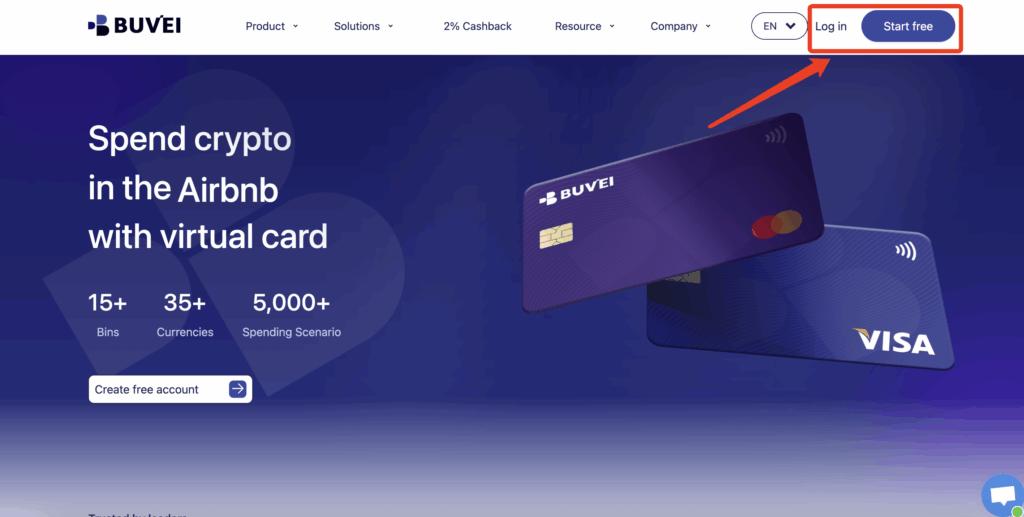
Step 1: Register a Buvei Account
Visit https://buvei.com and create a free account.
After email verification, log in to the Buvei dashboard.
Step 2: Fund Your Buvei Wallet
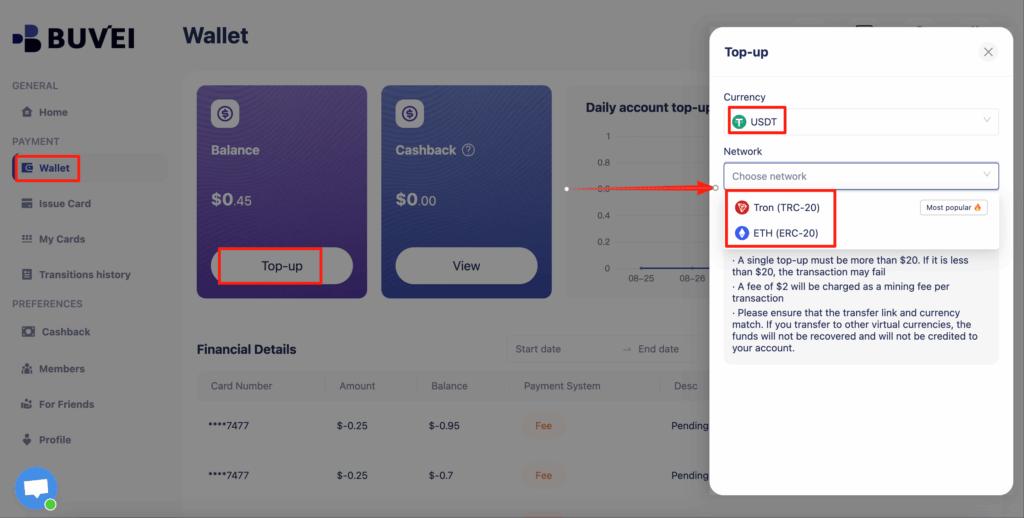
Go to the Wallet section and choose a supported stablecoin such as USDT (TRC20 or ERC20).
Buvei will generate a dedicated deposit address.
Once the transfer is confirmed on-chain, your balance becomes available immediately.
Step 3: Create a Virtual Card
Navigate to the Cards section and click Create Card.
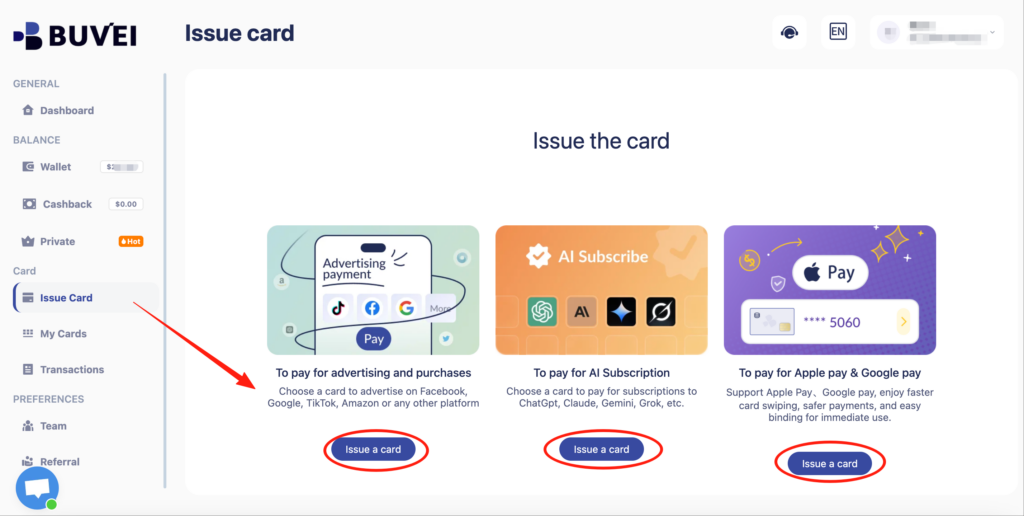
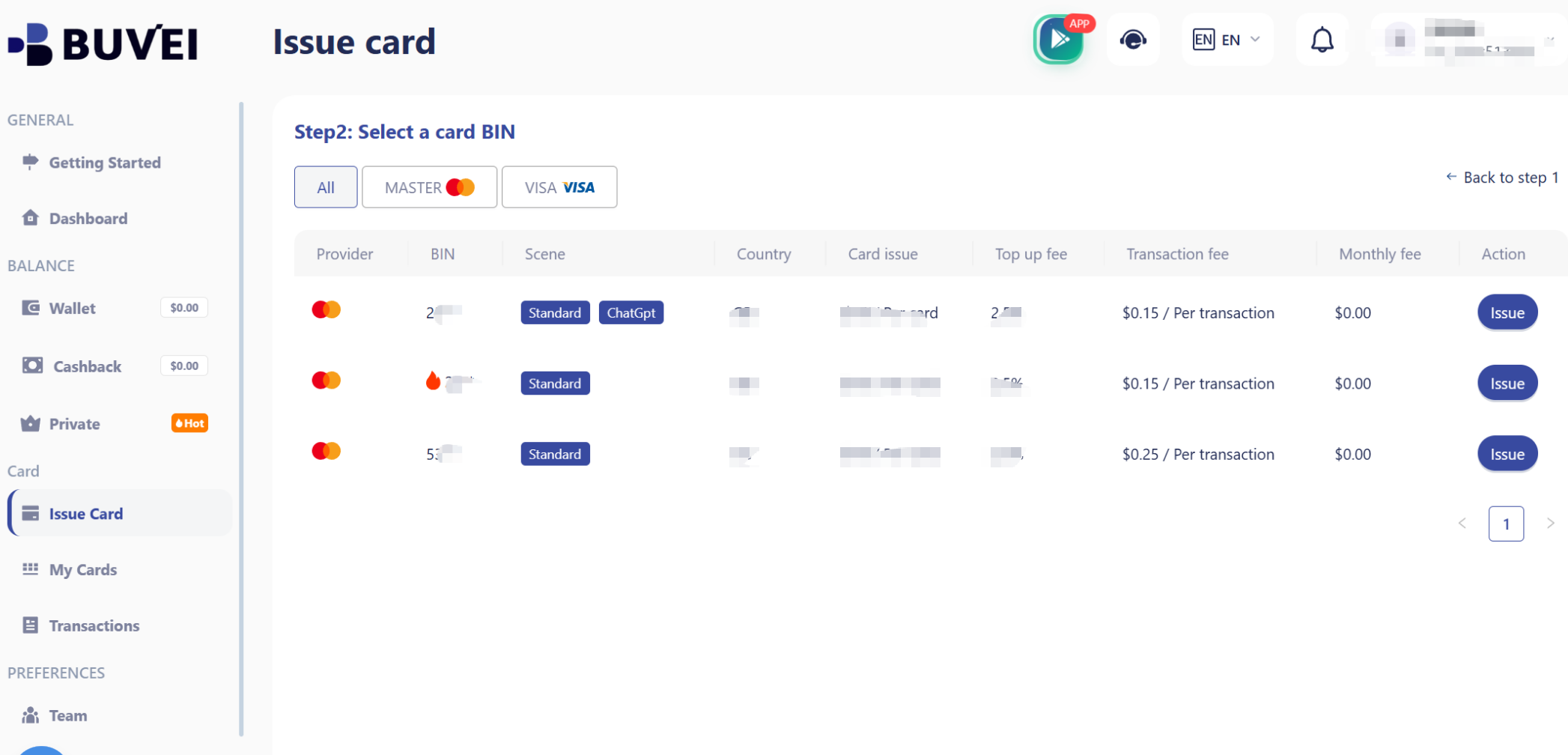
You will need to:
-
Select a suitable BIN region (US BINs are commonly recommended)
-
Choose the card type
-
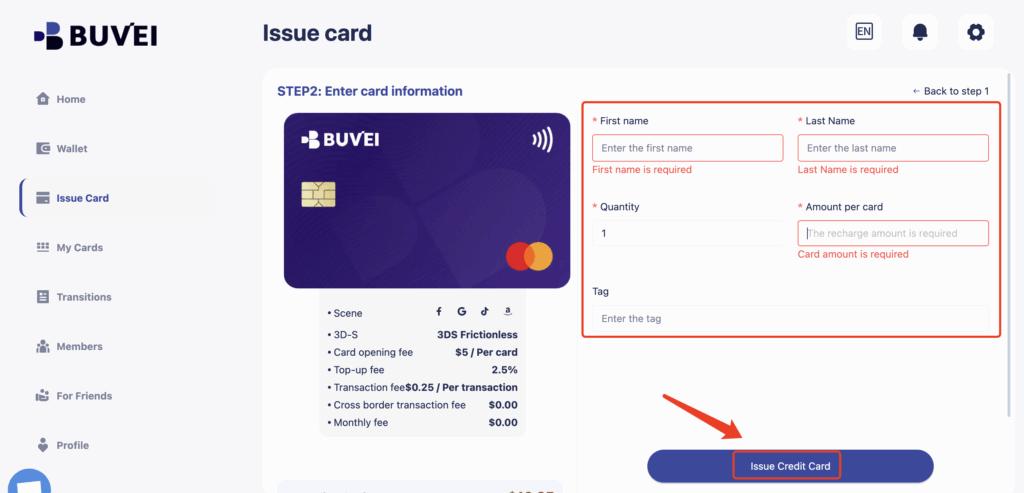
Set card name, balance, and quantity
-
Confirm card issuance
After creation, the card details will be available under My Cards.
Step 4: Add the Card to Your Cloud Account
Use the Buvei virtual card details to complete the payment setup on your chosen cloud platform.
If an ad account receives warnings, payment retries, or early restrictions:
-
Stop using the existing card
-
Issue a new virtual card
-
Attach it only after resolving policy issues
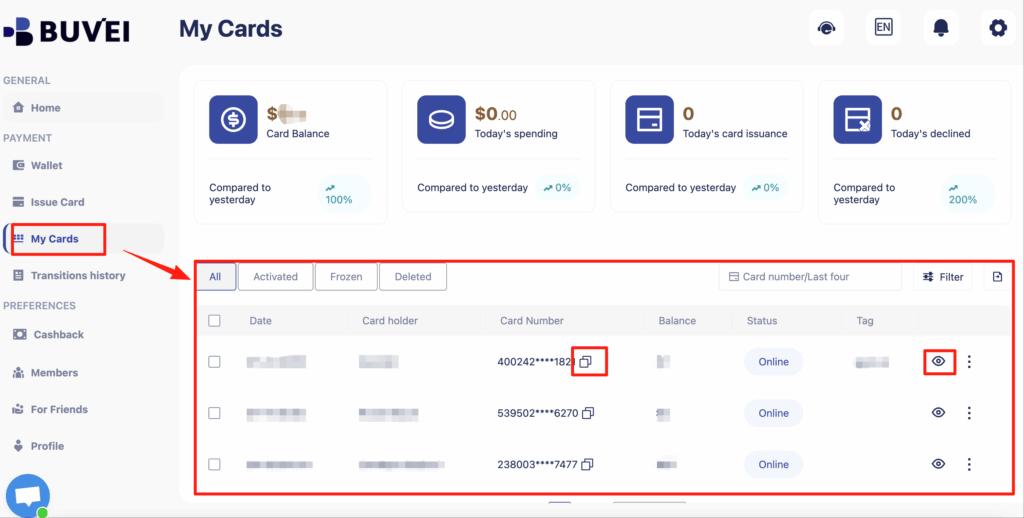
From My Cards, affiliates can monitor balances, spending activity, and transaction history—making it easier to spot early warning signs.
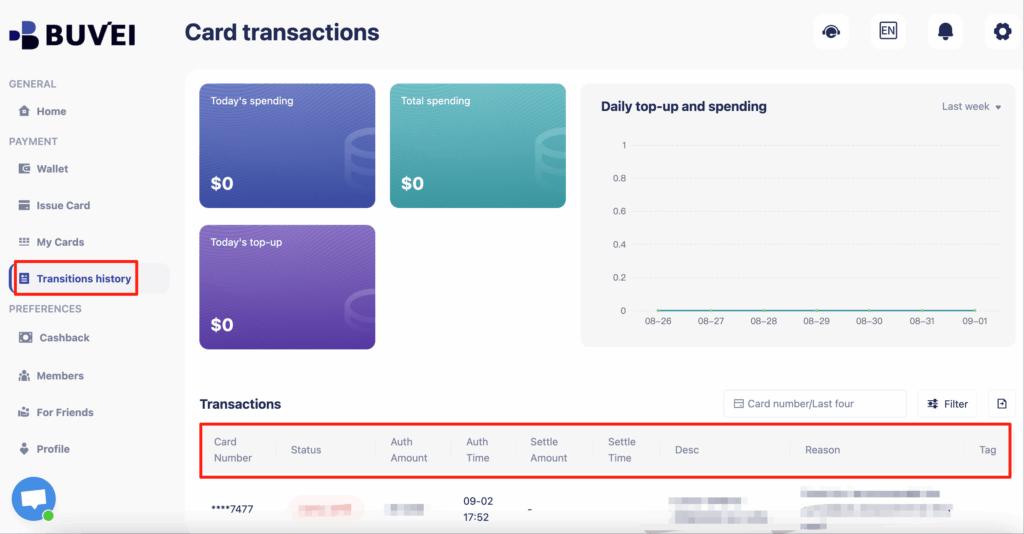
Buvei supports issuing multiple cards quickly, making it easy to match payment structure to campaign structure.
Step-by-Step: Adding Virtual Cards to Google Pay
Once your Buvei virtual card is issued:
-
Open the Google Pay app or Google Wallet
-
Select Add a card
-
Choose Credit or Debit Card
-
Enter your virtual card details:
-
Card number
-
Expiration date
-
CVV
-
-
Complete any required verification steps
If verification succeeds, the card will be added to your Google Pay wallet and ready for use.
Supported Use Cases (Subscriptions, Travel, Online Payments)
When successfully added, virtual cards can be used with Google Pay for:
-
App and SaaS subscriptions
-
Online shopping and digital services
-
Travel bookings and transportation
-
In-app payments and recurring billing
For recurring charges, ensure the card maintains sufficient balance before renewal dates to avoid service interruptions.
Troubleshooting Failed Add-to-Wallet Issues
If your virtual card fails to add to Google Pay:
-
Try issuing a new virtual card instead of retrying the same one
-
Confirm your Google account region matches the card’s usage region
-
Ensure the card has an initial balance
-
Avoid repeated failed attempts in a short time
-
Check whether the card supports 3DS verification
If issues persist, rotating to a new card is often faster than troubleshooting a blocked one.

Final Thoughts
Not all virtual cards are compatible with Google Pay, even if they work for standard online payments. Compatibility depends heavily on BIN support, network permissions, and issuer policies.
With Buvei virtual cards, users can create crypto-funded cards suitable for Google Pay–supported use cases, manage balances easily, and control spending through dedicated cards.
For users seeking flexibility, privacy, and better payment control, virtual cards offer a practical way to use Google Pay without relying on traditional bank cards.