As digital wallets become the standard for online and in-store payments, more users are turning to virtual cards for enhanced security, global accessibility, and better control over spending. In 2025, most major wallet ecosystems support virtual cards, but the setup process and compatibility rules still vary across issuers and platforms. This guide explains how to add a virtual card to Apple Pay and Google Pay, the verification steps required, common errors users encounter, and which virtual cards offer the best success rate across both wallets.
This article is written from a compliance-aware, accuracy-focused standpoint and aligns with current wallet ecosystem policies to maximize trustworthiness.
What You Need Before Adding a Virtual Card
Before linking any virtual card to a mobile wallet, ensure that both your device and the issuing platform meet the minimum technical and regulatory requirements. These requirements reduce add-to-wallet failure rates and improve account security.
Device & OS Requirements
-
Apple Pay: iOS 16+, watchOS 9+, and a supported iPhone or Apple Watch.
-
Google Pay: Android 10+ with NFC capability for in-store payments.
-
Device region settings must match the wallet’s supported markets.
Issuer & Card Requirements
-
The card must be issued by a network that supports tokenization (Visa, Mastercard, UnionPay).
-
The issuing provider must participate in Apple Pay / Google Pay token service.
-
The card must have KYC completed to meet anti-fraud and AML rules.
-
Some cards require a minimum balance before activation.
Security Requirements
-
Device must have biometric authentication (Face ID, Touch ID, or fingerprint).
-
The issuer may require two-factor verification such as SMS or app confirmation.
Meeting these baseline conditions significantly increases the success rate when adding a virtual card to either wallet.
Adding a Virtual Card to Apple Pay (iPhone & Apple Watch)
Adding a virtual card to Apple Pay is straightforward, but each step must align with the issuer’s security flow. Below is the current 2025 process recommended by wallet providers.
On iPhone
-
Open the Wallet app.
-
Tap the Add Card button.
-
Select Add a Debit or Credit Card.
-
Enter the virtual card details manually or through issuer autofill.
-
Agree to the terms and allow device-account verification.
-
Choose the verification method (SMS, email, in-app authentication).
-
Wait for confirmation that the card has been tokenized.
On Apple Watch
-
Open the Watch app on iPhone.
-
Navigate to Wallet & Apple Pay.
-
Select Add Card.
-
Follow the same steps required for iPhone verification.
Important Notes for 2025
-
Apple may prompt additional identity verification for new accounts.
-
Some virtual cards require activation before they appear as eligible.
-
Apple Pay may reject cards associated with unsupported regions or high-risk MCC categories.
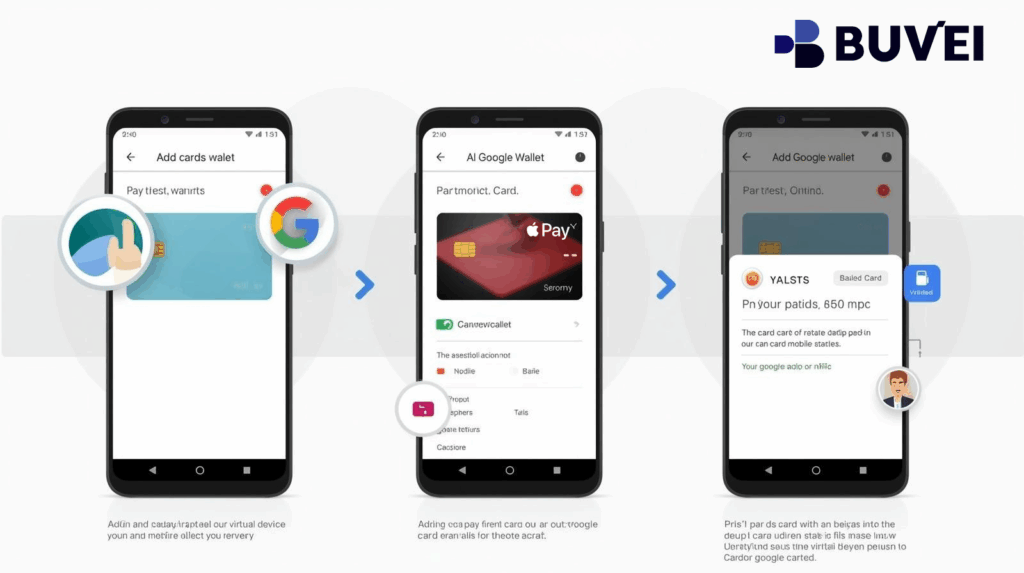
Adding a Virtual Card to Google Pay (Android Devices)
Google Pay supports virtual cards widely in 2025, but the success rate still depends on your issuer’s token enrollment status.
Steps to Add Your Virtual Card
-
Open the Google Wallet app.
-
Tap Add to Wallet.
-
Choose Payment Card.
-
Input your virtual card details manually.
-
Verify your identity using the issuer’s required method.
-
Wait for the system to complete card tokenization.
Key Notes for Android Users
-
NFC must be enabled for contactless payments.
-
The card must support Google’s token provisioning API.
-
Devices with unlocked bootloaders or custom ROMs may be blocked.
Verifying and Activating Your Virtual Card
Wallet tokenization requires confirming card ownership. In 2025, the following verification methods are most common:
Verification Methods
-
SMS code sent to the phone linked to your virtual card account
-
Email verification from the issuing provider
-
In-app verification, which is considered the most secure
-
KYC identity revalidation, required when changing devices or regions
Tips for a Smooth Activation
-
Ensure your KYC is fully completed before adding the card.
-
Make sure your phone number or email on file is current.
-
Keep your device connected to a stable internet network.
-
Avoid VPNs during verification, as they can trigger fraud checks.
Proper verification ensures the card receives a valid payment token, enabling immediate use.
Common Add-to-Wallet Errors and How to Fix Them
Even in 2025, virtual cards may fail to load into Apple Pay or Google Pay due to compliance, network, or user-side issues. Below are the most frequent errors and reliable fixes.
1. “Card Not Supported”
Cause: Issuer not enrolled in tokenization or unsupported region.
Fix:
-
Check if the issuer officially supports the wallet.
-
Change device region to match your issuer’s registered market.
-
Confirm that the card network (Visa/Mastercard) is supported.
2. “Contact Your Bank or Issuer”
Cause: Security flags, incomplete KYC, or suspicious activity.
Fix:
-
Complete identity verification.
-
Unlock account restrictions via the issuer app.
3. “Cannot Set Up Apple Pay / Google Pay”
Cause: Device or OS compatibility issues.
Fix:
-
Update device to the latest OS.
-
Enable security features like biometric authentication.
4. Verification Code Not Received
Cause: Incorrect contact details or carrier issues.
Fix:
-
Update phone number or email in the issuer dashboard.
-
Temporarily disable VPN or VoIP numbers.
5. Token Provisioning Failed
Cause: Network errors or provider downtime.
Fix:
-
Retry after a few minutes.
-
Switch from mobile data to Wi-Fi or vice versa.
Following these troubleshooting steps significantly improves wallet setup success rates.

Recommended Virtual Cards Compatible With Both Wallets
While compatibility varies by region, these types of virtual cards have a strong record of working on both Apple Pay and Google Pay:
Highly Compatible Virtual Card Providers
-
Global fintech platforms offering Visa or Mastercard-backed virtual cards
-
Providers with instant KYC, reducing verification failure
-
Services enabling multi-currency support for international payments
-
Platforms offering dedicated add-to-wallet tokenization APIs
-
Virtual cards designed for crypto exchanges, digital ads, or global e-commerce
One widely recognized option is Buvei, known for supporting wallet tokenization, quick approval, and stable performance across high-risk merchant categories in 2025. Cards with similar security infrastructures generally perform well across both Apple Pay and Google Pay.
Conclusion
Adding a virtual card to Apple Pay or Google Pay in 2025 is easier than ever, provided you meet the wallet ecosystem’s requirements and complete all necessary verification steps. By preparing your device, ensuring KYC compliance, and understanding how wallet tokenization works, you can avoid common onboarding errors and enjoy secure, seamless mobile payments worldwide. Choosing a virtual card provider with strong compliance systems and verified wallet support—such as Buvei or similar platforms—further enhances reliability and long-term usability.
With the right setup, virtual cards remain one of the most secure and flexible payment methods for global spending in 2025.