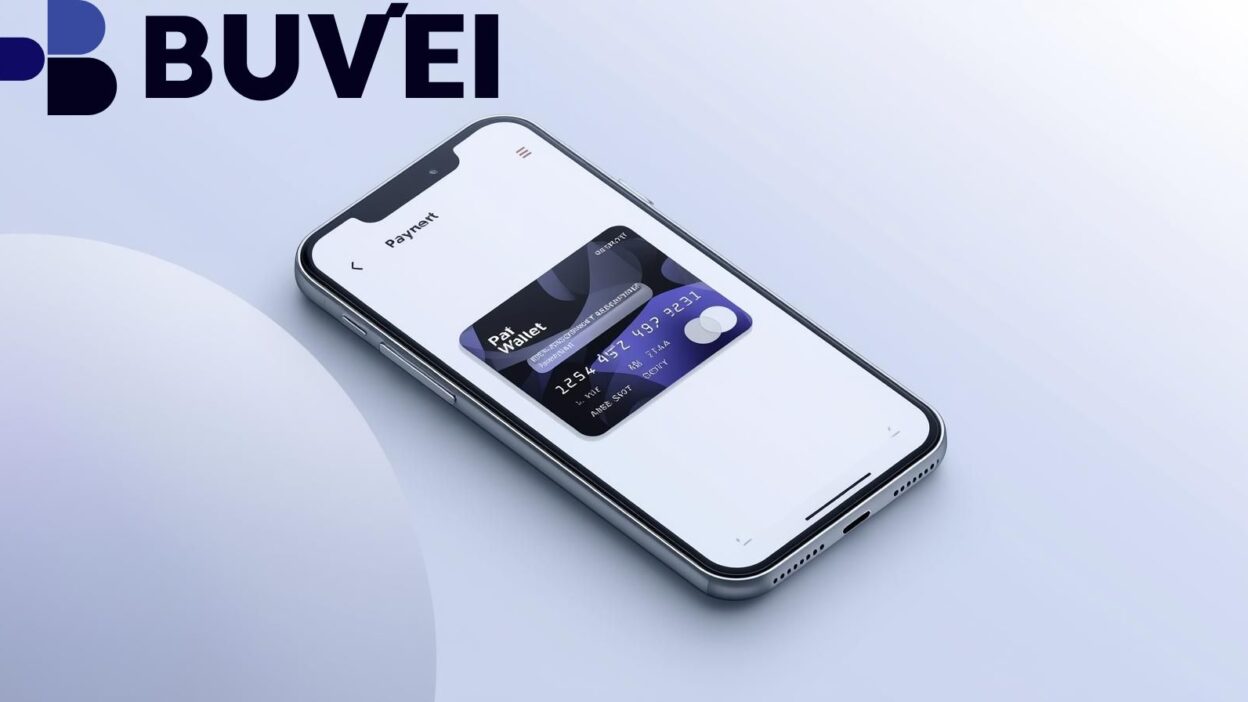
As digital payments become more secure and seamless, virtual cards have quickly become a preferred option for online shopping, subscriptions, and global transactions. Pairing a virtual card with Apple Pay adds an extra layer of convenience, allowing you to tap to pay in stores, use Apple’s secure in-app purchase system, and enjoy tokenized protection across devices.
This 2025 guide explains everything you need to know about preparing your virtual card, adding it to Apple Pay on different Apple devices, troubleshooting errors, and choosing the best virtual card providers that support Apple Pay—including Buvei. The content prioritizes accuracy, up-to-date requirements, and practical solutions based on current Apple ecosystem policies.
What You Need Before Adding a Virtual Card to Apple Pay
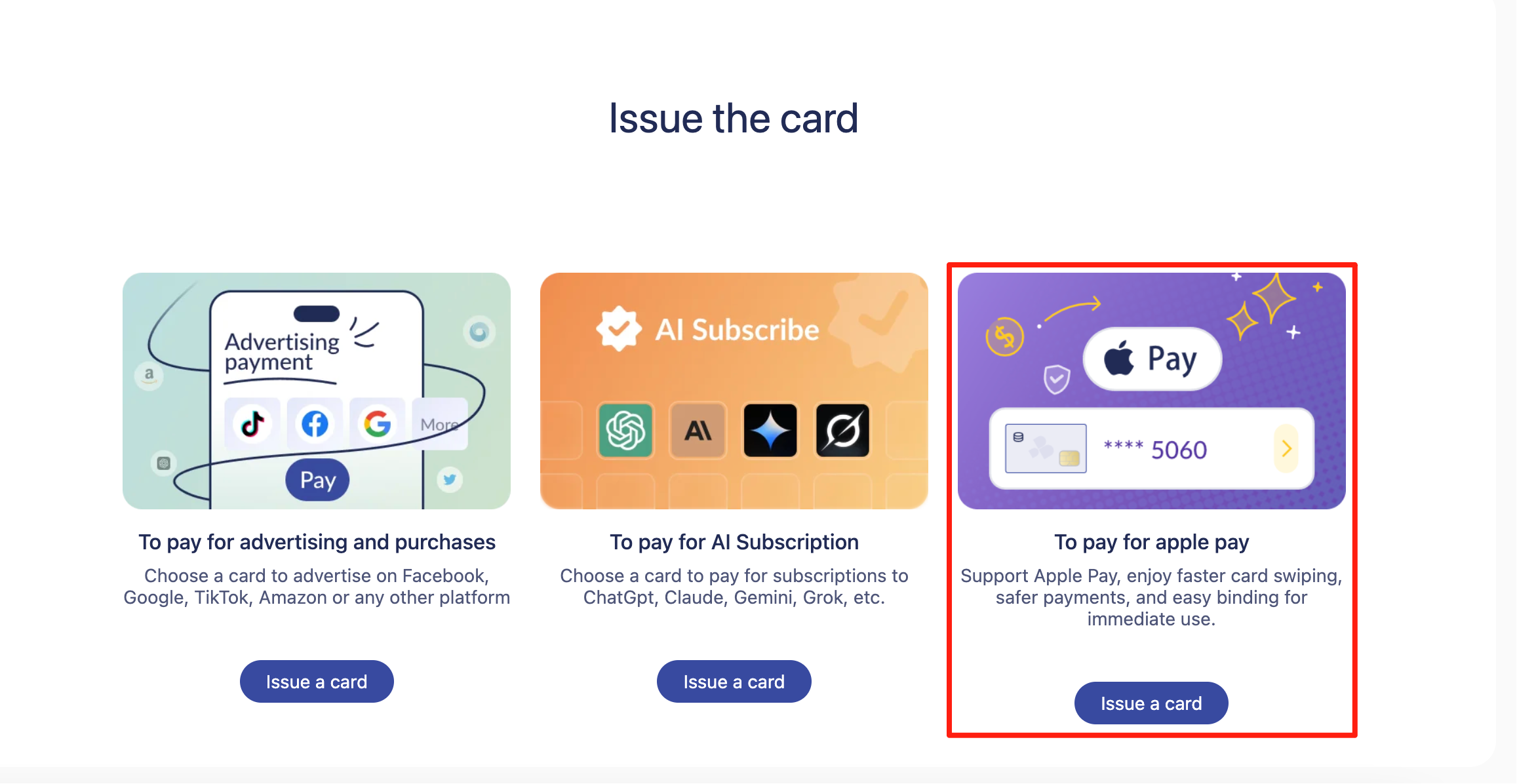
Not all virtual cards automatically work with Apple Pay. In 2025, Apple and issuing banks enforce stricter identity and security rules. To ensure successful card linking, check the following requirements:
• A virtual card issued by an Apple Pay–supported provider
Most major banks and financial platforms now support digital wallet tokenization, but some international fintech issuers still restrict Apple Pay for regulatory reasons. Verify that your provider explicitly supports Apple Pay integration.
• A region where Apple Pay is available
Even if the virtual card is international, Apple Pay availability depends on your Apple ID country or region. Your Apple ID, device region settings, and card issuer region must align with Apple’s supported markets.
• A device compatible with Apple Pay
— iPhone SE, iPhone 6/6 Plus or later
— Apple Watch Series 1 or later
— iPad models with Touch ID or Face ID
— Any Mac with Touch ID or paired with an Apple Watch
• Identity verification completed
Many issuers require KYC verification before enabling Apple Pay tokenization. Unverified accounts may appear valid but often fail to add during the security check.
• Updated iOS, iPadOS, watchOS, or macOS
Outdated software can disrupt encryption handshakes with the card network. Update your device to the latest stable version before adding your card.
How to Add a Virtual Card to Apple Pay on iPhone
Adding a virtual card on an iPhone is the most common method because all Wallet functions are accessible directly on iOS. Follow these steps:
Step 1: Open Wallet
Launch the Apple Wallet app.
Step 2: Tap “+ Add”
Apple will show supported card types based on region and issuer.
Step 3: Enter your virtual card details
You may do this manually or by copying and pasting from your banking app. Ensure the card number, expiration date, and security code match exactly.
Step 4: Complete identity or verification checks
Issuers may send:
— A one-time password
— App-based confirmation
— Email or phone verification
— In-app approval (common with digital banks)
Step 5: Wait for token activation
A device account number is generated during tokenization. If successful, your virtual card will display “Ready for Apple Pay.”
Tips to Improve Success Rate
-
Ensure your billing address matches your issuer records.
-
Disable VPN during card setup since VPNs can cause region conflicts.
-
Confirm you are logged into the correct Apple ID region.
How to Add a Virtual Card to Apple Pay on Apple Watch or Mac
If your virtual card is already on your iPhone, adding it to other devices becomes faster.
Add a Virtual Card on Apple Watch
-
Open the Watch app on your iPhone.
-
Tap Wallet & Apple Pay.
-
Select Add Card.
-
Choose your virtual card (if already on iPhone) or add it manually.
-
Complete issuer verification.
Add a Virtual Card on Mac
With Touch ID:
-
Go to System Settings.
-
Select Wallet & Apple Pay.
-
Click Add Card.
-
Enter virtual card details and complete verification.
Without Touch ID:
Macs without Touch ID use cards stored on the paired iPhone. Ensure “Allow Payments on Mac” is enabled under iPhone Wallet & Apple Pay settings.
Common Issues When Adding Virtual Cards to Apple Pay
Even compatible virtual cards may fail due to configuration, issuer restrictions, or compliance checks.
Frequent Issues
• “Card Not Supported”
Occurs when the issuer or card network does not support Apple Pay tokenization in your region.
• “Could Not Add Card”
Often due to mismatched billing information, incomplete verification, or server issues.
• VPN or region mismatch
Apple Pay validates your device region, Apple ID region, and IP region. A mismatch may trigger automatic rejection.
• Issuer security flags
Adding virtual cards too frequently or using temporary numbers may cause the issuer to block tokenization.
• Outdated software or Wallet cache errors
Minor iOS bugs can interrupt the verification handshake.
How to Fix “Card Cannot Be Added” Errors
If you see “Card Cannot Be Added,” the following strategies improve your success rate and address underlying causes.
• Verify the card is Apple Pay–enabled
Check that your bank or virtual card provider explicitly supports Apple Pay.
• Update your device
Install the latest iOS, watchOS, or macOS version to ensure compliance with Apple’s security requirements.
• Use the correct Apple ID region
Your Apple ID region should match the region associated with your virtual card issuer.
• Turn off VPN and proxies
These tools often cause region blocks and fraud flags during tokenization.
• Match your billing address exactly
Use the same address registered with your virtual card provider.
• Contact the card issuer
Ask them to confirm whether your account has:
— Completed KYC verification
— Fraud flags
— Geographic restrictions
• Restart the Wallet app or device
Refreshing Apple Wallet can resolve tokenization glitches.
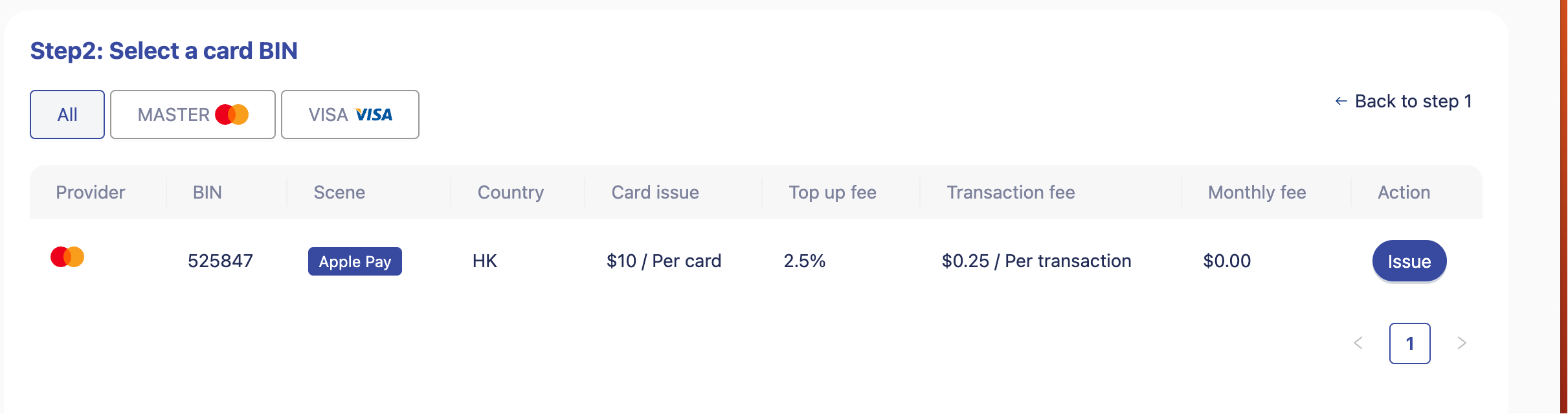
Best Virtual Cards Compatible With Apple Pay (Including Buvei)
Many virtual cards now support Apple Pay, but reliability varies. Below are some of the best-performing options in 2025.
• Buvei Virtual Card
Buvei offers multi-currency virtual cards, strong compliance standards, and rapid tokenization approval. It supports Apple Pay in multiple regions and is popular for subscriptions, travel payments, and e-commerce.
• Revolut Virtual Card
Revolut’s virtual cards support Apple Pay in most jurisdictions, offering instant issuance, one-time cards, and strong fraud monitoring.
• Wise Digital Card
The Wise virtual card works with Apple Pay in supported markets and is ideal for multi-currency spending and overseas payments.
• N26 Virtual Card
N26 provides Apple Pay support in Europe with fast approval and optional disposable virtual cards.
• Capital One & Discover Virtual Numbers
Most U.S. issuers now tokenize virtual card numbers for Apple Pay, including enhanced security features and high transaction reliability.
• Traditional Bank Virtual Cards
Many traditional banks—especially those in Europe, the U.S., and parts of Asia—now include virtual debit or credit card numbers compatible with Apple Pay.
When selecting a virtual card, prioritize:
— Apple Pay compatibility
— Strong KYC verification flow
— Issuer reliability
— Regional support
— Fraud protection features
Conclusion
Adding a virtual card to Apple Pay in 2025 is straightforward when your issuer supports tokenization and your device meets Apple’s updated security requirements. By preparing your account, verifying your card details, and following the recommended troubleshooting strategies, you can significantly improve the success rate of adding your card across your iPhone, Apple Watch, and Mac.
Whether you're using global providers like Wise or Revolut or specialized platforms like Buvei, the right virtual card can make Apple Pay an efficient, secure, and versatile tool for everyday spending.