Get it on Google Play
Buvei – Multi-BIN Virtual Cards, Issued Instantly
Download on the App Store
Buvei – Multi-BIN Virtual Cards, Issued Instantly
🎉 Sign up today and get $5 in free card opening credit

Fix Claude Subscription Declines with a Buvei Virtual Card

Getting declined when subscribing to Claude? The usual culprits are region/currency mismatches, billing address (AVS) failures, and first-payment risk checks. Whether you’re a solo creator or a team using Claude for writing, engineering, and collaboration, the first hurdle is often payment. This guide gives you a repeatable fix: use a Buvei multi-BIN virtual card, then follow the steps—create → top up → enter details → verify. We’ve also included a quick checklist of common decline codes and retry tactics. Follow along and you’ll typically get approved on the first try—or within two attempts.

Choose your plan on Claude.ai

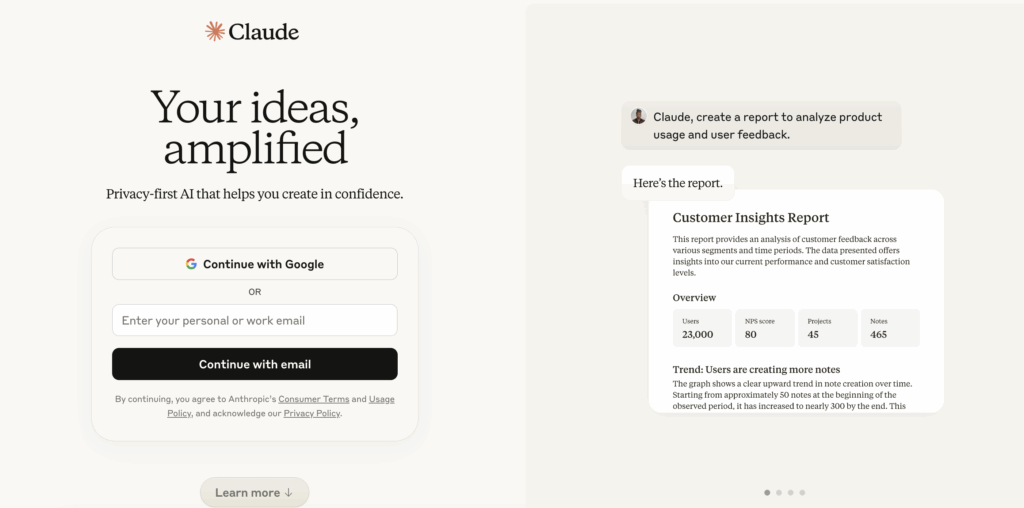
Step 1: Log in to Your Claude Account

Visit the Claude official site and sign in to your existing account.
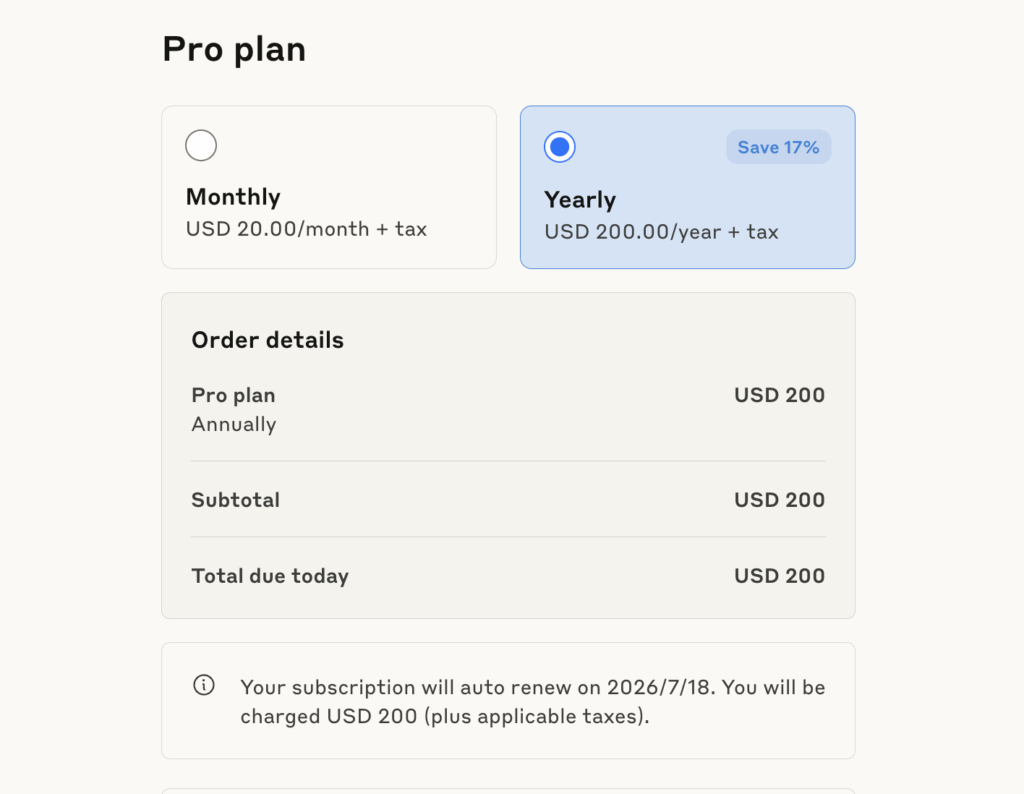
Step 2: Choose Your Subscription Plan
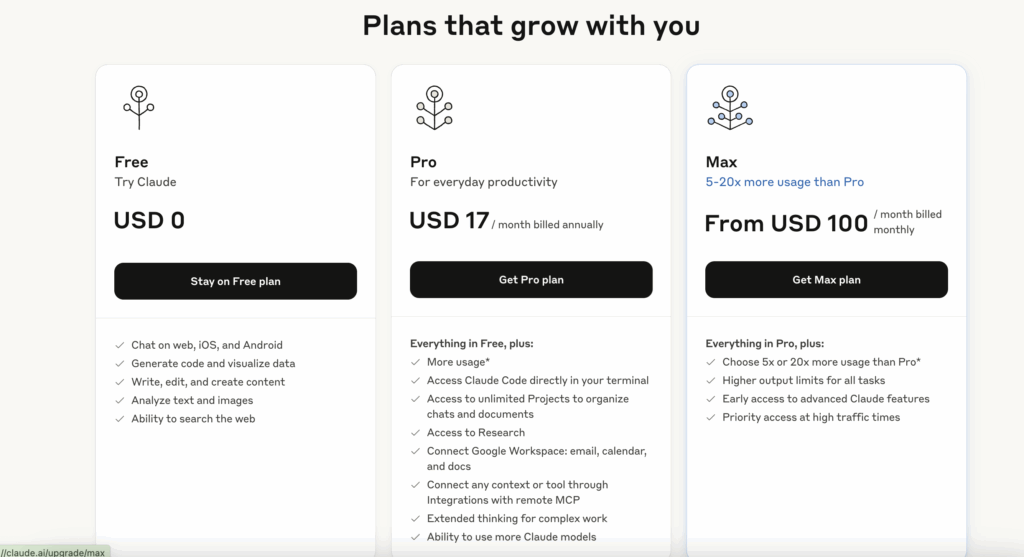
Select the plan that fits your needs (Pro or Max). Click to confirm your upgrade path.

Step 3: Select Billing Frequency

Decide between monthly or annual billing options.

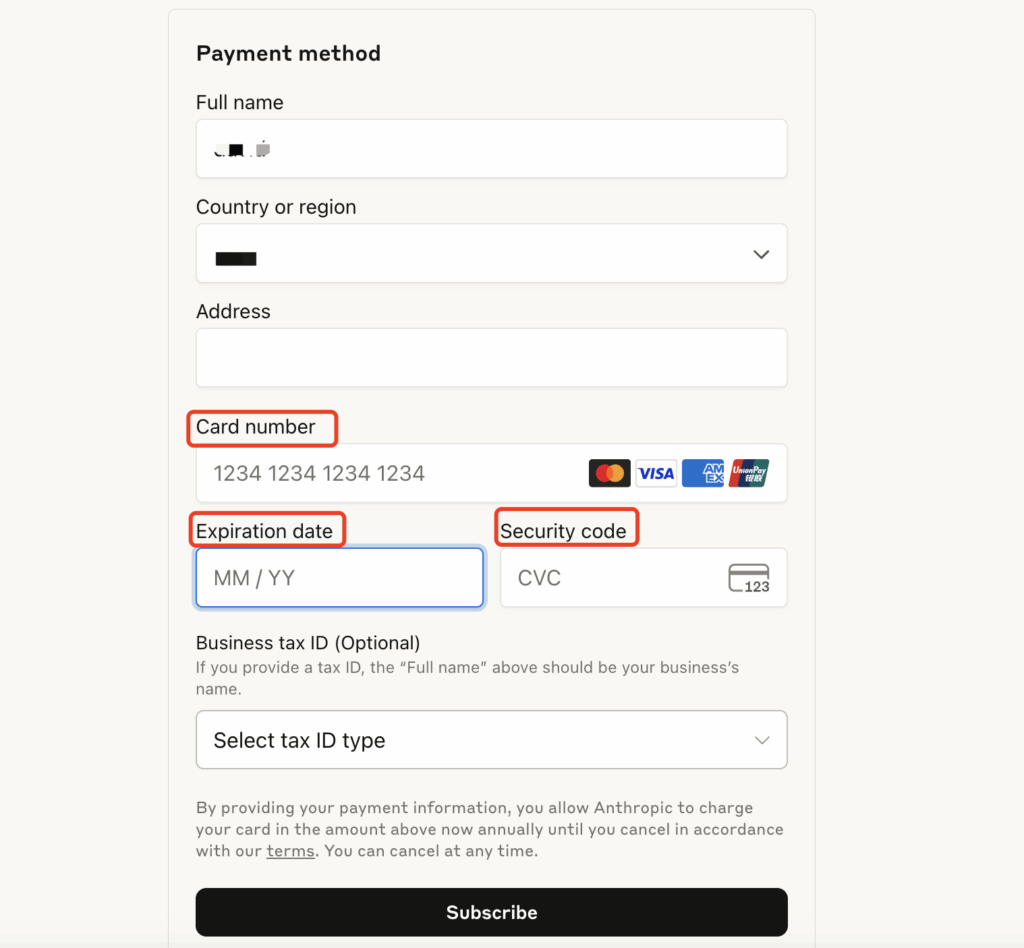
Step 4: Enter Your Payment Information

Fill in the required details:
  • Full name
  • Country or region
  • ZIP code
  • Buvei virtual card details: Card number, Expiry date, CVV
  • Business tax ID (optional)

Step 5: Save and Verify

After submission, wait for the transaction to process. Upon approval, your Claude account will be upgraded and ready to use.

Common Errors & Troubleshooting

Issue Solution
Binding Failed Double-check card number, expiration date, and CVV. Ensure card balance is sufficient.
Authorization Declined Check card limit or contact Buvei support to remove any restrictions.
Payment Rejected Make sure the card supports international online and subscription payments.
Multiple Accounts Using One Card Use unique virtual cards per account to reduce risk and manage transactions safely.

Haven’t Created a Buvei Virtual Card Yet? Follow These Steps:

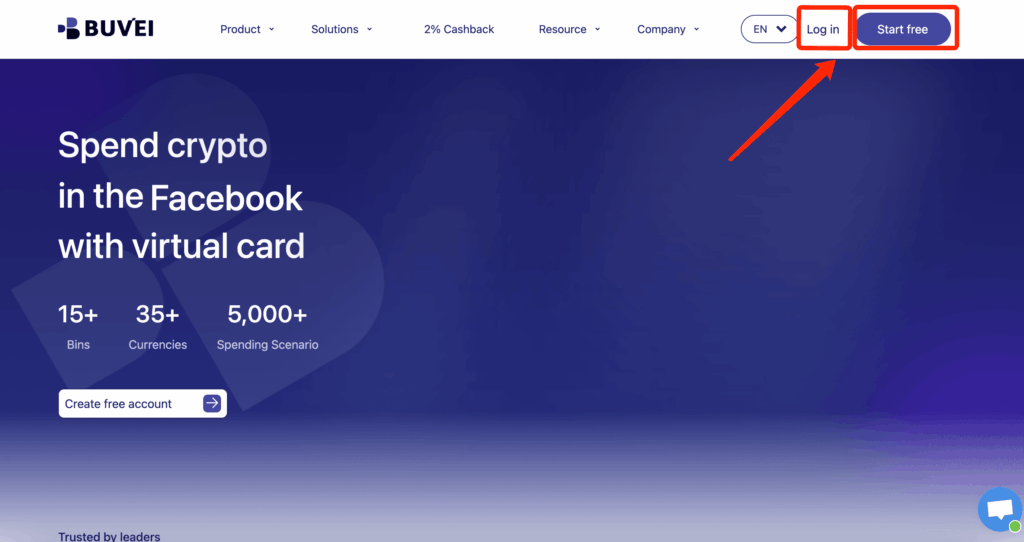
  1. Sign up/Sign in at buvei.com
  • If you haven’t signed up yet, simply click 'Start Free' to register quickly with your email.
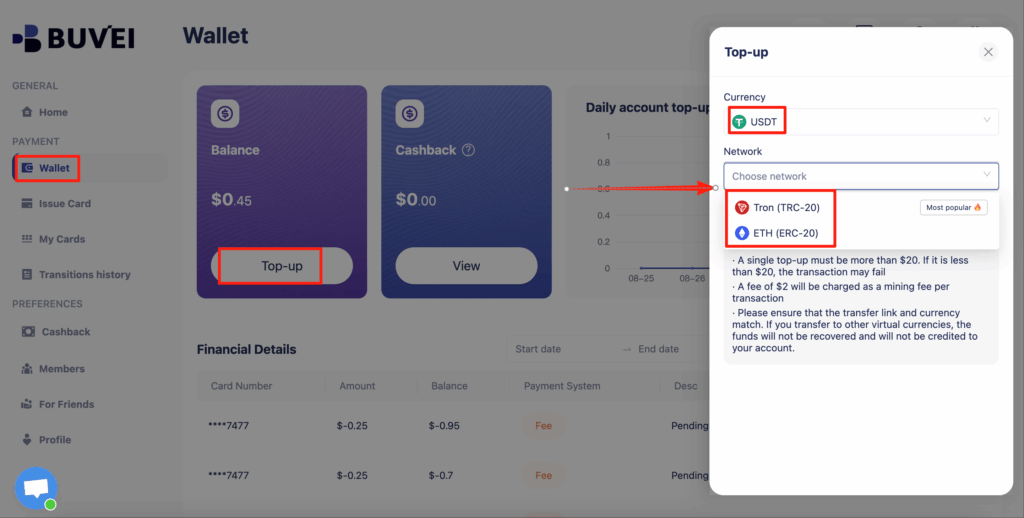
    • Navigate to the Wallet tab and top up using supported stablecoins like USDT (TRC20/ERC20). You’ll receive a unique address—copy it and send your funds.
    • Once confirmed, your balance will appear in the wallet for immediate use.
    Create a Virtual Card

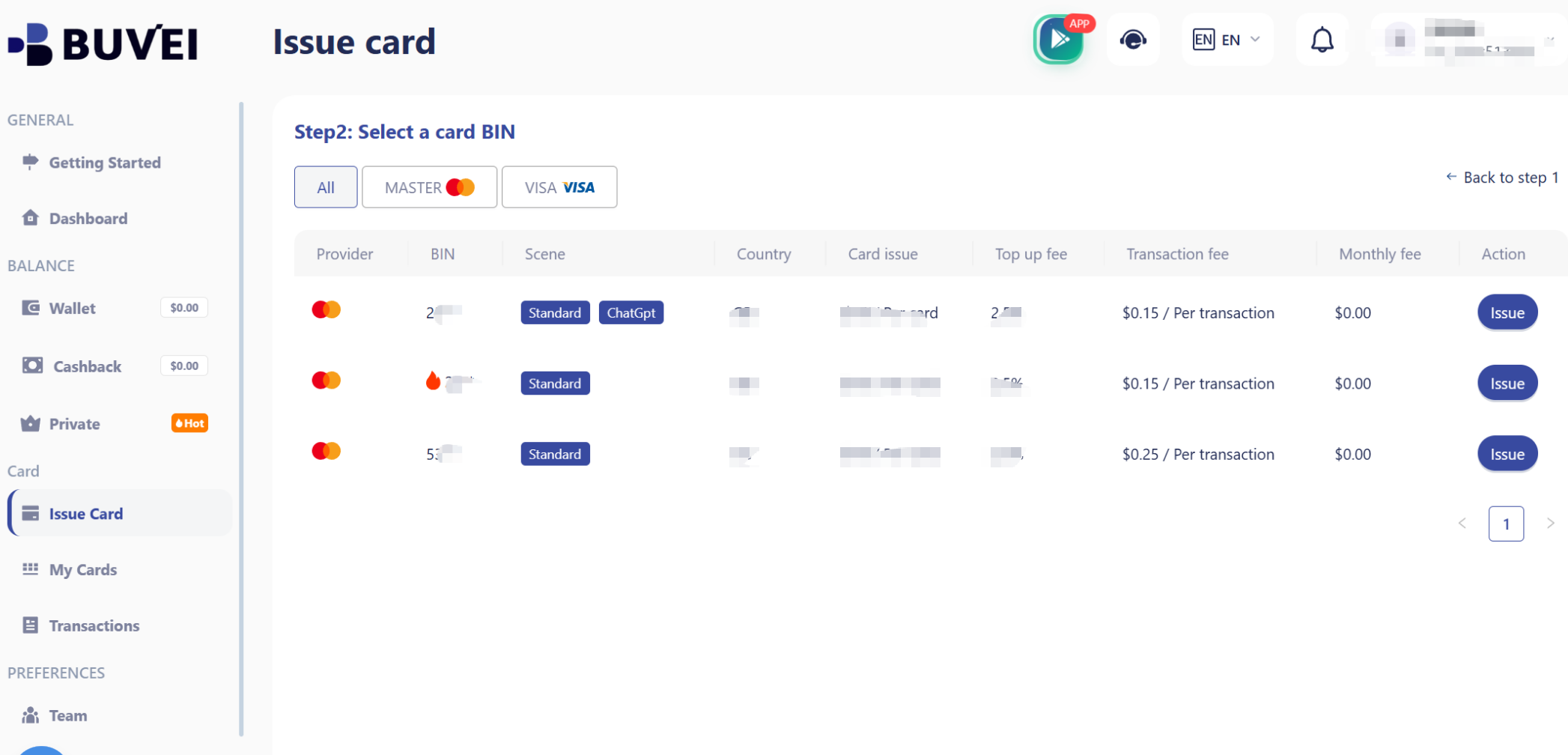
    • Go to the Card tab

    • Choose your preferred BIN region

    • Select your card type (Visa/Mastercard)

    • Click Issue 

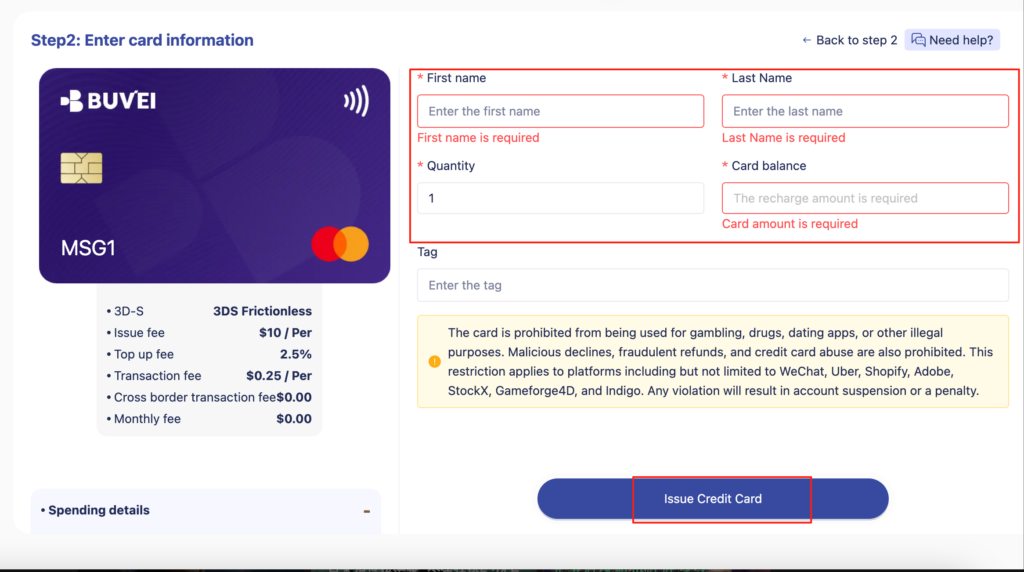
    • Fill in the virtual card details, including name, amount, and number of cards.
    • Click Issue Card

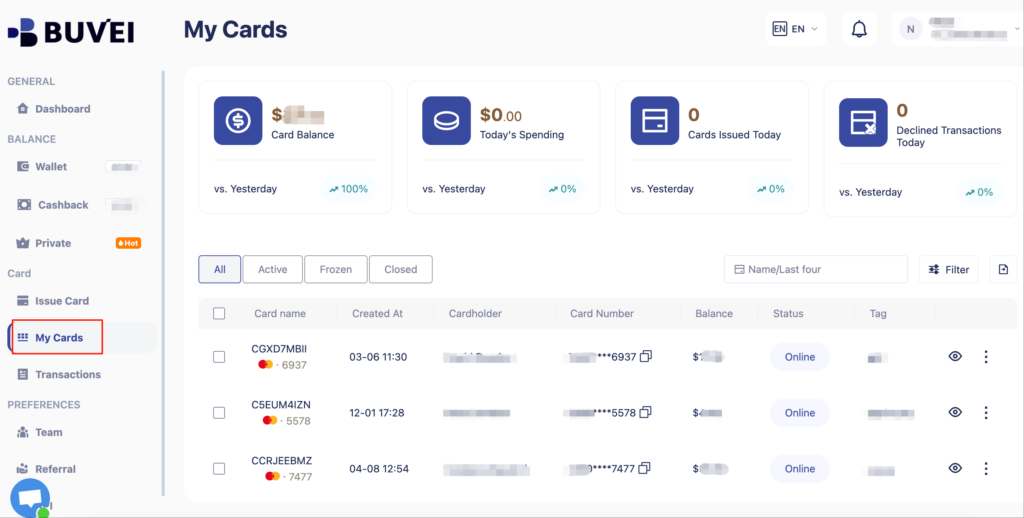
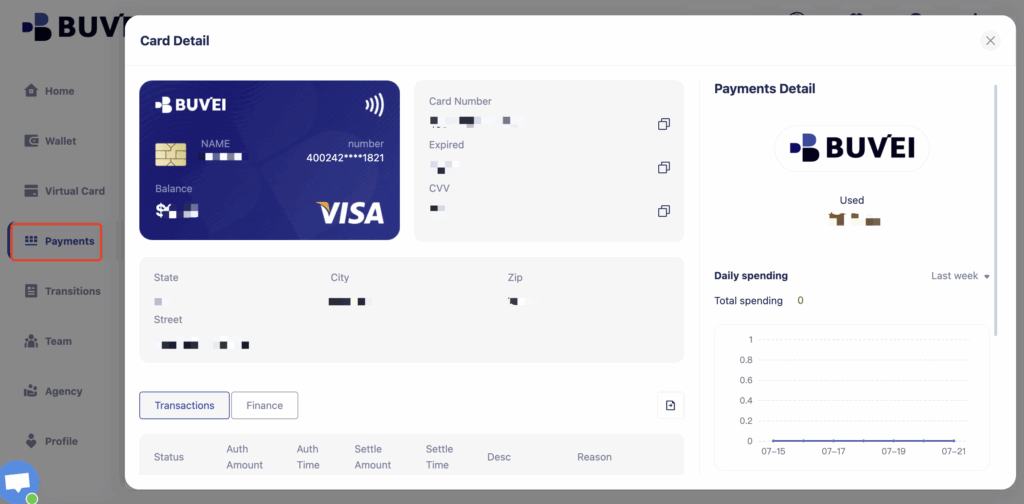
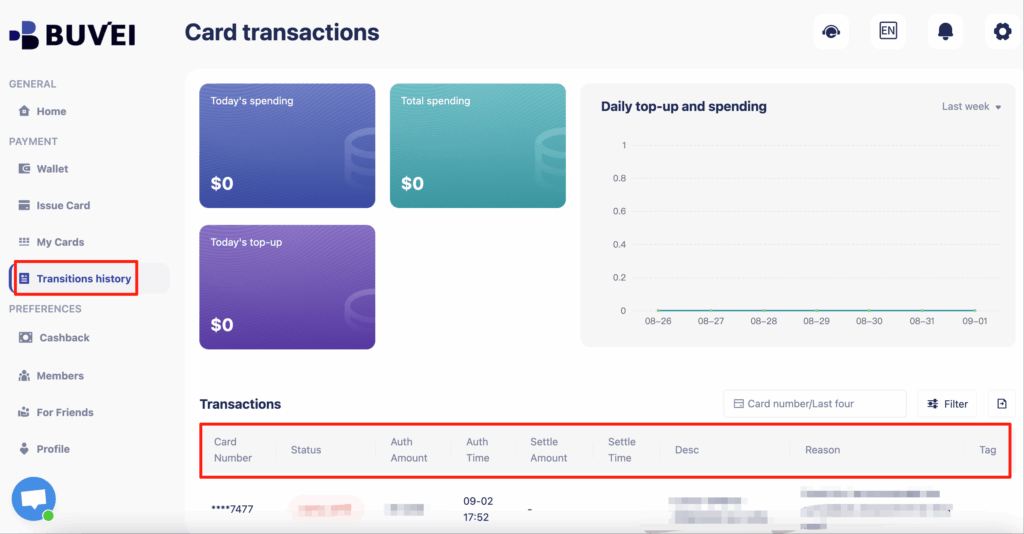
    Once created, navigate to My Cards to access your card details:

    • Card Number

    • Expiration Date

    • CVV

  • On this page, users can view an overview of their virtual card top-ups and spending, and check all transaction details.
Step 3: Enter Card Details and Complete the Payment

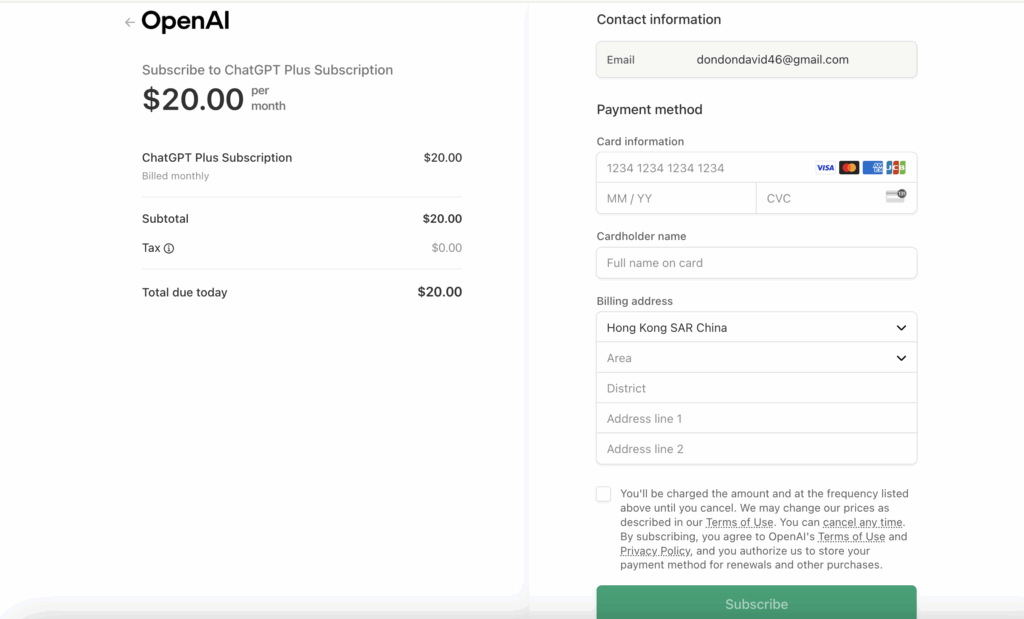
At the OpenAI payment screen:
  1. Enter your Buvei virtual card details:
    1. Card Number
    2. Expiry Date (MM/YY)
    3. Security Code (CVV)
    4. Name: Use your Buvei account name or real name (in Latin alphabet)
    5. Billing Address: Ensure consistency with the region the card supports
  2. Click “Subscribe” to complete the payment process.
FAQ (Quick Troubleshooting)

1) Card declined

  • Check supported countries/regions and your account region. If your region isn’t supported, you won’t be able to subscribe. (See Anthropic Help Center.)

  • Confirm accepted payment methods. Claude accepts credit/debit/prepaid cards; PayPal/Venmo aren’t supported. (See Anthropic Help Center.)

  • Verify AVS (billing address/ZIP must match the card), ensure sufficient balance (include pre-auth and taxes), and complete 3DS if prompted.

  • Try a smaller first charge (e.g., start monthly instead of annual), or retry with a different BIN/currency Buvei card.

  • Still failing? Review decline reasons and fixes in the Anthropic Help Center.

2) Change plan / add seats (Team/Max)

Adjust your plan and seat count in Billing. Team supports centralized billing and seat management. (See Anthropic Help Center.)

3) Invoices & records

Buvei provides statement/export and Webhook callbacks for reconciliation. On the Claude side, invoices and subscription status are available in Billing.

Five tips to boost approval with Buvei

  • Multi-BIN routing for better region matching and higher approval rates.

  • Fixed limits + allowlists (only authorize Anthropic/Stripe rails) to reduce risk.

  • Balance buffer: keep $10–20 above the plan price for pre-auth/tax swings.

  • Retry path: switch BIN/currency → re-check AVS → complete 3DS and retry.

  • Use single-use/short-term cards for trials; fixed-limit cards for long-term subs.

Who is it for?

  • Individuals/Freelancers: writing, coding, research, data work (Pro / Max).

  • Teams/Companies: centralized billing, seat management, automated reconciliation (Team / Enterprise). (See Anthropic Help Center.)

Wrap-up

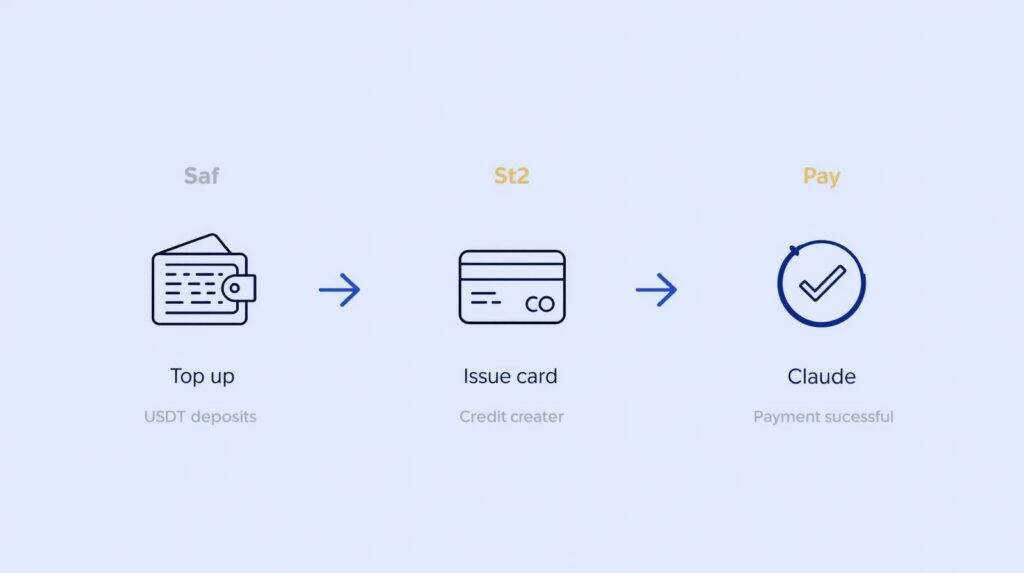
Subscribing to Claude with a Buvei virtual card takes just three steps: issue → top up → pay.
If you run into declines or risk checks, reach out to Buvei Support—we’ll recommend the best-fit BIN and limits for your region and use case to help you get approved and stay stable.

Previous Article

Visa & Mastercard Updates for Virtual Cards

Next Article

Virtual Cards for Event & Travel Expense Management

Write a Comment

Leave a Comment

Your email address will not be published. Required fields are marked *

Subscribe to our Newsletter

Subscribe to our email newsletter to get the latest posts delivered right to your email.
Pure inspiration, zero spam ✨
•••• •••• 1234
•••• •••• 5678

Buvei's cards are here!

More than 20 BIN cards, covering Facebook, Google, Tiktok, ChatGpt and more