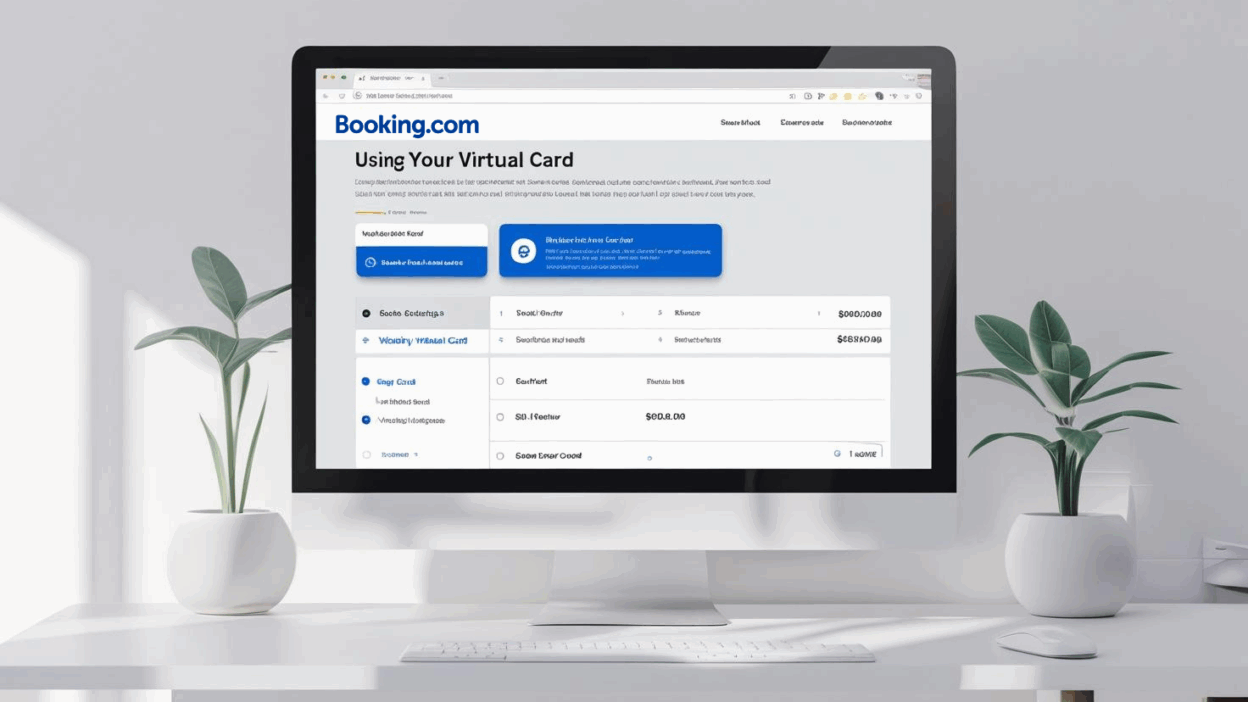
As global travel rebounds and business trips go digital, platforms like Booking.com have become indispensable tools for managing accommodation—whether you’re booking a single-night stay or organizing a multi-city tour for your team. But managing payments with corporate cards often comes with hidden risks: overspending, limited control, and exposure to fraud.
That’s where Buvei’s virtual cards come in. With features like per-merchant locking, auto-expiration, and crypto-based top-up, Buvei gives your travel team full control over hotel payments—without compromising flexibility.
In this guide, we’ll walk you through how to bind a Buvei virtual card to your Booking.com account, step by step.
✅ Why Use a Virtual Card for Booking.com?
Traditional card binding can result in:
-
🧾 Untracked employee bookings and manual reimbursements
-
⚠️ Risk of card exposure on third-party platforms
-
💸 Unrestricted spending, leading to over-budget stays
-
🔄 Recurring charges even after cancellations or early check-outs
By assigning a unique Buvei card to your Booking.com activity, you can:
-
Set exact spending limits per card (e.g. $500 cap for hotel)
-
Lock the card to Booking only—no other site can charge it
-
Automatically freeze or expire the card after checkout
-
Maintain a clean transaction record for every hotel booking
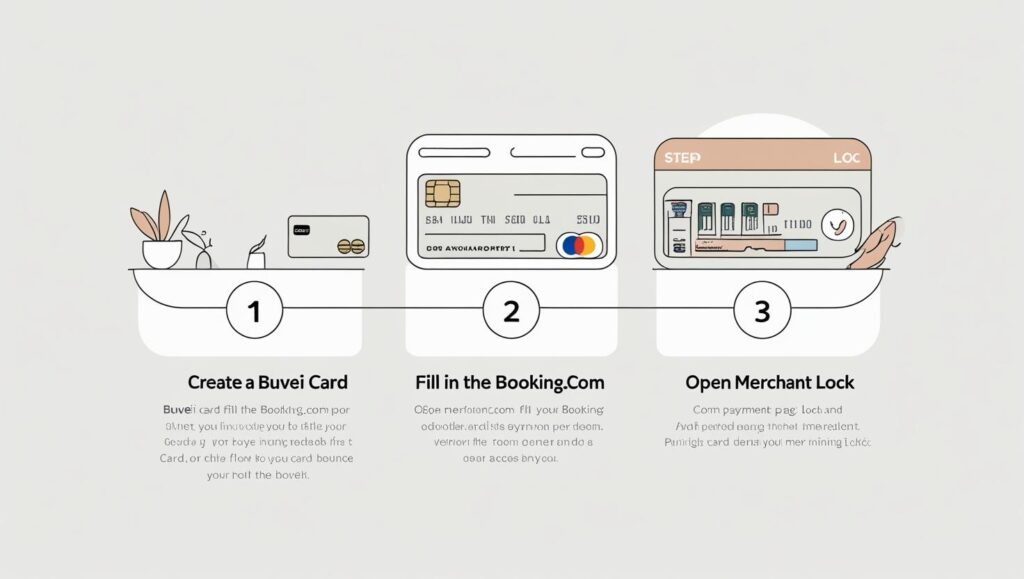
🛠 Step-by-Step: How to Bind a Buvei Virtual Card to Booking
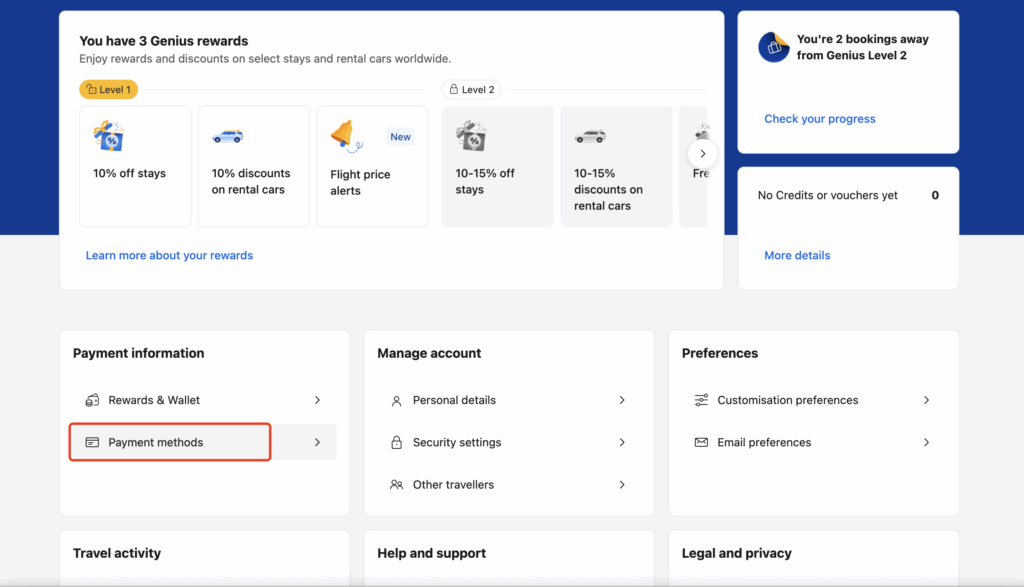
Step 1: Log in to Booking and Open the Payment Method
-
Go to Booking.com and log in

-
Navigate to Profile → Payment Methods
Step 2: Input Your Buvei Virtual Card
Enter the virtual card details generated from Buvei:
-
Name on card
-
Card number
-
Expiration Date
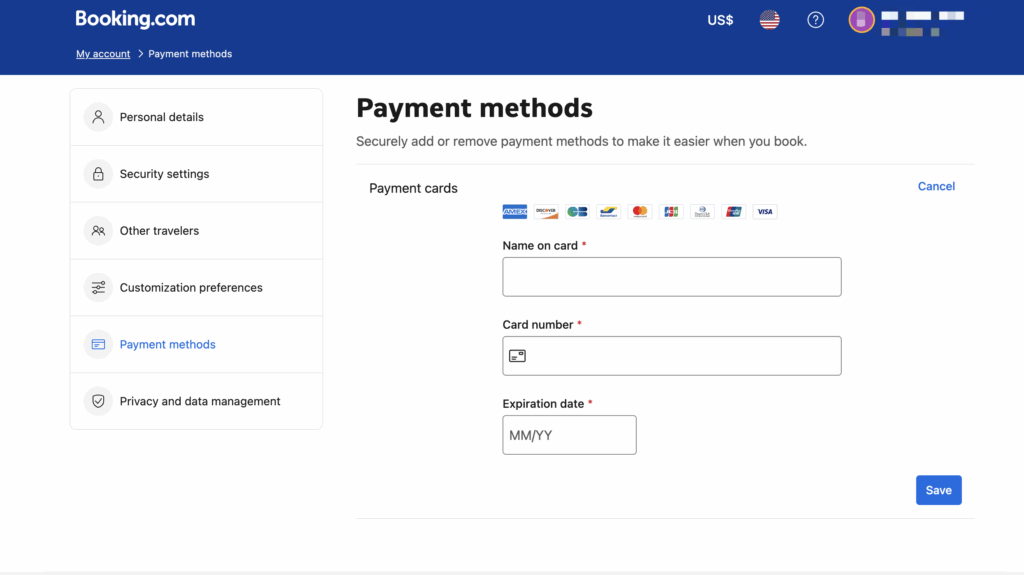
Click “Save Card.” Booking.com will verify the card with a temporary charge (usually $0.01–$1), which is automatically refunded.
📌 Note: Always ensure your virtual card has sufficient balance before binding. Some hotels pre-authorize a portion of the charge before check-in.If you don't have a virtual card yet, the following guide will help you apply quickly.
Step 3: Create Your Buvei Virtual Card
-
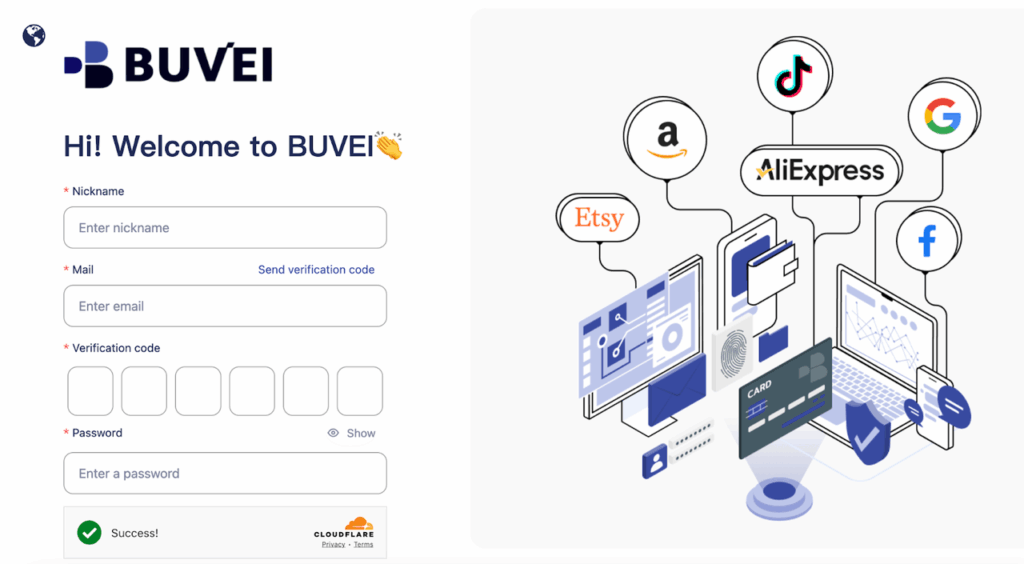
Log in at Buvei.com
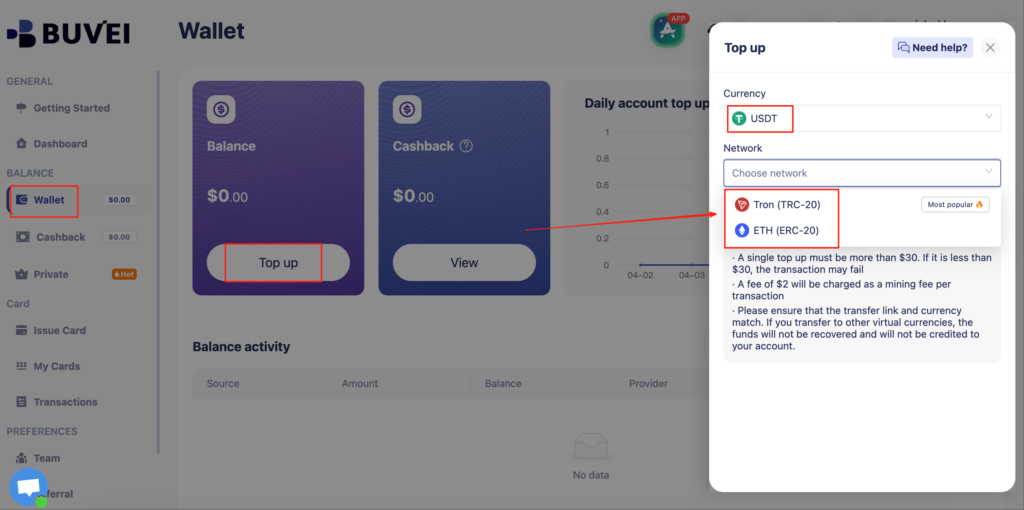
- Go to Wallet to top up using USDT (TRC20/ERC20) or other supported assets
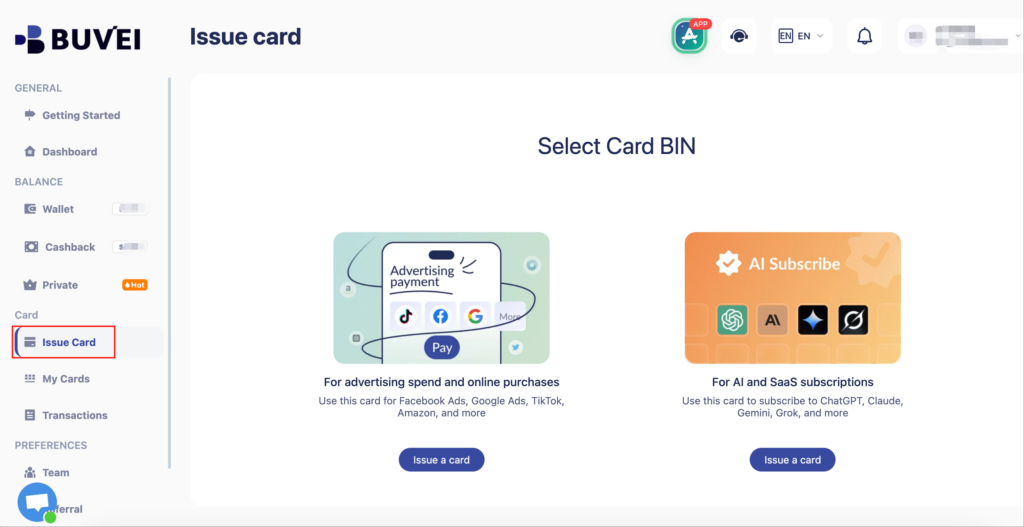
- Visit the Virtual Cards section,Choose your preferred BIN (Visa/Mastercard)
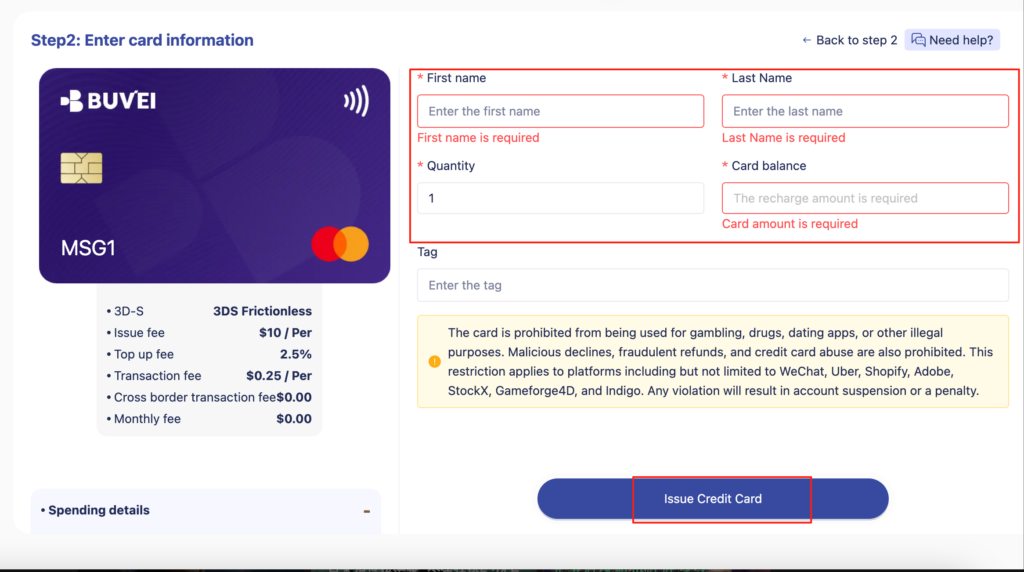
- Enter details (cardholder name, email, funding amount)
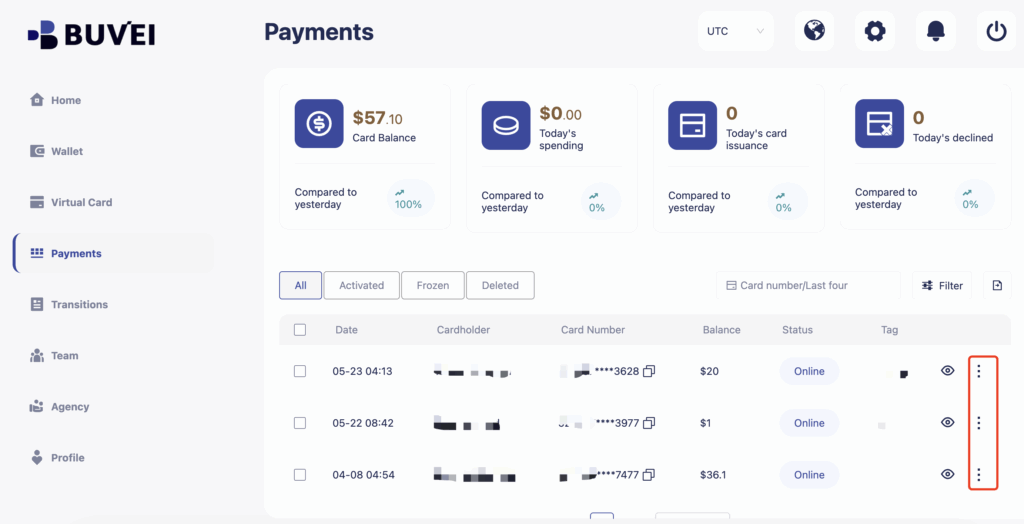
- Your card is generated under the Payments tab—view your card number, expiration, and CVV
🌐 Booking a Hotel with Your Bound Buvei Card
-
Choose your desired accommodation
-
On the payment screen, select the Buvei card as the payment method
-
Confirm the booking
-
You will see the charge reflected in your Buvei dashboard in real time
Optional: Enable Merchant Lock in Buvei to restrict this card to Booking.com only.

🔐 Benefits for Corporate Travel and Finance Teams
| Feature | Advantage |
| Merchant Lock | Card only works with Booking.com |
| Auto-Expiration | Card deactivates post-checkout |
| Spending Caps | Enforce budget limits per trip |
| Real-Time Monitoring | Live dashboard updates for every transaction |
| Crypto-Based Funding | Ideal for Web3 teams and international businesses |
📌 Common Use Cases
-
Booking short-term stays for remote teams
-
Managing hotel payments for freelancers or event staff
-
Keeping marketing or operations travel costs within budget
-
Separating personal and business travel transactions
✈️ Ready to Take Control of Travel Payments?
At Buvei, we make corporate travel spending smarter—with programmable virtual cards that work seamlessly across platforms like Booking.com, Airbnb, Uber, and more.
👉 Create your Buvei virtual card today and streamline hotel bookings with smarter control.