



Introduction
Claude and Cursor payment issues can be frustrating, especially when your card works perfectly well on other websites but your subscription still won't go through. This can happen when signing up for Claude Pro or Cursor Pro, or when renewing an existing subscription.
The cause isn't always obvious. Billing information, regional restrictions, bank authorization, and checkout errors can all lead to failed payments. This guide explains the common reasons behind these issues, how to fix them, and whether virtual cards offer another payment option. It also explores how BUVEI helps users manage payments for multiple AI and SaaS subscriptions.
Why Are Claude and Cursor Payments Being Declined?
Although Claude and Cursor have different billing systems, many payment failures come down to a few common issues.
Incorrect Card Details or Billing Information
An expired card, incorrect CVV, or billing address that doesn't match your bank records can prevent a transaction from going through. Even a minor discrepancy may result in a declined payment.
Unsupported Billing Country or Payment Method
Both platforms have regional and payment-method requirements. Claude's paid plans are available only in supported locations, and its web subscriptions accept credit and debit cards. Cursor's available payment options depend on the subscription and billing method used.
Purchases made through the iOS or Android app may also follow different billing arrangements from website subscriptions.
Insufficient Funds or Bank Restrictions
A card may be declined if its available balance doesn't cover the subscription cost and applicable taxes. Banks can also restrict international online purchases or recurring subscription charges.
Failed Security Verification or Checkout Errors
Some Claude transactions require 3D Secure (3DS) authentication. If the verification process isn't completed, the payment may not be approved.
Cursor checkout can also encounter temporary processing errors or interrupted payment sessions.
Subscription Renewal or Plan Activation Problems
A subscription may fail to renew even if the original payment was successful. In other cases, a payment may go through while the account continues to display the free plan because the subscription status hasn't updated yet.
How to Fix Claude and Cursor Payment Failures
Once you have an idea of what went wrong, work through these steps before attempting another subscription payment.
Check Your Billing Information
Start by reviewing the payment details saved to your account.
For Claude, open Settings → Billing and select the option to update your payment method.
For Cursor subscriptions purchased through its website, go to Settings → Billing, select Manage in Stripe, and review your saved card details.
Make sure the information matches your card issuer's records.
Confirm Your Card Is Eligible for the Payment
Check that your card meets the platform's requirements and supports the type of transaction you're attempting.
In particular:
- Confirm that your billing location is supported.
- Make sure the card is an accepted credit or debit card where required.
- Check your available balance and spending limits.
- Confirm that international and recurring payments are permitted.
If your card appears to meet these requirements but the payment still fails, contact your bank and ask whether it blocked the transaction.
Complete Security Verification and Retry
If a payment requires 3D Secure, complete the verification through your bank's app, website, or one-time password process.
If the checkout page encounters an error, sign in again and retry from the platform's billing page. For Cursor, you can also update your default card in the Stripe billing portal or try another eligible credit or debit card.
Avoid repeatedly submitting the same failed payment without checking what caused the problem.
Check Your Subscription Status After Payment
A successful charge doesn't always mean the subscription has been activated immediately.
For Claude, check Settings → Billing and review your recent payment activity and subscription status.
For Cursor, wait a few minutes, refresh your dashboard, and sign in again with the email address used for the purchase. Check your payment receipt or invoice if the plan still hasn't updated.
If the problem continues, contact the platform's support team with your account email, payment date, amount, and transaction reference.
Can You Use a Virtual Card for Claude and Cursor?
A virtual card can be another option for paying for online subscriptions, provided it meets the platform's payment requirements.
Unlike a physical card, a virtual card is issued digitally and has its own card number, expiration date, and security code. It can also help users keep payments for different services separate.
Before choosing one, pay attention to:
- Card Network: Whether the platform accepts Visa or Mastercard.
- Card Type: Whether the card qualifies as an accepted credit or debit card.
- Issuing Region: Whether the card's issuing information meets the platform's requirements.
- Recurring Payments: Whether the card supports automatic subscription renewals.
The BIN (Bank Identification Number) identifies the card issuer and is associated with information such as the payment network and issuing country. Different BINs may have different payment characteristics, which can matter when paying international merchants.
A virtual card isn't guaranteed to work with every subscription service. Its actual card type, issuing information, and ability to support recurring payments all matter.
How BUVEI Virtual Cards Help Manage Claude and Cursor Payments
For people who regularly pay for Claude, Cursor, ChatGPT, Canva, and other SaaS tools, putting every subscription on one card can make expense tracking difficult.
BUVEI offers Visa and Mastercard virtual cards with multiple BIN options, along with tools for managing individual cards and reviewing transactions.
Multiple BIN Options and Instant Card Issuance
Users can choose from available BINs, card types, and issuing regions according to their payment needs.
BUVEI cards can be issued directly through the platform without waiting for physical delivery. This is useful when setting up payment methods for different online services or projects.
Separate Cards and Individual Spending Limits
Instead of putting every subscription on one card, users can issue separate cards for different services or projects.
BUVEI lets users manage each card independently:
- Spending Limits: Set individual limits for different cards.
- Freeze and Unfreeze: Temporarily suspend or reactivate a card.
- Close Cards: Disable cards that are no longer needed.
For freelancers and teams managing multiple software subscriptions, these controls help keep expenses separate and give users more control over payment access.
Transaction Tracking and Spending Records
When several subscriptions are charged throughout the month, keeping track of individual payments becomes important.
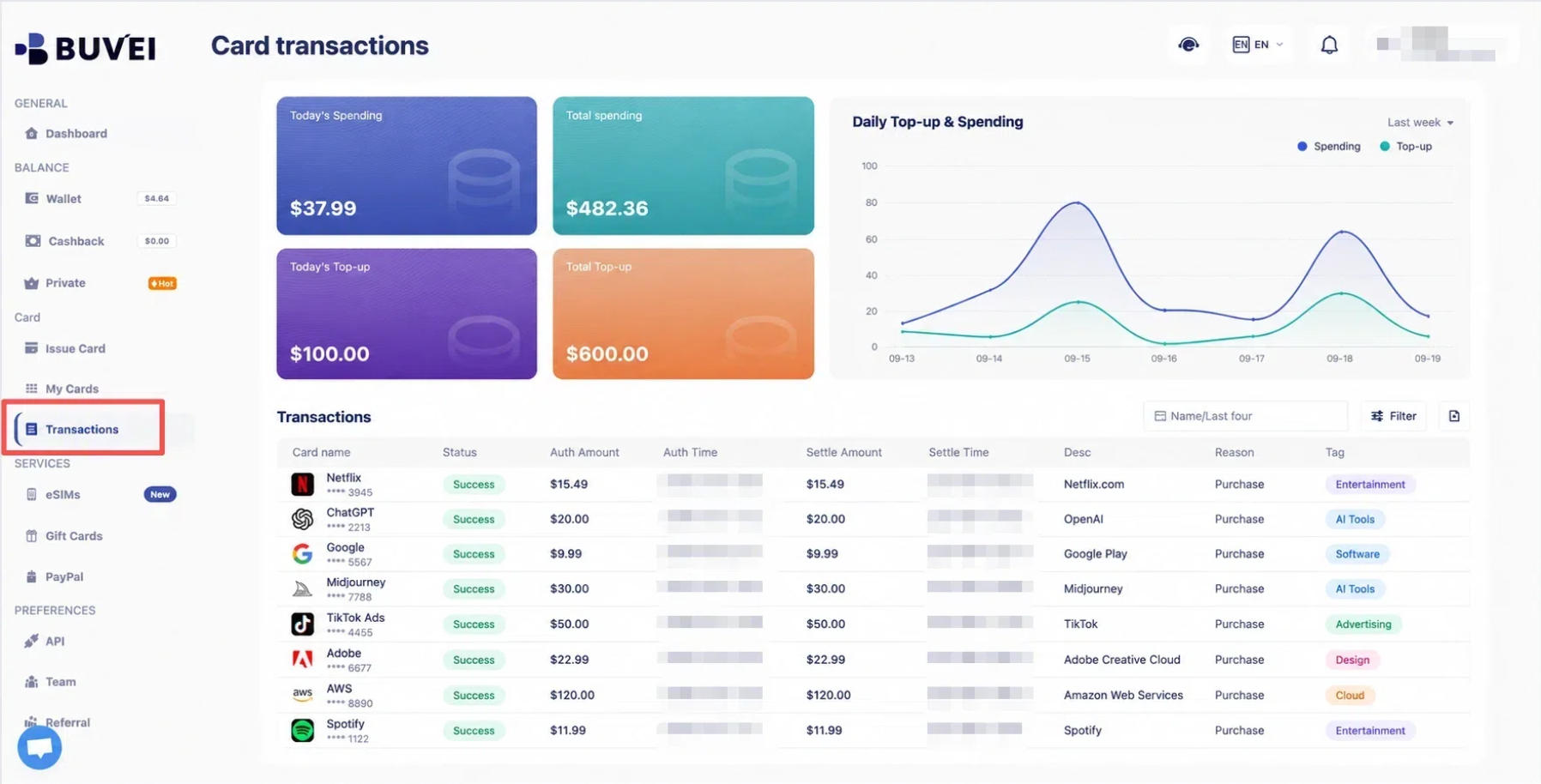
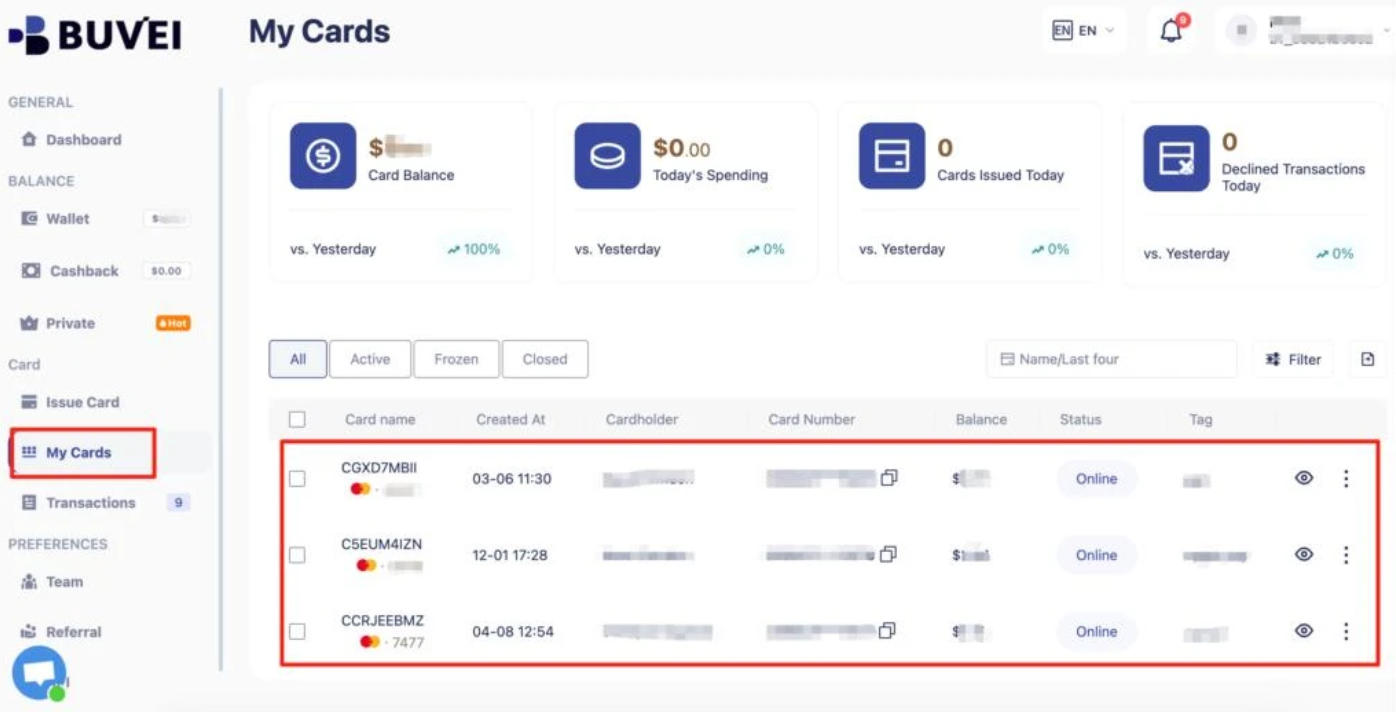
BUVEI's transaction dashboard displays transaction status, authorized and settled amounts, transaction times, and merchant descriptions. Users can also search by card name or the last four digits of a card number.
This makes it easier to find individual subscription charges and review spending across different cards.
How to Create a BUVEI Virtual Card
Getting started with BUVEI involves creating an account, funding your wallet, and issuing a virtual card.
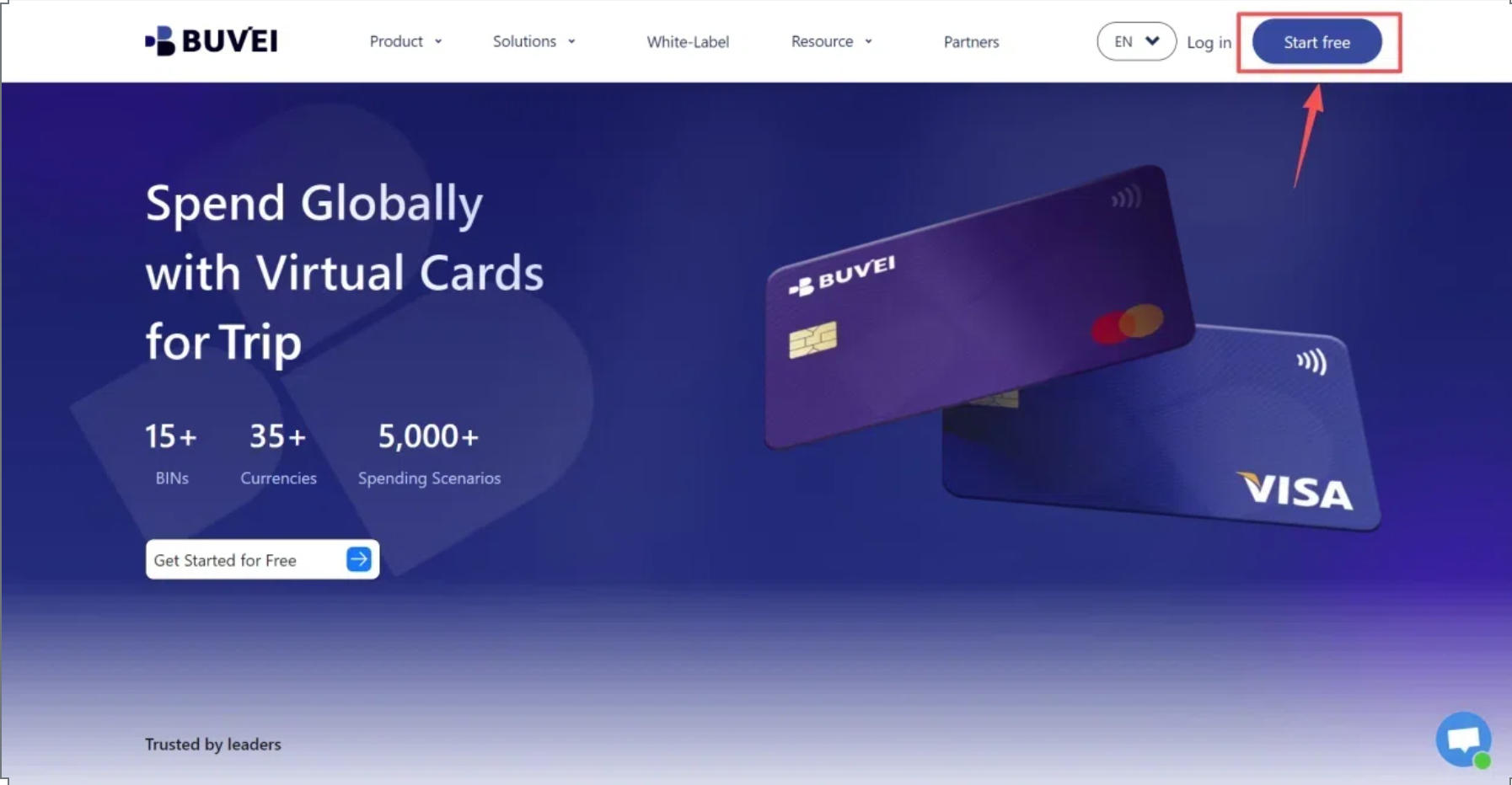
Step 1: Sign Up and Add Funds
Visit BUVEI, register with your email address, and sign in.
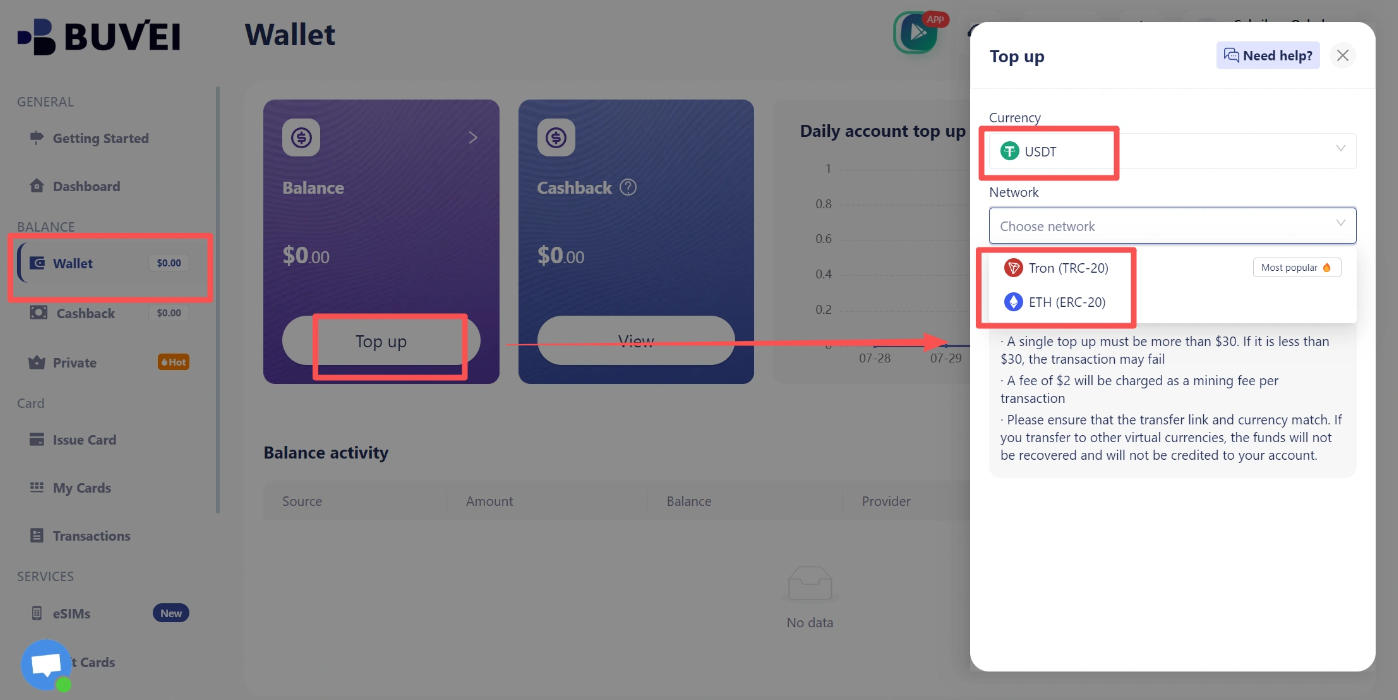
Open Wallet, select a supported USDT deposit network (TRC20 or ERC20), and copy the corresponding deposit address. Transfer your funds using the same network and wait for the deposit to be confirmed.
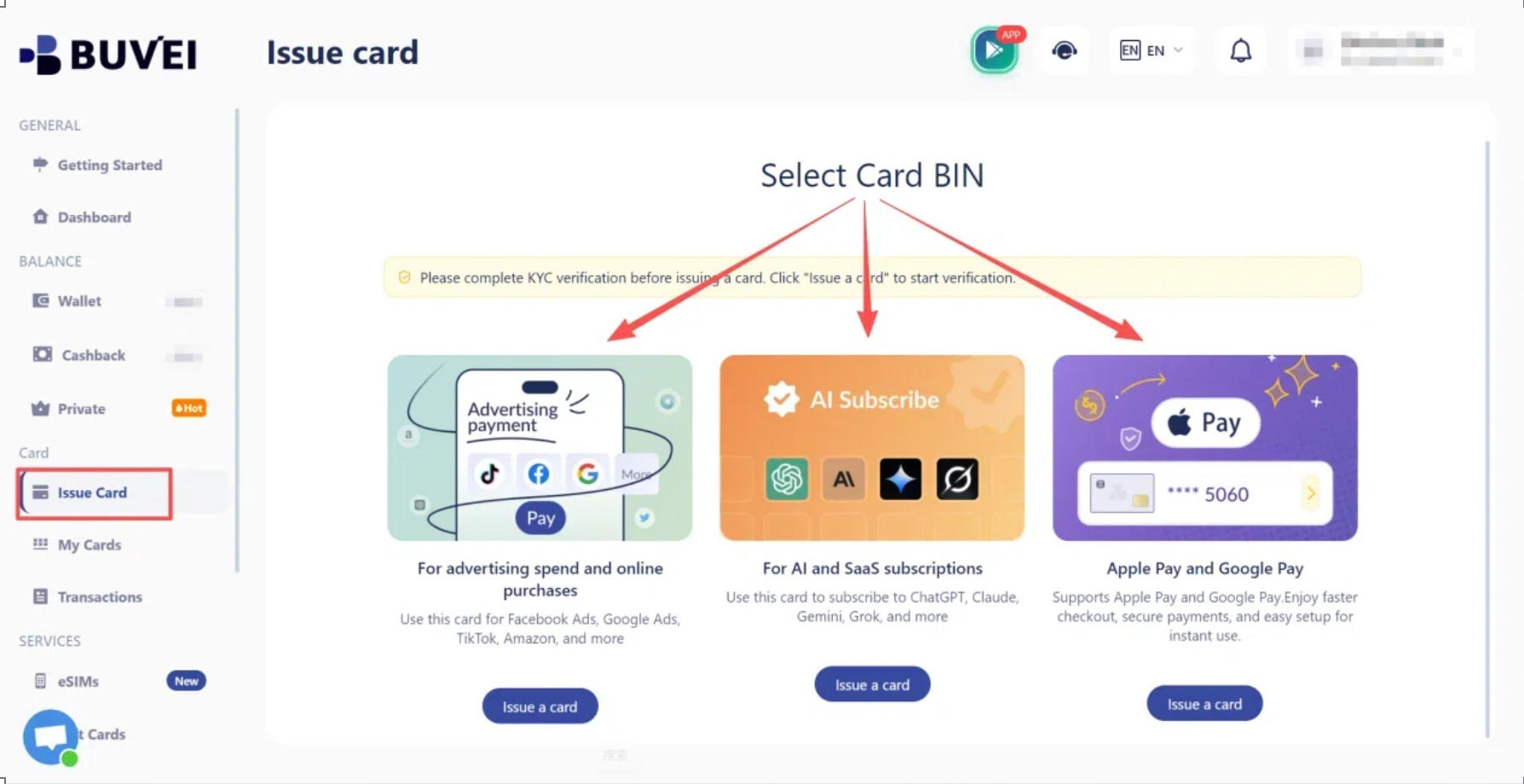
Step 2: Choose a BIN and Issue Your Card
Go to the Card section and select an available BIN and card type.
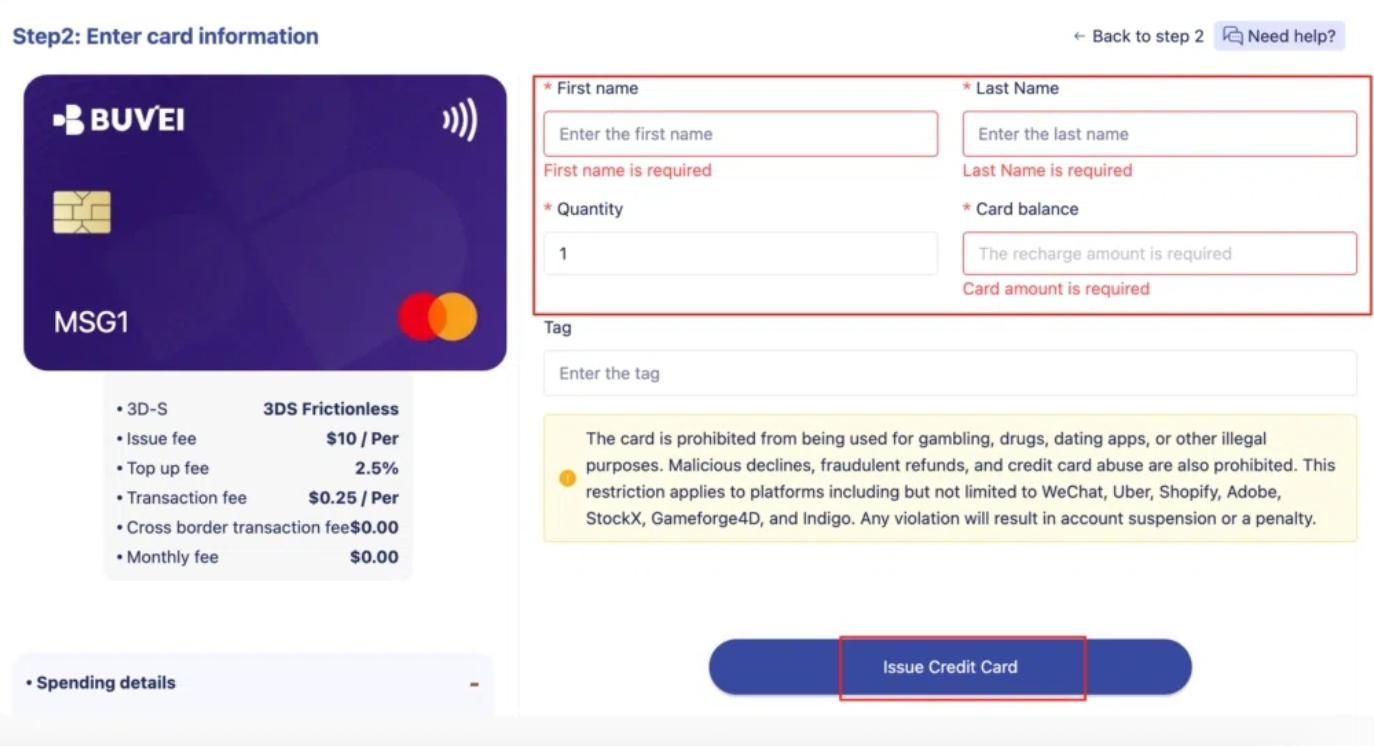
Enter a card name, the amount, and the number of cards you want to issue. Review the details and submit your request.
Step 3: Find Your Card Details
Once the card has been issued, open My Cards to view its card number, expiration date, and CVV.
Step 4: Add Your Card to Claude or Cursor
Open the billing settings of the service you want to subscribe to.
For Claude web subscriptions, go to Settings → Billing. For Cursor subscriptions purchased through its website, open the billing dashboard and select Manage in Stripe.
Enter your BUVEI card details and the required billing information, then complete the payment process.
Make sure the card meets the platform's requirements, particularly for recurring subscriptions. If you subscribed through an app store, payment management must be handled through the corresponding Apple or Google account.
Final Thoughts
A declined Claude or Cursor payment doesn't always mean your card is unusable. The problem may involve billing details, regional eligibility, bank authorization, or the checkout process. Identifying the cause first can save time and prevent unnecessary payment attempts.
For users managing several AI and SaaS subscriptions, BUVEI offers another way to keep online payments organized with separate virtual cards and individual card controls. This can make recurring subscription expenses easier to manage.