


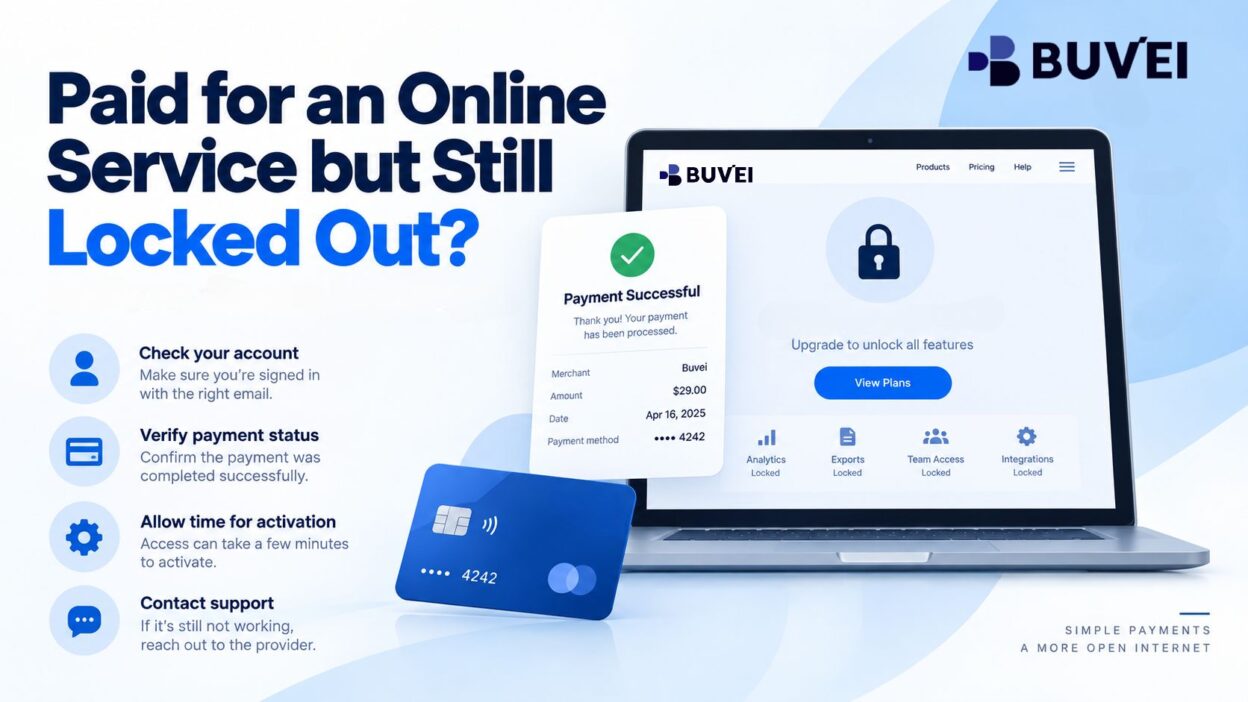
A card payment can go through successfully while the software still says “Upgrade your plan.”
That does not always mean the payment failed.
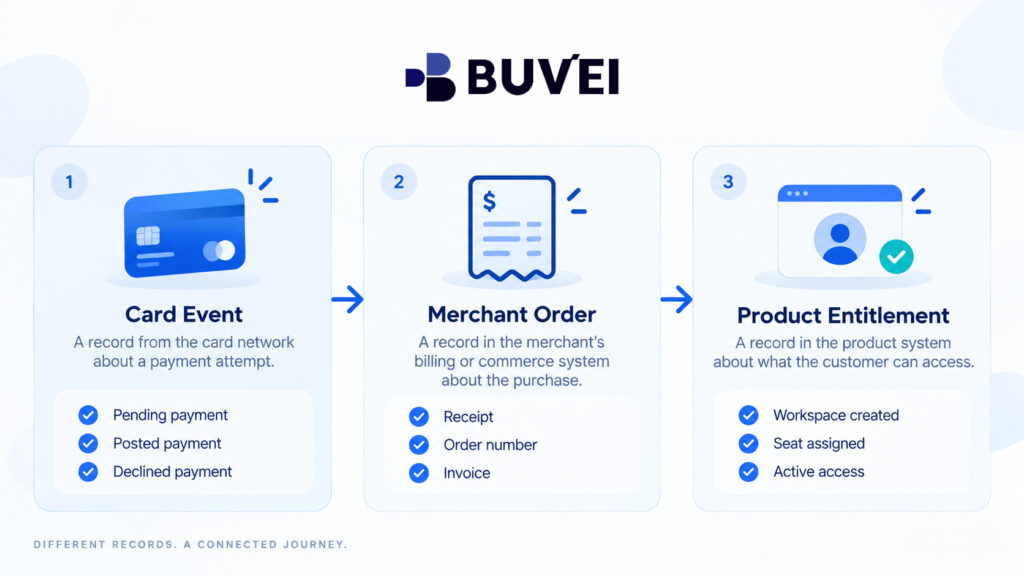
A card transaction, a merchant order, and an active subscription or licence are three different records. The card provider can confirm what happened to the payment, but only the merchant can connect an order to the correct account, workspace, licence, or user.
Before paying again, identify which part of that chain is missing.
A second purchase may create a duplicate order without fixing the original access problem.
What “Paid” Actually Means
A payment can move through several stages.
A pending authorisation means the card issuer approved the request and may have reserved funds. It does not necessarily mean the merchant completed the order.
A posted transaction is stronger evidence that the financial transaction completed, but it still does not tell you which account or workspace received the service.
A merchant confirmation email, receipt, invoice, or order number provides the missing merchant-side evidence.
For example, if your card shows €48 pending but the checkout returned an error and no order appears in your account, that is very different from a posted €48 charge with a valid invoice.
The first question should be:
Did the merchant actually create an order?
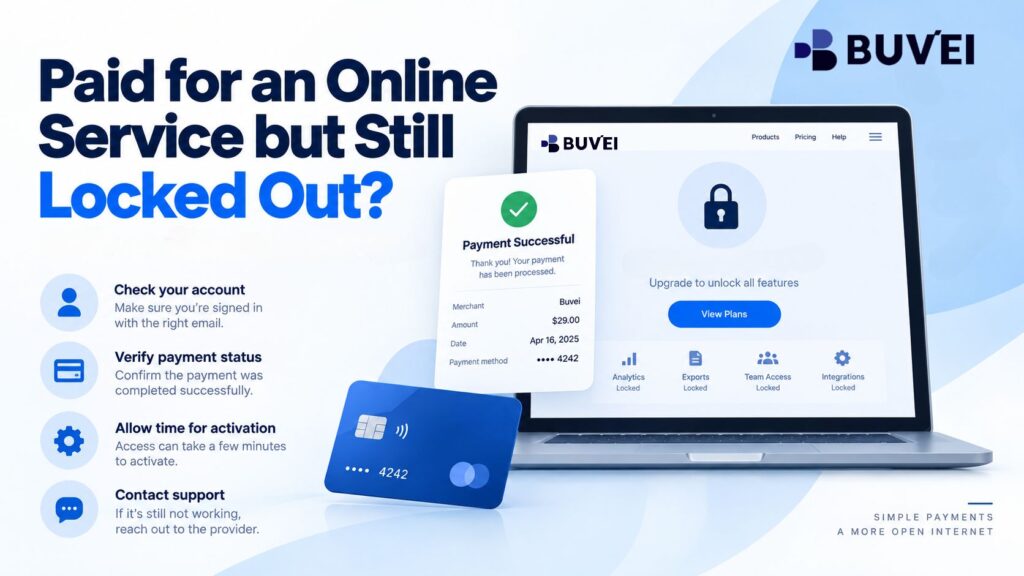
Check Three Records
When payment appears successful but access is still missing, compare these three records:
1. Card transaction
This tells you what happened to the money.
Check:
- transaction status,
- amount,
- currency,
- date and time,
- and the card used.
2. Merchant order
This tells you what the seller actually accepted.
Look for:
- order number,
- invoice,
- receipt,
- confirmation email,
- or billing history.
3. Product entitlement
This tells you who can actually use the service.
Check:
- account email,
- workspace or organisation,
- assigned seats,
- subscription status,
- and active plan.
One record can exist without the next.
A merchant may successfully charge the card but fail to assign the licence. The subscription may also be active in another workspace while the user is checking the wrong account.
What to Do in the First 30 Minutes
Before trying the payment again, do a quick account check.
Start with the same account used during checkout.
Check:
- Billing or Subscriptions
- Order History
- Workspace or Organisation settings
- Assigned seats
- Confirmation emails
- Licence or invitation emails
Then sign out and back in once.
If your company has several accounts with the same provider, confirm that the email used at checkout matches the account currently open.
This matters because:
- social login may create a separate account,
- a personal email may differ from a company account,
- a paid plan may belong to another workspace,
- or an administrator may still need to assign a seat.
Avoid changing account emails or making another purchase until you know where the original order landed.
Five Common Reasons Access Is Missing
Most cases fall into a few common categories.
1. Wrong account
The purchase was made using one email, but the user is signed into another.
2. Wrong workspace or organisation
The paid plan was applied to an old or different workspace.
3. Seat not assigned
The company paid for the licence, but the administrator has not assigned access to the user.
4. Delayed fulfilment
The payment is complete, but activation still requires review, verification, reseller fulfilment, or another business process.
5. Broken activation flow
The order succeeded, but a browser redirect, automated licence job, or provisioning process failed.
These issues usually need to be fixed by the merchant or account administrator.
A new card payment will not necessarily solve them.
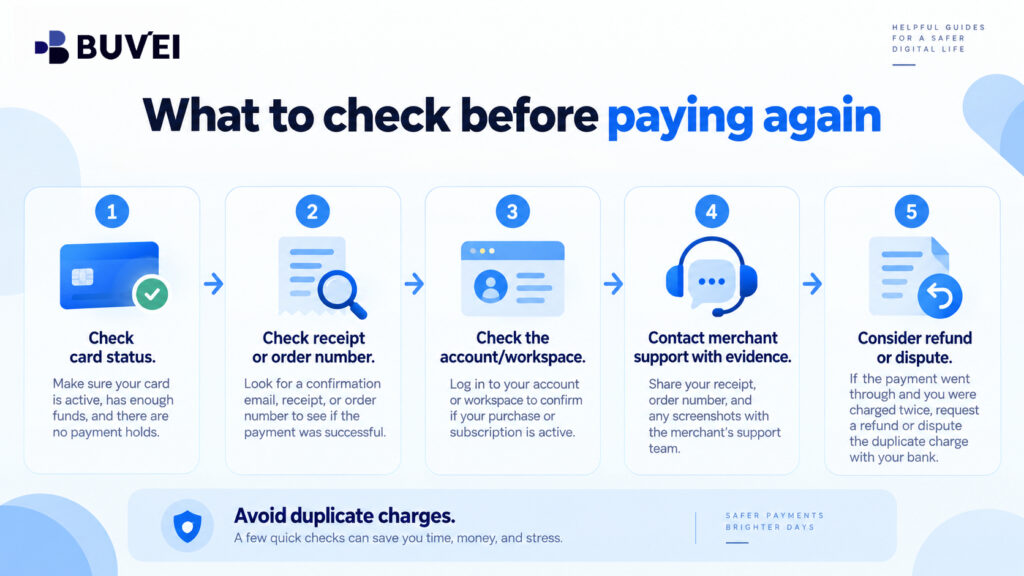
Why Paying Again Too Quickly Can Make Things Worse
If you immediately retry the purchase, you may create:
- a second invoice,
- another subscription,
- another renewal date,
- a duplicate licence,
- or multiple pending authorisations.
For example, one employee may click “Buy” several times because access does not appear.
Later, the merchant could show two completed orders and one abandoned authorisation.
Now the problem is no longer just missing access — it also requires duplicate-payment reconciliation and cancellation.
Only retry when:
- the merchant confirms no payable order was created, or
- the merchant specifically asks you to retry and explains what will happen to the first attempt.
Send Support a Ticket They Can Actually Solve
A useful support ticket should connect the payment to the merchant account clearly.
Include:
- merchant or service name,
- amount and currency,
- exact date and time with time zone,
- order or invoice reference,
- account email,
- workspace or organisation ID,
- card last four digits,
- current subscription status,
- and a screenshot of the access error.
Then ask for one clear outcome.
For example:
We purchased the Team plan for North Studio on 18 September at 10:12 CEST for €48, order AB-1234, using card ending 4821. Billing shows the payment, but workspace North Studio still shows the Free plan. Please confirm which account or workspace received the entitlement and whether manual activation or seat assignment is required. If the service cannot be activated, please confirm the refund process.
Do not send:
- full card number,
- CVV,
- OTP,
- password,
- or other sensitive credentials.
The merchant should only need enough information to identify the order.
When to Ask for a Refund or Escalate
If the merchant can activate the correct account or workspace, confirm that the paid feature actually works before closing the case.
Also check:
- seat count,
- subscription tier,
- renewal date,
- and renewal amount.
If the merchant cannot deliver the service, request cancellation or a refund using the merchant’s normal process.
Keep the case reference and compare the promised refund with the actual credit that later appears on the card.
If the merchant remains unresponsive, or the charge is unauthorised, contact the card provider to ask about available dispute options and deadlines.
A dispute is a formal payment process and should not replace a normal service-activation or refund request when the merchant is still handling the issue.
What Buvei Can Help You Check
Where available for the relevant account, Buvei transaction records can help confirm:
- transaction status,
- time,
- amount,
- currency,
- and the card used.
This helps establish the payment-side record.
However, Buvei cannot determine which merchant workspace received the subscription, assign a user seat, or activate a licence inside the merchant’s system.
That part must be handled by the seller or service provider.
The most useful approach is to keep the merchant receipt and the Buvei transaction record together so both sides can refer to the same payment.
Three Common Scenarios
Pending transaction, no receipt
A design studio sees a €120 pending transaction after checkout times out.
There is no receipt and no order in the supplier account.
The buyer should ask the merchant whether an order was created or whether the authorisation will be released before attempting payment again.
Posted charge, wrong workspace
A team pays for five seats and receives an invoice.
The card transaction is posted, but the production workspace still shows a free plan.
The invoice reveals that the licence was applied to an old workspace.
The fix is to transfer or reissue the entitlement — not to make another card payment.
Receipt exists, but no user has access
A company buys an annual software licence through a reseller.
The licence exists under the company organisation, but no user has been assigned.
Once the administrator assigns the seat, access works.
In this case, the payment worked correctly; the missing step was user assignment.
Keep Recurring Purchases Easier to Manage
For ongoing subscriptions, keep a simple internal record containing:
- vendor name,
- account owner,
- workspace or organisation,
- administrator,
- card last four digits,
- invoice location,
- active seats,
- and renewal terms.
This helps when someone later says:
“We paid for this, but it is not active.”
Finance can then confirm the transaction while the account owner checks where the entitlement is assigned.
Final Takeaway
When money has moved but service access has not appeared, do not assume the solution is another payment.
Check the chain:
Card transaction → Merchant order → Account or workspace → Licence or seat
Confirm what happened at each stage.
Preserve the payment record, find the merchant order, verify the correct account or workspace, and ask the seller for a specific resolution.
If delivery cannot be completed, move to cancellation, refund, or further escalation with clear evidence.
The goal is simple:
Make sure the payment, merchant order, and service access all point to the same purchase.