


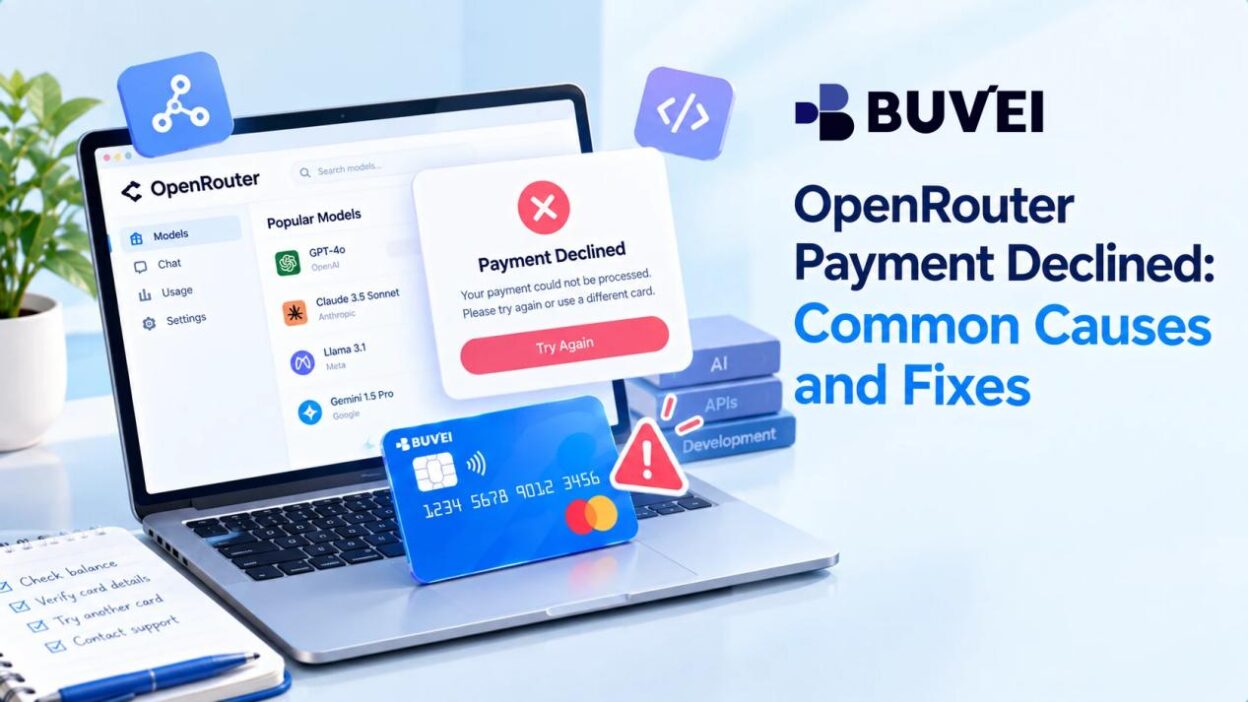
Seeing an OpenRouter payment declined message can be frustrating, especially when the same card works for other online purchases. A declined payment does not necessarily mean there is a problem with your OpenRouter account. Insufficient available balance, incorrect billing details, issuer restrictions, authentication failures, and temporary processing issues can all prevent a card payment from being authorized.
OpenRouter uses prepaid credits for API and chat usage, so a failed top-up can also interrupt access to the services you use through the platform. The good news is that most payment declines can be narrowed down by checking a few specific areas. This guide covers the common reasons an OpenRouter payment may be declined, what to do if you were charged but your credits have not appeared, and how to make future OpenRouter payments more reliable.
Common Reasons for an OpenRouter Payment Decline
Insufficient Card Balance
The most straightforward reason is that the card does not have enough available funds to cover the purchase.
OpenRouter uses a credit system for API and chat usage, and users can add credits manually or set up Auto Recharge. If the available balance on the payment card is too low, the card issuer can decline the authorization.
Check the card’s available balance, not just the overall account balance. A pending transaction or authorization hold can temporarily reduce the amount available for a new purchase. If the card has a separate spending limit, make sure the remaining limit is high enough for the OpenRouter payment as well.
This is particularly important with Auto Recharge. A card may have worked for an earlier top-up but fail later if the available balance or spending capacity has changed.
Before submitting another payment, make sure the card can cover the amount you want to add to your OpenRouter credits.
Incorrect Card or Billing Information
Online card payments can fail when the payment details submitted at checkout are incorrect. Common examples include an incorrect card number, expiration date, CVV, or billing information. Stripe lists incorrect payment details among the standard causes of card authorization failures.
Review the information entered for the OpenRouter payment before submitting it again. If a billing ZIP or postal code is requested, use the information associated with the card.
This is especially worth checking with a newly issued virtual card. The card can be active and funded while the billing information entered during checkout is still incorrect.
If you have copied the card details from a virtual-card dashboard, check each field rather than assuming that an active card will automatically pass the payment verification.
Card Issuer Blocks the Transaction
The decline may have nothing to do with your OpenRouter account.
The card issuer makes the final authorization decision on many card transactions and may reject a payment because of unusual activity, fraud controls, account restrictions, or other risk checks. Stripe notes that banks do not always provide detailed reasons for these declines.
This can happen even when the card has sufficient funds and the card information is correct. A transaction involving an online service, a new merchant, or a cross-border payment may receive additional scrutiny from the issuer.
If the other card details look correct, contact the issuer and ask whether the OpenRouter transaction was blocked or declined. This is often more useful than repeatedly submitting the same payment. If the issuer is rejecting the transaction, refreshing the checkout page will not fix the underlying problem.
3D Secure or Payment Verification Failed
Some online card payments require additional authentication. If 3D Secure is requested and the authentication cannot be completed, the payment may not go through. Stripe documents cases where a payment requires authentication before the issuer will authorize it.
If an authentication screen appears, complete the verification before trying the payment again. If the verification page fails to load, times out, or the authentication is rejected, check with the card issuer to make sure the card can complete the required authentication.
This can also be relevant when using a virtual card. Having valid card details does not guarantee that every payment will pass the issuer’s authentication or risk checks.
Don’t keep submitting the same payment while the authentication problem is unresolved. Resolve the verification issue first, then make another attempt.
Card Restrictions or Temporary Processing Issues
A card can be active and funded but still have restrictions that prevent a particular transaction from being authorized.
Check whether the card is active, has not expired, and has enough remaining spending capacity. Some cards can also have restrictions on certain transaction types or cross-border payments. Stripe identifies cross-border restrictions and card-type limitations as possible causes of card payment failures.
Temporary processing problems can also interfere with an otherwise valid payment. If your card details, balance, and settings all look correct, give the payment some time before trying again rather than submitting multiple attempts in quick succession.
Repeated attempts can make it harder to determine whether the original problem was a temporary processing issue or an issuer-side restriction.
What If OpenRouter Charged Me but Didn’t Add Credits?
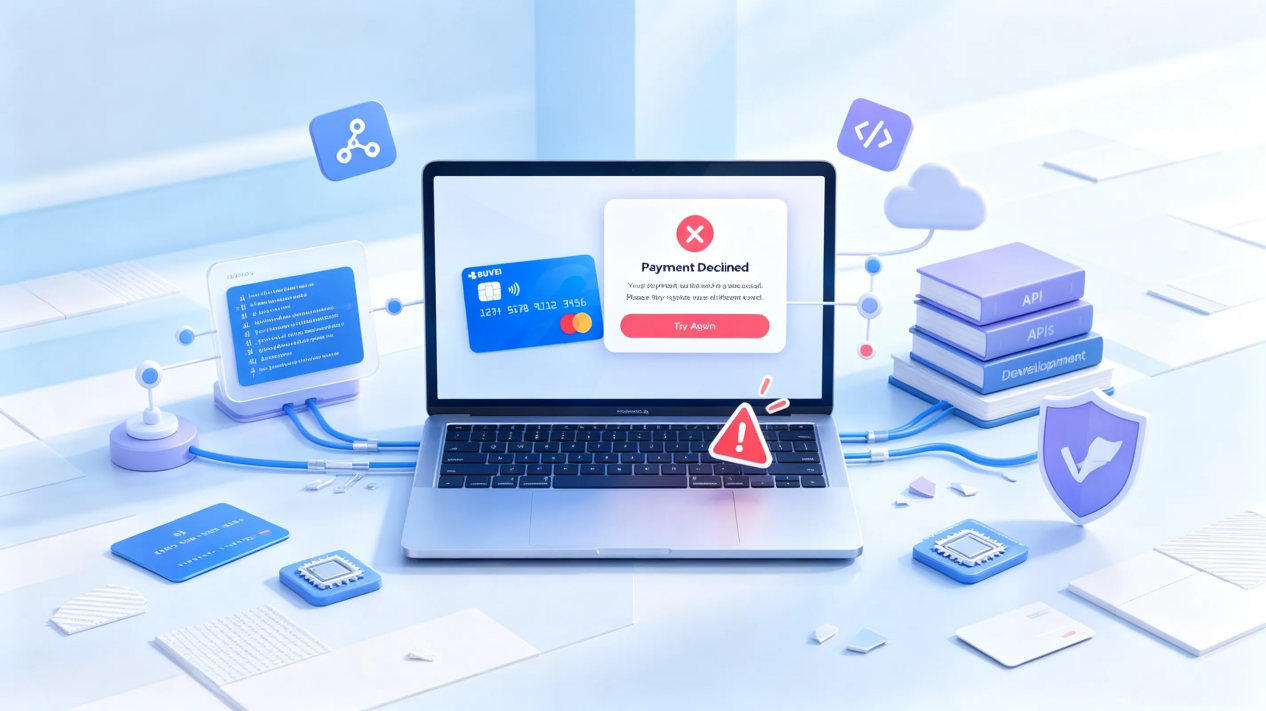
A payment decline and a missing credit balance are not the same thing. OpenRouter’s FAQ specifically addresses delayed credits after Stripe payments. If the payment succeeded but the credits have not appeared, OpenRouter recommends allowing up to one hour for the balance to update.
Payment Succeeded but Credits Haven’t Appeared
First, check whether you were actually charged and whether you received a Stripe receipt.
If the payment was successful but the credits are still missing, wait up to an hour before taking further action. OpenRouter says that if the credits still have not appeared after that point, users who were charged should contact support with details of the purchase.
If there is no charge and no receipt, OpenRouter indicates that the card payment may have been declined and recommends trying another payment method.
Do not make another payment simply because the balance has not updated immediately. You could end up creating an unnecessary second transaction while the first payment is still being processed.
A Pending Charge Appears After a Failed Payment
A card payment can also leave a temporary authorization hold even when the final transaction does not complete. Authorization holds can reduce the card’s available balance while the payment is being processed or reversed.
If you see a pending charge after an unsuccessful OpenRouter payment, check the transaction status with your card issuer before trying again.
A pending authorization is not the same as a completed charge. The issuer can tell you whether the transaction is still being processed or has already been released.
This distinction is particularly important if you are using a card with a tight spending limit. A temporary hold can reduce available spending capacity even though the payment itself was not completed.
How to Avoid Future OpenRouter Payment Declines
If you use OpenRouter regularly, keeping the payment side predictable can prevent some avoidable failures.
Make sure the card has enough available balance before purchasing credits or allowing an Auto Recharge to run. Keep the billing information consistent, and review the card’s spending limit if you use a dedicated virtual card.
It also helps to keep an eye on payment and usage activity so you can spot unusual spending or failed transactions early. If you use OpenRouter alongside other AI tools and SaaS subscriptions, separating those expenses can also make card activity easier to review when something goes wrong.
For recurring API usage, avoid waiting until your available credit or payment capacity is nearly exhausted before addressing a payment problem. Keeping enough room for the next top-up can reduce interruptions when Auto Recharge or another credit purchase is needed.
If a card repeatedly fails while other payment methods work, it is usually more productive to investigate the card or issuer rather than repeatedly retrying the same transaction.
Managing OpenRouter API Spending With a Virtual Card
For users who want to keep OpenRouter spending separate, a dedicated virtual card can make the payment side of API usage easier to manage.
With BUVEI, you can create dedicated virtual cards, set spending controls, and monitor transaction activity from one dashboard. That makes it easier to keep OpenRouter API spending separate from other AI tools, SaaS subscriptions, or advertising expenses.
A separate card can also make payment troubleshooting easier. If OpenRouter spending has its own card and spending limit, you can quickly see whether a failed payment is related to available capacity instead of searching through unrelated transactions.
This does not bypass OpenRouter’s payment checks or the card issuer’s authorization rules. The practical benefit is separation and visibility: you can dedicate a card to API spending, manage its available spending capacity, and review its activity without mixing it with unrelated online purchases.
Conclusion
An OpenRouter payment decline can come from insufficient funds, incorrect payment details, issuer restrictions, authentication issues, card settings, or a temporary processing problem. Check those areas before submitting the payment again, and contact the card issuer when the transaction is being rejected on the card side.
If you were charged but the credits have not appeared, treat that as a separate issue and check the payment status before making another purchase. For regular OpenRouter usage, a dedicated virtual card can also make API spending easier to separate and monitor.