Introduction
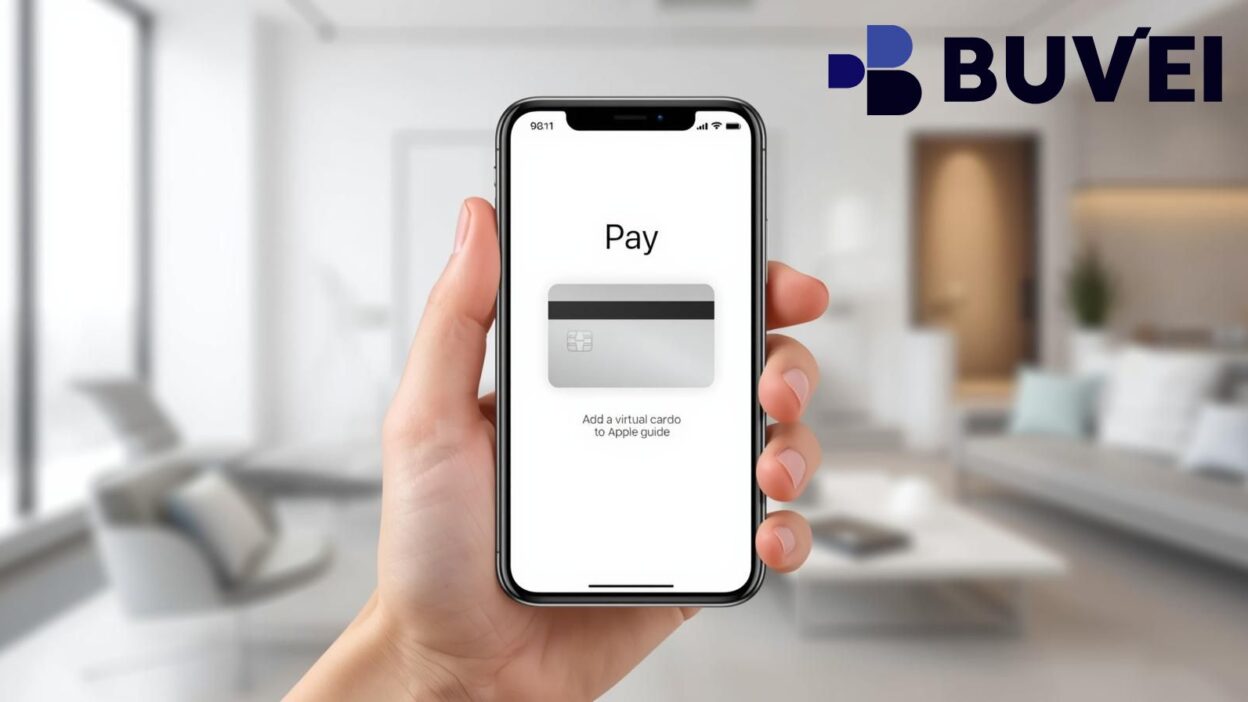
Using a virtual card with Apple Pay in 2025 is one of the easiest ways to make secure mobile payments. Whether you're shopping online, paying in stores, or traveling abroad, linking a virtual card to Apple Pay gives you speed, privacy, and convenience.
This guide walks you step-by-step through how to add a virtual card to Apple Pay, what to prepare, and what to do if your virtual card isn’t supported.
Requirements Before Adding a Virtual Card
Before you connect a virtual card to Apple Pay, make sure you have everything ready.
You’ll need:
-
A supported virtual Visa or Mastercard
-
An Apple device with Face ID or Touch ID
-
The latest iOS version
-
Region settings that allow Apple Pay
-
A card provider that supports wallet binding
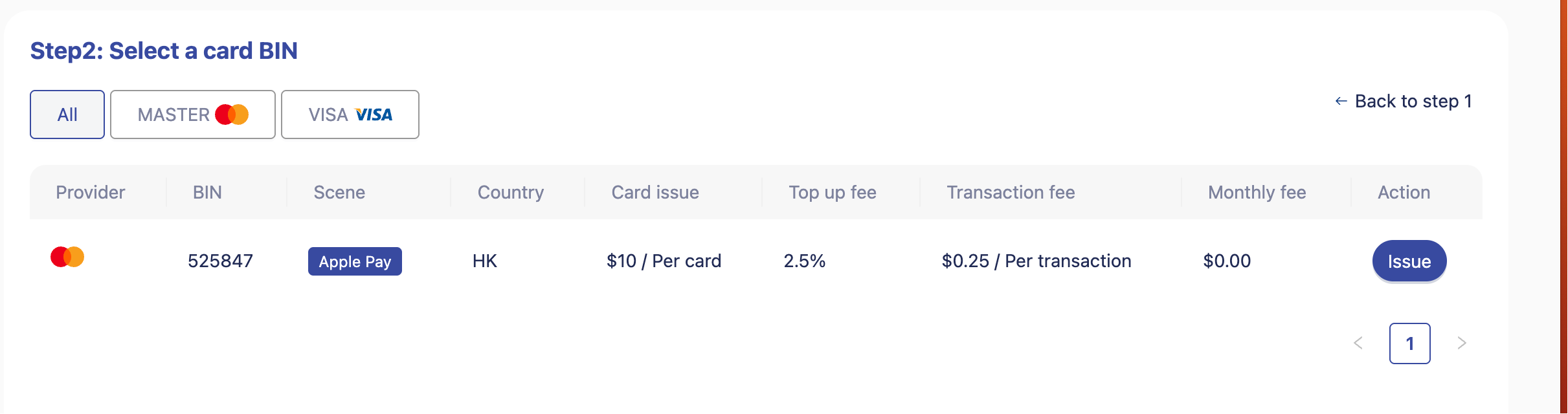
Some virtual card providers do not support mobile wallets. Therefore, choosing a card issuer with better compatibility can reduce failed bindings.
Soft mention: Buvei’s cards support multiple BIN regions, improving compatibility across platforms and increasing the success rate of adding cards to digital wallets.
How to Add a Virtual Card to Apple Pay
Adding a virtual card only takes a few minutes. Follow these steps:
Step 1: Open the Wallet App
Open the Apple Wallet app on your iPhone or iPad.
Step 2: Tap “+ Add Card”
Tap the plus icon in the upper-right corner.
Step 3: Choose “Credit or Debit Card”
Select “Credit or Debit Card” to manually enter virtual card information.
Step 4: Enter Card Details
Input:
-
Card number
-
Expiration date
-
Security code (CVV)
-
Name on card
Step 5: Verify Your Card
Verification may require:
-
SMS code
-
Email confirmation
-
App approval
Step 6: Card Added Successfully
Once verified, your virtual card appears inside the Wallet app and can be used instantly for:
-
Online payments
-
In-store NFC payments
-
In-app purchases
Soft mention: Buvei offers instant card issuance, so travelers and digital users can quickly create and bind cards to Apple Pay without lengthy KYC steps.
What to Do If Your Virtual Card Cannot Be Added
Not all virtual cards work with Apple Pay. If binding fails, try these common solutions:
Fixes to try:
-
Check if your region supports Apple Pay
-
Confirm your card provider supports mobile wallet binding
-
Update iOS to the latest version
-
Re-enter virtual card information carefully
-
Restart your iPhone
-
Ensure the card has a positive balance
If it still doesn’t work, you may need a card with stronger global compatibility.
Soft mention: Buvei uses globally distributed BINs, improving compatibility with digital wallets and major online payment environments.
Why Use a Virtual Card with Apple Pay?
Adding a virtual card to Apple Pay enhances both convenience and security.
Key benefits:
-
Enhanced security — no real banking data exposed
-
Fast USDT top-ups (TRC20/ERC20)
-
Contactless payments anywhere Apple Pay is accepted
-
Easy budgeting using adjustable card limits
-
Ideal for daily use, subscriptions, and travel
Soft mention: Buvei provides transparent fees, real-time customer support, and multi-card management—ideal for users who want control and flexibility.
Summary
Adding a virtual card to Apple Pay in 2025 is simple, secure, and highly convenient. With strong compatibility, instant issuance, and global acceptance, virtual cards have become an essential tool for modern digital payments.
If you choose the right provider, you can enjoy smooth top-ups, reliable wallet binding, and full control over your spending.